1. はじめに
The NETGEAR CM700 High Speed Cable Modem provides a reliable connection to high-speed cable Internet. Engineered with DOCSIS 3.0 technology and 32x8 channel bonding, it supports cable internet plans up to 800Mbps. This modem is designed to be compatible with major cable internet providers, offering a cost-effective alternative to renting equipment from your service provider.
2. パッケージ内容
パッケージにすべてのアイテムが含まれていることを確認します。
- High Speed Cable Modem (CM700)
- イーサネットケーブル
- クイックインストールガイド
- 電源アダプター
3.製品オーバーview
3.1フロントパネル
The front panel of the CM700 modem features several LED indicators that provide status information about your connection and device operation.

図1: 前面 view of the NETGEAR CM700 cable modem with indicator lights for power, internet, upstream, downstream, and Ethernet activity.
3.2 背面パネル
The rear panel contains all the necessary ports for connecting the modem to your internet service and other devices.

図2:背面 view of the NETGEAR CM700 cable modem, highlighting the Ethernet port, Reset button, Cable/Internet coaxial connector, Power input, and On/Off switch.
4. セットアップとインストール
4.1 互換性チェック
Before installation, verify that your internet service provider (ISP) supports the NETGEAR CM700 modem. This modem is compatible with major cable internet providers including Xfinity by Comcast, COX, and Spectrum. It is not compatible with Verizon, AT&T, CenturyLink, DSL providers, DirecTV, DISH, or any bundled voice service.
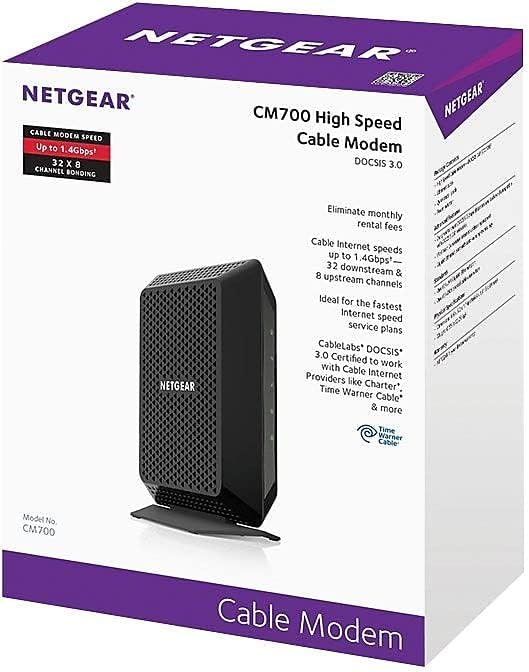
Figure 3: Compatibility logos for Xfinity, Cox, and Spectrum, confirming support for the CM700 modem.
4.2 物理的な接続
- Power Off Existing Equipment: Disconnect power from your existing modem and router (if applicable).
- 同軸ケーブルを接続します: Connect a coaxial cable from the wall outlet to the Cable/Internet port on the rear of your CM700 modem. Ensure the connection is secure.
- イーサネットケーブルを接続します: Connect one end of the provided Ethernet cable to the Ethernet port on the rear of your CM700 modem. Connect the other end to your computer or to the WAN/Internet port of your Wi-Fi router.
- 電源アダプタを接続: Plug the power adapter into the Power port on the modem and then into an electrical outlet. Press the On/Off button if present.
- 信号を待つ: Allow the modem several minutes to power on and establish a connection. The Power, Downstream, Upstream, and Internet LEDs on the front panel should turn solid green or blue, indicating a successful connection.
4.3 Activate Your Internet Service
After connecting the modem, you will need to activate your internet service. The activation process varies by ISP:
- エクスフィニティ: For Xfinity customers, fast web self-activation is often available. Open a web browser on a connected device and follow the on-screen instructions. If self-activation fails, call Xfinity customer support.
- Other ISPs (Cox, Spectrum, etc.): Contact your ISP directly to activate the modem. You will typically need to provide the modem's serial number and MAC address, which are located on a label on the modem.
5. モデムの操作
5.1 LEDインジケーター
The LED lights on the front of your CM700 modem provide important status information:
| 導かれた | 状態 | 説明 |
|---|---|---|
| 力 | 緑色 | モデムの電源がオンになっています。 |
| 下流 | ソリッドブルー | Downstream channel is locked (DOCSIS 3.0). |
| 緑色 | Downstream channel is locked (DOCSIS 2.0). | |
| 緑色に点滅 | ダウンストリーム チャネルをスキャンしています。 | |
| 上流 | ソリッドブルー | Upstream channel is locked (DOCSIS 3.0). |
| 緑色 | Upstream channel is locked (DOCSIS 2.0). | |
| 緑色に点滅 | アップストリーム チャネルをスキャンしています。 | |
| インターネット | 緑色 | モデムはオンラインでインターネットに接続されています。 |
| 緑色に点滅 | IP address is being acquired. | |
| イーサネット | 緑色 | デバイスがイーサネット ポートに接続されています。 |
| 緑色に点滅 | データが送信または受信されています。 |
6. メンテナンス
- 配置: Place the modem in a well-ventilated area to prevent overheating. Avoid placing it in enclosed spaces or near heat sources.
- クリーニング: Use a soft, dry cloth to clean the modem. Do not use liquid or aerosol cleaners.
- ファームウェアの更新: Firmware updates are typically managed by your cable internet provider. Ensure your modem is always connected to the internet to receive these updates.
- 定期的な再起動: Occasionally restarting your modem (power cycling) can help resolve minor connectivity issues and improve performance. To do this, unplug the power adapter, wait 10-15 seconds, and then plug it back in.
7。 トラブルシューティング
7.1 インターネット接続なし
- ケーブルを確認してください: Ensure all cables (coaxial, Ethernet, power) are securely connected to the modem and wall outlets.
- LEDステータスを確認します: Refer to the LED indicator table in Section 5.1. If the Downstream, Upstream, or Internet LEDs are not solid, there may be an issue with your cable signal or ISP connection.
- モデムの電源を入れ直す: Unplug the modem's power adapter, wait 10-15 seconds, and plug it back in. Allow several minutes for the modem to restart and reconnect.
- ISPにお問い合わせください: If the issue persists after checking connections and power cycling, contact your internet service provider. There might be an outage in your area or a problem with your service.
7.2 インターネット速度が遅い
- Verify Plan Speed: Confirm that your internet plan speed matches the capabilities of your modem. The CM700 supports plans up to 800Mbps.
- 直接テスト: Connect a computer directly to the modem's Ethernet port (bypassing your router) and perform a speed test. This helps determine if the modem or your router is the bottleneck.
- 干渉をチェックします。 If using a Wi-Fi router, ensure it's placed optimally and not experiencing interference from other devices.
- ISPにお問い合わせください: If speeds remain consistently low, contact your ISP to check your line quality and service provision.
8. 仕様
| 特徴 | 詳細 |
|---|---|
| モデル番号 | CM700-100NAS |
| DOCSIS規格 | DOCSIS 3.0 |
| チャネル結合 | 32x8(ダウンストリーム32、アップストリーム8) |
| 最大ダウンロード速度 | 最大 800 Mbps (ISP に依存) |
| イーサネットポート | 1 ギガビット イーサネット ポート |
| 寸法(長さx幅x高さ) | 6.6 x 5.2 x 1.7インチ |
| 重さ | 8.8オンス |
| 巻tage | 100-240ボルト |
| オペレーティングシステムの互換性 | マイクロソフトウィンドウズ |
9. 保証とサポート
For warranty information and technical support, please visit the official NETGEAR website. You can find detailed warranty terms and contact information for customer support at www.netgear.com/warranty.