導入
This manual provides comprehensive instructions for the setup, operation, maintenance, and troubleshooting of your Aluratek 10" WIFI Digital Photo Frame. Please read this manual thoroughly to ensure proper use and to maximize the features of your device.
パッケージ内容
パッケージにすべてのアイテムが揃っていることを確認します。
- Aluratek 10" WIFI Digital Photo Frame
- 電源アダプター
- クイックスタートガイド
- フレームスタンド
設定
1. 物理的なセットアップ
Place the digital photo frame on a stable, flat surface or mount it on a wall using a compatible VESA mount. Attach the included frame stand for tabletop use.
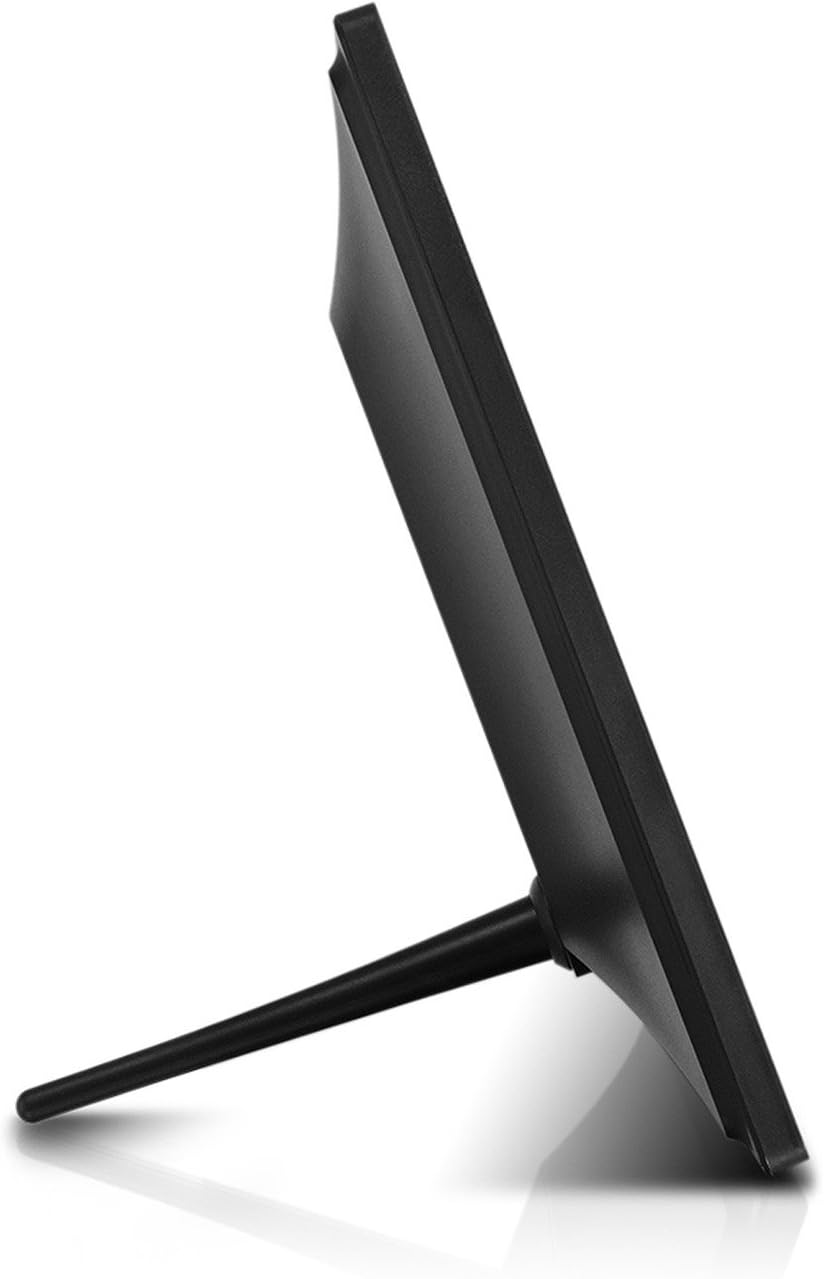
画像: サイド view of the Aluratek 10-inch digital photo frame with its stand attached, illustrating how the stand supports the frame for tabletop display.
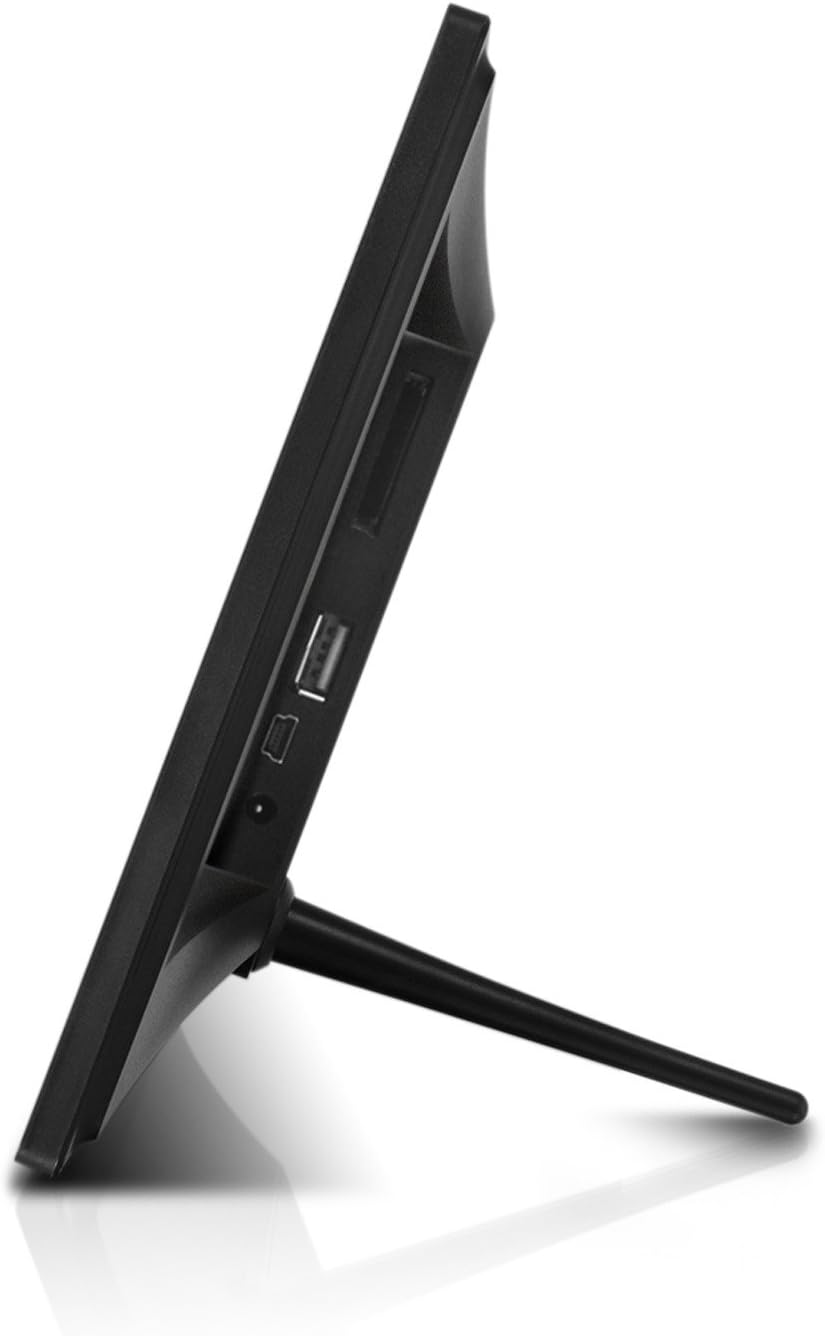
画像: サイド view of the Aluratek 10-inch digital photo frame, highlighting the various ports available for connectivity, including USB and power input.
2. 電源を入れる
Connect the power adapter to the DC IN port on the back of the frame and plug the other end into a power outlet. The frame will automatically power on.
3. Wi-Fiの初期設定
Upon first use, the frame will guide you through the Wi-Fi setup process. Select your Wi-Fi network from the list and enter the password using the on-screen keyboard. A stable Wi-Fi connection is essential for sharing photos wirelessly and accessing online features.
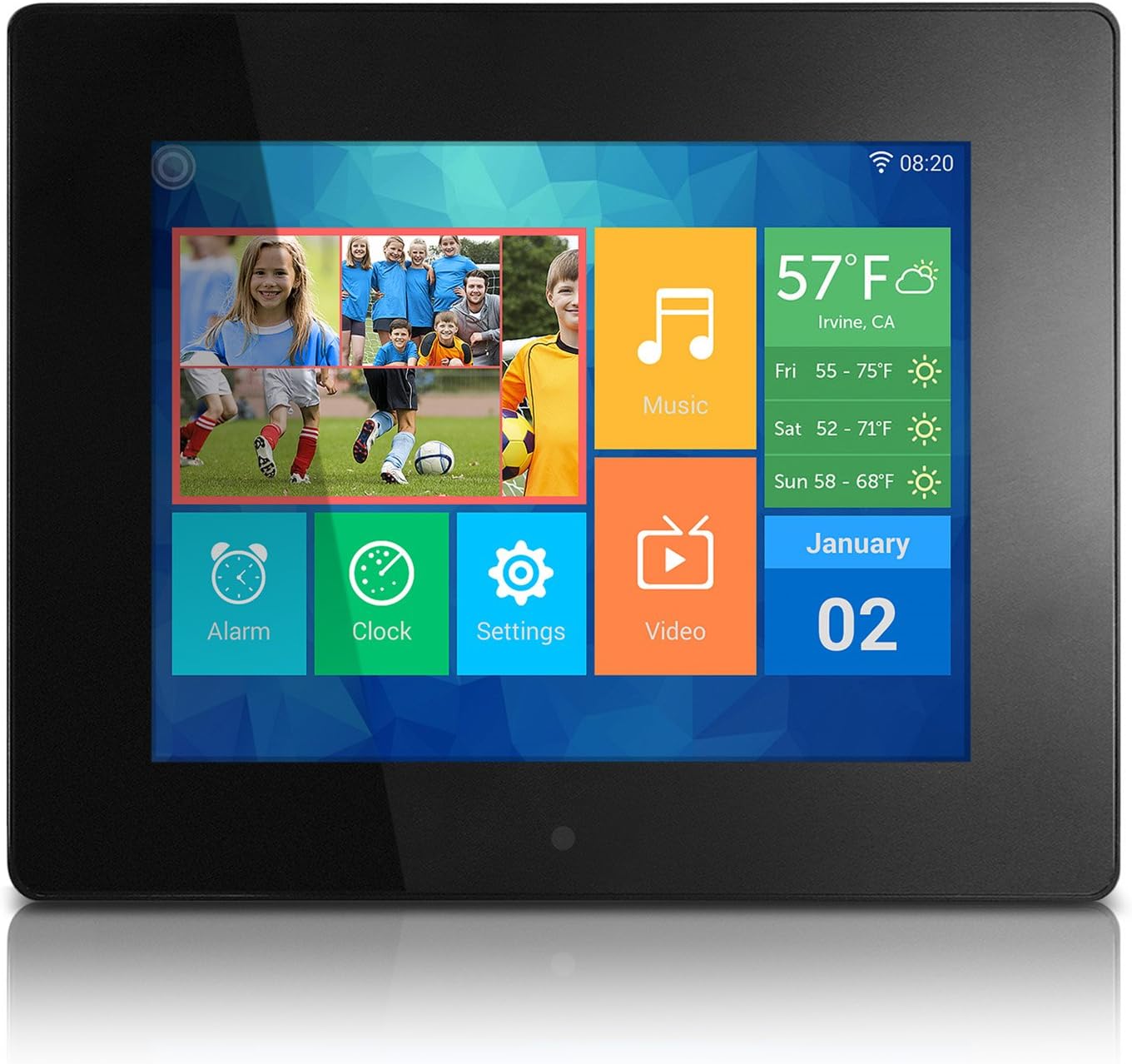
Image: The main menu interface of the Aluratek 10-inch digital photo frame, showing icons for various functions like photos, music, settings, and weather.
4。 日時の設定
After connecting to Wi-Fi, the frame should automatically synchronize the date and time. If not, navigate to 設定 > システム設定 to manually adjust these parameters.
操作手順
1. タッチスクリーンインターフェースの操作
The Aluratek digital photo frame features a responsive touchscreen for intuitive navigation. Tap icons to open applications, swipe to browse through content, and use the back arrow to return to previous screens.
2. 写真とビデオの追加
There are multiple ways to add media to your frame:
- ワイヤレス転送: Use the dedicated Photo Partner App (available for smartphones and tablets) to send photos and videos directly to your frame over Wi-Fi. You can also share from Facebook and Twitter accounts.
- USBフラッシュドライブ: Insert a USB flash drive into the USB 2.0 port on the back of the frame. The frame will detect the drive, allowing you to browse and import media.
- SD/SDHCカード: Insert an SD or SDHC memory card into the card slot on the back of the frame. Similar to USB, you can browse and import media directly from the card.

Image: A smartphone screen displaying selected photos, with an arrow indicating wireless transfer to the Aluratek digital photo frame, which shows the received images.

画像: 背面 view of the Aluratek 10-inch digital photo frame, showing an SD card partially inserted into its dedicated slot, indicating external storage capability.
3. View写真とビデオを作成する
From the main menu, tap the 写真 or ビデオ icon to access your media. You can view content stored in the internal memory, cloud storage, or connected USB/SD devices. The frame supports various playback modes, including slideshows with customizable intervals.
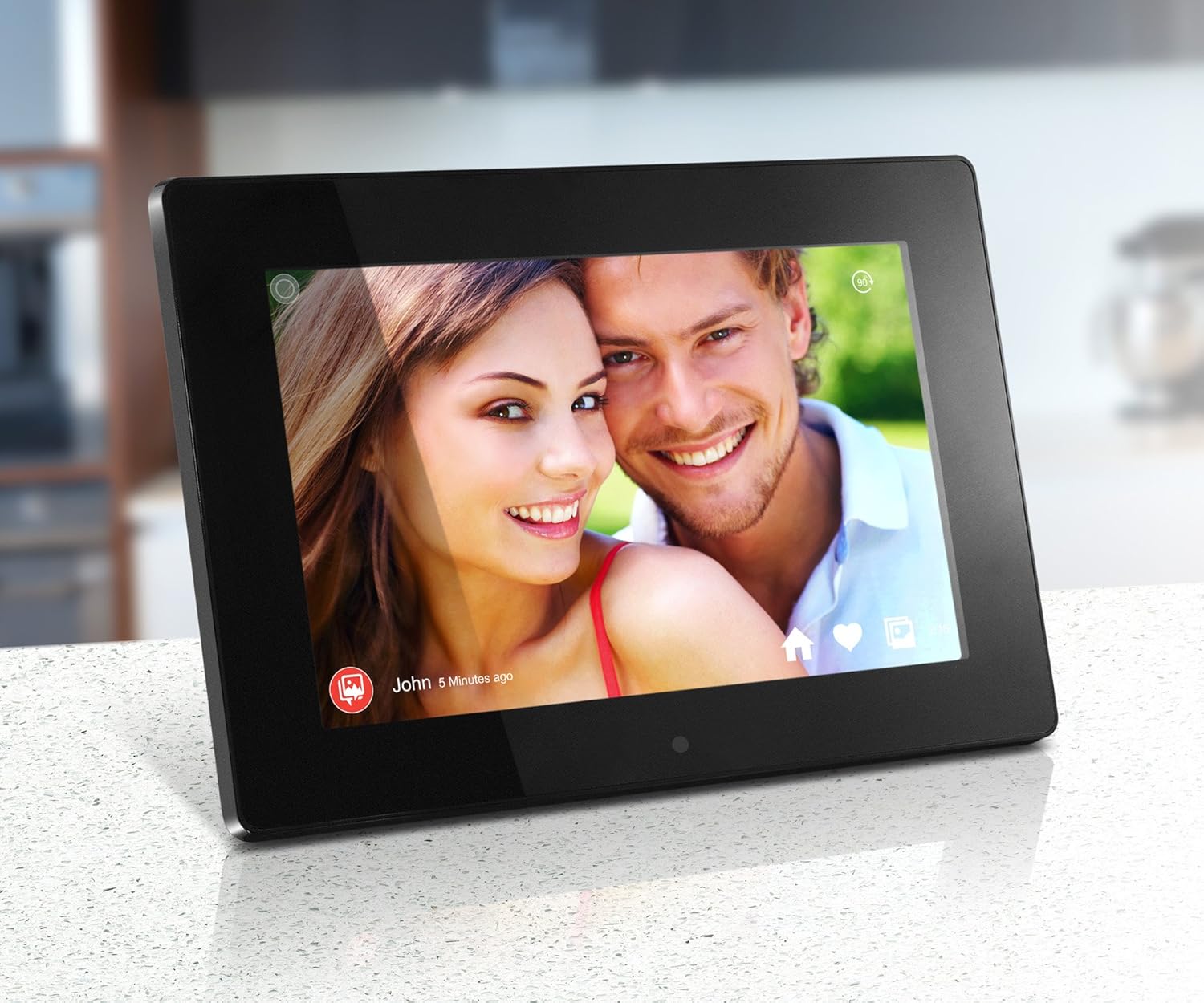
Image: The Aluratek 10-inch digital photo frame displaying a vibrant photo of a smiling couple, showcasing the IPS display quality.

Image: The Aluratek 10-inch digital photo frame displaying a warm family photo, demonstrating its use as a personal display for cherished memories.
For a visual guide on how to use the frame's features, including media playback, please refer to the official product video:
Video: An official Aluratek product video demonstrating the features and functionality of the 10" Hi-Res WIFI Digital Photo Frame, including touchscreen navigation, media playback, and app integration.
4. 組み込みアプリの使用
The frame includes several useful built-in applications:
- クロック: 現在の時刻を表示します。
- カレンダー: Provides a monthly calendar view.
- アラーム: リマインダーやモーニングコール用のアラームを設定します。
- 天気: Displays local weather information (requires internet connection).
メンテナンス
1. ディスプレイのクリーニング
タッチスクリーンディスプレイを清掃するには、柔らかく糸くずの出ない布で優しく拭いてください。頑固な汚れには、軽くamp布に水または画面に安全な洗浄液を含ませて拭いてください。研磨剤や刺激の強い化学薬品の使用は避けてください。
2. ソフトウェアの更新
Periodically check for software updates in the 設定 menu. Updates can provide new features, performance improvements, and bug fixes. Ensure the frame is connected to Wi-Fi and has sufficient battery life (if applicable) or is plugged into power during updates.
3. ストレージ管理
The frame comes with 32GB of internal memory. To manage storage, you can delete unwanted photos or videos directly from the frame's media library. For large transfers or backups, consider using a USB flash drive or SD card.
トラブルシューティング
This section addresses common issues you might encounter. For more detailed troubleshooting, please refer to the full user manual available as a PDF.
| 問題 | 解決 |
|---|---|
| フレームの電源が入りません。 | 電源アダプターがフレームと電源コンセントの両方にしっかりと接続されていることを確認してください。別のコンセントを試してください。 |
| Wi-Fiに接続できません。 | Verify your Wi-Fi password. Ensure the frame is within range of your router. Restart both the frame and your router. |
| 写真/ビデオが表示されません。 | メディアを確認する files are in a supported format. Ensure USB drives or SD cards are properly inserted and formatted. Try restarting the frame. |
| タッチスクリーンが反応しません。 | 電源アダプターを抜き差ししてフレームを再起動してください。画面にゴミや汚れがないことを確認してください。 |
仕様
- 画面: 10" Touchscreen IPS LCD Display
- 解決: 1280 x 800(WSVGA)
- 内部メモリ: 32GB
- 接続性: Wi-Fi
- 対応デバイス: Smartphone, USB Flash Drive, SD/SDHC Card
- 色: 黒
- 製品寸法: 7.36 x 10.75 x 0.99インチ
- 商品の重量: 1.25ポンド
- モデル番号: AWDMPF110F
- メーカー: アルラテック
保証とサポート
Aluratek products are designed for reliability and performance. For warranty information and technical support, please visit the official Aluratek website or refer to the warranty card included with your product. You can also download the complete user manual in PDF format for detailed instructions and support information.
公式ユーザーマニュアル(PDF): ダウンロードはこちら