1. はじめに
The CipherLab 8000 Series Pocket-Size Mobile Computer is designed for efficient data collection in various applications such as ticket dispensing, order pickup, route accounting, and inventory management. This compact device facilitates quick scanning and batch uploading of data, streamlining operations like shelf labeling. Its portable design allows for convenient carrying throughout the day, ready for immediate use.
The 8000 model operates on replaceable AAA batteries, while the 8001 model features a rechargeable battery. This manual provides instructions for the proper setup, operation, and maintenance of your CipherLab 8000 Series mobile computer.
2.製品オーバーview
The CipherLab 8000 Series mobile computer is a handheld device equipped with a linear imager scanner, a 21-key keypad, and an easy-to-read backlit LCD screen. It features an IRDA port for communication and requires a separate charge/communications cradle for data transfer and charging (for the 8001 model).

図1: フロント view of the CipherLab 8000 Series Mobile Computer, showing the screen, keypad, and scanner window.
主な特徴:
- User-friendly interface and easy-to-read backlit LCD screen.
- Infrared communications or cradle for batch data uploads.
- Lightweight and cost-effective design.
- Model 8000 operates on two AAA batteries.
- Integrated linear imager scanner for barcode reading.
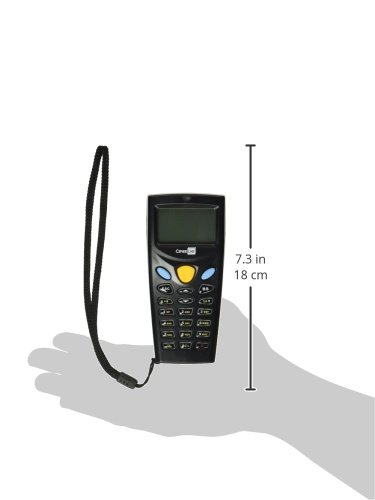
図2: CipherLab 8000 Series Mobile Computer with approximate dimensions, illustrating its pocket-size form factor.
3. セットアップ
3.1 Battery Installation (Model 8000)
- デバイスの背面にある電池ボックスのカバーを見つけます。
- カバーを開くには、スライドするかクリップを外します。
- Insert two fresh AAA batteries, ensuring correct polarity (+/-).
- 電池収納部のカバーをしっかりと取り付けてください。
3.2 Charging (Model 8001)
The CipherLab 8001 model uses a rechargeable battery. To charge the device:
- Ensure the charge/communications cradle (sold separately) is connected to a power source.
- Carefully place the mobile computer into the cradle, ensuring proper alignment with the charging contacts.
- The charging indicator on the device or cradle will illuminate to confirm charging.
3.3 ソフトウェアとドライバーのインストール
To enable data transfer and full functionality, specific software and drivers may be required for your host computer. Refer to the manufacturer's website for the latest drivers and application generator software. The charge/communications cradle is essential for connecting the device to a computer for data synchronization.
4. 操作手順
4.1 電源のオン/オフ
- To power on: Press and hold the power button (usually a dedicated key or a combination).
- To power off: Navigate to the power-off option in the menu or press and hold the power button until the device shuts down.
4.2 Basic Data Collection
The device typically operates in a batch mode for data collection.
- バーコードをスキャン: Point the scanner window at the barcode and press the scan button. The device will emit a beep upon successful scan.
- Enter Quantity: After scanning, use the numeric keypad to enter the corresponding quantity for the scanned item.
- Confirm Entry: Press an assigned confirmation key (e.g., a blue button or Enter key) to save the entry.
- Repeat for subsequent items.
4.3データのアップロード
Data collected on the mobile computer must be uploaded to a host system.
- Via Cradle: Place the mobile computer in its charge/communications cradle connected to your computer. Use the appropriate software (e.g., application generator) to initiate the data transfer.
- Via IRDA: For devices with an IRDA port, align the port with a compatible IRDA receiver on your host computer and use the software to transfer data.
4.4 データの消去
After successfully uploading data, it is recommended to clear the collected data from the device's memory to prepare for the next data collection session. This option is typically found within the device's utility or menu settings.
5. メンテナンス
5.1 クリーニング
- 柔らかく糸くずの出ない布で軽く拭き取ってください。ampデバイスの外側を水または中性洗浄液で拭いてください。
- Do not use abrasive cleaners, solvents, or spray liquids directly onto the device.
- Keep the scanner window clean and free of dust or smudges for optimal performance.
5.2バッテリーケア
- For Model 8000: Replace AAA batteries when the low battery indicator appears. Use high-quality alkaline or rechargeable AAA batteries.
- For Model 8001: Fully charge the device before first use and whenever the battery level is low. Avoid completely draining the rechargeable battery frequently to prolong its lifespan.
5.3 ストレージ
Store the device in a cool, dry place away from direct sunlight and extreme temperatures. If storing for an extended period, remove AAA batteries from Model 8000, and ensure Model 8001's rechargeable battery is partially charged (around 50%) to maintain battery health.
6。 トラブルシューティング
6.1 デバイスの電源が入らない
- バッテリーを確認してください: Ensure AAA batteries (Model 8000) are correctly inserted and have sufficient charge. For Model 8001, ensure the rechargeable battery is charged.
- バッテリーコンパートメント: 電池ケースのカバーがしっかりと閉まっていることを確認します。
6.2 スキャンの問題
- Clean Scanner Window: Ensure the scanner window is clean and free of obstructions.
- バーコードの品質: Verify the barcode is not damaged, smudged, or poorly printed.
- 距離/角度: スキャナーとバーコード間の距離と角度を調整します。
6.3 データ転送の問題
- クレードル接続: Ensure the charge/communications cradle is properly connected to both the power source and the host computer.
- Device in Cradle: Confirm the mobile computer is correctly seated in the cradle.
- ドライバー/ソフトウェア: Verify that the necessary drivers and application software are correctly installed on your computer. Refer to the CipherLab support website for updated software.
- IRDA Alignment: If using IRDA, ensure proper alignment between the device and the receiver.
6.4 バッテリー寿命が短い
- AAA Batteries (Model 8000): Use fresh, high-quality alkaline batteries. Consider rechargeable AAA batteries for frequent use.
- Rechargeable Battery (Model 8001): Ensure the battery is fully charged. Battery performance may degrade over time; consider replacing the battery if capacity significantly diminishes.
- バックライト設定: Reduce backlight brightness or set a shorter backlight timeout to conserve power.
7. 仕様
| 商品型番 | A8001RSC00001 |
| メーカー | サイファーラボ |
| パッケージ寸法 | 6.75 x 3.7 x 1.75インチ |
| 重さ | 4.34オンス |
| 対応デバイス | デスクトップ、ラップトップ |
| 電源 | Battery Powered (AAA for 8000, Li-Ion for 8001) |
| 接続技術 | Wireless (via IRDA or cradle) |
8. 保証とサポート
For warranty information, technical support, or service inquiries, please refer to the official CipherLab website or contact your authorized CipherLab reseller. Keep your purchase receipt and product serial number handy when contacting support.


