1. はじめに
This manual provides essential information for the safe and efficient use of your InFocus IF195a Touch Pad. Please read this manual thoroughly before operating the device and retain it for future reference.
2. 安全情報
- デバイスを極端な温度、直射日光、高湿度にさらさないでください。
- 落としたり、強い衝撃を与えないでください。
- Use only the charger provided or approved by InFocus.
- ご自身でデバイスの分解や修理を試みないでください。すべてのメンテナンスは資格のある専門家にご依頼ください。
- デバイスを水やその他の液体から遠ざけてください。
- デバイスとそのバッテリーは、地域の規制に従って責任を持って廃棄してください。
3.製品オーバーview
The InFocus IF195a is a 20-inch Android-powered touch pad designed for interactive use. Familiarize yourself with its components.
3.1フロント View

図1: フロント view of the InFocus IF195a Touch Pad. This image shows the large 20-inch display with the Android operating system interface, including various app icons and the Google search bar. The device features a sleek bezel around the screen.
- 画面: 20-inch multi-touch screen.
- フロントカメラ: Located at the top center bezel.
- マイクロフォン: 音声入力用に統合されています。
3.2 サイド View およびポート
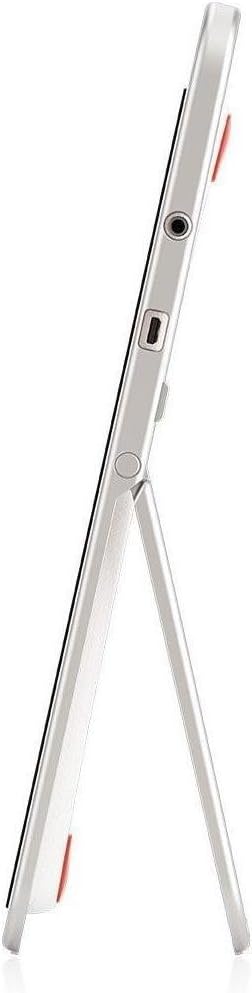
図2: 側 view of the InFocus IF195a Touch Pad. This image highlights the device's slim profile and the integrated kickstand, which allows for upright positioning. Visible ports include a headphone jack and a USB port.
- 電源ボタン: Used to turn the device on/off or put it to sleep.
- 音量ボタン: デバイスのオーディオ出力を調整します。
- ヘッドホンジャック(3.5mm): 外部オーディオ機器を接続します。
- マイクロUSBポート: 充電やデータ転送に。
- 一体型キックスタンド: Allows the device to stand upright.
4. セットアップ
4.1 開梱と初期充電
- Carefully remove the InFocus IF195a Touch Pad and all accessories from the packaging.
- Connect the provided power adapter to the Micro-USB port on the device and plug it into a power outlet. Allow the device to charge fully before first use. The charging indicator will typically show a full battery when complete.
4.2 電源のオン/オフ
- 電源を入れるには: Press and hold the Power button until the InFocus logo appears on the screen.
- 電源を切るには: 電源ボタンを長押しし、電源オフメニューが表示されるまで待ちます。「電源を切る」を選択して確定します。
- 寝る/起きる: 電源ボタンを短く押すと、デバイスがスリープ モードになるか、スリープ状態から復帰します。
4.3 初期セットアップウィザード
初めて電源を入れると、デバイスが初期セットアップのプロセスを案内します。
- 言語の選択: お好みの言語を選択してください。
- Wi-Fi接続: Select your Wi-Fi network from the list and enter the password. A stable internet connection is required for many features.
- Google アカウント: Sign in with an existing Google account or create a new one. This is necessary to download apps from the Google Play Store and access Google services.
- 日時: Set the correct date and time or allow the device to set it automatically via the network.
- プライバシー設定: Review 必要に応じてプライバシー設定を調整します。
5.デバイスの操作
5.1タッチジェスチャ
- タップ: 画面を 1 回タッチして項目を選択したり、アプリケーションを開いたりします。
- タッチアンドホールド: 項目を長押ししてコンテキスト メニューにアクセスしたり、項目をドラッグしたりします。
- スワイプ: 画面上で指をドラッグして、リストをスクロールしたり、ホーム画面を切り替えたりします。
- ピンチしてズーム: 2本の指を使って画像、地図、または web ページ。
5.2 ホーム画面とナビゲーション
- ホームボタン: メインのホーム画面に戻ります。
- 戻るボタン: 前の画面に戻るか、現在のアプリケーションを閉じます。
- 最近使ったアプリボタン: すばやく切り替えられるように、最近使用したアプリケーションのリストを表示します。
- 通知パネル: 画面の上から下にスワイプして、通知やクイック設定にアクセスします。
5.3 アプリケーションのインストールと管理
- Google Play ストア: Open the "Play Store" app to browse and download applications. A Google account is required.
- アプリのインストール: Select an app and tap "Install." Follow on-screen prompts for permissions.
- アプリのアンインストール: へ移動 設定 > アプリ, select the desired app, and tap "Uninstall." Alternatively, touch and hold an app icon on the home screen and drag it to the "Uninstall" option (if available).
5.4 外部デバイスへの接続
- ヘッドフォン: 3.5mm ヘッドフォンをヘッドフォン ジャックに差し込みます。
- USB デバイス: Connect compatible USB devices (e.g., flash drives, keyboards) to the Micro-USB port using an appropriate adapter if necessary. The device supports USB On-The-Go (OTG).
6. メンテナンス
6.1デバイスのクリーニング
- 柔らかく糸くずの出ない布を使用して、デバイスの画面と本体を拭きます。
- 頑固な汚れには、軽くamp布に水または電子機器専用のスクリーンクリーナーを含ませて拭いてください。
- 強力な化学薬品、研磨剤入りの洗剤、エアゾールスプレーの使用は避けてください。
6.2バッテリーケア
- バッテリーの寿命を延ばすには、バッテリーを頻繁に完全に放電しないようにしてください。
- 完全に充電した後は、デバイスを充電器に接続したまま長時間放置しないでください。
- Store the device in a cool, dry place if not used for a long time, with the battery charged to about 50%.
6.3ソフトウェアアップデート
最適なパフォーマンスとセキュリティを確保するために、定期的にソフトウェアのアップデートを確認してください。 設定 > タブレット情報 > システムアップデート to check for and install available updates. Ensure your device is connected to Wi-Fi and has sufficient battery charge before starting an update.
7。 トラブルシューティング
| 問題 | 考えられる解決策 |
|---|---|
| デバイスの電源が入りません。 | Ensure the device is charged. Connect the charger and wait a few minutes before attempting to power on again. If unresponsive, perform a hard reset by holding the power button for 10-15 seconds. |
| Wi-Fi接続の問題。 | 設定でWi-Fiが有効になっているか確認してください。Wi-Fiルーターを再起動してください。ネットワークを削除して再接続してください。Wi-Fi信号の範囲内にいることを確認してください。 |
| アプリケーションがクラッシュしたりフリーズしたりします。 | Close and restart the application. Clear the app's cache (設定 > アプリ > [アプリ名] > ストレージ > キャッシュを消去)。問題が解決しない場合は、アプリをアンインストールして再インストールしてください。 |
| 画面が反応しません。 | Restart the device. Ensure the screen is clean and free of debris. If the issue continues, contact support. |
| パフォーマンスが遅い。 | Close unnecessary background applications. Clear cache for frequently used apps. Check available storage (設定 > ストレージ) and free up space if needed. Consider a factory reset as a last resort. |
7.1 工場出荷時設定へのリセット
工場出荷時設定にリセットすると、デバイスからすべてのデータが消去され、元の工場出荷時設定に復元されます。 続行する前にすべての重要なデータをバックアップしてください。
- へ移動 設定 > バックアップとリセット > データの初期化.
- Read the warning message carefully.
- Tap "Reset tablet" and then "Erase everything" to confirm.
- デバイスが再起動し、リセット プロセスが開始されます。
8. 技術仕様
| 特徴 | 仕様 |
|---|---|
| モデル | IF195a |
| ブランド | フォーカス |
| 表示サイズ | 20インチ |
| 最大解像度 | 1600×900 |
| プロセッサ | ARM Cortex-A15 Quad-Core 1.8 GHz |
| RAM容量 | 2ギガバイト |
| ストレージ容量 | 16ギガバイト |
| オペレーティング·システム | Android 4.4 キットカット |
| リアカメラ解像度 | 5 MP |
| 寸法(長さ×幅×高さ) | 61.6 x 47 x 8.6 cm |
| 重さ | 3.7キロ |
| 色 | グレー |
9. 保証とサポート
For warranty information, please refer to the warranty card included with your product or visit the official InFocus website. For technical support, product registration, or service inquiries, please contact InFocus customer service through their official channels.
Please note that warranty terms may vary by region and retailer. Keep your proof of purchase for warranty claims.


