1. はじめに
The midiplus Origin 37 is a versatile USB MIDI Keyboard Controller designed for musicians and producers. It features 37 full-size sensitive keys, 8 real-time controller knobs, 9 real-time controller sliders, and essential performance controls like pitch bend and modulation wheels. This manual provides detailed instructions for setting up, operating, and maintaining your Origin 37 controller to ensure optimal performance and longevity.
2. 安全情報
- ユニットを雨、湿気、または極端な温度にさらさないでください。
- ラジエーター、暖房口、ストーブ、その他の機器(電気を含む)などの熱源の近くにユニットを置かないでください。 amp熱を発生する装置。
- メーカー指定のアタッチメント/アクセサリのみを使用してください。
- 乾いた布でのみ清掃してください。
- 通気口を塞がないでください。メーカーの指示に従って設置してください。
- 特にプラグ、コンセント、および装置から出ている部分で、電源コードが踏まれたり挟まれたりしないように保護してください。
- 雷雨のときや長期間使用しない場合は、この装置のプラグを抜いてください。
3. パッケージ内容
下記のすべてのアイテムがパッケージに含まれていることを確認してください。
- midiplus Origin 37 USB MIDI Keyboard Controller
- USBケーブル
- 取扱説明書(本書)
4.製品オーバーview
Familiarize yourself with the various components and controls of your Origin 37 controller.
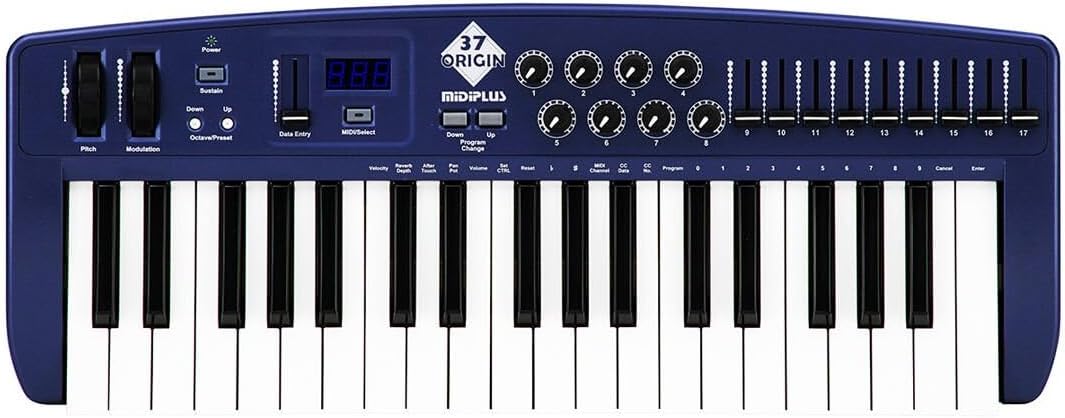
図4.1: トップダウン view of the midiplus Origin 37, showing the 37 keys, pitch and modulation wheels, control knobs, sliders, and display.
4.1 フロントパネルコントロール
- 37 Full-Size Sensitive Keys: Standard piano-style keys for playing notes.
- ピッチベンドホイール: ノートのピッチをリアルタイムで変調できます。
- モジュレーションホイール: Provides real-time control over various assignable parameters, typically vibrato or other effects.
- 電源ボタン: ユニットの電源をオンまたはオフにします。
- サステインボタン: Toggles sustain on/off, mimicking a sustain pedal.
- オクターブアップ/ダウンボタン: キーボードのオクターブ範囲を上または下に移動します。
- Data Entry Slider: Used for adjusting parameter values shown on the display.
- MIDI/Select Button: Used to enter MIDI configuration mode or select options.
- Program Up/Down Buttons: Navigates through different program or preset numbers.
- 8 Real-Time Controller Knobs (1-8): Assignable rotary encoders for controlling various MIDI parameters.
- 9 Real-Time Controller Sliders (9-17): Assignable faders for controlling various MIDI parameters.
- LEDディスプレイ: Shows current parameter values, program numbers, and other status information.

Figure 4.2: Detail of the left-side controls, including Pitch Bend, Modulation, Power, Sustain, Octave Up/Down, Data Entry slider, and LED display.
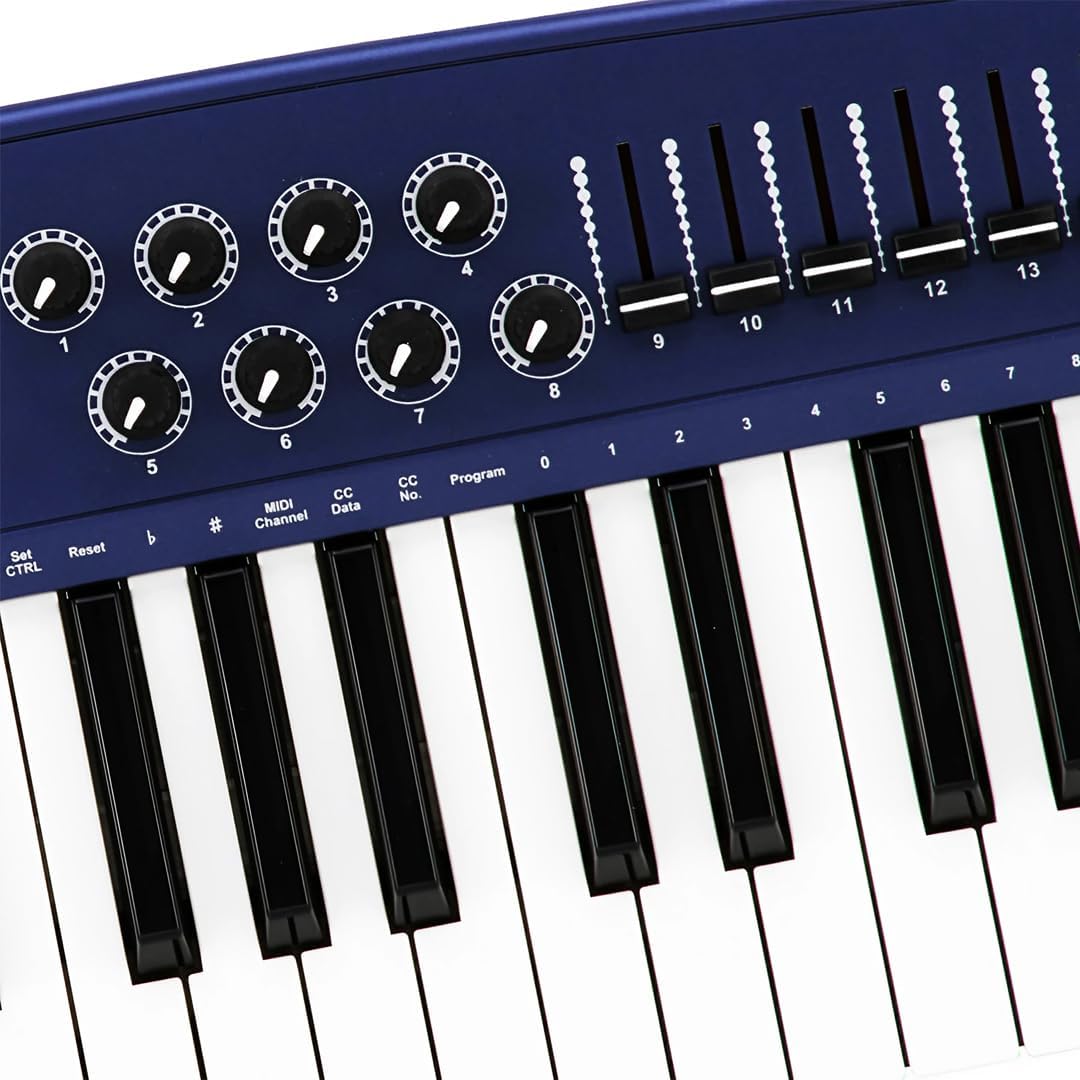
Figure 4.3: Detail of the right-side controls, showing the 8 rotary knobs and 9 faders, along with key labels for MIDI configuration.
4.2 リアパネルの接続
- Sustain Switch Input: 1/4-inch jack for connecting an external sustain pedal (not included).
- KEYBOARD MIDI OUT (5-pin DIN): Standard MIDI output for connecting to other MIDI devices.
- USBポート: For connecting to a computer (PC/Mac) for MIDI communication and power.
- 電源スイッチ: ユニットの主電源スイッチ。

Figure 4.4: Rear panel showing the Sustain Switch input, KEYBOARD MIDI OUT, USB port, and Power switch.
5. セットアップ
5.1 コンピュータへの接続(USB)
- コンピューターの電源がオンになっていることを確認します。
- Connect one end of the supplied USB cable to the USB port on the rear panel of the Origin 37.
- USB ケーブルのもう一方の端をコンピューターの使用可能な USB ポートに接続します。
- The Origin 37 is USB class-compliant and does not require special drivers for most operating systems (PC/Mac). It will be powered via the USB connection.
- Turn on the Origin 37 using the Power button on the front panel.
- Your computer should automatically recognize the device. You can then select it as a MIDI input device in your Digital Audio Workstation (DAW) or music software (e.g., Ableton Live).
5.2 Connecting to External MIDI Devices (MIDI OUT)
- Ensure both the Origin 37 and the external MIDI device are powered off.
- Connect a standard 5-pin MIDI cable from the "KEYBOARD MIDI OUT" port on the Origin 37 to the MIDI IN port of your external MIDI device (e.g., synthesizer, sound module).
- Power on the Origin 37, then power on your external MIDI device.
- Configure your external MIDI device to receive MIDI data on the appropriate MIDI channel.
5.3 サスティンペダルの接続
- Connect a standard 1/4-inch TS (mono) sustain pedal (not included) to the "Sustain Switch" input on the rear panel.
- The pedal will function as a sustain control for your MIDI notes.
6. 操作手順
6.1 基本操作
- 演奏キー: Simply press the keys to send MIDI note-on/note-off messages to your connected software or hardware. The keys are velocity-sensitive, meaning the harder you press, the higher the velocity value sent.
- ピッチベンドホイール: Move the wheel up or down to bend the pitch of currently held notes. It automatically returns to the center position.
- モジュレーションホイール: Move the wheel to apply modulation effects. This wheel typically stays in the position you leave it. The specific effect controlled depends on your software or hardware instrument's settings.
- サステインボタン: Press to toggle sustain on or off. When active, notes will continue to sound after the key is released, similar to a piano's sustain pedal.
- オクターブアップ/ダウン: Use these buttons to transpose the entire keyboard up or down in octave increments. The LED display will indicate the current octave shift.
- Program Up/Down: These buttons are used to send MIDI Program Change messages, allowing you to switch between different sounds or presets on your connected MIDI device or software.
6.2 Assigning Knobs and Sliders
The 8 knobs and 9 sliders are assignable MIDI controllers. They send MIDI Control Change (CC) messages. The specific CC number each knob/slider sends can be configured. Refer to your software's or hardware's manual for how to map these CC messages to parameters.
To assign a knob or slider:
- を押す MIDI/Select button to enter configuration mode.
- 使用 データ入力 slider or オクターブアップ/ダウン buttons to navigate through parameters on the LED display.
- Select the desired knob or slider to assign.
- Adjust the value (e.g., MIDI CC number) using the データ入力 スライダー。
- プレス MIDI/Select again to exit configuration mode and save changes.
Note: Specific assignment procedures may vary. Consult the detailed MIDI implementation chart (if available) or your DAW's manual for advanced mapping.
6.3 Data Entry and Display
The LED display provides visual feedback for various settings and parameters. The データ入力 slider is primarily used to adjust numerical values shown on this display, such as MIDI channel, CC numbers, or program numbers during configuration.
7. メンテナンス
- クリーニング: Use a soft, dry cloth to clean the surface of the unit. Do not use abrasive cleaners, waxes, or solvents.
- ストレージ: When not in use for extended periods, store the controller in a cool, dry place, away from direct sunlight and extreme temperatures.
- 取り扱い: ユニットを落としたり、強い衝撃を与えたりしないでください。
- 力: Always disconnect the USB cable when the unit is not in use or during electrical storms.
8。 トラブルシューティング
| 問題 | 考えられる原因 | 解決 |
|---|---|---|
| 電源が入らない/ユニットがオンになりません。 | USB ケーブルが接続されていないか、故障しています。 | Ensure USB cable is securely connected to both the controller and a powered USB port. Try a different USB port or cable. |
| No sound from software/hardware. | MIDI input not selected in software; incorrect MIDI channel; software instrument not loaded. | Verify the Origin 37 is selected as a MIDI input device in your DAW. Check that the MIDI channel on the controller matches the receiving channel of your software/hardware. Ensure a sound-generating instrument is loaded and active. |
| Knobs/Sliders do not control parameters. | Not mapped in software; incorrect MIDI CC assignment. | Ensure the knobs/sliders are correctly mapped to parameters within your DAW or software instrument. Check the MIDI CC numbers being sent by the controller and ensure they match the expected input. |
| Keys are not responding or sending incorrect notes. | 接続の問題、ソフトウェアの競合。 | Reconnect the USB cable. Restart your computer and DAW. Check for any conflicting MIDI drivers or software. |
| LED display flickering or unstable. | 電力変動、内部故障。 | Ensure a stable USB power source. Try connecting to a different USB port or a powered USB hub. If the issue persists, contact customer support. |
9. 仕様
| 特徴 | 詳細 |
|---|---|
| キー | 37 full-size, velocity-sensitive keys |
| コントローラー | Pitch Bend Wheel, Modulation Wheel, 8 Assignable Knobs, 9 Assignable Sliders, Sustain Button, Octave Up/Down, Program Up/Down, Data Entry Slider |
| 画面 | LEDディスプレイ |
| 接続 | USB (Type B), 5-pin MIDI OUT, 1/4" Sustain Switch Input |
| 電源 | USBバス電源 |
| 互換性 | PC, Mac (USB Class Compliant) |
| 寸法(長さ×幅×高さ) | 27.56 x 10.24 x 4.13 インチ (70 x 26 x 10.5 cm) |
| 重さ | 6.39ポンド(2.9kg) |
10. 保証とサポート
10.1 保証情報
Midiplus products are designed and manufactured to the highest quality standards. For specific warranty terms and conditions, please refer to the warranty card included with your product or visit the official Midiplus webサイトでご確認ください。保証請求の際は購入証明として領収書を保管してください。
10.2 カスタマーサポート
If you encounter any issues or have questions not covered in this manual, please contact Midiplus customer support. You can typically find contact information on the official Midiplus webサイトまたは小売店を通じてご購入いただけます。
さらに詳しいサポートが必要な場合は、 AmazonのMidiplusストア.


