1. はじめに
This manual provides detailed instructions for the installation, operation, and maintenance of your BizCardReader DuplexScan 1210 scanner. Please read this manual thoroughly before using the device to ensure proper functionality and to maximize its lifespan. This scanner is designed for efficient scanning of medical insurance cards, ID cards, and other similar documents.
2.製品オーバーview
The BizCardReader DuplexScan 1210 is a compact, USB-powered duplex card scanner. It is fully TWAIN compliant, allowing integration with various scanning applications, including electronic healthcare and medical practice management systems. The scanner features a robust card transport mechanism with four independently powered rollers, designed to handle various card thicknesses, including embossed plastic cards and laminated IDs.

Image 1: BizCardReader DuplexScan 1210 scanner and Scan-ID LITE software interface.
主な特徴:
- 両面スキャン: Scans both sides of a card in a single pass.
- USB電源: 外部電源アダプターは必要ありません。
- TWAIN Compliant: Compatible with a wide range of imaging applications.
- Quad-Powered Rollers: Ensures smooth feeding for various card types, including thick and laminated cards.
- Scan-ID LITE Software: Included for card image management and database creation (manual data entry required).
- ScanToFile 応用: Included for direct saving of scanned images to PDF, JPEG, or TIFF formats.
- オペレーティング システムの互換性: Windows 11, 10, 8, 7, XP.
3. パッケージ内容
パッケージにすべてのアイテムが揃っていることを確認します。
- BizCardReader DuplexScan 1210 Scanner
- USB接続ケーブル
- Installation CD (or download instructions for software)
- クイックスタートガイド
4. システム要件
- オペレーティング·システム: Windows 11, Windows 10, Windows 8, Windows 7, Windows XP.
- 接続性: 利用可能なUSBポート。
- 最小解像度: 300 DPI (Optical).
- 注記: This scanner is not compatible with Mac operating systems.
5. セットアップ
5.1. ドライバーとソフトウェアのインストール
- Do not connect the scanner to your computer yet.
- Insert the provided installation CD into your computer's optical drive, or navigate to the official BizCardReader support website to download the latest drivers and software (Scan-ID LITE and ScanToFile).
- Follow the on-screen instructions to install the scanner drivers and the included software applications. It is recommended to install both Scan-ID LITE and ScanToFile.
- プロンプトが表示されたらコンピューターを再起動します。
5.2. スキャナーの接続
- After the software installation is complete and your computer has restarted, connect one end of the USB cable to the USB port on the scanner.
- USB ケーブルのもう一方の端をコンピューターの使用可能な USB ポートに接続します。
- The operating system should automatically detect the scanner and complete the driver installation.
6. 操作
6.1. Scanning with Scan-ID LITE
Scan-ID LITE is designed for managing scanned card images in a searchable database.
- Open the Scan-ID LITE application from your desktop or Start Menu.
- Place the card you wish to scan into the scanner's input slot. Ensure the card is inserted correctly, typically face up with the leading edge first.
- Within the Scan-ID LITE interface, locate the 'Scan' or 'Scan Options' button. You may have options for 'Single Side' or 'Double Side' scanning. Select 'Double Side' for duplex scanning.
- The scanner will pull the card through and display the scanned images (front and back) within the application.
- 重要: Card information (e.g., name, ID number, address) must be manually keyed in to create a searchable record. Scan-ID LITE does not automatically read data from driver licenses or other cards.
- Save the record to the database.

Image 2: Scan-ID LITE interface, showing manual data entry fields and scanned card images.
6.2. Scanning with ScanToFile
ScanToFile allows you to quickly save scanned images directly to common file フォーマット。
- Open the ScanToFile 応用。
- Place the card into the scanner's input slot.
- Select your desired output format (PDF, JPEG, or TIFF) and the destination folder for the scanned images.
- Initiate the scan. The scanner will process the card, and the images will be saved automatically to the specified location.
6.3. TWAIN Compatibility
The DuplexScan 1210 is TWAIN compliant, meaning it can be used with any third-party software that supports TWAIN drivers. When using other applications, select the BizCardReader DuplexScan 1210 as your scanner source within that application's scanning interface.
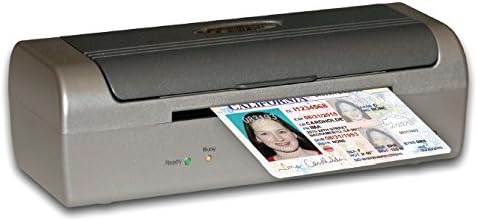
Image 3: Proper insertion of a card into the scanner.
7. メンテナンス
7.1. スキャナのクリーニング
Regular cleaning helps maintain scan quality and extends the life of your scanner.
- 電源を切る: Disconnect the scanner from the USB port before cleaning.
- 外観: 外側は、柔らかく乾いた糸くずの出ない布で拭いてください。研磨剤入りの洗剤や溶剤は使用しないでください。
- Interior (Rollers and Glass): Refer to the detailed cleaning instructions in the full software manual or on the manufacturer's website. Typically, a soft cloth lightly dampened with isopropyl alcohol can be used for rollers and optical components. Ensure all components are dry before reconnecting power.
7.2. ローラーの交換
Over time, the scanner rollers may wear out, affecting card feeding. Replacement kits are available from the manufacturer. Consult the full manual for instructions on how to replace the rollers.
8。 トラブルシューティング
一般的な問題と解決策:
- スキャナーが検出されません:
- USB ケーブルがスキャナーとコンピューターの両方にしっかりと接続されていることを確認します。
- コンピュータの別のUSBポートを試してください。
- ドライバーが正しくインストールされていることを確認してください。必要に応じて再インストールしてください。
- コンピュータを再起動します。
- Poor Scan Quality (Streaks, Blurs):
- Clean the scanner's optical components and rollers as described in the Maintenance section.
- Ensure the card is clean and free of debris.
- Check software settings for resolution and image enhancement options.
- Card Jamming or Not Feeding:
- Ensure the card is inserted straight and not at an angle.
- Clean the scanner rollers. Worn rollers may need replacement.
- Avoid scanning cards that are excessively bent, damaged, or thicker than recommended specifications.
- Scan-ID LITE Not Reading Data Automatically:
- This is expected behavior. Scan-ID LITE requires manual data entry for card information. It does not feature OCR for driver licenses or other documents.
9. 仕様
| 特徴 | 仕様 |
|---|---|
| モデル名 | DuplexScan 1210 |
| 商品型番 | SL1 型番 |
| スキャナタイプ | Document, ID Card, Insurance Card, Photo |
| 接続技術 | USB |
| 光センサー技術 | CIS |
| 解決 | 300DPI |
| シートサイズ | クレジットカード |
| 製品寸法 | 7.7 x 2.4 x 3インチ |
| アイテム重量 | 1.3ポンド |
| 最小システム要件 | ウィンドウズ7 |
| 欧州連合 | 719990001323 |

画像4:正面 view of the DuplexScan 1210 scanner.
10. 保証とサポート
10.1. 保証情報
The BizCardReader DuplexScan 1210 scanner includes a 1年間の部品および作業保証 ご購入日から1年間有効です。本保証は、通常の使用における材料および製造上の欠陥を対象とします。誤用、事故、不正な改造、または外的要因による損傷は保証の対象外となります。
10.2. カスタマーサポート
For technical assistance, troubleshooting, or warranty claims, please contact BizCardReader customer support through their official website or the contact information provided with your product documentation. Please have your product model number (DuplexScan 1210 or SLB1) and proof of purchase available when contacting support.