1. はじめに
The NETGEAR WiFi Mesh Range Extender EX6150 is designed to boost your existing home network by increasing WiFi range and speed. It delivers AC1200 dual-band WiFi, providing speeds up to 1200Mbps. This extender is compatible with any wireless router, gateway, or cable modem with WiFi, ensuring broad usability. It helps eliminate WiFi dead zones, providing reliable connectivity for up to 20 devices across an area of up to 1200 square feet, making it ideal for HD video streaming and online gaming in remote areas of your home.
2. 箱の中身
- WiFi Mesh Extender (EX6150-100NAS)
- クイックスタートガイド
3.製品オーバーview
The NETGEAR EX6150 is a compact, wall-plug design WiFi range extender. It features external antennas for improved performance and a wired Ethernet port for connecting devices directly. The device utilizes dual-band technology (2.4 GHz and 5 GHz) to provide stable and fast connections.
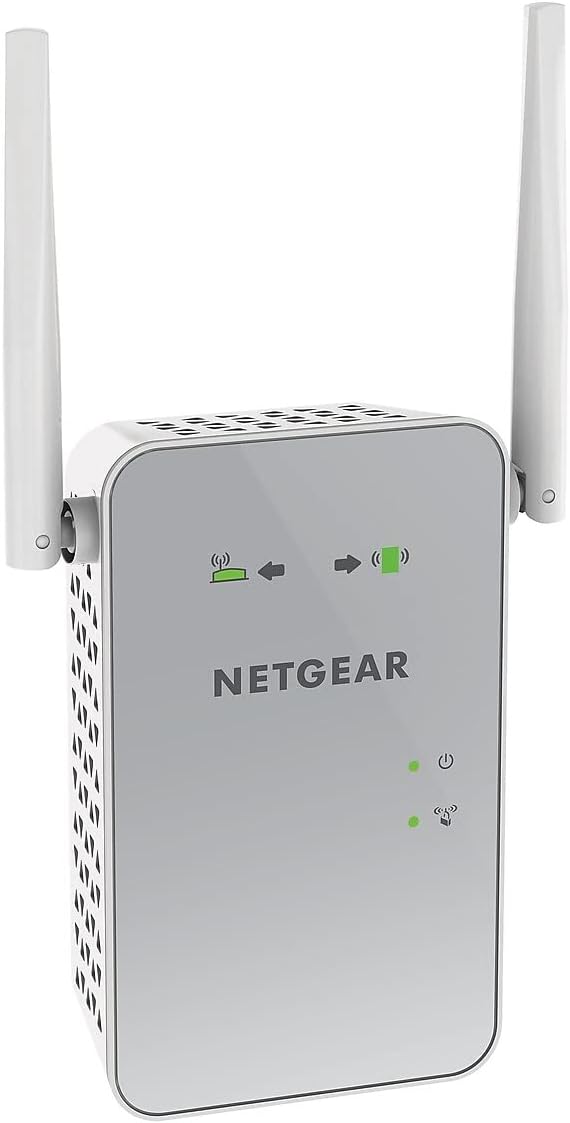
図1: フロント view of the NETGEAR EX6150 WiFi Mesh Range Extender, showing the NETGEAR logo and LED indicators.
主な特徴:
- 拡張ワイヤレスカバレッジ: Adds WiFi range coverage up to 1200 square feet.
- Connects Multiple Devices: Supports connection for up to 20 devices such as laptops, smartphones, speakers, IP cameras, tablets, and IoT devices.
- シームレススマートローミング: Uses your existing network SSID name, ensuring you remain connected as you move around your home or office.
- AC1200 WiFi速度: Provides up to 1200Mbps performance using dual-band and patented FastLane technology for demanding HD streaming and online gaming.
- ユニバーサル互換性: WiFi 対応のあらゆるワイヤレス ルーター、ゲートウェイ、ケーブル モデムで動作します。
- 有線イーサネットポート: Allows direct connection of game consoles, streaming players, or other wired devices into the one Gigabit port for maximum speed.
4. セットアップ
Setting up your NETGEAR WiFi Mesh Range Extender EX6150 is a straightforward process. Follow these steps for a quick and efficient installation.
4.1. 初期配置
For the initial setup, plug the extender into an electrical outlet in the same room as your WiFi router. This ensures a strong connection during the configuration process.

図2: 側 view of the NETGEAR EX6150, highlighting the Ethernet port and WPS button.
4.2. WPS設定(推奨)
The easiest way to set up your extender is using Wi-Fi Protected Setup (WPS).
- Plug the extender into an electrical outlet near your WiFi router.
- Wait for the Power LED on the extender to light up green.
- Press the WPS button on the extender. The WPS LED will start blinking.
- 2 分以内に、WiFi ルーターの WPS ボタンを押します。
- Wait for the WPS LED on the extender to light up solid green. This indicates a successful connection.
- If your router supports 5GHz, repeat steps 3-5 to extend the 5GHz band.
4.3. 最適な配置
After initial setup, unplug the extender and move it to a new location that is about halfway between your router and the area with a poor WiFi signal. The extender must be within range of your existing WiFi router network.
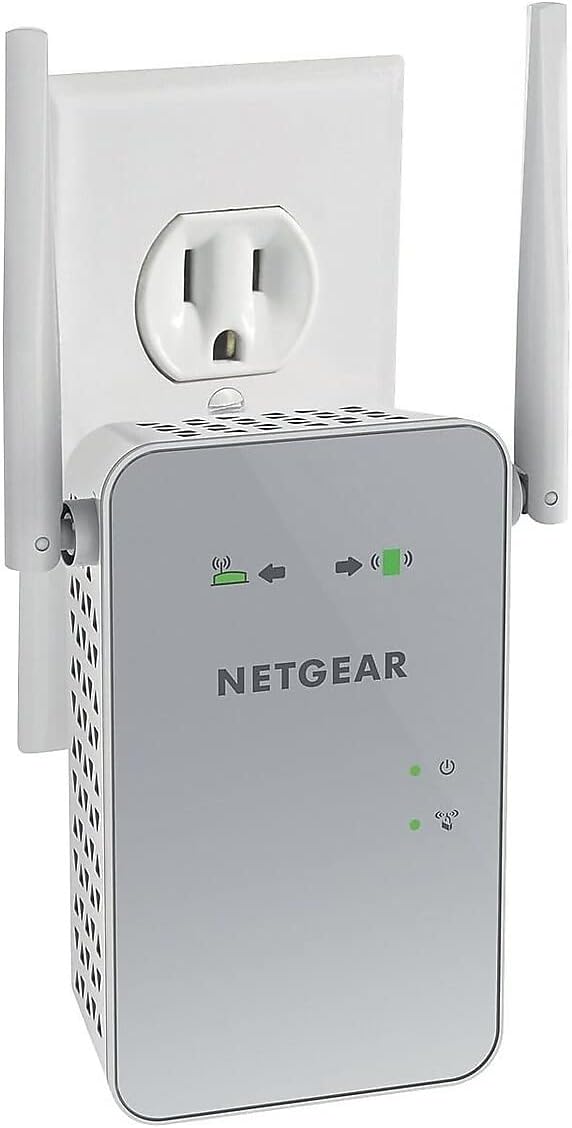
図3: The NETGEAR EX6150 plugged into a standard electrical outlet.
Plug the extender into an electrical outlet and wait for the Power LED to light up green. Use the Router Link LED on the extender to help you choose a location where the extender-to-router connection is optimal:
- Solid Green/Amber: You have found a good location for the extender.
- 赤: Plug the extender into an outlet closer to the router and try again.

図4: 戻る view of the NETGEAR EX6150, showing the product label with default login information and various ports/buttons.
4.4. デバイスの接続
Once the extender is optimally placed, connect your client devices (laptops, smartphones, etc.) to the new extended WiFi network. The extender uses your existing WiFi name and adds "_2GEXT" for the 2.4GHz band or "_5GEXT" for the 5GHz band at the end. Use the same WiFi password as your main router.
ビデオ1: This video demonstrates how to set up NETGEAR Wall Plug WiFi Range Extenders, including unboxing, initial placement, WPS setup, optimal placement, and connecting client devices. (Source: NETGEAR)
5. エクステンダーの操作
Once set up, your extender operates automatically to provide extended WiFi coverage. You can manage advanced settings through the extender's web インターフェースに移動して www.mywifiext.net で web browser while connected to the extender's network. Default login credentials are often found on the product label (see Figure 4).
高度な機能:
- WiFi Coverage Control: Adjust the range of your WiFi.
- Access Scheduling: Set schedules for your WiFi to turn on/off.
- FastLane Technology: Optimize performance for specific tasks like streaming or gaming.
- アクセスポイントモード: Use the extender as a WiFi access point by connecting it to your router via an Ethernet cable.
6. メンテナンス
To ensure optimal performance and longevity of your NETGEAR EX6150, consider the following maintenance tips:
- 過熱を防ぐため、デバイスを換気の良い場所に保管してください。
- 干渉を引き起こす可能性のある大きな金属物、コンクリートの壁、その他の電子機器の近くにエクステンダーを置かないでください。
- Periodically check for firmware updates through the extender's web interface to ensure you have the latest features and security enhancements.
- Clean the device gently with a dry, soft cloth. Do not use liquid cleaners.
7。 トラブルシューティング
If you encounter issues with your extender, try the following common troubleshooting steps:
- インターネット接続なし: Ensure the Router Link LED is solid green or amber. If red, move the extender closer to your main router.
- 低速: Verify the extender's placement. It should be roughly halfway between your router and your devices. Consider using FastLane technology if available in the settings.
- 拡張ネットワークに接続できません: Double-check the WiFi password. It should be the same as your main router's password. Ensure you are selecting the correct extended network name (e.g., MyNetworkName_2GEXT).
- 断続的な接続: Try restarting both your main router and the extender. Ensure there are no physical obstructions or sources of interference.
- 工場出荷時設定へのリセット: If all else fails, perform a factory reset by pressing and holding the reset button (usually a small pinhole) for about 7-10 seconds. You will then need to set up the extender again.
8. 仕様
| 特徴 | 詳細 |
|---|---|
| ワイヤレスタイプ | 802.11a/b/g/n/ac |
| ブランド | ネットギア |
| 商品型番 | EX6150-100NAS |
| オペレーティングシステムの互換性 | PC; Mac |
| アイテム重量 | 13.6オンス |
| 製品寸法(長さx幅x高さ) | 4.8 x 2.91 x 1.5インチ |
| 色 | 白 |
| 巻tage | 100-240ボルト |
| データ転送速度 | 1200メガビット/秒 |
| 周波数帯域クラス | デュアルバンド |
9. 保証とサポート
For warranty information, technical support, and product registration, please refer to the official NETGEAR website or the documentation included in your product packaging. You can also visit the AmazonのNETGEARストア 追加のリソース。