1. はじめに
This manual provides comprehensive instructions for the installation, operation, and maintenance of your AeroCool GT-S Black Edition Full Tower PC Case. Designed for DIY enthusiasts and heavy-duty gamers, this high-performance chassis offers extensive compatibility and features for building a robust computing system. Please read this manual thoroughly before beginning installation to ensure proper setup and optimal performance.
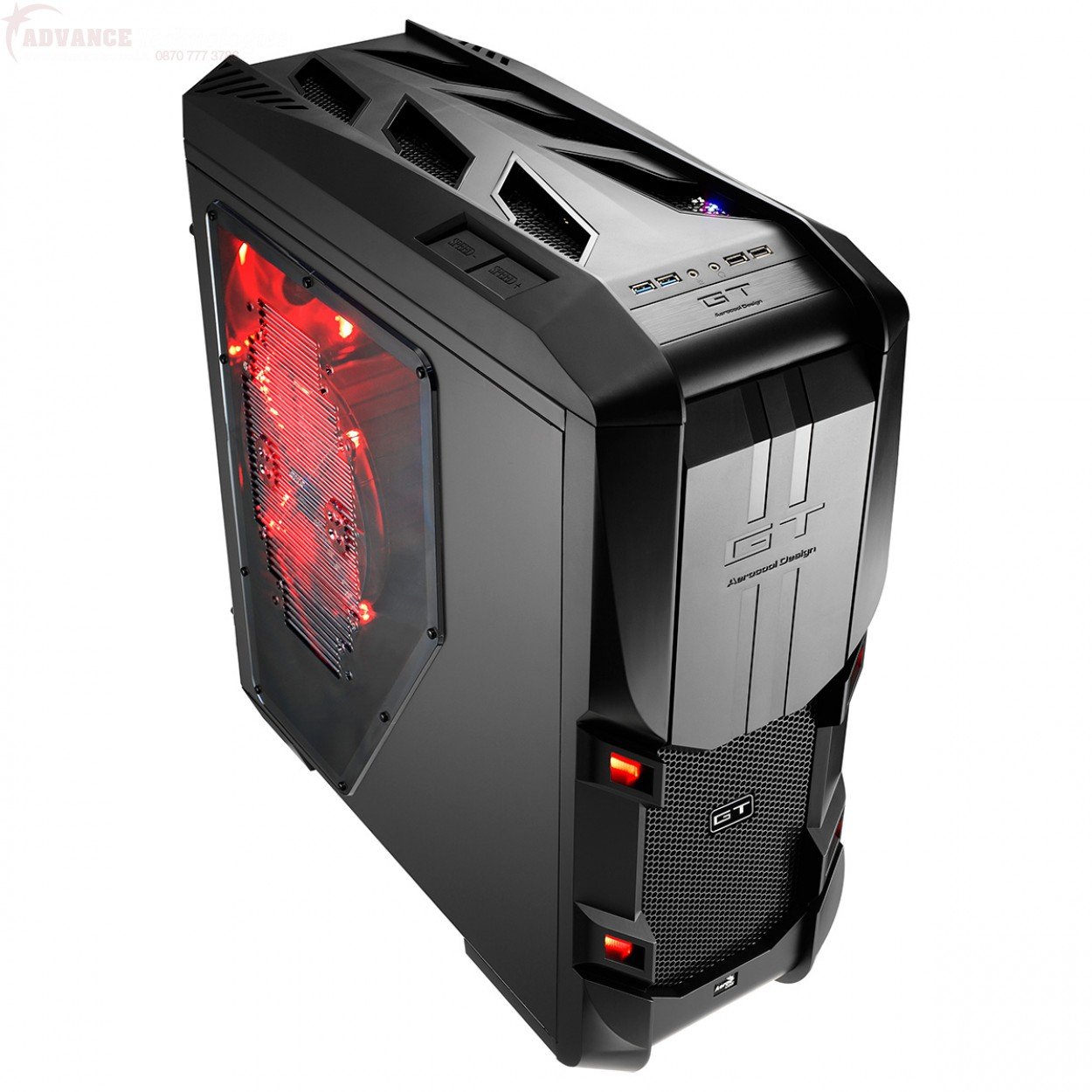
図1.1: 角度付き view of the AeroCool GT-S Black Edition Full Tower PC Case, showcasing its design and red LED fans.
2. 主な特徴
- High-Performance Design: 1.2mm SECC Full Tower case suitable for demanding builds.
- 幅広い互換性: Supports FLEX ATX, Micro ATX, ATX, Mini ATX, SSI-CED, SSI-EEB, EATX, and XL-ATX motherboards.
- ツール不要のインストール: Features 10 tool-free PCI slots, 5 x 5.25" external bays, and 7 x 3.5" HDD or 2.5" HDD/SSD internal bays with easy-to-use press and pull trays.
- 高度な冷却: Includes a 200mm Red LED front fan, a 200mm Red LED top fan, and a 140mm Red LED rear fan. Integrated fan controller supports up to 25W combined.
- ケーブル管理 Pre-drilled CPU holes for cooler mounting, cable routing management with rubber grommet protection.
- Dust Filtration: Removable and washable dust filter for the Power Supply Unit (PSU).
- フロントパネルの接続: Two USB 3.0 ports, two USB 2.0 ports, and audio/microphone jacks.
- 美的デザイン: Dual-color chassis with red accents for MB plate, HDD trays, and PCI tool-free slots. Removable magnetic front door.
3. セットアップとインストール
3.1 ケースの準備
- Unpack the AeroCool GT-S case and place it on a stable, flat surface.
- ケース背面のつまみネジを外し、パネルを後方にスライドさせて、サイドパネルを取り外します。
- Identify the accessory box inside the case, which contains screws, cable ties, and other installation hardware.
3.2マザーボードの取り付け
- Install the necessary motherboard standoffs into the motherboard tray according to your motherboard's form factor (FLEX ATX, Micro ATX, ATX, Mini ATX, SSI-CED, SSI-EEB, EATX, XL-ATX).
- ネジ穴を合わせながら、マザーボードをスタンドオフの上に慎重に置きます。
- 付属のネジでマザーボードを固定します。
- Install the CPU cooler. The case features pre-drilled CPU holes for easier mounting and removal of CPU coolers.
3.3 Drive Installation (ODD, HDD/SSD)
- 5.25" Optical Drive (ODD): The case includes 5 sets of ODD screw-less kits. Remove the desired front bay cover, slide the ODD into the bay, and secure it using the tool-free mechanism.
- 3.5" HDD / 2.5" HDD/SSD: The case features 7 sets of easy-to-use press and pull HDD trays. Mount your 3.5" HDD or 2.5" HDD/SSD onto a tray and slide the tray into an available drive bay until it clicks into place.
3.4 PCIカードのインストール
- Remove the tool-free PCI slot covers for the desired expansion slots. The case provides up to 10 tool-free PCI slots.
- Insert your PCI expansion card (e.g., graphics card, network card) into the motherboard slot.
- Secure the card using the tool-free mechanism.
- 注記: Ensure the expansion card's bracket aligns correctly with the case's PCI slot opening. In some instances, minor adjustments to the card's bracket may be necessary for optimal alignment with the case's tool-free mechanism. Always exercise caution to avoid damaging the card or case.

図3.1:内部 view of the AeroCool GT-S case, illustrating space for components and cable routing options.
3.5 Cable Management and Front Panel Connections
- Route power supply cables and data cables through the designated cable routing holes behind the motherboard tray. Utilize the rubber grommets for protection.
- Connect the front panel cables (USB 3.0, USB 2.0, HD Audio, Power, Reset, LED indicators) to their respective headers on your motherboard.
- Connect the included fans to the motherboard fan headers or the integrated fan controller.
4. 操作手順
4.1電源オン
Once all components are installed and connected, replace the side panels. Connect your power supply to a wall outlet and press the power button located on the top front panel of the case.
4.2 Fan Controller Operation
The AeroCool GT-S case includes an integrated fan controller. This controller allows you to adjust the speed of connected fans to balance cooling performance and noise levels. Refer to the fan controller's specific markings or buttons on the top panel to cycle through different speed settings. The controller supports a combined maximum of 25W for connected fans.
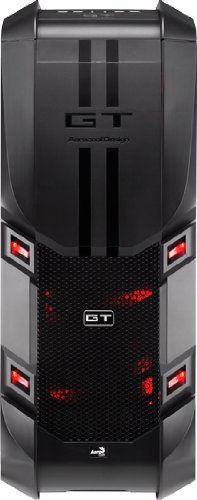
図4.1: 前面 view of the AeroCool GT-S case, highlighting the front panel I/O and mesh intake.
5. メンテナンス
5.1 ダストフィルターのクリーニング
The case is equipped with a removable and washable dust filter for the Power Supply Unit (PSU). Regularly check and clean this filter to maintain optimal airflow and prevent dust buildup inside your system. To clean, gently slide out the filter, rinse it with water, allow it to dry completely, and then reinsert it.
5.2一般的なクリーニング
Use a soft, dry cloth to wipe down the exterior of the case. For stubborn smudges, a slightly damp cloth can be used, followed by a dry cloth. Avoid using harsh chemicals or abrasive cleaners, as these can damage the finish.
6。 トラブルシューティング
- システムが電源オンにならない:
- 電源が壁のコンセントに正しく接続され、オンになっていることを確認してください。
- PSU からのすべての電源ケーブルがマザーボードとコンポーネントに正しく接続されていることを確認します。
- Check that the front panel power button cable is correctly connected to the motherboard's power header.
- Fans Not Spinning / LEDs Not Lighting Up:
- Confirm fan power cables are securely connected to the motherboard or the fan controller.
- If using the fan controller, ensure it is powered and set to an appropriate speed.
- PCI Card Fitment Issues:
- If an expansion card does not fit perfectly into the PCI slot opening, carefully inspect the card's metal bracket. Minor manufacturing variations in some expansion card brackets may require gentle adjustment or filing of the bracket for optimal alignment with the case's tool-free mechanism. Always exercise caution to avoid damaging the card or case.
- USBポートが機能しない:
- Ensure the USB 3.0 and USB 2.0 front panel cables are correctly connected to their respective headers on the motherboard.
7. 仕様
| 特徴 | 詳細 |
|---|---|
| モデル番号 | GT-S Black Edition |
| ケースタイプ | フルタワー |
| 材料 | 合金鋼、プラスチック |
| 色 | ブラック / レッド |
| マザーボードの互換性 | FLEX ATX, Micro ATX, ATX, Mini ATX, SSI-CED, SSI-EEB, EATX, XL-ATX |
| 寸法(長さx幅x高さ) | 32.5 x 64.3 x 70.6 cm(12.8 x 25.3 x 27.8インチ) |
| アイテム重量 | 16 kg (35.27 ポンド) |
| External 5.25" Bays | 5 (Tool-free) |
| Internal 3.5"/2.5" Drive Bays | 7 (Tool-free, press and pull trays) |
| PCI拡張スロット | 10 (Tool-free) |
| フロントI / Oポート | 2x USB 3.0, 2x USB 2.0, HD Audio (Mic & Headphone) |
| 付属ファン | 1x 200mm Red LED Front, 1x 200mm Red LED Top, 1x 140mm Red LED Rear |
| ファンコントローラ | Integrated, supports up to 25W combined |
| PSUダストフィルター | 取り外し可能で洗濯可能 |
| 最大VGAカード長 | 333mm |
| CPUクーラーの最大高さ | 185mm |
8. 保証とサポート
8.1製品保証
The AeroCool GT-S Black Edition Full Tower PC Case comes with a 1年間保証 ご購入日から1年間有効です。本保証は、通常の使用における製造上の欠陥および材料の不具合を対象としています。保証請求の際は、購入証明書を保管してください。
8.2 カスタマーサポート
For technical assistance, troubleshooting, or warranty inquiries, please contact AeroCool customer support through their official webサイトまたは認定サービス センターにお問い合わせください。


