1. はじめに
The Roland A-49 is a lightweight, slim-line MIDI keyboard controller designed for musicians seeking a simple, easy-to-use device with professional-quality playing feel. It features a premium-grade, full-size keyboard, making it suitable for both home studios and live performances. The A-49 is available in black and pearl white finishes.

Image: The Roland A-49 MIDI Keyboard Controller integrated into a home studio environment, showcasing its compact design alongside other music production equipment.
2. 主な特徴
- 49 フルサイズキー: Equipped with velocity sensitivity for expressive performance.
- 軽量でコンパクトなデザイン: Easy to transport and fits into various setups.
- 直感的なコントロール: Features two assignable knobs, two assignable switches, and a D-BEAM controller for dynamic sound manipulation.
- USBバスパワー: Eliminates the need for an external AC adapter, simplifying setup.
- Stable Keyboard Action: Designed to prevent key twisting and lateral movement for consistent playability.

Image: A visual representation of the Roland A-49's compact size, shown next to a human silhouette to provide a sense of scale and portability.
3.セットアップガイド
3.1コンピューターへの接続
- ドライバーのインストール: Before connecting, download and install the latest drivers for your operating system (Windows/Mac) from the official Roland webサイト。
- USBケーブルを接続します: Connect the USB Type B port on the A-49 to a USB port on your computer using a standard USB cable. The A-49 is USB bus powered, so no external power adapter is typically required.
- 電源オン: The device should power on automatically once connected to your computer.
- ソフトウェア認識: Open your Digital Audio Workstation (DAW) or music production software. The A-49 should be recognized as a MIDI input device. Configure your software to use the A-49 as its MIDI controller.
3.2 Connecting External Pedals
The A-49 features input jacks for external pedals, enhancing your performance capabilities:
- Dampペダル: Connect a sustain pedal to the DAMPER jack for piano-like sustain.
- Foot Switches (FC1, FC2): Connect optional foot switches to the FC1 and FC2 jacks for assignable control over various functions within your software.

Image: The rear panel of the Roland A-49, displaying the USB Type B port for computer connection, MIDI OUT, and input jacks for Damper, FC1, and FC2 pedals.
4. 操作手順
4.1 基本的な再生
Once connected and recognized by your music software, you can begin playing virtual instruments or controlling MIDI-compatible hardware. The 49 velocity-sensitive keys respond to your playing dynamics.
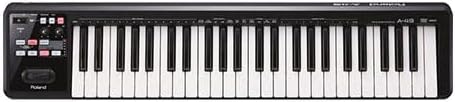
画像: 明確なトップダウン view of the Roland A-49 MIDI Keyboard Controller, highlighting its 49 full-size keys and control panel.
4.2 コントロールノブとスイッチ
The A-49 features two assignable control knobs (C1, C2) and two assignable switches (S1, S2). These can be mapped to various parameters within your DAW or software synthesizers, such as filter cutoff, resonance, effects send, or modulation depth. Refer to your software's manual for MIDI mapping instructions.

Image: A close-up of a hand turning one of the assignable control knobs on the Roland A-49, demonstrating interaction with the controller's features.
4.3 D-BEAM Controller
The D-BEAM controller allows for expressive control by waving your hand over an infrared sensor. It can be assigned to control pitch, volume, or other parameters, offering a unique performance element.
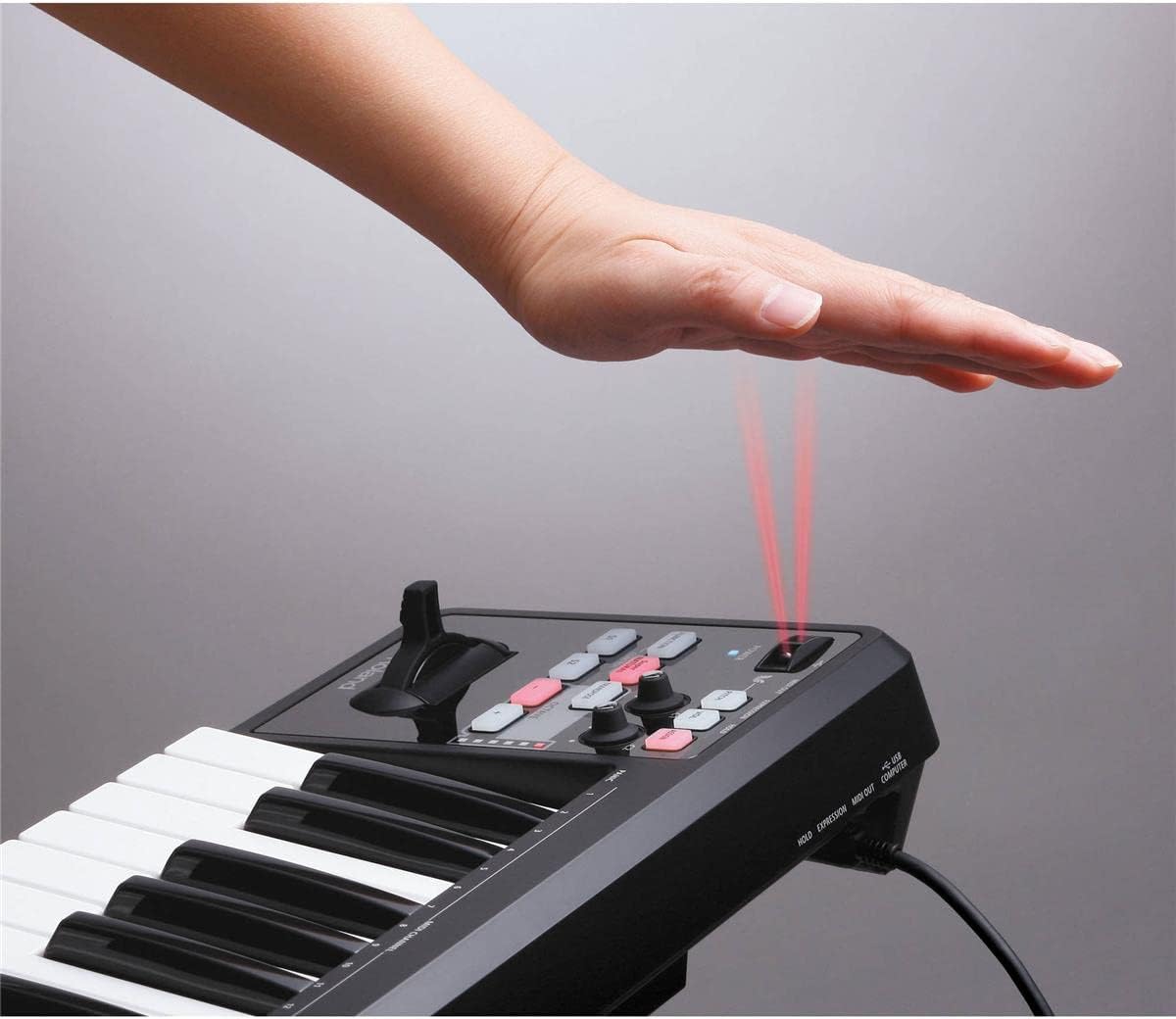
Image: A hand hovering over the D-BEAM controller on the Roland A-49, illustrating the gesture-based control mechanism.
4.4 オクターブとトランスポーズボタン
Use the OCTAVE +/- buttons to shift the keyboard's pitch range up or down in octave increments. The TRANSPOSE button allows for semitone adjustments. LED indicators provide visual feedback on the current octave setting.
4.5 Pitch Bend/Modulation Lever
The combined pitch bend and modulation lever provides dynamic control over pitch and modulation effects, allowing for expressive bends and vibrato.
5. ソフトウェアの互換性
The Roland A-49 is compatible with a wide range of music production software on both Windows and Mac operating systems. It is designed to integrate seamlessly with most Digital Audio Workstations (DAWs) and software synthesizers that support USB MIDI keyboards.
5.1 バンドルソフトウェア
The A-49 may come bundled with Cakewalk SONAR LE software, allowing users to start creating music immediately upon setup.
5.2 iPad Connectivity
For mobile music production, the A-49 can be connected to an Apple iPad using an Apple iPad Camera Connection Kit. This enables control over various music applications on your iPad.
Video: An official product video from Roland showcasing the features and connectivity of the A-49 MIDI Keyboard Controller, including its compatibility with various software and devices.
6. メンテナンス
- クリーニング: コントローラーの表面を拭くときは、柔らかく乾いた布を使用してください。頑固な汚れには、軽く湿らせた布で拭いてください。amp 中性洗剤を含ませた布で拭き、その後乾いた布で拭いてください。研磨剤入りの洗剤や溶剤の使用は避けてください。
- ストレージ: Store the A-49 in a cool, dry place away from direct sunlight, extreme temperatures, and high humidity. If storing for extended periods, cover it to protect from dust.
- 取り扱い: Handle the controller with care to prevent damage to keys, knobs, and ports. Avoid dropping or placing heavy objects on it.
7。 トラブルシューティング
7.1 デバイスが認識されない
- ドライバーのインストール: Ensure that the correct drivers for your operating system are installed from the Roland webサイト。
- USB接続: Try connecting to a different USB port or using a different USB cable. Ensure the cable is securely connected.
- コンピューターを再起動: Sometimes a computer restart after driver installation can resolve recognition issues.
- Advanced MIDI Control (Mac Users): If experiencing issues on Mac, some users have reported success by turning off "advanced MIDI control" by hitting Function + ADV + the "minus" button on the controller.
7.2 コントロールが反応しない
- MIDIマッピング: Verify that the controls (knobs, switches, D-BEAM) are correctly MIDI-mapped within your DAW or software instrument.
- Octave/Transpose Settings: Check the octave and transpose settings to ensure you are playing in the desired range.
8. 仕様
| ブランド | ローランド |
| モデル名 | A-49-BK |
| キーの数 | 49 |
| キータイプ | Full-size, Velocity-sensitive |
| 接続技術 | USB |
| コネクタタイプ | 1/4-inch phone type (for pedals), MIDI OUT, USB Type B |
| ハードウェアインターフェイス | USB |
| 電源 | USB Bus Powered (optional AC adapter available) |
| 対応デバイス | PC, Mac, iPad (via Apple iPad Camera Connection Kit) |
| オペレーティング·システム | Windows、macOS |
| アイテム重量 | 6ポンド |
| 製品寸法 | 33 x 3 x 7インチ |
9. 保証とサポート
保証の詳細については、製品に付属の保証書を参照するか、Rolandの公式ウェブサイトをご覧ください。 webサイト。Roland は、製品登録、ソフトウェアのアップデート、技術サポートに関するカスタマー サポートとリソースを提供しています。
オンラインリソース:
- 製品登録
- ドライバーとソフトウェアのダウンロード
- FAQとナレッジベース
- サポートに問い合わせる
Always ensure you are using the latest drivers and firmware for optimal performance and compatibility.