1. はじめに
This manual provides comprehensive instructions for the Turtle Beach Call of Duty: MW3 Ear Force Foxtrot Limited Edition Universal Amplified Stereo Gaming Headset. This headset is designed to enhance your gaming audio experience across multiple platforms, including Xbox 360, PlayStation 3, PC, and Mac. It features amplified stereo sound, an in-line amplifier for audio control, and a microphone for clear communication.

Image 1.1: The Turtle Beach Ear Force Foxtrot MW3 Gaming Headset, showing the over-ear design and flexible microphone.
2. セットアップ手順
Follow these steps to connect your Ear Force Foxtrot headset to your gaming system.
2.1 コンポーネント
次のコンポーネントがあることを確認してください。
- Turtle Beach Ear Force Foxtrot Headset with attached in-line amplifier and cables.
- USB port for power (available on consoles and PCs).
- Audio output (RCA stereo or 3.5mm headphone jack, depending on platform).
2.2 Connecting to Xbox 360
- Connect the green 3.5mm plug from the headset to the green audio output on your TV or audio receiver. If your TV does not have a 3.5mm output, use the included RCA splitter cable to connect to the red and white RCA audio outputs.
- Connect the USB plug from the headset to an available USB port on your Xbox 360 console for power.
- Connect the 2.5mm chat cable from the in-line amplifier to the controller's chat port.
- Power on your Xbox 360 and adjust audio settings as needed.
2.3 PlayStation 3への接続
- Connect the green 3.5mm plug from the headset to the green audio output on your TV or audio receiver. If your TV does not have a 3.5mm output, use the included RCA splitter cable to connect to the red and white RCA audio outputs.
- Connect the USB plug from the headset to an available USB port on your PlayStation 3 console for power and chat audio.
- PS3で、 設定 > アクセサリー設定 > オーディオデバイスの設定.
- 選択 "USB Headset" or similar for both Input and Output Devices.
- Adjust the microphone level as necessary.
2.4 PC/Macへの接続
- Connect the USB plug from the headset to an available USB port on your PC or Mac for power and microphone functionality.
- Connect the green 3.5mm plug from the headset to your computer's headphone output jack.
- Adjust your computer's sound settings to select the headset as the default playback and recording device.
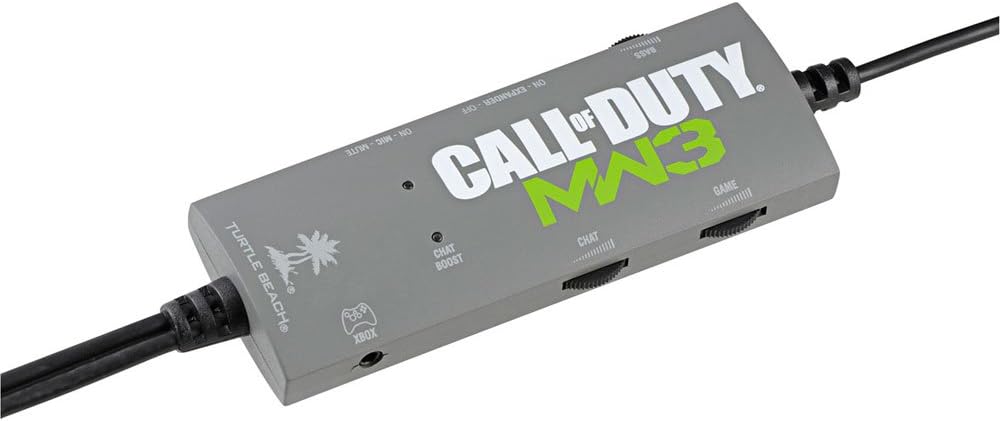
Image 2.1: The in-line amplifier for the Ear Force Foxtrot headset, featuring controls for game volume, chat volume, bass boost, and stereo expander.
3. 操作手順
The Ear Force Foxtrot headset features an in-line amplifier for convenient control over your audio experience.
3.1 In-line Amplifierコントロール
- ゲーム音量ダイヤル: ゲーム全体のオーディオ レベルを調整します。
- チャット音量ダイヤル: 着信チャットオーディオの音量を制御します。
- ベースブーストスイッチ: Activates or deactivates the variable bass boost feature, adding depth to game audio.
- Stereo Expander Switch: Widens the sound field for enhanced directional perception.
- マイクミュートスイッチ: マイクのオンとオフを切り替えます。
- Microphone Monitor: Allows you to hear your own voice in the headset, preventing shouting. This feature is always active when the microphone is unmuted.
- Chat Boost: Automatically increases chat volume when game audio becomes louder, ensuring clear communication during intense gameplay.
3.2 最適なサウンドの調整
Experiment with the Bass Boost and Stereo Expander settings to find your preferred audio profile for different games. Adjust game and chat volumes to balance them for clear communication without overpowering game sounds.
4. メンテナンス
適切な手入れをするとヘッドセットの寿命が延びます。
- クリーニング: Use a soft, dry cloth to clean the headset and in-line amp液体クリーナーや研磨剤は使用しないでください。
- ストレージ: Store the headset in a cool, dry place away from direct sunlight and extreme temperatures. Avoid wrapping the cable tightly to prevent damage.
- ケーブルのお手入れ: The headset features a long, wired cable. Handle it carefully to prevent tangling, kinking, or fraying, which can lead to internal wire damage.
- Earcup Pads: Periodically check earcup pads for wear and tear. Replacement pads may be available from the manufacturer.

画像4.1: クローズアップ view of the headset's headband and earcups, highlighting the cushioning and construction.
5。 トラブルシューティング
ヘッドセットで問題が発生した場合は、次の一般的な問題と解決策を参照してください。
5.1 No Game Audio
- Ensure all audio connections (3.5mm or RCA) are securely plugged into the correct ports on your TV/receiver/PC.
- Verify the USB cable is connected to a powered USB port.
- Check the Game Volume dial on the in-line amplifier and ensure it is not set to minimum.
- Confirm your console/PC audio output settings are correctly configured to send game audio to the headset.
5.2 Microphone Not Working / Others Cannot Hear Me
- Ensure the Microphone Mute switch on the in-line amplifier is in the "unmuted" position.
- For Xbox 360, ensure the 2.5mm chat cable is securely connected to your controller.
- For PS3/PC/Mac, verify that the headset is selected as the default recording/input device in your system's audio settings.
- Adjust microphone levels in your console/PC settings.
- Check for any physical damage to the microphone boom.
5.3 Low Volume Hum or Static
- すべての接続が安全であり、干渉がないことを確認してください。
- Try connecting the USB power cable to a different USB port.
- If using the Stereo Expander, note that a slight hum may be more noticeable in quiet environments. This is normal for some amplified headsets.
- Reduce the overall game volume if the hum is only present at very high volumes.
5.4 Headset Discomfort
- 快適にフィットするようにヘッドバンドを調整します。
- Take breaks during extended gaming sessions.
- イヤーカップが耳の上に正しく取り付けられていることを確認します。
6. 仕様
| モデル名 | Ear Force Foxtrot (TBS-4130-04) |
| 接続技術 | 有線 |
| 対応デバイス | Xbox 360, PlayStation 3, PC, Mac |
| コントロールタイプ | Volume Control (In-line amplifier) |
| 特集 | Microphone Included, Amplified Audio, Variable Bass Boost, Stereo Expander, Microphone Monitor, Chat Boost |
| 耳の位置 | オーバーイヤー |
| ヘッドフォンジャック | USB (for power/chat) and 3.5mm (for game audio) |
| 製品寸法 | 8.46 x 8.66 x 3.86インチ |
| アイテム重量 | 0.01オンス(約0.28グラム) |
| メーカー | タートルビーチ |
| 欧州連合 | 731855041305 |
7. 保証とサポート
For detailed warranty information and technical support, please visit the official Turtle Beach web購入サイトをご覧いただくか、カスタマーサービスに直接お問い合わせください。保証請求のために購入証明書を保管してください。
公式タートルビーチ Webサイト: www.turtlebeach.com


