
導入
This user guide provides essential information for the HP OfficeJet Pro 8125e printer. It covers initial setup, connecting to networks, performing print, scan, and copy functions, routine maintenance, and troubleshooting common issues. Follow these instructions to ensure optimal performance and longevity of your device.
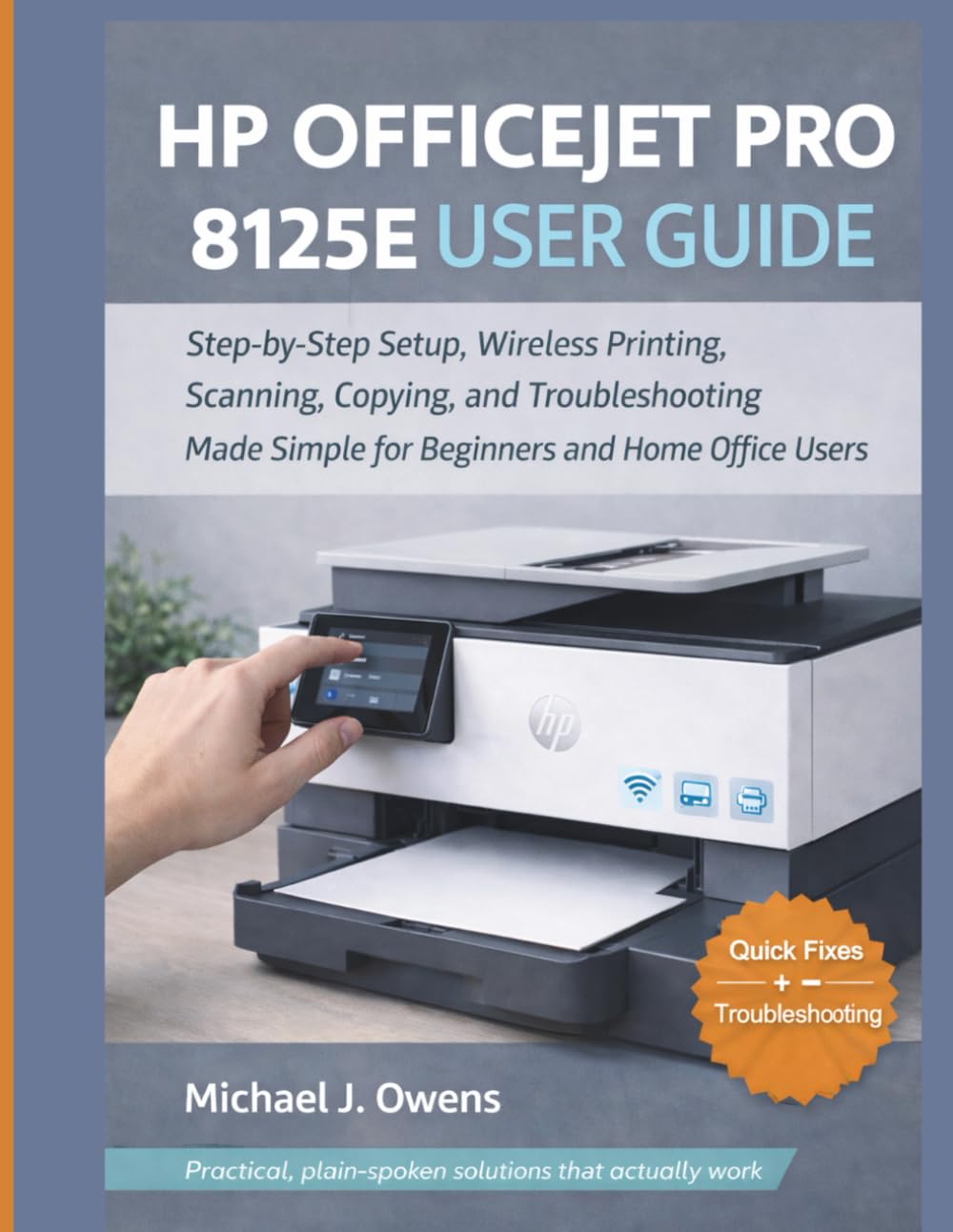
Image: Front cover of the HP OfficeJet Pro 8125e User Guide. This image represents the manual itself, designed to assist users with their printer.
1. セットアップ
1.1 開梱と初回電源投入
- プリンターをパッケージから慎重に取り出します。
- プリンタの外部と内部からすべての保護テープと梱包材を取り外します。
- 電源コードをプリンターに接続し、次に壁のコンセントに接続します。
- 電源ボタンを押して、プリンターの電源をオンにします。
- Follow the on-screen prompts on the printer's control panel to select your language and region.
1.2 インクカートリッジの取り付け
- インク カートリッジ アクセス ドアを開きます。
- プリントキャリッジが中央に移動するのを待ちます。
- 新しいインクカートリッジを開梱します。
- 各カートリッジを対応するスロットに挿入し、カチッと音がして所定の位置に収まることを確認します。
- インクカートリッジアクセスドアを閉じます。
1.3用紙のセット
- 入力トレイを引き出します。
- 用紙ガイドを正しい用紙サイズに調整します。
- Load a stack of plain white paper into the tray, print side down.
- 入力トレイをプリンタに戻します。
- プロンプトが表示されたら、プリンターのコントロール パネルで用紙の種類とサイズを確認します。
1.4 Wi-Fiへの接続
- プリンターのコントロール パネルで、ワイヤレス セットアップ ウィザードに移動します。
- 利用可能なネットワークのリストからWi-Fiネットワークを選択します。
- Enter the Wi-Fi password (WPA key) when prompted.
- 接続を確認してください。プリンターの無線ランプが青色に点灯します。
1.5 ドライバのインストール
For Windows and Mac computers, download the latest drivers and HP Smart software from the official HP support webサイト。インストール中は画面の指示に従ってください。
2. プリンターの操作
2.1 ドキュメントの印刷
- コンピューターから: Open the document, select "Print," choose your HP OfficeJet Pro 8125e, and adjust settings as needed before printing.
- モバイル デバイスから (HP Smart App): Install the HP Smart app, add your printer, and use the app to print photos or documents directly from your smartphone or tablet.
- Email Print: If enabled, send documents to your printer's unique email address.
2.2 ドキュメントのスキャン
- ドキュメントを、表面を下にしてスキャナーのガラスに置くか、表面を上にして自動ドキュメント フィーダー (ADF) に置きます。
- On the printer's control panel or via the HP Smart app/software on your computer, select "Scan."
- Choose scan settings (e.g., color, resolution, destination).
- スキャンを開始します。
2.3 文書のコピー
- 原稿をスキャナーガラスまたは ADF に置きます。
- On the printer's control panel, select "Copy."
- Adjust settings such as number of copies, color/black & white, and size.
- 「コピーを開始」ボタンを押します。
3. メンテナンス
3.1 プリントヘッドのクリーニング
If print quality degrades (streaks, faded colors), perform a print head cleaning from the printer's control panel or the HP Smart software. This process uses ink, so only perform it when necessary.
3.2 インクカートリッジの交換
When an ink cartridge is low or empty, the printer will notify you. Follow the steps in Section 1.2 to replace cartridges. Use genuine HP ink cartridges for best results.
3.3一般的なクリーニング
プリンタの外側を柔らかくて乾いた布で拭いてください。amp, lint-free cloth. Clean the scanner glass regularly with a glass cleaner applied to a cloth (not directly to the glass) to prevent smudges from affecting scan quality.
4。 トラブルシューティング
| 問題 | 解決 |
|---|---|
| Printer Offline Message |
|
| 紙詰まり |
|
| 印刷品質が悪い |
|
| HP Smart App Issues |
|
5. 仕様
Note: The following specifications are typical for the HP OfficeJet Pro 8125e printer. For precise details, refer to the official HP product page or documentation.
- 機能: Print, Copy, Scan, Fax (optional, depending on region/model)
- 印刷技術: HPサーマルインクジェット
- 印刷速度(黒): 最大22 ppm(ISO)
- 印刷速度(カラー): 最大18 ppm(ISO)
- Print Resolution (Best): 最大4800 x 1200 dpiの最適化されたカラー
- スキャン解像度(光学): 最大1200dpi
- 接続性: Wi-Fi 802.11a/b/g/n, Ethernet, USB 2.0
- 用紙の取り扱い: 250-sheet input tray, 60-sheet output tray, 35-sheet ADF
- 両面印刷: 自動(標準)
- 画面: カラータッチスクリーン
6. 保証とサポート
For warranty information, please refer to the documentation included with your printer or visit the official HP support website. HP provides various support resources, including online FAQs, driver downloads, and contact options for technical assistance.
Image: Back cover of the HP OfficeJet Pro 8125e User Guide. This image provides additional information and ISBN details for the manual.