
1. はじめに
This manual provides detailed instructions for the setup, operation, and maintenance of your Eyoyo EYH2 Handheld USB 2D Barcode Scanner and Eyoyo EY-045 2-in-1 Wireless Mouse Barcode Scanner. Please read this manual thoroughly before using the devices to ensure proper functionality and to prevent damage.
2.製品オーバーview
2.1 Eyoyo EY-H2 Handheld USB 2D Barcode Scanner
The Eyoyo EY-H2 is a wired USB 2D barcode scanner designed for efficient data capture. It offers plug-and-play functionality, requiring no software or driver installation. This scanner is suitable for various environments including retail, warehouses, libraries, and inventory management.

画像2.1.1: The Eyoyo EY-H2 2D Barcode Scanner demonstrates superior decoding capabilities compared to traditional laser scanners, accurately reading various 1D and 2D barcodes, including those with damage or complex formats.

画像2.1.2: The EY-H2 scanner offers plug-and-play connectivity via USB, compatible with Windows, macOS, Linux, and POS systems, requiring no additional drivers or software.

画像2.1.3: The EY-H2 scanner features adjustable sound settings, allowing users to turn the beep sound on or off as needed for different working environments.

画像2.1.4: The EY-H2 scanner is designed with drop resistance, capable of sustaining drops from up to 1.5 meters (5 feet) without damage.
2.2 Eyoyo EY-045 2-in-1 Wireless Mouse Barcode Scanner
The Eyoyo EY-045 combines the functionality of a high-precision optical mouse with a powerful 2D barcode scanner. This device aims to streamline workflows by integrating two essential tools into one, reducing desk clutter and improving efficiency. It supports multiple connection methods and features a long-lasting battery with a visual indicator.

画像2.2.1: The EY-045 offers a 2-in-1 design, functioning as both a wireless mouse for office tasks and a barcode scanner for data entry, activated by a dedicated button.

画像2.2.2: The mouse-style barcode scanner facilitates faster data entry, particularly in retail Point-of-Sale (POS) environments, by allowing seamless transition between mouse and scanning functions.

画像2.2.3: The EY-045 supports two wireless connection methods: Bluetooth Mode for laptops, tablets, and phones, and 2.4G Mode via a USB dongle for PCs.
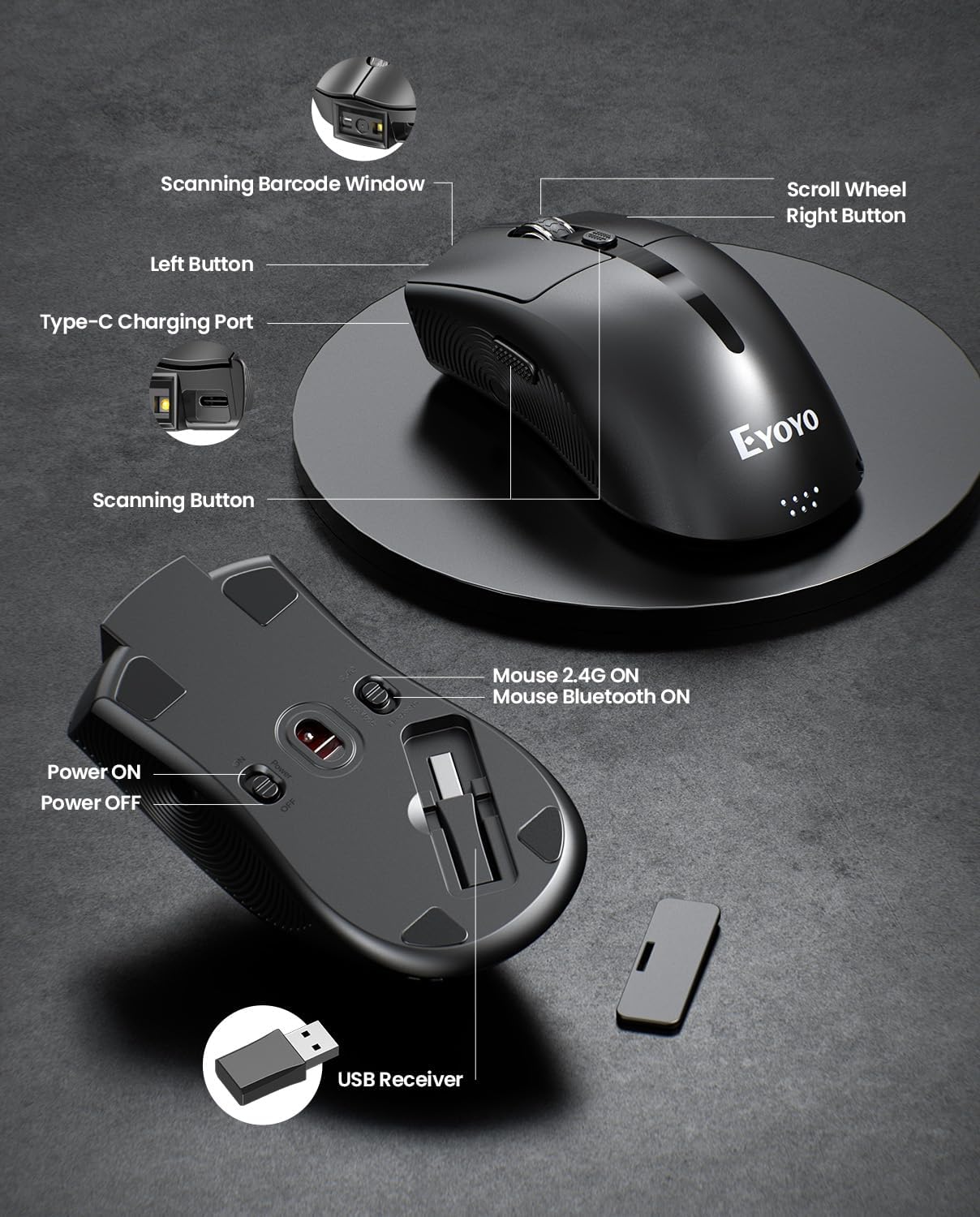
画像2.2.4: This diagram highlights the key components of the EY-045, including the Scanning Barcode Window, Scroll Wheel, Left/Right Buttons, Type-C Charging Port, Scanning Button, Power ON/OFF switch, Mouse 2.4G/Bluetooth ON switches, and the USB Receiver storage slot.
3. セットアップ
3.1 Eyoyo EY-H2 Handheld Scanner Setup
- USB ケーブルを接続します。 Plug the USB cable from the EY-H2 scanner into an available USB port on your computer or POS system.
- システム認識: The operating system (Windows, macOS, Linux, or POS) will automatically detect and install the necessary drivers. No manual driver installation is required.
- 使用する準備ができて: Once recognized, the scanner is ready to use. Open any application where you want to input scanned data (e.g., Notepad, Word, Excel, POS software).
3.2 Eyoyo EY-045 Mouse Scanner Setup
EY-045 には 3 つの接続方法があります。
3.2.1 2.4G Wireless Connection (for PC)
- USBレシーバーを取得します: Locate the 2.4G USB receiver stored in the bottom slot of the EY-045 mouse.
- レシーバーを挿入: Plug the USB receiver into an available USB port on your PC.
- 電源オン: Slide the power switch on the bottom of the EY-045 to the 'ON' position.
- 2.4Gモードを選択: Ensure the mode switch on the bottom is set to 'Mouse 2.4G ON'. The device will automatically connect.
3.2.2 Bluetooth 5.0 Connection (for Laptops/Tablets/Phones)
- 電源オン: Slide the power switch on the bottom of the EY-045 to the 'ON' position.
- Bluetoothモードを選択: Ensure the mode switch on the bottom is set to 'Mouse Bluetooth ON'. The device will enter pairing mode (indicator light may flash).
- ホストデバイスで Bluetooth を有効にする: On your laptop, tablet, or phone, go to Bluetooth settings and turn Bluetooth on.
- ペアデバイス: 検索する available devices and select 'Eyoyo EY-045' (or similar name) to pair.
3.2.3 USB-C Wired Connection (for Charging and Working)
- USB-Cケーブルを接続します: Plug the provided USB-C charging cable into the Type-C charging port on the front of the EY-045.
- ホストに接続: Plug the other end of the USB-C cable into a USB port on your computer.
- 機能性: The device will charge and function as a wired mouse and scanner simultaneously.
4. 操作手順
4.1 Using the Eyoyo EY-H2 Handheld Scanner
- 狙いを定めてスキャンする: 読み取りたいバーコードにスキャナーのウィンドウを向けます。
- トリガーを押す: Press the trigger button on the handle. A red scanning line or light will appear.
- 確認: A successful scan will typically be indicated by a beep sound (if enabled) and the data appearing in your active application.
- サウンドを調整する: To adjust the sound, scan the appropriate configuration barcodes provided in the full user manual (e.g., 'Turn On Sound' or 'Turn Off Sound' barcodes).
4.2 Using the Eyoyo EY-045 Mouse Scanner
- マウス機能: When connected, the EY-045 functions as a standard optical mouse for navigation and clicking.
- Switch to Scanner Mode: To scan a barcode, press the dedicated scanning button located on the side of the mouse. The scanning light will activate.
- バーコードをスキャン: Aim the scanning window at the barcode and press the scanning button. The scanned data will be transmitted to your connected device.
- バッテリーインジケーター: Monitor the 4-level LED power indicator (25%-50%-75%-100%) on the tail of the mouse to check the battery status. Recharge when the indicator shows low power.
- オフラインストレージ: The EY-045 can store up to 100,000 barcodes when operating away from a computer. To upload stored data, connect the scanner to your computer and follow the instructions in the full user manual for data transfer.
5. メンテナンス
- クリーニング: スキャナの外側は、柔らかく乾いた布で拭いてください。スキャンウィンドウは、糸くずの出ない布で軽く拭いてください。amp低刺激性で研磨剤を含まない洗剤で洗ってください。刺激の強い化学薬品や研磨剤は使用しないでください。
- ストレージ: スキャナーは、直射日光や極端な温度を避け、涼しく乾燥した場所に保管してください。
- ケーブルのお手入れ: 内部の損傷を防ぐため、USB ケーブルを過度に曲げたりねじったりしないでください。
- Battery Care (EY-045): For optimal battery life, avoid fully discharging the battery frequently. Recharge the device regularly. If storing for an extended period, charge the battery to about 50% before storage.
6。 トラブルシューティング
- スキャナーがバーコードを読み取らない:
- バーコードがきれいであり、過度に損傷していないことを確認してください。
- スキャナーからバーコードまでの距離と角度を確認してください。
- Verify that the scanner is properly connected (EY-H2: USB cable; EY-045: 2.4G dongle, Bluetooth, or USB-C cable).
- For EY-045, ensure it is in scanner mode by pressing the dedicated scan button.
- データ出力なし:
- スキャナーがデバイスに正常に接続されていることを確認します。
- Ensure an application (e.g., Notepad, Word, POS software) is open and active to receive input.
- Restart the computer and reconnect the scanner.
- EY-045 Not Connecting Wirelessly:
- Check if the EY-045 is powered on and the correct wireless mode (2.4G or Bluetooth) is selected.
- 2.4G の場合、USB レシーバーがコンピューターにしっかりと接続されていることを確認してください。
- For Bluetooth, ensure Bluetooth is enabled on your host device and the EY-045 is paired. Try unpairing and re-pairing if issues persist.
- バッテリーが充電されていることを確認してください。
- EY-045 Battery Drains Quickly:
- 使用していないときはデバイスの電源がオフになっていることを確認してください。
- Check the battery indicator for its current level.
- 付属のUSB-Cケーブルを使用してデバイスを完全に充電します。
7. 仕様
7.1 Eyoyo EY-H2 Handheld USB 2D Barcode Scanner
- 接続性: 有線USB
- デコード機能: 1D and 2D barcodes (including QR codes)
- インストール: プラグアンドプレイ、ドライバーは不要
- 互換性: Windows, macOS, Linux, POS systems
- 耐久性: Drop resistance up to 1.5m (5ft)
- ケーブル長さ: 1.8M / 5.9ft
- 特徴: Adjustable sound (on/off)
7.2 Eyoyo EY-045 2-in-1 Wireless Mouse Barcode Scanner
- デザイン: 2-in-1 (Optical Mouse + 2D Barcode Scanner)
- 接続性: Bluetooth 5.0, 2.4G Wireless (via USB dongle), USB-C Wired
- デコード機能: 1D, 2D, and QR codes (including from digital screens)
- バッテリー: 1200mAh充電式バッテリー
- バッテリー寿命: 10+ hours continuous scanning, 20 days daily mouse use
- バッテリーインジケーター: 4-level LED (25%-50%-75%-100%)
- オフラインストレージ: 最大100,000個のバーコード
- 互換性: Windows (XP/7/8/10/11), macOS, Android, iOS
- 特徴: Adjustable beep sounds, dedicated scan button
8. 保証とサポート
Eyoyo products are designed for reliability and performance. For specific warranty information, please refer to the warranty card included with your product or visit the official Eyoyo website. For technical support, troubleshooting assistance, or further inquiries, please contact Eyoyo customer service through the contact information provided on the product packaging or the official webサイト。