
導入
The Roku Hiro 32-inch 720p HD Smart TV offers an integrated Roku streaming experience. This television features an HD display for clear picture quality and speakers with enhanced audio. It supports Bluetooth for private listening with headphones and includes Wi-Fi for internet connectivity. The Roku operating system provides a customizable home screen, access to numerous streaming channels, and automatic updates, making it suitable for various living spaces.
箱の中身
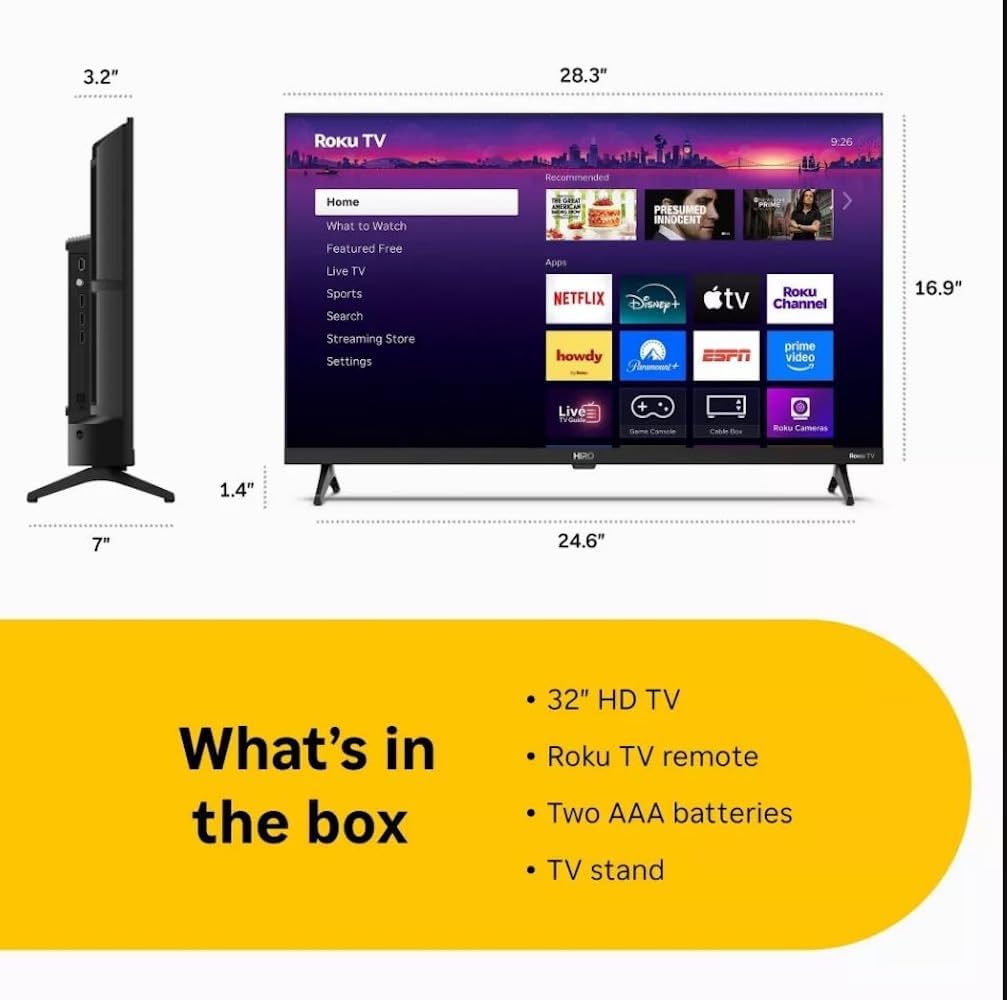
Diagram showing the dimensions of the Roku Hiro 32-inch TV and a list of included accessories: 32-inch HD TV, Roku TV remote, two AAA batteries, and TV stand.
- Hiro 32" 720p HD Smart TV Flat Screen LED Television with Roku TV
- リモートコントロール
- テレビスタンド
- 電源ケーブル
- ユーザーガイド
設定
1. スタンドの取り付け
Carefully place the TV screen-down on a soft, clean surface to prevent damage. Align the TV stand with the designated slots on the bottom of the TV. Secure the stand using the provided screws. Ensure the stand is firmly attached before proceeding.
2.デバイスの接続

後方 view of the Roku Hiro TV, showing the input/output ports including USB, HDMI, and antenna connections.
- 力: 電源ケーブルをテレビの電源入力に接続し、次に壁のコンセントに接続します。
- HDMI: Connect external devices such as Blu-ray players, game consoles, or cable boxes to the HDMI ports. This TV features 3 HDMI ports.
- USB: USB ドライブからのメディア再生には USB ポートを使用します。
- 光オーディオ: Connect an external sound system using an optical audio cable for enhanced sound.
- アンテナ/ケーブル: Connect an antenna or cable TV feed to the RF input for over-the-air or cable channels.
3. 初期設定
After connecting all necessary cables, power on the TV. Follow the on-screen instructions to:
- 言語を選択します。
- Wi-Fi ネットワークに接続します。
- Roku アカウントを有効にします(または新しいアカウントを作成します)。
- Scan for available channels if an antenna is connected.
操作手順
リモートコントロール機能

Close-up of the Roku TV remote control, highlighting buttons for TV power, volume, mute, sleep timer, instant replay, options, and app shortcuts.
- 電源ボタン: テレビの電源をオンまたはオフにします。
- 方向パッド(Dパッド): メニューを移動して項目を選択します。
- OKボタン: 選択を確定します。
- ホームボタン: Roku のホーム画面に戻ります。
- 戻るボタン: 前の画面に戻ります。
- 音量を上げる/下げる: テレビの音量を調整します。
- 消音ボタン: テレビの音声をミュートまたはミュート解除します。
- アプリのショートカットボタン: Direct access to popular streaming services (e.g., Netflix, Disney+, Apple TV+, Prime Video).
- 目覚まし時計: テレビが自動的にオフになるようにタイマーを設定します。
- インスタントリプレイ: Jumps back a few seconds in supported content.
- オプション: Accesses additional settings or information for the current content.
Roku OSの操作

The Roku TV home screen interface, showing recommended content and various streaming applications.
The Roku home screen provides access to all your streaming channels, inputs, and settings. Use the D-Pad on your remote to navigate through the menu options on the left and the app grid on the right. You can customize the order of your channels by highlighting an app, pressing the * (Options) button, and selecting 'Move channel'.
ストリーミングコンテンツ
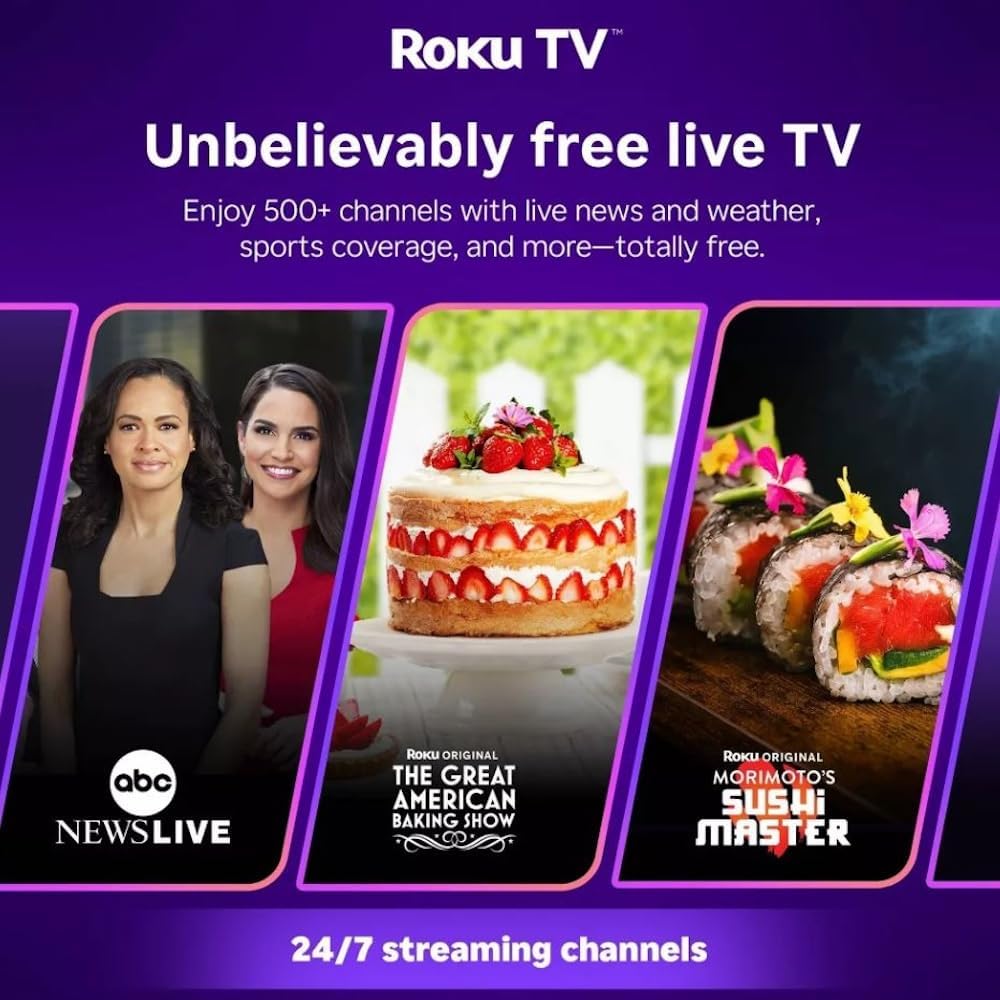
Roku TV interface promoting free live TV channels, featuring examples like ABC News Live, The Great American Baking Show, and Morimoto's Sushi Master.
Access a wide range of streaming services and free content through the Roku Channel Store. The Roku platform offers over 500 free channels, including live television, movies, and news. Use the 'Search' function on the home screen to find specific titles or channels.
オーディオ機能

Roku Hiro TV displaying the home screen with various streaming apps, emphasizing enhanced audio quality.
The TV features enhanced audio quality. For private listening, you can pair Bluetooth headphones directly with the TV. Navigate to Settings > Remotes & devices > Bluetooth devices > Pair new device to connect your headphones.
メンテナンス
テレビの掃除
- 掃除する前に必ずテレビの電源プラグを抜いてください。
- 柔らかく糸くずの出ない布を使用して、画面とキャビネットを優しく拭いてください。
- 頑固な汚れには、軽くamp布に水または低刺激性で研磨剤を含まないスクリーンクリーナーを含ませてください。スクリーンに直接クリーナーを吹き付けないでください。
- 強力な化学薬品、研磨パッド、溶剤の使用は避けてください。
ソフトウェアアップデート
The Roku TV automatically checks for and installs software updates when connected to the internet. To manually check for updates, go to 設定 > システム > ソフトウェアアップデート.
トラブルシューティング
| 問題 | 解決 |
|---|---|
| 電源なし | 電源ケーブルがテレビとコンセントの両方にしっかりと接続されていることを確認してください。別のコンセントで試してみてください。 |
| 映像はないが、音声はある | 入力ソースを確認してください。 家 button on the remote and select the correct input. Ensure all HDMI cables are securely connected. |
| 音はないが、映像は表示される | 音量レベルを確認し、テレビがミュートされていないことを確認してください。外部オーディオを使用している場合は、接続と設定を確認してください。 |
| Wi-Fiに接続できません | Wi-Fiのパスワードを確認してください。ルーターとモデムを再起動してください。 設定 > ネットワーク > 接続を設定 to reconfigure. |
| リモコンが動作しない | リモコンの電池を交換してください。リモコンとテレビの赤外線センサーの間に障害物がないことを確認してください。 |
仕様
| モデル名 | H32C2C4 |
| 画面サイズ | 32インチ |
| ディスプレイ技術 | 導かれた |
| 解決 | 720p |
| リフレッシュレート | 60Hz |
| オペレーティング·システム | ロクOS |
| 接続技術 | Bluetooth, HDMI, Optical Audio, USB, Wi-Fi |
| HDMIポートの総数 | 3 |
| USBポート合計 | 1 |
| 製品寸法(奥行き×幅×高さ) | 奥行き3.2インチ x 幅28.3インチ x 高さ16.9インチ |
| アイテム重量 | 7.5 ポンド |
| 巻tage | 120ボルト(AC) |
| 取り付けタイプ | テーブルマウント |
| 色 | 黒 |
保証情報
This Roku Hiro TV is covered by a 90-day Replacement Warranty. Please retain your proof of purchase for any warranty claims. For detailed terms and conditions, refer to the warranty documentation included with your product or visit the official Roku support webサイト。
サポート
For further assistance, troubleshooting guides, or to contact customer support, please visit the official Roku support website. You can find comprehensive FAQs and contact information there.