
Antec Vortex View 360
Antec Vortex View 360 AIO Liquid CPU Cooler Instruction Manual
モデル: Vortex View 360
導入
Thank you for choosing the Antec Vortex View 360 AIO Liquid CPU Cooler. This manual provides essential information for the proper installation, operation, and maintenance of your new cooling system. Please read this manual thoroughly before installation to ensure optimal performance and longevity of your product.

オーバーview of the Antec Vortex View 360 AIO Liquid CPU Cooler, showcasing the 360mm radiator with three 120mm fans and the pump block with its integrated 5-inch IPS display.
安全情報
製品の損傷やご自身の怪我を防ぐために、次の安全上の注意事項を守ってください。
- インストールまたはメンテナンスを行う前に、コンピューターのすべての電源が切断されていることを確認してください。
- 損傷を防ぐためにコンポーネントを慎重に取り扱ってください。
- Do not open the pump or radiator, as this may void the warranty and cause liquid leakage.
- 極端な温度、湿度、直射日光を避けて製品を保管してください。
- 付属のアクセサリと取り付けハードウェアのみを使用してください。
パッケージ内容
パッケージにすべてのコンポーネントが含まれていることを確認します。
- Antec Vortex View 360 AIO Cooler (Radiator, Pump, Fans)
- Mounting Hardware for Intel (LGA 115X/1200/1700/1851)
- AMD (AM4/AM5) 用マウントハードウェア
- USB 3.0 Hub with Passthrough Cable
- ファンとRGBケーブル
- ユーザーマニュアル

A visual representation of the components included in the Antec Vortex View 360 AIO cooler package, alongside a list of supported CPU sockets: Intel LGA115X/1200/1700/1851 and AMD AM4/AM5.
インストールガイド
1. 準備
- CPU ソケットのタイプ (Intel LGA または AMD AM) を識別します。
- PC ケースに 360mm ラジエーターを収容できる十分なスペースがあることを確認してください。
- Gather necessary tools (screwdriver, etc.).
2. ラジエーターとファンの取り付け
- Attach the three 120mm fans to the radiator using the provided screws. Ensure the fan airflow direction is appropriate for your case's cooling strategy.
- Mount the radiator assembly to the designated location in your PC case (e.g., top, front).
3. Installing the Pump Block
The pump block comes with pre-applied thermal paste. If you prefer to use your own, carefully clean off the pre-applied paste before applying a new layer.
- Install the appropriate mounting brackets for your CPU socket onto the pump block.
- Carefully place the pump block onto your CPU, aligning it with the mounting holes.
- Secure the pump block using the provided thumb screws or nuts, tightening them in a cross pattern until snug.
- For optimal thermal contact, orient the cold plate as follows: Intel CPUs at 6 o'clock, AMD CPUs at 3 o'clock.

Illustrations detailing the recommended cold plate orientation for Intel (6 o'clock) and AMD (3 o'clock) processors to ensure optimal thermal contact and efficient heat transfer.
The integrated 5-inch IPS display on the pump block features a 360° Rotatable Ball Joint. This allows you to freely adjust and lock the display angle after installation using the built-in twist dial, ensuring optimal viewing from any angle without needing tools.
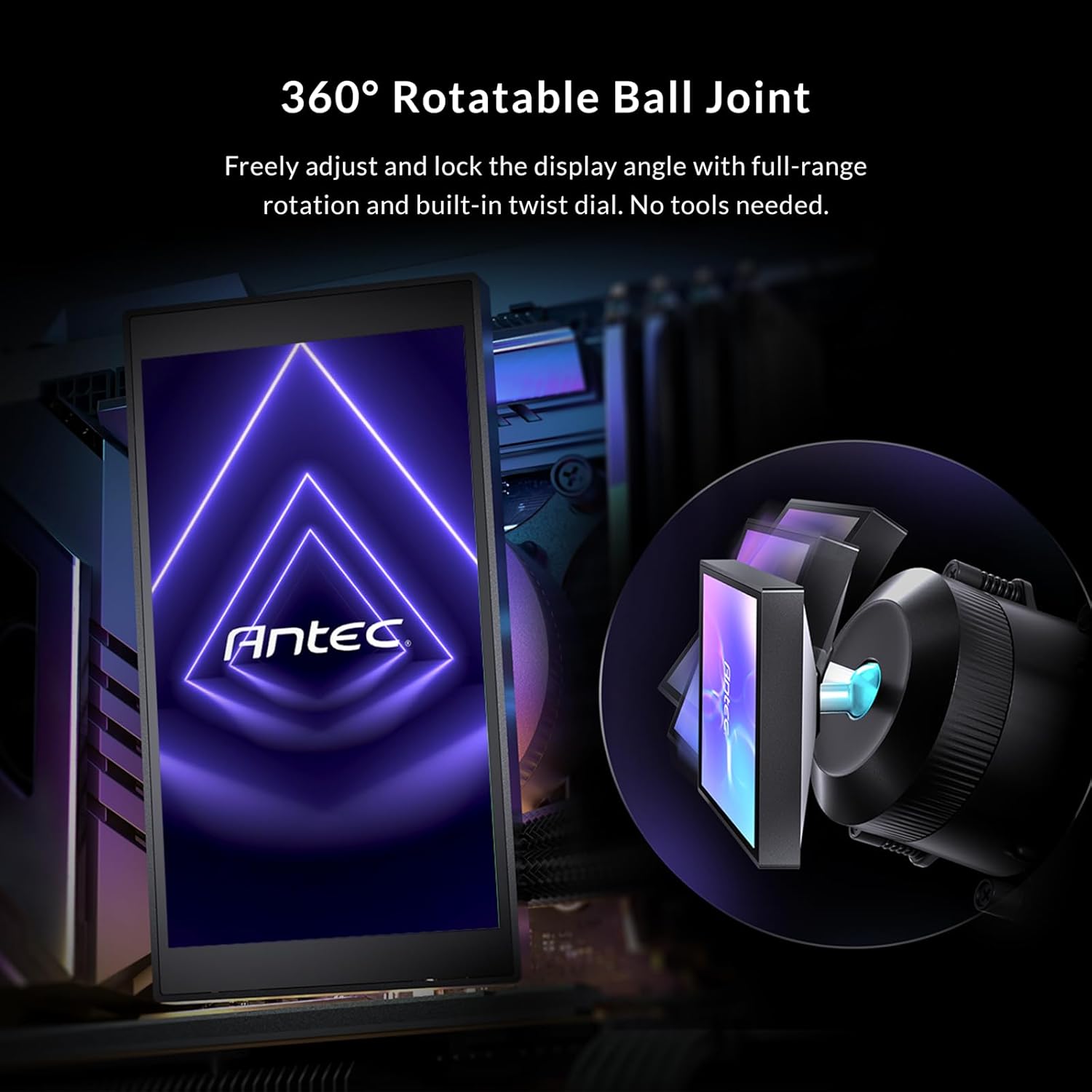
This image illustrates the 360° rotatable ball joint on the pump block, allowing users to freely adjust and lock the display angle for optimal viewing without tools.
4. ケーブルの接続
- Connect the fan PWM cables to the CPU_FAN or AIO_PUMP headers on your motherboard, or to a fan hub if applicable.
- Connect the pump power cable to the dedicated AIO_PUMP header or a suitable fan header on your motherboard.
- Connect the USB cable from the pump to the provided USB 3.0 Hub with Passthrough. Then, connect the USB hub to an available USB 2.0 or 3.0 header on your motherboard. This allows the pump to communicate with the Antec iUnity software while keeping front-panel USB ports accessible.
- Connect the RGB cables from the fans and pump to your motherboard's ARGB header or a compatible RGB controller.

This diagram explains the USB 3.0 Hub with Passthrough feature, allowing the pump to connect to the motherboard while maintaining accessibility for front-panel USB ports.
操作手順
IPS Display Customization
The Antec Vortex View 360 features a vivid 5-inch IPSディスプレイ with 1280x720 resolution and 300 nits brightness. This display is fully customizable via the Antec iUnity software to show real-time CPU/GPU temperatures, system statistics, animated GIFs, or personalized images.
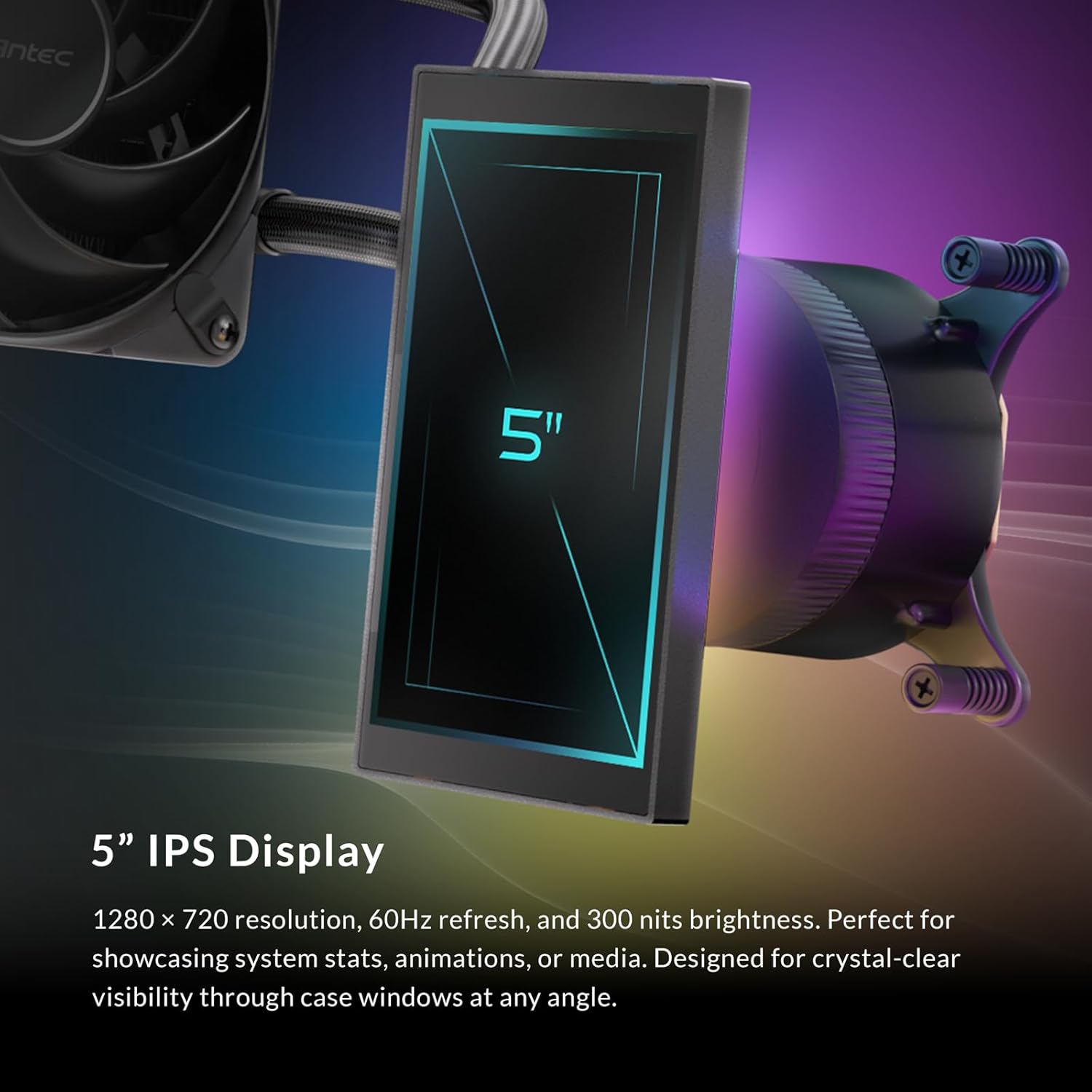
詳細な view of the 5-inch IPS display, highlighting its 1280x720 resolution, 60Hz refresh rate, and 300 nits brightness, designed for clear visibility of system stats, animations, or custom media.
Antec iUnity 2.0 Software
Download and install the Antec iUnity 2.0 software from the official Antec website. This software provides comprehensive control over your cooling system:
- Fan and Pump Curves: Adjust fan speeds and pump performance based on temperature thresholds.
- RGB照明: Customize the addressable RGB backglow system with various effects and colors.
- Display Personalization: Upload custom images, GIFs, or select from pre-set monitoring displays for the IPS screen.

A screenshot of the iUnity 2.0 software dashboard, demonstrating its capabilities for adjusting fan and pump curves, customizing per-zone RGB lighting on the Vortex View, and personalizing the display content.
RGB Backglow System
The pump block features an addressable RGB panel behind the display, delivering customizable ambient lighting. This system can be synchronized with other RGB components in your PC via the Antec iUnity software, allowing you to set custom lighting zones and effects.

This image demonstrates the addressable RGB panel located behind the display, providing customizable ambient lighting across the pump block and adjacent components, controllable via Antec iUnity software.
メンテナンス
Regular maintenance helps ensure the longevity and optimal performance of your AIO cooler:
- ダストクリーニング: Periodically clean the radiator fins and fan blades with compressed air to prevent dust buildup, which can impede airflow and cooling performance.
- ケーブル管理 すべてのケーブルがしっかりと接続され、空気の流れを妨げていないことを確認します。
- ソフトウェアアップデート: Keep the Antec iUnity software updated to the latest version for new features and performance improvements.
- 漏れ検査: While rare, periodically check for any signs of liquid leakage around the pump block and tubing. If a leak is detected, immediately power off your system and contact Antec support.

内部の view of the Vortex View pump, illustrating its engineering for low-resonance operation and sub-14 dBA acoustics at 2800 RPM, ensuring quiet performance.
トラブルシューティング
問題が発生した場合は、次の一般的なトラブルシューティング手順を参照してください。
- 電源なし/ファンが回転しない:
- ポンプとファンへのすべての電源接続を確認します。
- Ensure the pump is connected to the correct motherboard header (AIO_PUMP or CPU_FAN).
- Verify fan cables are properly connected to the motherboard or fan hub.
- 高いCPU温度:
- Confirm the pump block is securely mounted to the CPU and making good contact.
- Check if thermal paste is properly applied.
- 空気の流れを最適にするために、ファンが回転し、正しい向きに向いていることを確認します。
- ラジエーターフィンに蓄積したほこりを取り除きます。
- Verify pump and fan speeds in Antec iUnity software.
- Display Not Working/Showing Incorrect Info:
- Ensure the USB cable from the pump to the USB hub, and from the hub to the motherboard, is securely connected.
- Restart the Antec iUnity software.
- Check for software updates for Antec iUnity.
- RGB Not Functioning:
- Verify all RGB cables are correctly connected to the motherboard's ARGB header or controller.
- Check RGB settings in Antec iUnity software or your motherboard's RGB software.
仕様
| 特徴 | 詳細 |
|---|---|
| 製品寸法 | 長さ15.51インチ x 幅4.72インチ x 高さ1.06インチ |
| ブランド | アンテック |
| 電源コネクタタイプ | 4ピン |
| 巻tage | 12ボルト |
| ワットtage | 400ワット(TDPサポート) |
| 冷却方法 | 水 |
| 対応デバイス | デスクトップ |
| 騒音レベル | 28.6 Decibels (Fans), Sub-14 dBA (Pump at 2800 RPM) |
| 最高回転数 | 2000 RPM(ファン) |
| 風量 | 毎分59.23立方フィート |
| アイテム重量 | 4 ポンド |
| モデル | 渦 View 360 |
| CPUソケットの互換性 | Intel LGA 115X/1200/1700/1851 & AMD AM4/AM5 |
| IPSスクリーン | 5" IPS, 1280x720 resolution, 300 nits brightness |
保証
The Antec Vortex View 360 AIO Liquid CPU Cooler comes with a 6年間保証 from the date of purchase. This warranty covers defects in materials and workmanship under normal use. Please retain your proof of purchase for warranty claims. For detailed warranty terms and conditions, please refer to the official Antec webサイト。
サポート
For technical assistance, troubleshooting beyond this manual, or warranty inquiries, please visit the official Antec support website or contact their customer service. You can typically find contact information on the Antec webサイトまたは製品パッケージに記載されています。
アンテック公式 Webサイト: www.antec.com
Ask a question about this manual
Ask about setup, troubleshooting, compatibility, parts, safety, or missing instructions. Manuals+ will review the question and use this page’s manual context to help answer it.