
1. はじめに
This manual provides detailed instructions for the setup, operation, maintenance, and troubleshooting of your GMKtec G3 Pro Mini PC. Please read this guide thoroughly before using your device to ensure optimal performance and longevity.
The GMKtec G3 Pro is a compact desktop computer designed for various applications, including office work, business, multimedia, and online learning. It features an Intel Core i3-10110U processor, 16GB DDR4 RAM, and a 512GB PCIe M.2 SSD, offering efficient performance in a small form factor.
2. 箱の中身
パッケージにすべてのアイテムが揃っていることを確認します。
- GMKtec Nucbox G3 Pro Mini PC (16GB RAM, 512GB SSD)
- HDMIケーブル
- 電源アダプター
- ユーザーマニュアル
- VESAマウント(ネジ付き)

3.製品オーバーview
The GMKtec G3 Pro Mini PC is designed for compact and efficient computing. It features a robust set of ports and internal components to support various tasks.
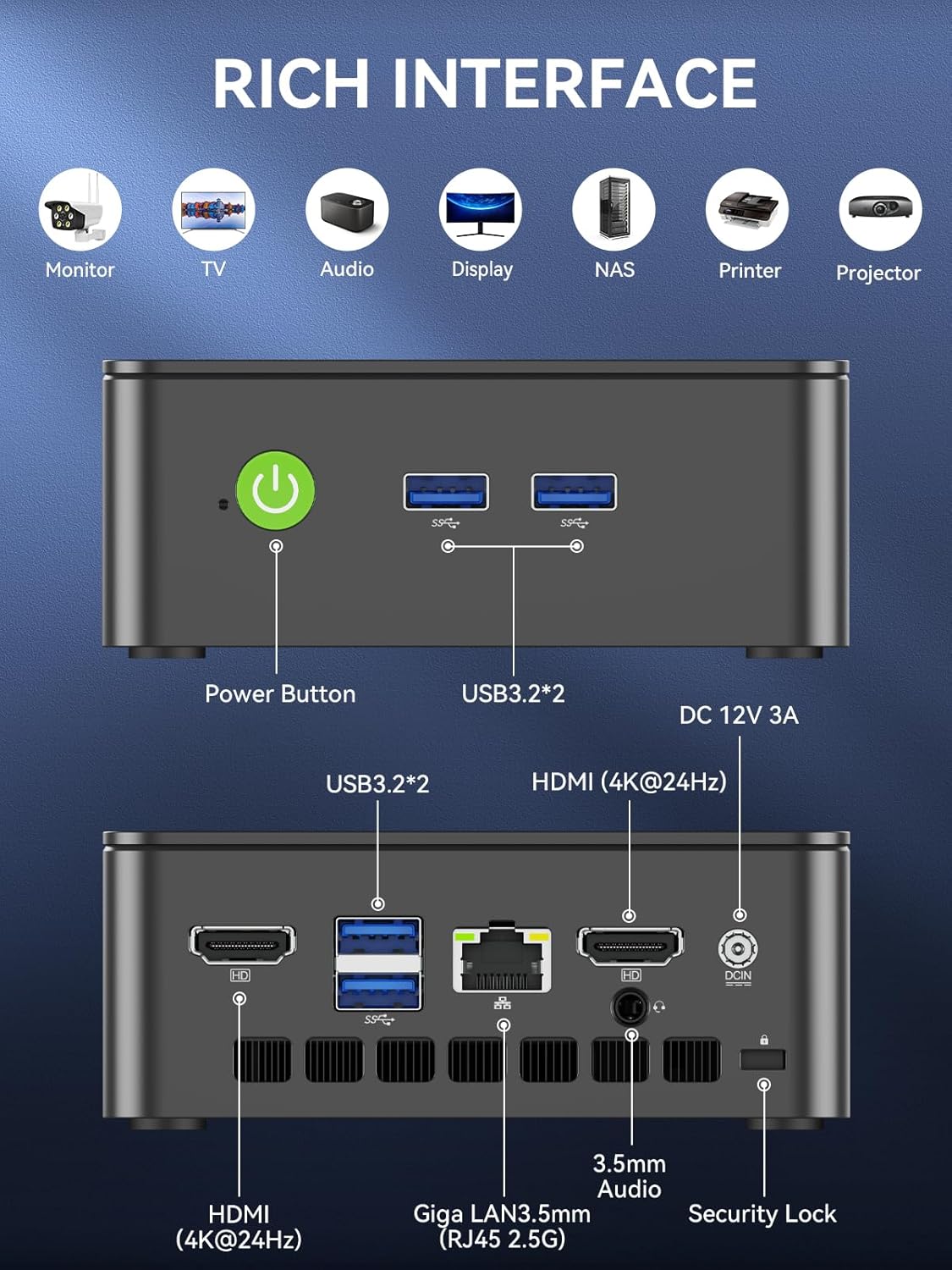
フロントパネル
- 電源ボタン: デバイスの電源をオン/オフにします。
- USB 3.2 x 2: キーボード、マウス、外部ストレージデバイスなどの周辺機器を接続します。
背面パネル
- HDMI (4K@60Hz) x 2: For connecting to displays, supporting dual 4K output.
- USB 3.2 x 2: 周辺機器用の追加ポート。
- 3.5mmオーディオジャック: ヘッドホンや外部スピーカーを接続します。
- Giga LAN (RJ45 2.5GbE): 有線ネットワーク接続用。
- DC IN: 電源入力ポート。
- セキュリティロックスロット: For securing the device to a desk.
内部コンポーネント
- Dual DDR4 RAM Slots: Supports up to 64GB RAM.
- M.2 2280 PCIe Gen3*4 Slot: For NVMe SSDs, supporting up to 8TB.
- M.2 2242 SATA3.0 Slot: For SATA SSDs, supporting up to 1TB.
- 冷却ファンと通気口: Integrated cooling system to maintain optimal operating temperatures.

4.セットアップガイド
初期設定は次の手順で行います。
- 周辺機器を接続します。 Connect your keyboard, mouse, and any other necessary USB devices to the available USB 3.2 ports.
- ディスプレイを接続する: Use an HDMI cable to connect your monitor(s) to the HDMI ports on the rear panel. The device supports dual 4K@60Hz displays.
- 接続電源: Plug the power adapter into the DC IN port on the mini PC, then plug the adapter into a power outlet.
- 電源オン: 前面パネルの電源ボタンを押して、ミニ PC の電源をオンにします。
- オペレーティング システムの初期セットアップ: 画面の指示に従って、Windows 11 Pro のセットアップを完了します。
- ネットワーク接続: For faster setup, avoid connecting to a wired LAN initially. Connecting LAN might trigger long updates, delaying desktop access. Connect to Wi-Fi 6 or connect to the 2.5GbE LAN port after initial setup is complete.

5. 操作手順
電源オン/オフ
- 電源を入れるには: 電源ボタンを1回押します。
- 電源を切るには: オペレーティングシステムから「シャットダウン」を選択します。または、電源ボタンを5秒間押し続けて強制シャットダウンすることもできます(必要な場合のみ使用してください)。
BIOS Settings and Performance Modes
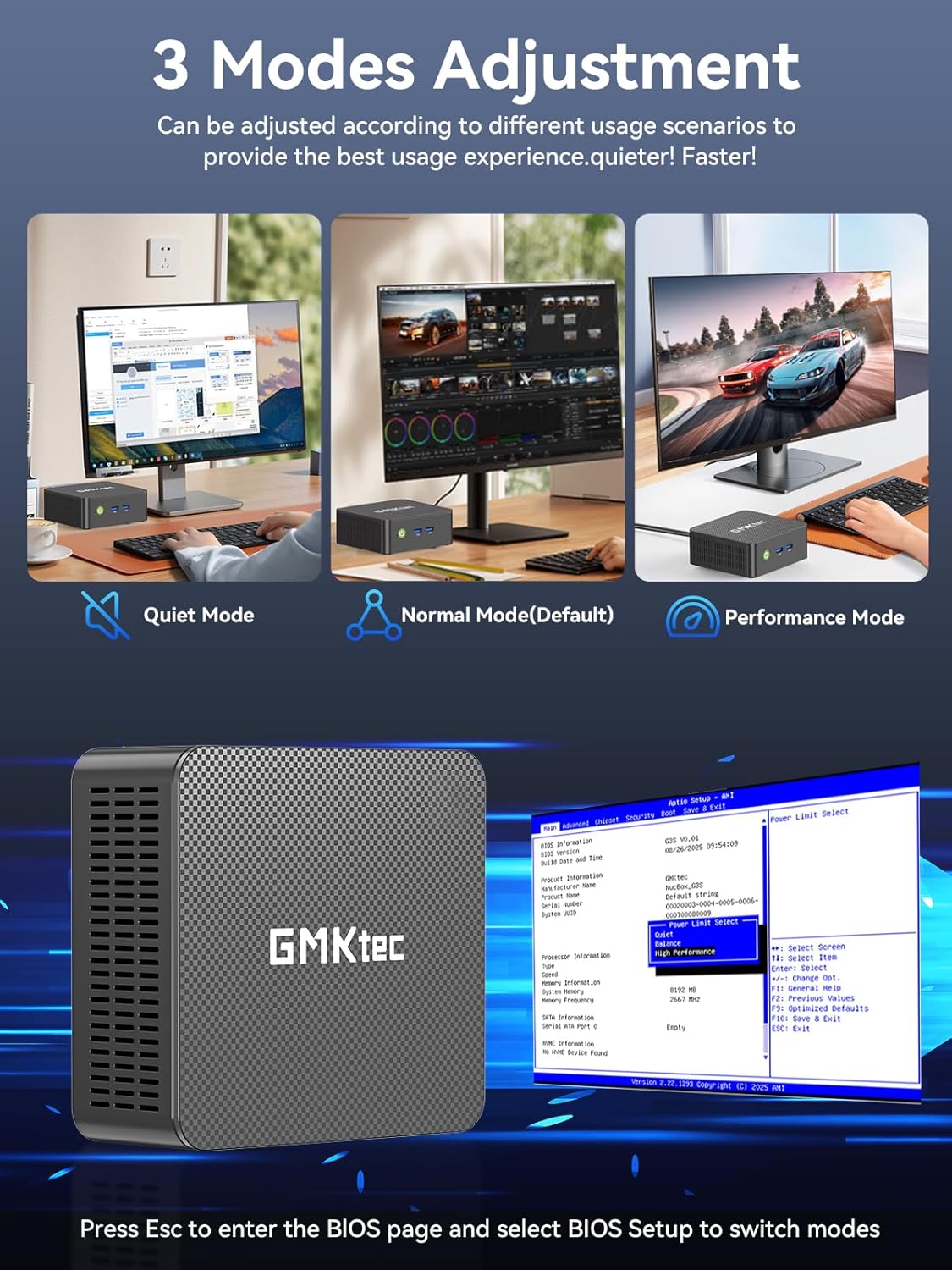
The GMKtec G3 Pro supports different performance modes that can be adjusted via the BIOS settings to optimize for quiet operation, normal use, or maximum performance.
- BIOS にアクセスする: Press the 'Esc' key repeatedly during startup to enter the BIOS page.
- 調整モード: Navigate to the BIOS Setup and select your desired mode (Quiet Mode, Normal Mode, Performance Mode) based on your usage scenario.
6. ストレージの拡張
The GMKtec G3 Pro offers flexible storage expansion options:
- M.2 2280 NVMe PCIe Slot: Supports high-speed NVMe SSDs up to 8TB for primary storage or additional high-performance storage.
- M.2 2242 SATA Slot: Supports SATA SSDs up to 1TB for additional storage capacity.
To install or upgrade storage, refer to the detailed instructions in the full user manual or consult a qualified technician.
7. 接続性
The Mini PC provides comprehensive connectivity options:
- Wi-Fi 6(802.11ax): Offers high-speed wireless internet access up to 600Mbps.
- Bluetooth 5.2: For connecting wireless devices such as keyboards, mice, and headphones.
- 2.5GbE Ethernet (RJ45): Provides ultra-fast wired network speeds, up to 2.5 times faster than standard Gigabit Ethernet.

8. デュアルディスプレイ設定
The GMKtec G3 Pro supports connecting two 4K@60Hz displays simultaneously via its two HDMI 2.0 ports. This allows for an extended desktop experience, enhancing productivity for multitasking, content creation, or entertainment.
Simply connect two monitors using HDMI cables to the respective ports on the rear of the mini PC. The operating system will automatically detect the displays, and you can configure their arrangement and resolution through the display settings.

9. 冷却システム
The GMKtec G3 Pro is equipped with a smart quiet cooling fan and strategically placed cooling vents to ensure efficient heat dissipation. This design allows for ultra-quiet operation, typically below 38dB, even under load, providing a comfortable working environment.

10. 仕様
| 特徴 | 仕様 |
|---|---|
| ブランド | GMKテック |
| モデル名 | G3 Pro |
| オペレーティング·システム | ウィンドウズ11プロ |
| CPUモデル | インテル Core i3-10110U |
| CPU速度 | 最大4.1GHz |
| グラフィックスコプロセッサ | インテル UHD グラフィックス 1200MHz |
| RAMメモリ搭載 | 16 GB DDR4 (Dual Channel) |
| RAMメモリ最大サイズ | 64ギガバイト |
| ハードディスクの説明 | 512 GB M.2 2280 PCIe Gen3*2 + 1*M.2 2242 SATA |
| 接続技術 | Bluetooth 5.2, WiFi 6, Ethernet (2.5GbE), HDMI (4K@60Hz) |
| ビデオ出力 | HDMI×2 |
| ディスプレイ解像度最大 | 4096×2160ピクセル |
| USBポート合計 | 4(USB 3.2) |
| 消費電力 | 6ワット(標準) |
| 特集 | Wake On LAN、PXEブート、RTCウェイク、自動電源オン |
11. メンテナンス
To ensure the longevity and optimal performance of your GMKtec G3 Pro Mini PC, consider the following maintenance tips:
- 清潔に保ちます: Regularly clean the exterior of the mini PC with a soft, dry cloth. Ensure cooling vents are free from dust and obstructions.
- ソフトウェアアップデート: セキュリティとパフォーマンスを向上させるために、オペレーティング システムとドライバーを最新バージョンに更新してください。
- 適切なシャットダウン: データの破損を防ぐために、必ずオペレーティング システムを介してミニ PC を適切にシャットダウンしてください。
- 環境条件: ミニ PC は、直射日光、過度の熱、湿気を避け、換気の良い場所で操作してください。
12。 トラブルシューティング
If you encounter issues with your GMKtec G3 Pro Mini PC, try the following basic troubleshooting steps:
- 電源なし: 電源アダプタがミニPCと電源コンセントの両方にしっかりと接続されていることを確認してください。必要に応じて別のコンセントを試してください。
- 表示なし: Verify that the HDMI cables are securely connected to both the mini PC and the monitor(s). Ensure monitors are powered on and set to the correct input source.
- インターネット接続なし: For Wi-Fi, check your router and network settings. For wired Ethernet, ensure the cable is properly connected and the network adapter is enabled in the operating system.
- パフォーマンスが遅い: Close unnecessary applications, check for background processes, and ensure sufficient free storage space. Consider adjusting performance modes in BIOS.
- 周辺機器の問題: Try connecting USB devices to different ports. Ensure drivers are installed correctly for specialized peripherals.
より複雑な問題については、完全なユーザー マニュアルの包括的なトラブルシューティング セクションを参照するか、カスタマー サポートにお問い合わせください。
13. 保証とサポート
Your GMKtec G3 Pro Mini PC comes with a 1年間の限定保証 購入日から、設計および製造上の欠陥をカバーします。
ご質問、技術サポート、保証請求については、次のサポート チャネルをご利用ください。
- メールサポート: Contact the professional after-sales team at support@gmktec.com.
- オンラインサポート: Visit the GMKtec store on Amazon or the official GMKtec webFAQ と追加リソースのサイト。
- 24時間7日のクライアントサポート: Dedicated support is available to assist you with your needs.


