
1. セットアップ
This section guides you through the initial setup of your CHUWI CoreBook X laptop.
1.1 開梱と初回電源投入
- ノートパソコンとすべての付属品をパッケージから慎重に取り出します。
- Connect the provided USB-C power adapter to the laptop's USB-C port (PD Charging/USB 2.0) and then to a power outlet.
- Open the laptop lid. The laptop may power on automatically or you may need to press the power button located on the keyboard.
- 画面の指示に従って、言語の選択、ネットワーク接続、ユーザー アカウントの作成などの Windows 11 Pro の初期セットアップを完了します。
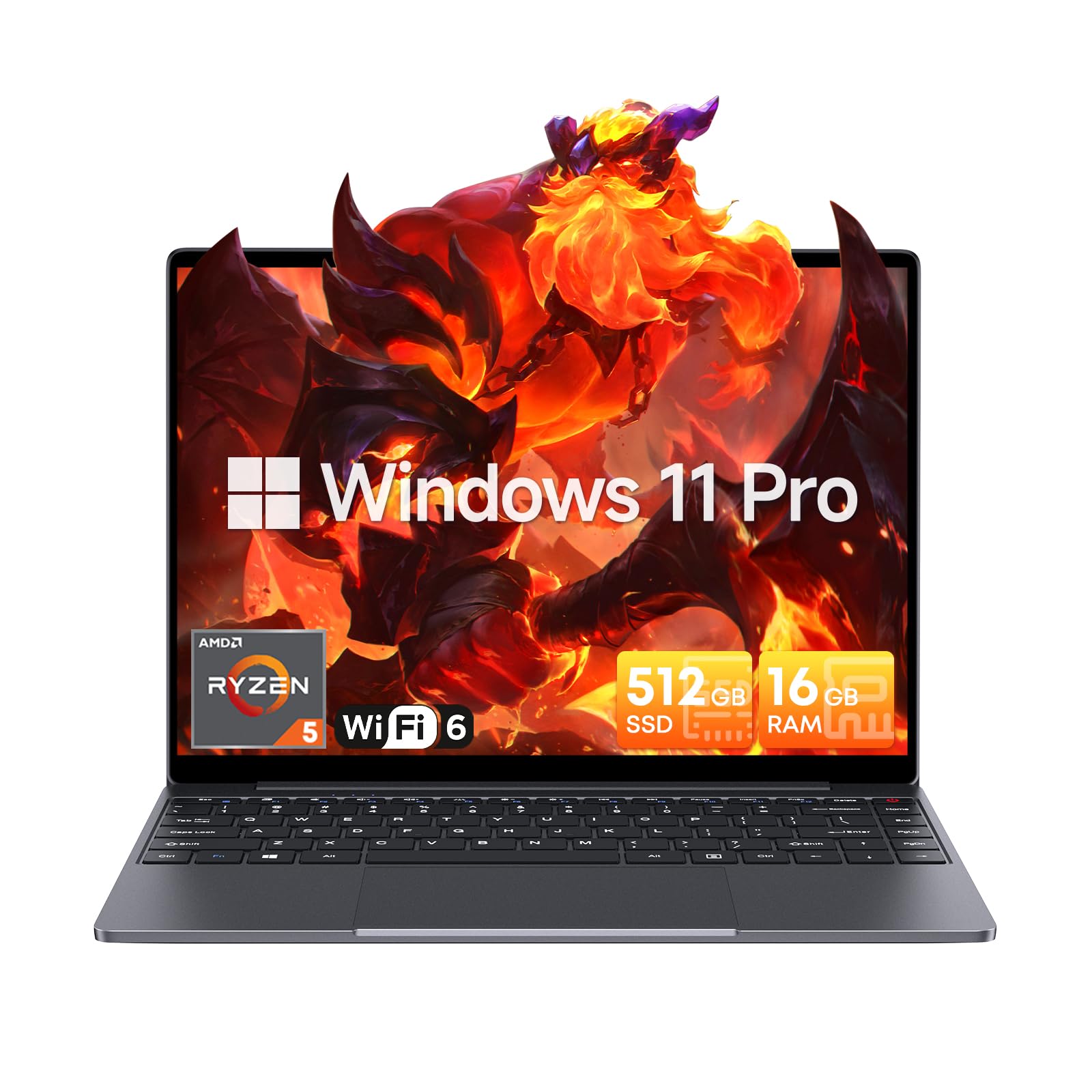
Image: The CHUWI CoreBook X laptop open on a desk, ready for use.
1.2 周辺機器の接続
- USB デバイス: Connect USB mice, keyboards, or external storage devices to the available USB 3.0 ports.
- 外部ディスプレイ: Use the HDMI 1.4 port or the full-featured USB Type-C port to connect an external monitor.
- オーディオデバイス: ヘッドフォンまたは外部スピーカーを 3.5mm オーディオ ジャックに接続します。
- TFカード: Insert a TF card into the TF card slot for additional storage.

画像: 詳細 view of the laptop's ports, including TF Card Slot, 3.5mm Headphone Jack, USB 3.0 Port, Lock Slot, USB Type-C (PD Charging/USB 2.0), HDMI 1.4, and Full-featured USB Type-C Port.
1.3 ネットワークとBluetooth接続
- Wi-Fi 6: ワイヤレス ネットワークに接続するには、タスクバーの Wi-Fi アイコンをクリックし、ネットワークを選択して、パスワードを入力します。
- Bluetooth 5.2: To pair Bluetooth devices, go to Windows Settings > Bluetooth & devices, turn on Bluetooth, and select your device to pair.
2.運用
This section covers the basic operation of your CHUWI CoreBook X laptop.
2.1 電源管理
- 電源オン: 電源ボタンを押します。
- スリープモード: ふたを閉じるか、スタートメニューから「スリープ」を選択します。
- シャットダウン: スタートメニューから「シャットダウン」を選択します。
- 再起動: スタートメニューから「再起動」を選択します。
2.2 キーボードとタッチパッド
- The laptop features a full-sized backlit keyboard with white illumination. Use the function keys (Fn) in combination with other keys for shortcuts like adjusting brightness, volume, or toggling the backlight.
- The large touchpad supports multi-touch gestures for navigation. Refer to Windows settings for customizing touchpad gestures.

画像: クローズアップ view of the laptop's backlit keyboard and large touchpad, highlighting its navigation features.
2.3 ディスプレイとオーディオ
- The 14-inch IPS display offers a 2160*1440 resolution. Adjust display settings (brightness, resolution, scaling) through Windows Display Settings.
- The laptop is equipped with stereo speakers. Volume can be controlled via the keyboard function keys or the Windows sound settings.
- HD webcam is integrated for video conferencing.

Image: The laptop's 14-inch 2K IPS display showcasing vibrant colors and a comparison of 3:2 and 16:9 aspect ratios.
2.4 ビデオ終了view
Video: An official product video demonstrating various features and usage scenarios of the CHUWI CoreBook X laptop, including its performance, display, and connectivity options.
3. メンテナンス
適切なメンテナンスを行うことで、ノートパソコンの寿命が長くなり、最適なパフォーマンスが確保されます。
3.1 クリーニング
- 画面を拭くときは、柔らかく糸くずの出ない布を使用してください。頑固な汚れには、amp布に水または画面に安全なクリーナーを少し含ませます。
- Wipe the chassis and keyboard with a soft, dry cloth. Avoid using harsh chemicals or abrasive materials.
- Periodically use compressed air to clear dust from the vents to maintain efficient cooling.
3.2バッテリーケア
- Avoid fully discharging the battery frequently. Charge the laptop when the battery level is low.
- 長期間使用しない場合は、バッテリーを 50 ~ 70% 程度充電した状態で、ノートパソコンを涼しく乾燥した場所に保管してください。
- Use only the original or certified compatible USB-C PD charger.
3.3 ストレージとメモリのアップグレード
The laptop supports RAM and SSD upgrades.
- The 16GB DDR4 RAM can be expanded up to 64GB via 2 SODIMM slots.
- The 512GB PCIe SSD can be expanded up to 2TB using the M.2 2280 PCIe slot.
- A convenient detachable bottom cover allows for easier access to upgrade components without removing the entire back panel.

Image: The underside of the laptop with the detachable cover removed, revealing the dual-channel SO-DIMM slot for RAM upgrades.
4。 トラブルシューティング
このセクションでは、発生する可能性のある一般的な問題に対する解決策を示します。
4.1 一般的な問題と解決策
- ノートパソコンの電源が入らない:
- 電源アダプターがノートパソコンと正常に機能している電源コンセントの両方にしっかりと接続されていることを確認します。
- 電源コンセントが機能していることを確認します。
- 電源ボタンを 10 ~ 15 秒間押し続けて、ハードリセットを実行してみてください。
- 表示の問題 (画像なし、ちらつき):
- ファンクションキーを使用して画面の明るさを調整します。
- 外部モニターが接続されている場合は、取り外してみてください。
- ラップトップを再起動します。
- Wi-Fi または Bluetooth 接続の問題:
- Windows 設定で Wi-Fi/Bluetooth が有効になっていることを確認します。
- Wi-Fi の問題の場合は、ルーター/モデムを再起動してください。
- Bluetooth デバイスを削除して再度ペアリングします。
- Update network and Bluetooth drivers through Device Manager.
- パフォーマンスが遅い:
- バックグラウンドで実行されている不要なアプリケーションを閉じます。
- Windows の更新プログラムとドライバーの更新プログラムを確認します。
- SSD に十分な空き容量があることを確認してください。
- マルウェアスキャンを実行します。
If you encounter issues not covered here or require further assistance, please refer to the Support section.
5. 仕様
Detailed technical specifications for the CHUWI CoreBook X laptop.

Image: An illustration of the AMD Ryzen 5 processor, highlighting its core count, threads, and clock speed.
| 特徴 | 仕様 |
|---|---|
| モデル名 | Corebook X |
| プロセッサ | AMD Ryzen 5 (6 Cores, 12 Threads, up to 4.3 GHz) |
| グラフィックス | AMD Radeon Graphics (1800MHz, Max 2GB Memory) |
| ラム | 16GB DDR4 (Expandable up to 64GB via 2 SODIMM slots) |
| ストレージ | 512GB PCIe SSD (Expandable up to 2TB via M.2 2280 PCIe slot) |
| 画面 | 14-inch IPS, 2160*1440 Resolution, 100% sRGB Color Gamut |
| オペレーティング·システム | ウィンドウズ11プロ |
| 接続性 | Wi-Fi 6(802.11ax)、Bluetooth 5.2 |
| ポート | USB Type-C (PD Charging/USB 2.0), USB 3.0, HDMI 1.4, Full-featured USB Type-C, 3.5mm Audio Jack, TF Card Slot, Lock Slot |
| バッテリー | 46.2Wh Lithium-Ion Battery, 65W USB-C PD Fast Charging |
| キーボード | Full-sized Backlit Keyboard with White Illumination |
| タッチパッド | Large Touchpad, Multi-touch |
| Webカム | HD Webカム |
| 寸法 | 12.2"L x 9"W x 0.67"Th (17mm thin) |
| 重さ | 2.2ポンド(1.4kg) |
6. 保証
The CHUWI CoreBook X laptop comes with a 1年間のメーカー保証.
This warranty covers defects in materials and workmanship under normal use. It does not cover damage caused by accidents, misuse, unauthorized repairs, or modifications. Please retain your proof of purchase for warranty claims.
7. サポート
For technical assistance, warranty claims, or further inquiries, please contact CHUWI customer support.
- メーカーサポート: CHUWIの公式ウェブサイトをご覧ください webサポート リソース、FAQ、および連絡先情報に関するサイト。
- 販売者サポート: If purchased through a retailer, you may also contact the seller for assistance.