
1. セットアップ
1.1 パッケージ内容
組み立てる前に、パッケージにすべてのコンポーネントが揃っていることを確認してください。
- KTC H24F7 24 Inch 240Hz Monitor
- モニターベース
- モニタースタンド
- 電源アダプター
- HDMIケーブル
- クイックスタートガイド(QSG)
1.2組み立て手順
モニターを組み立てるには、次の手順に従ってください。
- モニターとすべてのコンポーネントをパッケージから慎重に取り出します。
- Attach the monitor stand to the monitor base. Ensure it clicks securely into place.
- Connect the assembled stand and base to the back of the monitor. The stand is designed for easy snap-in installation.
- モニターを安定した平らな面に置きます。

1.3 VESAマウントの取り付け
The KTC H24F7 monitor supports VESA 100mm x 100mm mounting for alternative stand or wall mount solutions. Ensure you use M4-0.7 x 10mm screws (not included) for secure installation.

1.4 デバイスへの接続
適切なケーブルを使用して、コンピューターまたはその他のデバイスをモニターに接続します。
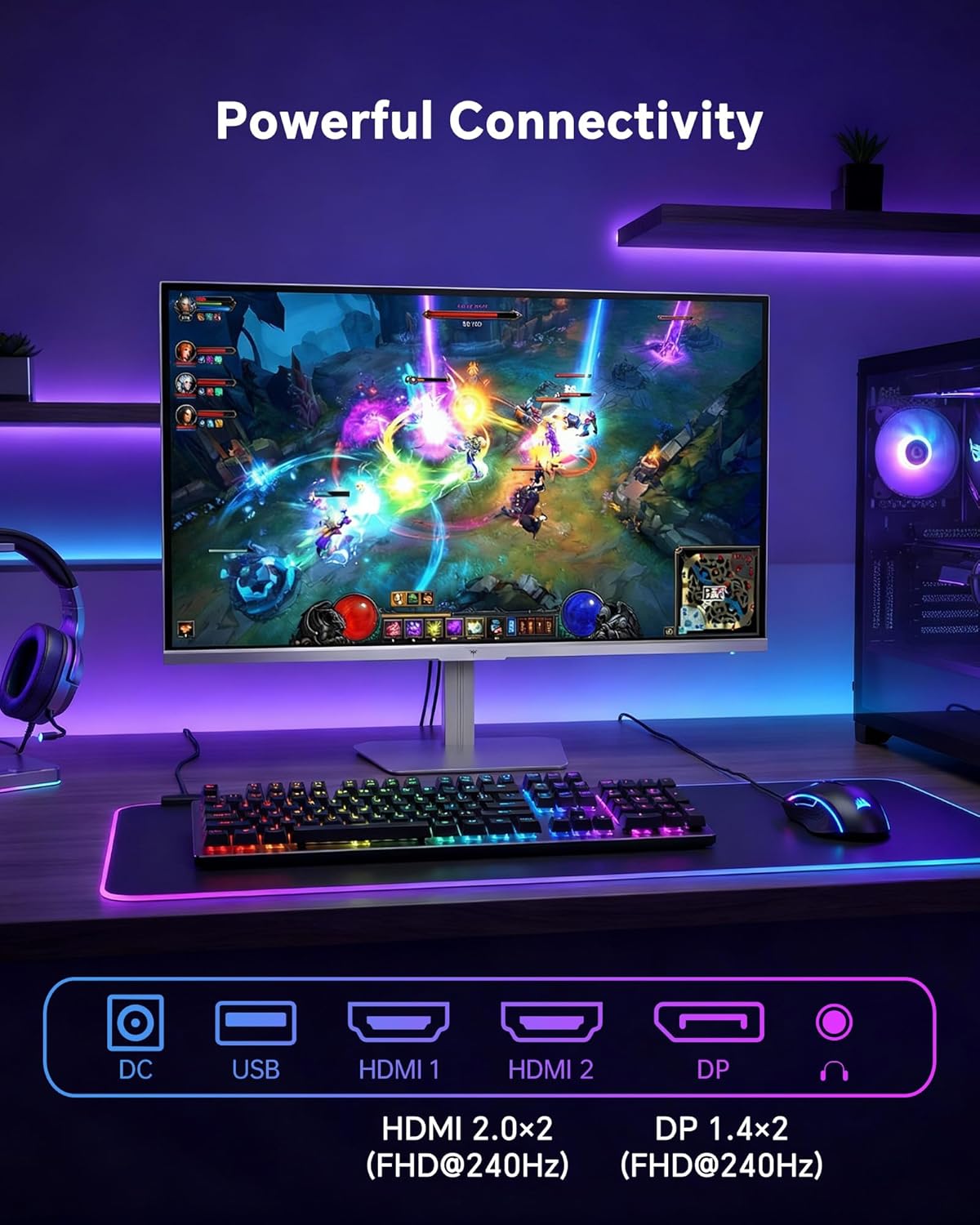
- HDMI: Use an HDMI cable to connect to devices with HDMI output. The monitor has two HDMI 2.0 ports, supporting FHD at 240Hz.
- ディスプレイポート: Use a DisplayPort cable for devices with DisplayPort output. The monitor has one DisplayPort 1.4, supporting FHD at 240Hz.
- 力: Connect the power adaptor to the DC input on the monitor and then to a power outlet.
- USB: A USB 2.0 port is available for connecting peripherals.
- オーディオ出力: A 3.5mm audio jack is available for connecting headphones or external speakers.
2. 操作手順
2.1 電源オン/オフ
モニターの電源ボタンを押すと、電源のオン/オフを切り替えることができます。モニターがアクティブなときは、電源インジケーターライトが点灯します。
2.2 オンスクリーンディスプレイ(OSD)メニュー
The OSD menu allows you to adjust various monitor settings. Use the control buttons (typically located on the back or bottom of the monitor) to navigate the menu and select options. Refer to the Quick Start Guide for specific button functions.
2.3 表示設定
最適化する view以下の設定を調整することで、エクスペリエンスを向上させることができます。
- リフレッシュレート: The monitor supports a 240Hz refresh rate for smooth motion. Ensure your graphics card settings are configured to utilize this rate.

- アダプティブ シンク: This technology synchronizes the monitor's refresh rate with your graphics card's frame rate to eliminate screen tearing and stuttering. Enable Adaptive Sync in the OSD menu and ensure it is also enabled in your graphics card control panel (FreeSync/G-Sync compatible).

- HDR400: High Dynamic Range 400 provides enhanced contrast and color accuracy, delivering brighter highlights and deeper shadows. Activate HDR in the OSD menu and your operating system display settings for compatible content.

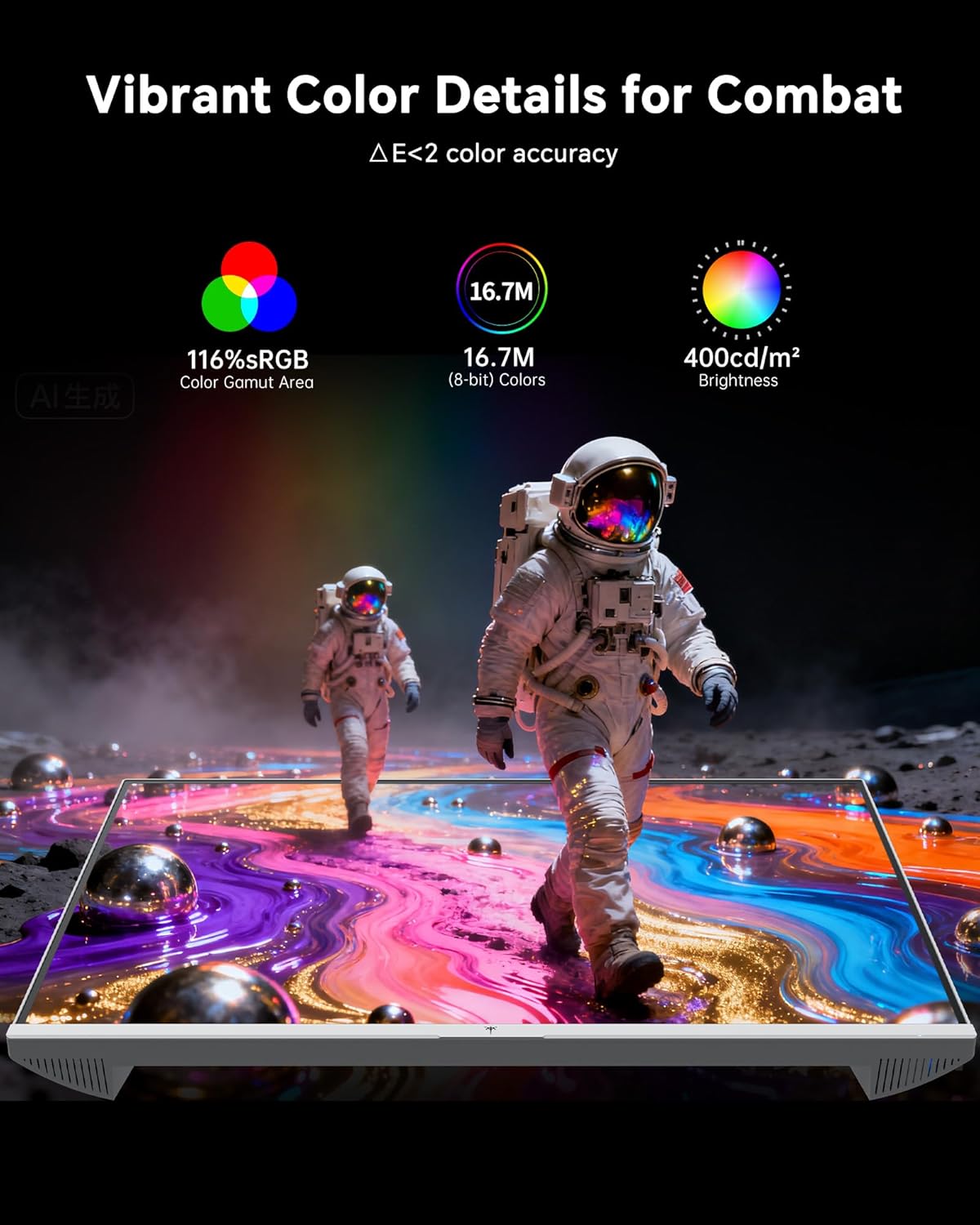
- 色の設定: The monitor offers 116% sRGB color gamut and 16.7 million colors. Adjust brightness (up to 400 cd/m²) and color temperature through the OSD menu to suit your preference.
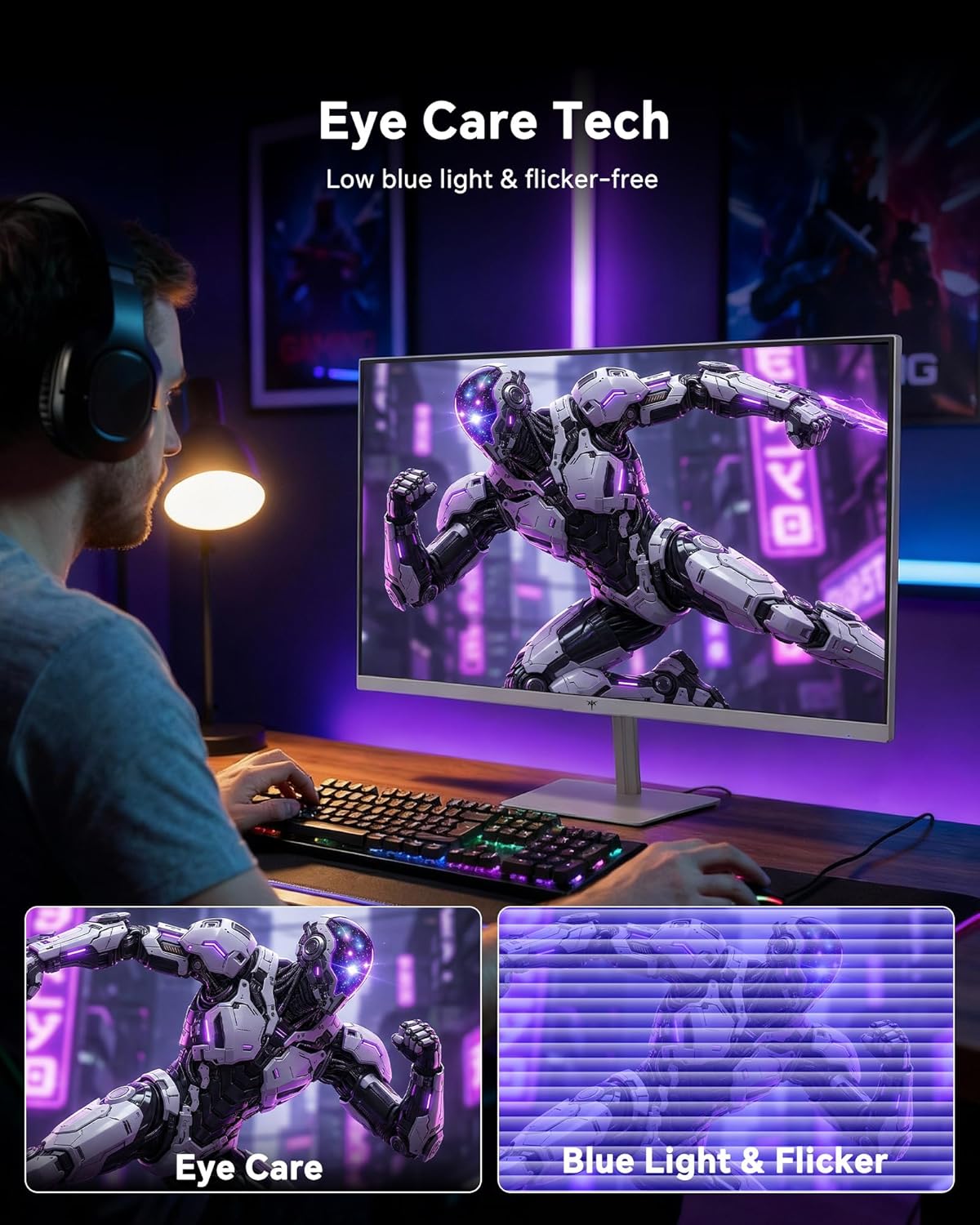
- アイケア技術: The monitor features low blue light and flicker-free technology to reduce eye strain during prolonged use. These settings can typically be adjusted or enabled within the OSD menu.
2.4 Monitor Tilt Adjustment
The monitor supports tilt adjustment from -5° to 15° (±3°). Gently adjust the monitor panel to your desired view角度。
3. メンテナンス
3.1 モニターの掃除
モニター画面を清掃するにはasing:
- 清掃する前に必ずモニターの電源をオフにし、電源コードを抜いてください。
- 柔らかく糸くずの出ない布で軽く拭き取ってください。amp水または、研磨剤を含まない低刺激のスクリーンクリーナーで拭いてください。
- 画面を優しく拭いて、ほこりや汚れを取り除いてください。過度の圧力をかけないようにしてください。
- cの場合asing, use a dry, soft cloth. Do not use alcohol, ammonia, or abrasive cleaners, as these can damage the surface.
3.2一般的なケア
- モニターやそのケーブルの上に重い物を置かないでください。
- モニターを直射日光、高温、極度の寒さにさらさないでください。
- モニターを液体や高湿度の場所に置かないでください。
- 過熱を防ぐために、モニターの周囲に適切な換気を確保してください。
4。 トラブルシューティング
If you encounter issues with your KTC H24F7 monitor, refer to the following common problems and solutions:
| 問題 | 考えられる原因 | 解決 |
|---|---|---|
| 画面に画像がありません | Power cable disconnected; Video cable disconnected or loose; Incorrect input source selected; Monitor is off. | Ensure power cable is securely connected and monitor is on. Check video cable connections (HDMI/DisplayPort) at both the monitor and computer. Press the input source button on the monitor to cycle through inputs. |
| 画像のちらつきやティアリング | Adaptive Sync not enabled; Graphics card driver issues; Faulty video cable. | Enable Adaptive Sync in the OSD menu and your graphics card control panel. Update graphics card drivers. Try a different video cable. If using DisplayPort 1, try DisplayPort 2 or HDMI if available, as some units may experience issues with specific ports. |
| 色が正しくなかったり、色褪せたりしているように見える | Color settings incorrect; HDR not properly configured; Faulty video cable. | Adjust color settings (brightness, contrast, color temperature) in the OSD menu. Ensure HDR is enabled in both the OSD and your operating system for HDR content. Try a different video cable. |
| モニターが240Hzに達しない | Graphics card limitations; Incorrect display settings in OS; Cable bandwidth limitations. | Ensure your graphics card supports 240Hz at 1080p. Verify display settings in your operating system (e.g., Windows Display Settings or NVIDIA/AMD control panel) are set to 240Hz. Use the provided HDMI cable or a certified DisplayPort 1.4 cable. |
| ドット抜けやドット抜け | 製造上の欠陥。 | A small number of stuck or dead pixels (typically 1-3) may be considered normal for LCD panels. If the issue is severe or persistent, contact customer support. |
5. 仕様
| 特徴 | 詳細 |
|---|---|
| ブランド | KTC |
| モデル番号 | H24F7 |
| 画面サイズ | 24インチ |
| 解決 | FHD 1080p (1920 x 1080 ピクセル) |
| パネルタイプ | ほぼIPS |
| リフレッシュレート | 240Hz |
| 応答時間 | 1ミリ秒(MPRT) |
| アスペクト比 | 16:9 |
| 輝度 | 1平方メートルあたり400カンデラ |
| コントラスト比 | 1000:1 |
| 色域 | 116% sRGB |
| HDR サポート | 400 ピクセル |
| アダプティブ同期 | FreeSync, G-Sync Compatible |
| 接続性 | HDMI 2.0 x 2、DisplayPort 1.4 x 1、USB 2.0 x 1、オーディオ出力 (3.5mm) x 1 |
| アイケア機能 | Low Blue Light, Flicker-Free, Anti-Glare Screen |
| 調整 | 傾斜(-5°~15°) |
| VESAマウント | 100mm×100mm |
| 寸法(D x W x H) | 奥行き5.39インチ x 幅21.25インチ x 高さ15.74インチ |
| アイテム重量 | 3.2キログラム |
| 色 | 白 |
6.保証とサポート
6.1 保証情報
The KTC H24F7 monitor comes with a three-year manufacturer warrantyこの保証は、通常の使用における材料および製造上の欠陥をカバーします。
保証請求のために購入証明書を保管してください。
6.2 カスタマーサポート
For technical assistance, warranty claims, or any questions regarding your KTC H24F7 monitor, please contact KTC customer support. KTC aims to provide responsive customer support and typically responds within 12 hours.
You can usually find contact information on the official KTC website or through the retailer where you purchased the product. When contacting support, please have your monitor model number (H24F7) and purchase details ready.