
1. はじめに
The SUPVAN E12 is a versatile and portable thermal label maker designed for efficient organization in various environments, including office, home, and school. It features a QWERTY keyboard for direct input and Bluetooth connectivity for advanced customization via a mobile application. This manual provides detailed instructions for setup, operation, maintenance, and troubleshooting to ensure optimal use of your device.

2. 安全情報
- 自分でデバイスを分解したり修理しようとしないでください。
- Keep the device away from water, high temperatures, and direct sunlight.
- Use only SUPVAN-approved label tapes to prevent damage and ensure print quality.
- お子様の手の届かない場所に保管してください。
- 充電には付属のUSB-Cケーブルを使用してください。
3. パッケージ内容
パッケージにすべてのアイテムが揃っていることを確認します。
- SUPVAN E12 Label Maker
- 1 Roll of White Label Tape (15 mm x 6 m)
- USB-C充電ケーブル
- ユーザーマニュアル

4.製品オーバーview
Familiarize yourself with the main components of your SUPVAN E12 label maker:

- QWERTYキーボード: For direct text input.
- LCDディスプレイ: Shows text, settings, and battery status.
- 電源ボタン: デバイスの電源をオン/オフにします。
- 印刷ボタン: 印刷を開始します。
- USB-Cポート: デバイスの充電用。
- ラベル出力スロット: 印刷されたラベルが出る場所。
- ラベルコンパートメント: ラベルロールを保持します。
5. セットアップ
5.1. デバイスの充電
The SUPVAN E12 comes with a built-in 1200mAh rechargeable battery. Before first use, fully charge the device.
- Connect the provided USB-C charging cable to the USB-C port on the side of the label maker.
- ケーブルのもう一方の端を標準の USB 電源アダプタ (別売) またはコンピュータの USB ポートに差し込みます。
- The charging indicator on the device will show its status. A full charge provides up to one month of standby time.

5.2. Inserting Label Roll
Proper label roll insertion is crucial for optimal printing.
- Open the label compartment cover on the back of the device.
- Insert the label roll with the printing surface facing up, ensuring it is seated correctly.
- Pull a small portion of the label tape out through the label output slot.
- ラベルコンパートメントカバーをしっかりと閉じます。
5.3. Bluetooth Connection and App Download
To unlock advanced features, connect your label maker to the SUPVAN app.
- Download the "SUPVAN" app from your device's app store (compatible with Android and iOS).
- Turn on the SUPVAN E12 label maker.
- スマートフォンまたはタブレットでBluetoothを有効にします。
- Open the SUPVAN app and follow the on-screen instructions to pair with your E12 device. No registration is required.
6. 操作手順
6.1. QWERTYキーボードの使用
The integrated QWERTY keyboard allows for direct and quick label creation.
- タイピング: Use the QWERTY keys to enter text, numbers, and special characters.
- バックライト: を押す Fn キーに続いて バックライト key to toggle the screen backlight for improved visibility in various lighting conditions.
- 特殊文字: Access additional symbols and functions using the Fn 他のキーと組み合わせてキーを使用します。


6.2. モバイルアプリの使用
The SUPVAN app offers extensive customization options for your labels.
- テキストのカスタマイズ: 30 種類以上のフォントから選択し、サイズ、スタイル、配置を調整します。
- Icons and Frames: Access a library of over 860 icons and 50 frames to enhance your labels.
- QRコードとバーコード: Generate and print QR codes and various barcode types directly from the app.
- Images & Shapes: Incorporate images and shapes into your label designs.
- テンプレート: 一般的なラベル付けタスクには、事前に設計されたテンプレートを活用します。


6.3. 印刷工程
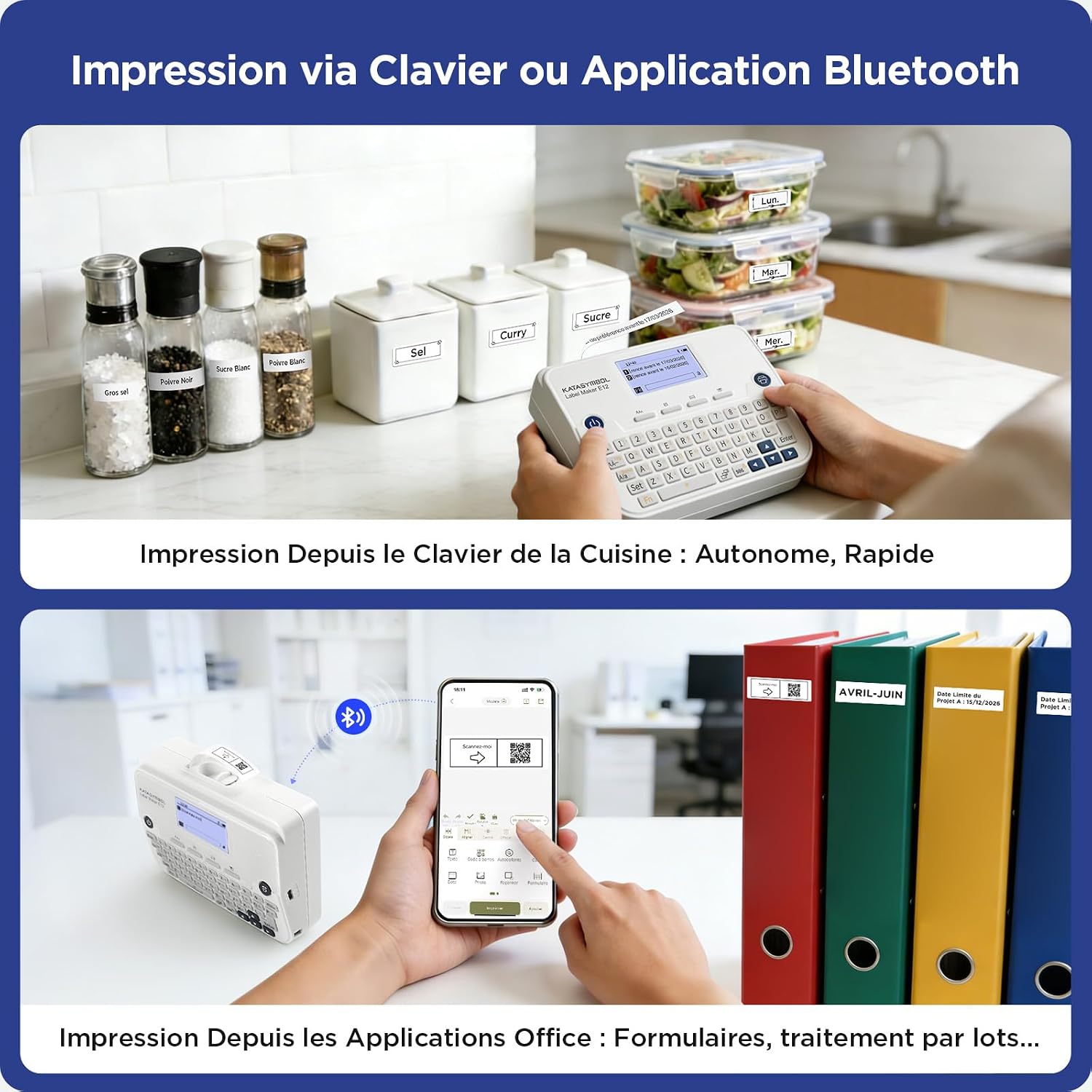
Labels can be printed directly from the keyboard or via the mobile app.

- From Keyboard: Type your desired text using the QWERTY keyboard. Review the text on the LCD display. Press the 印刷 ラベルを印刷するボタン。
- アプリから: Create and customize your label design within the SUPVAN app. Ensure the label maker is connected via Bluetooth. Tap the 印刷 アプリ内のアイコン。
- After printing, manually cut the label using the integrated cutter or scissors.
6.4. Label Customization and Types
The SUPVAN E12 supports various label types and allows for extensive customization.
- Fixed Size Labels: Available in white, colored, special designs, and transparent options.
- 連続ラベル: Allows for custom label lengths, minimizing waste with reduced margins.
- バラエティ: Over 40 types of durable labels are available in different sizes and colors.


6.5. Label Features and Applications
SUPVAN labels are designed for durability and versatility.
- 強力な接着力: Labels adhere firmly to various surfaces.
- クリーン除去: Labels can be removed cleanly without leaving residue.
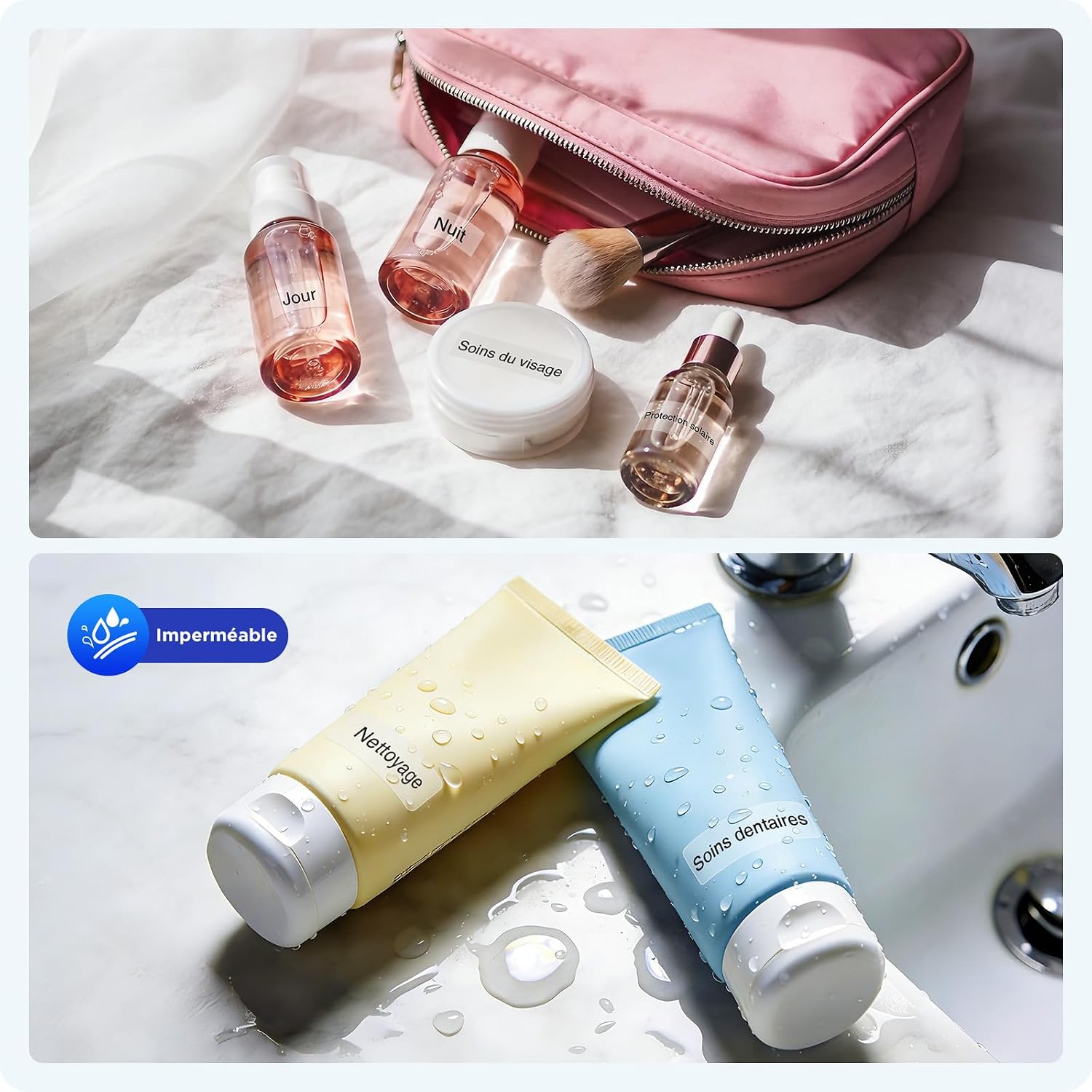
- 防水: Resistant to water, suitable for items exposed to moisture.
- 傷に強い: 軽度の摩耗に耐えられるよう設計されています。
- BPAフリー: Made from safe, environmentally friendly materials.

6.6.アプリケーション例ampレ
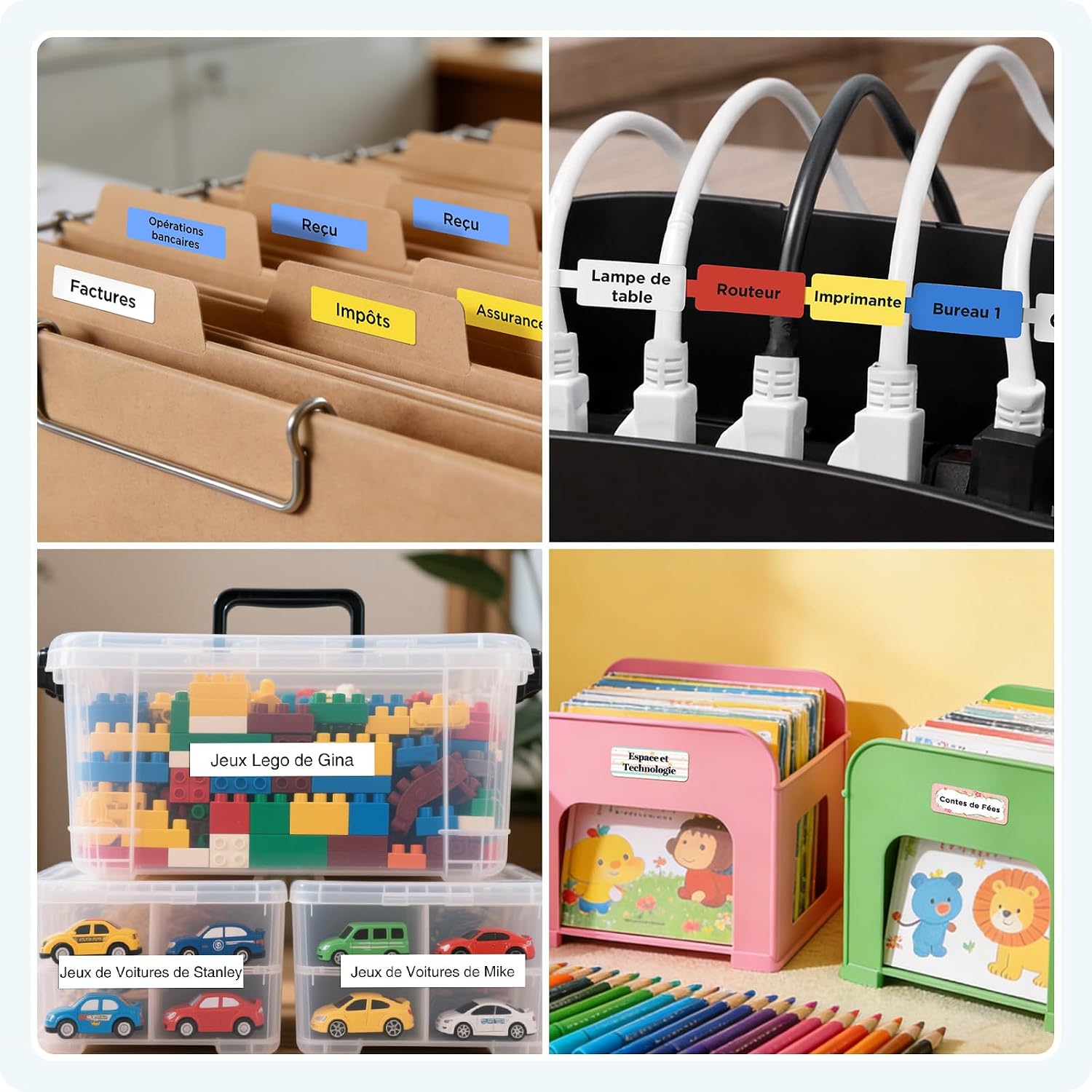
The SUPVAN E12 is suitable for a wide range of labeling needs:
- ホーム組織: Labeling kitchen containers, storage bins, and personal items.
- オフィス組織: Categorizing files, identifying cables, and organizing stationery.
- 学校用品: Labeling notebooks, pens, water bottles, and other school items.


7. メンテナンス
7.1. 清掃
- Regularly clean the print head with a soft, lint-free cloth or a cotton swab lightly dampイソプロピルアルコールで消毒しました。
- デバイスの外側は、柔らかく乾いた布で拭いてください。研磨剤入りの洗剤や溶剤は使用しないでください。
7.2. バッテリーのお手入れ
- バッテリーの寿命を延ばすには、バッテリーを頻繁に完全に放電しないようにしてください。
- デバイスを長期間保管する場合は、約 50% まで充電し、涼しく乾燥した場所に保管してください。
7.3. ラベルの保存
- Store label rolls in a cool, dry place away from direct sunlight and extreme temperatures to maintain adhesive quality and printability.
8。 トラブルシューティング
| 問題 | 考えられる原因 | 解決 |
|---|---|---|
| デバイスの電源が入らない | バッテリー残量が少ない、または充電されていない | USB-C ケーブルを使用してデバイスを充電します。 |
| 印刷品質が悪い | Dirty print head or incorrect label insertion | Clean the print head. Re-insert the label roll correctly. Ensure you are using SUPVAN labels. |
| Bluetooth経由で接続できません | Bluetooth off, device out of range, or app issue | Ensure Bluetooth is enabled on both devices. Move the label maker closer to your phone. Restart the app and the label maker. |
| ラベル詰まり | Improper label roll insertion or foreign object | Open the label compartment, remove the jammed label, and re-insert the roll correctly. |
| Blank labels printing | Label roll inserted upside down | Re-insert the label roll with the printing surface facing up. |
9. 仕様
| 特徴 | 詳細 |
|---|---|
| ブランド | スーパーバン |
| モデル名 | E12 |
| 接続技術 | Bluetooth、USBタイプC |
| 印刷技術 | サーマル |
| プリンタ出力 | モノクロ |
| 最大印刷速度(モノクロ) | 毎分25ページ |
| 最大印刷速度(カラー) | 毎分12ページ |
| 特集 | ディスプレイ画面 |
| アイテム重量 | 280グラム |
| 商品の寸法 (長さ x 幅 x 高さ) | 長さ147mm x 幅39mm x 高さ78mm |
| 印刷メディアの種類 | ラベル |
| バッテリー | 1 A - 付属 |
| USBポート合計 | 1 |
| 原産国 | 中国 |
| メーカー | Beijing Supvan Information Technology Co., Ltd. |
| 特定の製品用途 | オフィス、自宅、学校 |
10. 保証
The SUPVAN E12 Label Maker comes with a 2年間のメーカー保証. Please retain your proof of purchase for warranty claims. For specific terms and conditions, refer to the warranty information provided with your product or contact SUPVAN customer support.
11. カスタマーサポート
If you encounter any issues not covered in this manual or require further assistance, please contact SUPVAN customer support through the retailer's platform or the official SUPVAN website. Have your product model (E12) and purchase details ready when contacting support.


