
1. はじめに
This manual provides essential information for setting up, operating, maintaining, and troubleshooting your HP 14-em 14-inch HD Laptop. Please read this guide thoroughly to ensure optimal performance and longevity of your device.
The HP 14-em laptop features an AMD Athlon Silver 7120U processor, 4GB RAM, 512GB eMMC storage, and runs on Windows 11 Pro. It is designed for everyday tasks, offering a balance of performance and portability.
2. セットアップ
2.1 開梱と初期検査
ノートパソコンとすべての付属品をパッケージから慎重に取り出します。すべてのコンポーネントが揃っていることを確認してください。
- HP 14-inch Laptop
- 電源アダプター
- Mytrix 2.4GHz Wireless Gaming Headset
- ドキュメント
ノートパソコンに物理的な損傷がないか点検してください。損傷が見つかった場合は、直ちに販売店にご連絡ください。
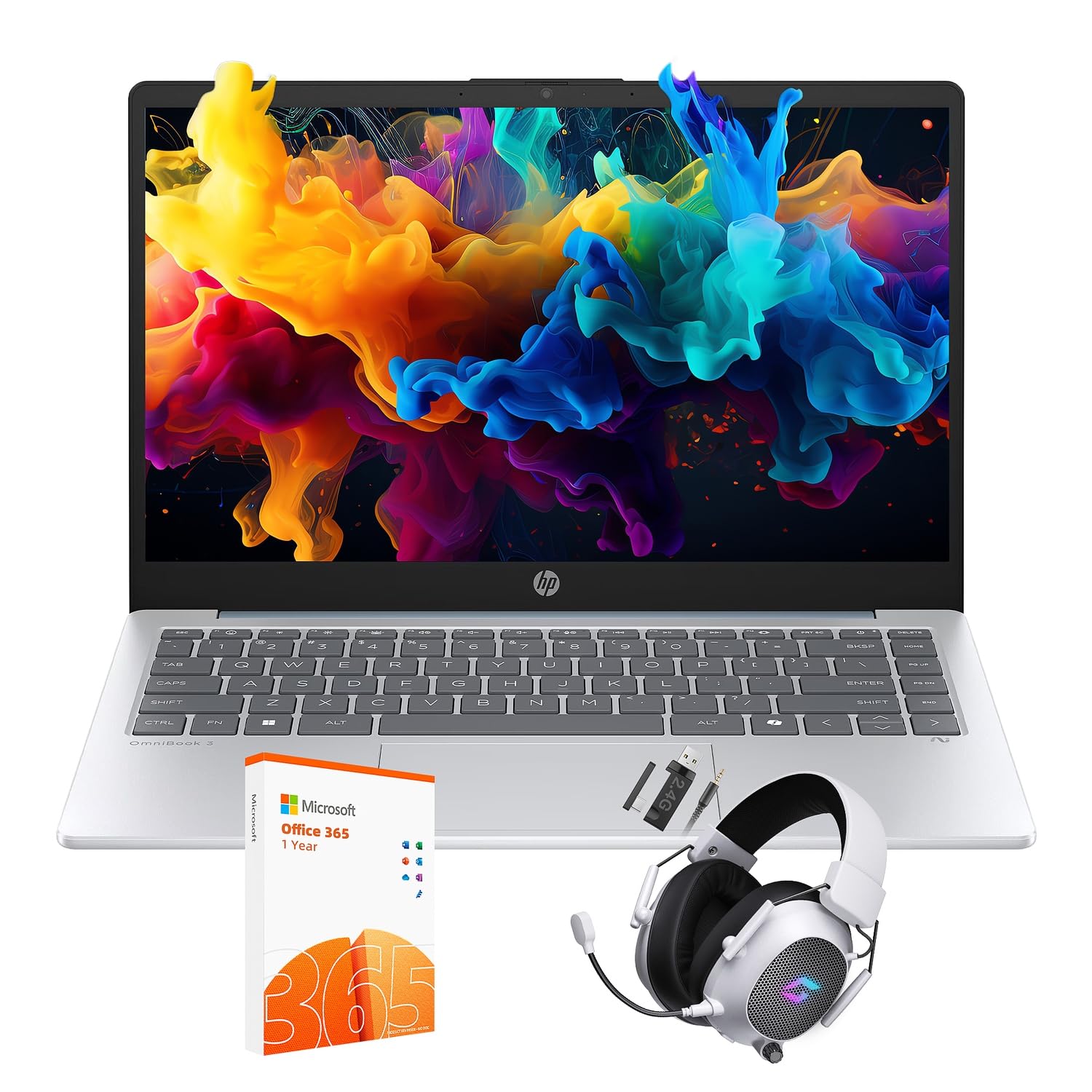
Figure 2.1: The HP 14-inch HD Laptop in Moonlight Blue, showcasin洗練されたデザイン。
2.2 電源アダプタの接続
電源アダプターをノートパソコンの電源ポートに接続し、壁のコンセントに差し込みます。初めて使用する前に、バッテリーを完全に充電することをお勧めします。
2.3 初回電源投入とWindows 11 Proのセットアップ
Press the power button located on the keyboard deck. The laptop will boot up and guide you through the Windows 11 Pro setup process. Follow the on-screen instructions to:
- お住まいの地域と言語を選択してください。
- Wi-Fi ネットワークに接続します。
- ライセンス条項に同意します。
- ユーザー アカウントを作成するか、Microsoft アカウントでサインインします。
- プライバシー設定を構成します。
2.4 Setting up the Mytrix Wireless Gaming Headset
Refer to the separate instructions provided with the Mytrix 2.4GHz Wireless Gaming Headset for detailed setup. Generally, this involves:
- ヘッドセットを充電しています。
- Connecting the wireless dongle to an available USB port on the laptop.
- Powering on the headset and ensuring it pairs with the dongle.
- Configuring audio input/output settings in Windows 11 Pro.
3. ノートパソコンの操作
3.1 電源管理
- 電源オン: 電源ボタンを押します。
- スリープモード: ふたを閉じるか、スタート メニューから [スリープ] を選択します。
- シャットダウン: スタートメニューから「シャットダウン」を選択します。
- 再起動: スタートメニューから「再起動」を選択します。
3.2 タッチパッドの使用
The touchpad supports multi-touch gestures for navigation. Common gestures include:
- タップ: 1 本指でタップすると左クリックになります。
- 2本指タップ: 右クリック。
- 2本指でスクロール: 上または下にスクロールします。
- ピンチしてズーム: 拡大または縮小します。
3.3 Connecting to Networks (Wi-Fi 6 and Bluetooth 5.4)
Wi-Fi ネットワークに接続するには:
- タスクバーの Wi-Fi アイコンをクリックします。
- リストから希望のネットワークを選択します。
- プロンプトが表示されたら、ネットワーク パスワードを入力します。
Bluetoothデバイスを接続するには:
- へ移動 設定 > Bluetoothとデバイス.
- Bluetoothがオンになっていることを確認します。
- Select "Add device" and follow the pairing instructions for your device.
3.4 External Port Usage
ノートパソコンには、外部デバイスを接続するためのさまざまなポートが装備されています。

Figure 3.1: Available ports on the HP 14-inch HD Laptop.
- USB Type-A: For connecting standard USB devices like mice, keyboards, and external storage.
- USBタイプC: データ転送用。
- HDMI: 外部ディスプレイやプロジェクターに接続します。
- ヘッドフォン/マイクコンボ: ヘッドセットまたは外部スピーカー/マイクを接続します。
3.5 Windows 11 Proの機能
Windows 11 Pro offers advanced security, management tools, and productivity features. Explore the Start Menu, Taskbar, and Settings app to customize your experience. The laptop also supports a 180-degree hinge for flexible view角度を変える。
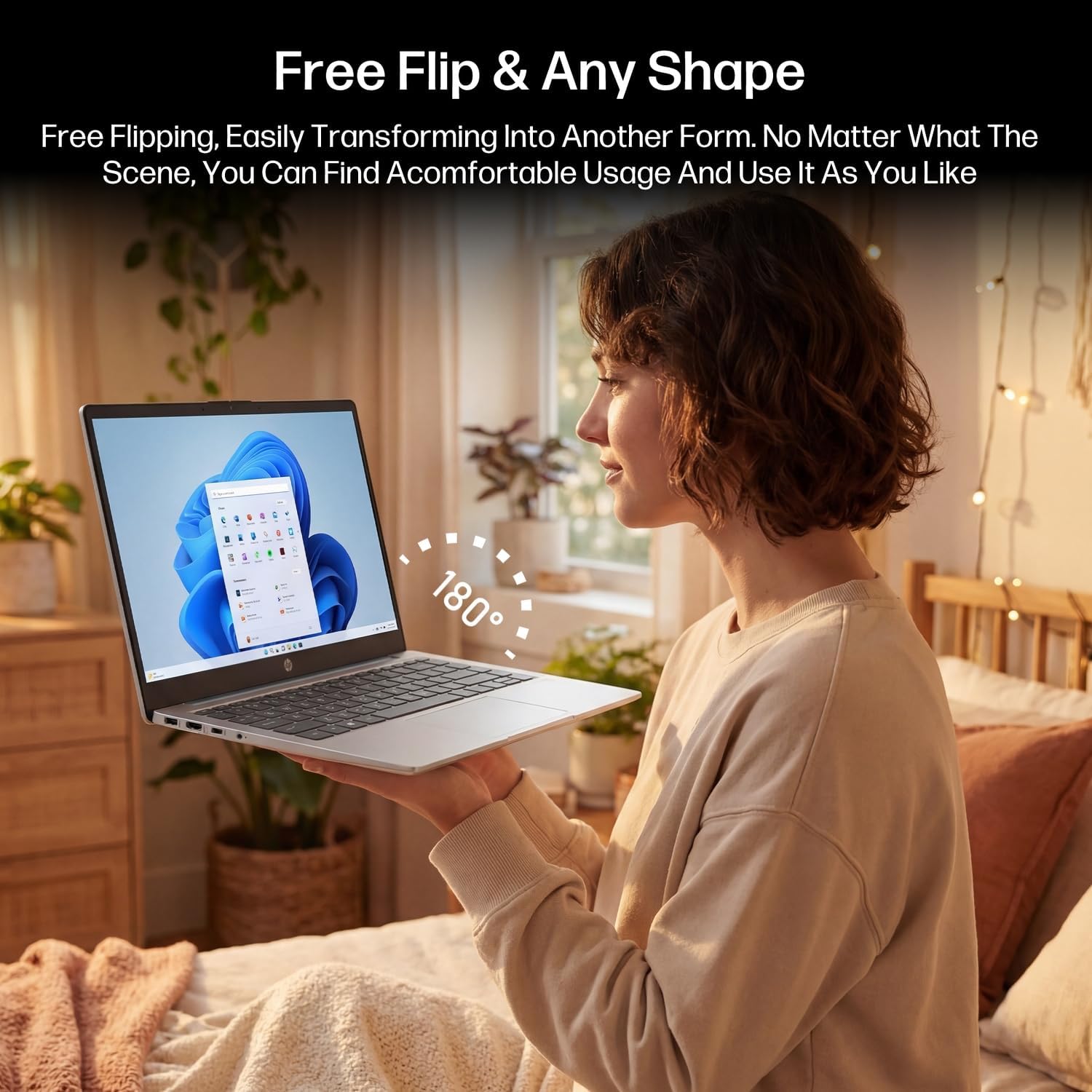
Figure 3.2: The laptop's 180-degree hinge for versatile use.

Figure 3.3: The HP laptop efficiently handles daily tasks.
4. メンテナンス
4.1 ノートパソコンのクリーニング
- 画面: 柔らかく糸くずの出ない布を軽く拭いてください。amp水またはスクリーンクリーナーで拭いてください。スクリーンに直接クリーナーを吹き付けないでください。
- シャーシとキーボード: 柔らかく乾いた布を使用してください。頑固な汚れには、軽く湿らせた布で拭いてください。amp 布で拭いても構いません。ただし、過度の湿気は避けてください。
- ポート: 圧縮空気を使用して、ポートからほこりを丁寧に取り除きます。
4.2バッテリーケア
バッテリ寿命を最大化するには:
- 極端な温度を避けてください。
- バッテリーを頻繁に完全放電させないでください。
- Utilize HP Fast Charge technology for quick recharging when needed.
4.3ソフトウェアアップデート
定期的にWindowsのアップデートを確認し、インストールして、システムに最新のセキュリティパッチとパフォーマンス改善が適用されていることを確認してください。 設定 > Windows Update.
4.4 ストレージ管理
The 512GB eMMC storage provides fast boot-ups and file access. To maintain performance, periodically:
- 不要な削除 files.
- 使用していないアプリケーションをアンインストールします。
- Windows に組み込まれているディスク クリーンアップ ツールを使用します。
5。 トラブルシューティング
このセクションでは、発生する可能性のある一般的な問題について説明します。より複雑な問題については、HPの公式サポートリソースを参照してください。
5.1 ノートパソコンの電源が入らない
- 電源アダプターがノートパソコンと正常に機能している電源コンセントの両方にしっかりと接続されていることを確認します。
- 別のデバイスを接続して、電源コンセントが機能していることを確認します。
- バッテリーが完全に消耗している場合は、再度電源を入れる前に少なくとも 30 分間充電してください。
5.2 Wi-Fi接続の問題
- Windows 設定で Wi-Fi が有効になっているかどうかを確認します。
- ルーターとモデムを再起動します。
- ネットワークを忘れて再接続し、パスワードを再度入力します。
- Ensure your laptop is within range of the Wi-Fi signal.
5.3 External Display Not Detected
- Ensure the HDMI cable is securely connected to both the laptop and the external display.
- Check the input source on your external display (e.g., HDMI 1, HDMI 2).
- プレス Windowsキー + P and select a display option (Duplicate, Extend, Second screen only).
5.4 オーディオの問題
- Check volume levels in Windows and on any connected external audio devices.
- Ensure the correct audio output device is selected in Windows sound settings.
- If using the Mytrix headset, ensure it is powered on and properly paired.
6. 仕様
Detailed technical specifications for your HP 14-em 14-inch HD Laptop:
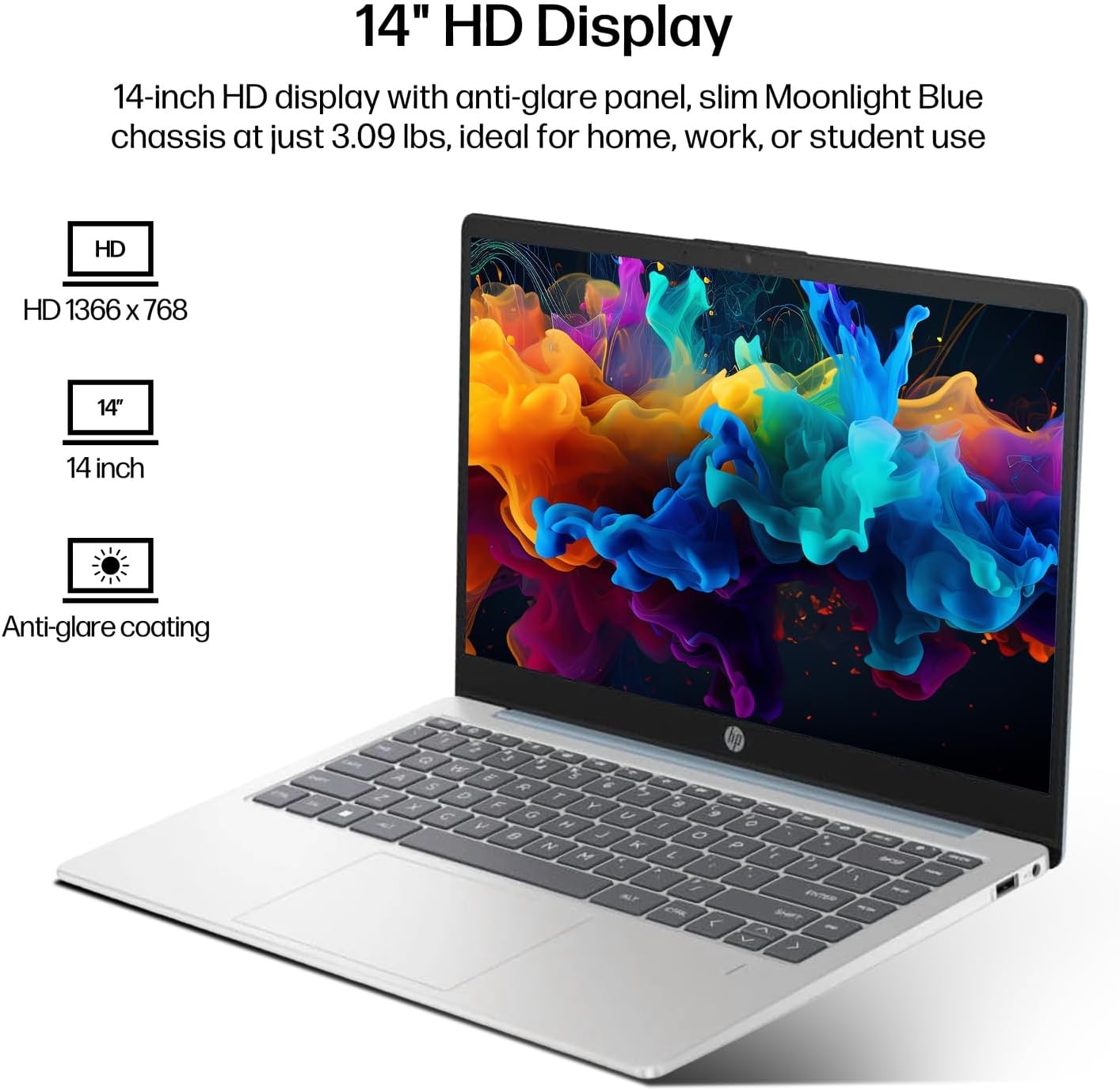
Figure 6.1: The 14-inch HD display features a resolution of 1366 x 768 pixels and an anti-glare coating.

Figure 6.2: The laptop is powered by an AMD Athlon Silver 7120U Processor with integrated AMD Radeon Graphics.
| 特徴 | 仕様 |
|---|---|
| ブランド | HP |
| モデル名 | 14-em |
| プロセッサ | AMD Athlon Silver 7120U (2 Cores, 2 Threads, up to 3.5 GHz Boost Clock) |
| グラフィックス | AMD Radeon グラフィックス(統合) |
| ラム | 4 GB DDR4 SODIMM |
| ストレージ | 512 GB eMMC (Solid State) |
| 画面 | 14-inch HD (1366 x 768) LED, Anti-Glare |
| オペレーティング·システム | ウィンドウズ11プロ |
| ワイヤレス接続 | Wi-Fi 6(802.11ax)、Bluetooth 5.4 |
| ポート | 2x USB Type-A, 1x USB Type-C (Data Transfer), 1x HDMI, 1x Headphone/Microphone Combo |
| カメラ | 正面向きの |
| オーディオ | HDオーディオ |
| 寸法(長さ×幅×高さ) | 12.74インチ x 8.46インチ x 0.7インチ |
| 重さ | 約3.09ポンド |
| 付属アクセサリ | Mytrix 2.4GHz Wireless Gaming Headset |

Figure 6.3: Physical dimensions of the HP 14-inch HD Laptop.
7. 保証とサポート
7.1製品保証
Your HP 14-em laptop comes with a 12-month manufacturer's warranty. This warranty covers defects in materials and workmanship under normal use. For specific terms and conditions, please refer to the warranty documentation included with your product or visit the official HP support webサイト。
7.2 テクニカルサポート
For technical assistance, troubleshooting beyond this manual, or warranty claims, please contact HP Customer Support. You can find contact information on the official HP webサイトまたはラップトップにプリインストールされているサポート アプリケーションを通じて入手できます。
Additional protection plans are available for purchase, including 2-Year and 4-Year Protection Plans, and a monthly Complete Protect plan. Details can be found where you purchased the product.


