
1. はじめに
This manual provides detailed instructions for setting up, operating, and maintaining your AOOSTAR MACO AMD R7 6850H Mini PC. Please read this manual thoroughly before using the device to ensure proper functionality and to prevent damage.
The AOOSTAR MACO AMD R7 6850H Mini PC is a compact computing device designed for various tasks, including office productivity, content creation, and multimedia consumption. It features an AMD Ryzen 7 PRO 6850H processor, LPDDR5 RAM, and multiple connectivity options.
2. 箱の中身
Upon unpacking, please verify that all items listed below are present and in good condition. If any items are missing or damaged, please contact customer support.
- 1x AOOSTAR MACO 6850H Mini PC
- 1x 120W Power Supply
- HDMIケーブル x 1
- 1x SSD Cooling Pad
- 1x Mounting Screw Set
- ユーザーマニュアル (本書) x 1

The image above shows the main components included in the package. The mini PC is a compact silver unit, accompanied by its power adapter, an HDMI cable for display connection, and the user manual. Additional small accessories like an SSD cooling pad and mounting screws are also part of the package.
3.製品オーバーview
3.1フロントパネル
- Power Button with Fingerprint Sensor: Press to power on/off. Supports Windows Hello for secure login.
- USB4ポート(x1): 高速データ転送とディスプレイ出力。
- USB 3.2 Gen2 タイプA ポート (x2): USB デバイスを接続します。
- 3.5mmオーディオジャック: ヘッドフォンまたは外部スピーカー用。

The front panel provides convenient access to essential ports. The power button also integrates a fingerprint sensor for enhanced security. Two USB 3.2 Type-A ports are available for peripherals, alongside a versatile USB4 port and a 3.5mm audio jack.
3.2 背面パネル
- DC INポート: Connect the 120W power adapter here.
- USB4ポート(x1): Additional high-speed data transfer and display output.
- 2.5G LAN ポート (x2): 有線ネットワーク接続用。
- HDMI 2.1 ポート (x1): ディスプレイに接続します。
- ディスプレイポート 1.4 (x1): ディスプレイに接続します。
- USB 2.0 ポート (x2): USB デバイスを接続します。
- Oculinkポート(x1): Dedicated port for external GPU connection.
The rear panel offers extensive connectivity for power, networking, and multiple displays. It includes a DC IN port, a second USB4 port, dual 2.5G LAN ports for robust network connections, HDMI 2.1 and DisplayPort 1.4 for video output, two USB 2.0 ports, and a specialized Oculink port for external graphics solutions.
4. セットアップ手順
4.1 初期接続
- ディスプレイを接続する: Use the provided HDMI cable to connect your monitor to the HDMI port on the Mini PC. Alternatively, use the DisplayPort or USB4 ports for other display types.
- 周辺機器を接続します。 Plug in your keyboard and mouse to the available USB ports (USB 3.2 Type-A on the front or USB 2.0 on the rear).
- 接続電源: Connect the 120W power adapter to the DC IN port on the rear of the Mini PC, then plug the adapter into a power outlet.
- 電源オン: 前面パネルの電源ボタンを押して、ミニ PC の電源をオンにします。

This image illustrates a typical setup with the Mini PC connected to a display, keyboard, and mouse. Ensure all cables are securely connected before powering on the device.
4.2 Operating System Setup (Barebone Version)
If you purchased the barebone version without an SSD/OS, you will need to install an operating system. The device supports Windows 11 Pro. Contact customer service to request a free Windows 11 Pro key if applicable.
- SSD をインストールします。 Open the bottom cover (refer to Maintenance section for instructions) and install your M.2 2280 PCIe 4.0 x4 SSD into one of the three available slots.
- Create Bootable USB: Prepare a bootable USB drive with your desired operating system (e.g., Windows 11 Pro installer).
- OSをインストール: Insert the bootable USB drive, power on the Mini PC, and follow the on-screen instructions to install the operating system.

This image shows the internal layout of the Mini PC, specifically the M.2 slots where SSDs can be installed. The device supports up to 24TB of storage across these slots, with RAID 0/1/5 configurations possible.
5. 操作手順
5.1 基本操作
- 電源オン/オフ: Press the power button once to turn on. To turn off, either shut down via the operating system or press and hold the power button for 5 seconds.
- Fingerprint Login: For Windows Hello compatible systems, gently place your registered finger on the power button for quick and secure login.
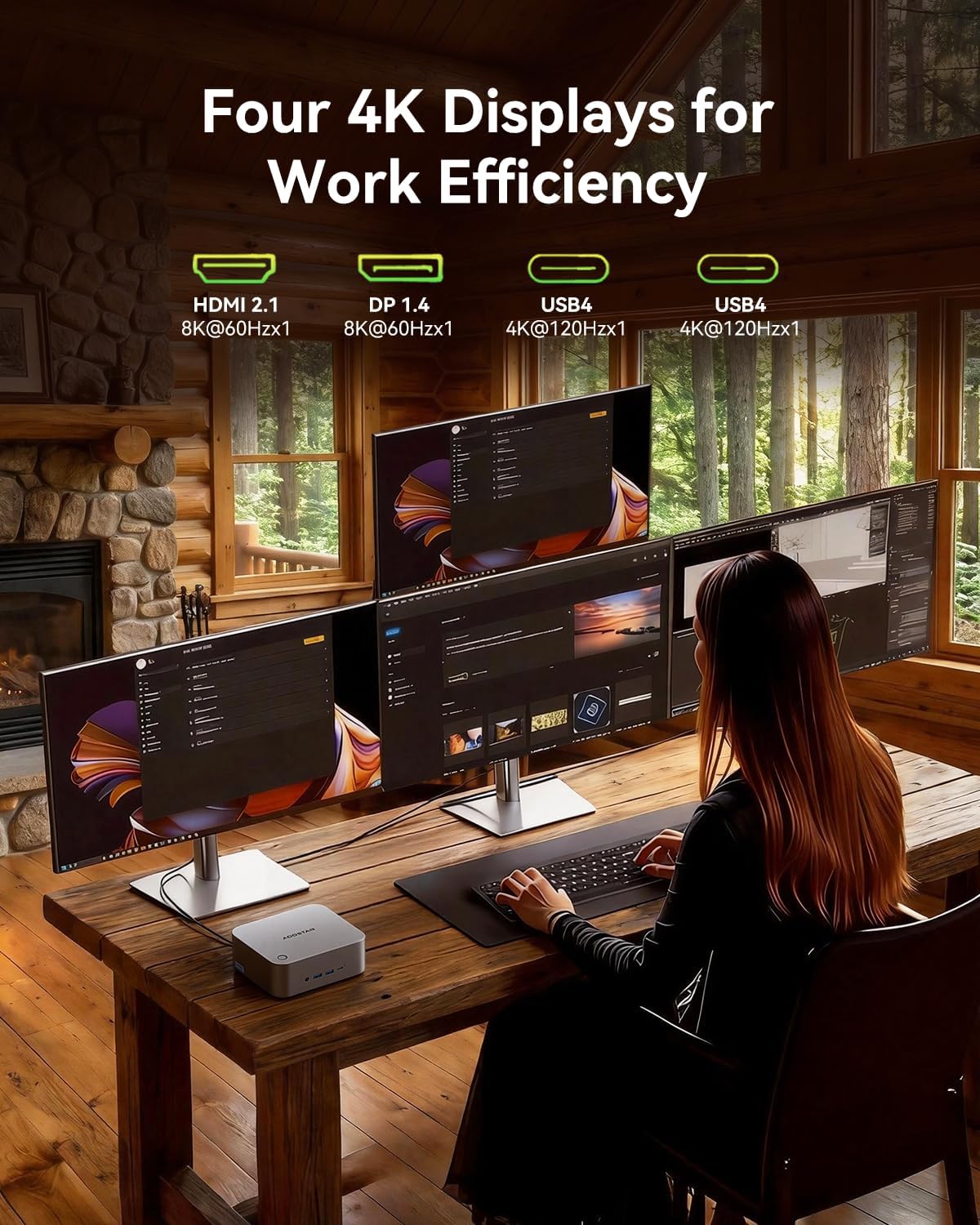
- Quad-Screen Display: Connect up to four displays using the HDMI 2.1, DisplayPort 1.4, and two USB4 ports. This allows for extended desktop environments.

This image showcases the Mini PC's ability to drive four displays simultaneously, ideal for multitasking and professional workflows. The various display ports (HDMI, DisplayPort, USB4) offer flexibility in monitor connections.
5.2つの高度な機能
- Oculink External GPU: The dedicated Oculink port allows for connecting an external GPU (eGPU) for enhanced graphics performance, suitable for gaming or demanding creative applications.
- RAID 構成: With three M.2 slots, you can configure RAID 0, 1, or 5 arrays for improved storage performance or data redundancy.
- 高速ネットワーク: Utilize the dual 2.5Gbps LAN ports for fast and stable wired network connections, or connect wirelessly via WiFi 6 and Bluetooth 5.2.

This image illustrates the Oculink port's function, allowing the Mini PC to connect to an external GPU for significantly boosted graphical capabilities, transforming it into a more powerful workstation or gaming machine.
6. メンテナンス
6.1 クリーニング
- ミニ PC の外側は、定期的に柔らかい乾いた布で拭いてください。
- Use compressed air to clear dust from the ventilation grilles to maintain optimal cooling performance.
- 清掃する前に、デバイスの電源がオフになっており、プラグが抜かれていることを確認してください。
6.2 ストレージ拡張
The Mini PC supports up to three M.2 2280 PCIe 4.0 x4 SSDs. To install or replace an SSD:
- Power off the device and unplug all cables.
- Carefully remove the four screws on the bottom plastic cover.
- Gently pry open the bottom cover to access the M.2 slots.
- Insert the M.2 SSD into an available slot and secure it with the provided mounting screw.
- Attach the SSD cooling pad if desired.
- 底カバーを元に戻し、ネジを締めます。

この画像は、 view of the internal components, particularly the M.2 slots, which are accessible by removing the bottom cover. This is where users can install or upgrade their NVMe SSDs.
7。 トラブルシューティング
| 問題 | 考えられる原因 | 解決 |
|---|---|---|
| No power/device does not turn on. | Power cable not connected; faulty power adapter/outlet. | Ensure power cable is securely connected. Try a different power outlet or adapter. |
| 表示出力なし。 | ディスプレイ ケーブルの接続が正しくありません。モニターの入力が選択されていません。 | Check HDMI/DP/USB4 cable connections. Ensure monitor is set to the correct input source. |
| パフォーマンスが遅い。 | Overheating; too many applications running; insufficient storage. | Ensure proper ventilation. Close unnecessary applications. Check SSD health and free space. |
| ネットワーク接続の問題。 | Loose LAN cable; WiFi signal interference; incorrect network settings. | Check LAN cable connection. Restart router/modem. Verify WiFi settings or try wired connection. |
8. 仕様
| 特徴 | 詳細 |
|---|---|
| プロセッサ | AMD Ryzen 7 PRO 6850H (8C/16T, 3.2GHz base, 4.7GHz max boost) |
| グラフィックス | AMD Radeon グラフィックス(統合) |
| ラム | 24GB LPDDR5 6400MHz (Soldered) |
| ストレージ | 3x M.2 2280 PCIe 4.0 x4 slots (up to 24TB, supports RAID 0/1/5) |
| ビデオ出力 | 1x HDMI 2.1 (8K@60Hz), 1x DisplayPort 1.4 (8K@60Hz), 2x USB4 (4K@120Hz) |
| USBポート | 2x USB4 (front/rear), 2x USB 3.2 Gen2 Type-A (front), 2x USB 2.0 (rear) |
| ネットワーキング | 2x 2.5Gbps LAN (Intel I226V), WiFi 6, Bluetooth 5.2 |
| 拡大 | 1x Oculink port for external GPU |
| オーディオ | 1x 3.5mm Audio Jack (front) |
| 安全 | One-touch fingerprint unlock (Windows Hello support) |
| シャーシ | 100% Recycled Aluminum Alloy (except plastic bottom cover) |
| 冷却 | "Glacier" cooling system (VC heat spreader + dual turbo fans + FIN heat dissipation) |
| オペレーティング·システム | Windows 11 Pro (if purchased with OS) |
| 寸法 | 6.89 x 6.77 x 5.08インチ(パッケージ) |
| 重さ | 3.36ポンド(商品) |
9. 保証とサポート
AOOSTAR provides a 12-month worry-free warranty for the MACO AMD R7 6850H Mini PC. Additionally, lifetime technical support is available for all customers.
For any product-related issues, technical assistance, or warranty claims, please contact AOOSTAR customer service. If you encounter any problems with the product, please email us instead of mistakenly contacting the Amazon platform. As a sales platform, they do not understand product technical issues and cannot resolve the problems you are facing.
If you have the time or wish to get the most out of this product, it would be best to send us an email (including the purchase date and order number) when you have the time. We will register this internally, and our after-sales center can assist you more quickly when you encounter product issues in the future. Additionally, we can also offer an extended 6-month warranty period.
If you encounter a product issue that requires telephone or voice communication, please notify us via email first. We will arrange for a corresponding voice customer service representative to assist you. (As we sell in many countries, advance notice is required.)
連絡先メールアドレス: aoostar-shop@outlook.com
10. 安全情報
- デバイスを極端な温度、湿度、または直射日光にさらさないでください。
- デバイスを水やその他の液体の近くに置かないでください。
- 保証が無効になり、損傷を引き起こす可能性があるため、デバイスを自分で開けたり修理したりしないでください。
- 付属の電源アダプターのみを使用してください。互換性のないアダプターを使用すると、デバイスが損傷する可能性があります。
- 過熱を防ぐために通気口を空けておいてください。
11. 公式製品ビデオ
AOOSTAR MACO AMD R7 6850H Overview
ビデオ: このビデオでは、view of the AOOSTAR MACO AMD R7 6850H Mini PC, showcasing its design and key features. It highlights the compact size and various connectivity options.