
1. はじめに
This manual provides essential information for setting up, operating, and maintaining your Plimpton Kids Tablet 10 Inch, Model Kids 20. This device is designed to offer a secure and engaging digital experience for children, featuring the Android 15 operating system, an octa-core processor, and integrated Google Kids Space.
2. 箱の中身
- 1 x PlimPad Kids Android 15 Tablet
- USBアダプター x 1
- USB充電ケーブル x 1
- ユーザーマニュアル

3 製品の特徴
- 高度なパフォーマンス: Equipped with an enhanced Android 15 system, a 2.0GHz 8-core processor, 4GB RAM, and 64GB storage (expandable to 1TB).
- Google Kids Space & Parental Control: Pre-installed with Google Kids Space and educator-endorsed apps. User-friendly parental controls allow content filtering, educational targets, and time restrictions.
- Eye Protection Display: 10.1" HD IPS glass screen (1280 x 800 resolution) with low blue light technology and automatic brightness adjustment to reduce eye fatigue.
- 耐久性に優れたデザイン: Rugged, anti-drop EVA protective case, odorless and resistant to deformation, with a 360° rotatable bracket.
- 最適化されたバッテリー: Upgraded power system for extended daily use, leveraging Android 15's efficiency for smarter power management.

4. セットアップ
4.1初期電源オン
- 画面が点灯するまで、タブレットの側面にある電源ボタンを押し続けます。
- 画面上の指示に従って、希望する言語と地域を選択してください。
4.2 Wi-Fi接続
- From the initial setup screen or Settings menu, select 'Wi-Fi'.
- リストから自宅の Wi-Fi ネットワークを選択します。
- Wi-Fiパスワードを入力し、「接続」をタップします。
4.3 Googleアカウントの設定
- Sign in with an existing Google account or create a new one. This account will be used for parental controls and app downloads.
- Follow the instructions to link your child's profile to your Google Family Link account for parental management.
4.4 Google Kids Space Configuration
- Once your Google account is set up, the tablet will guide you through configuring Google Kids Space.
- Select your child's age and interests to personalize content recommendations.
- Review and adjust parental control settings within Google Kids Space or via the Google Family Link app on your own device.
5. タブレットの操作
5.1 Navigating Google Kids Space
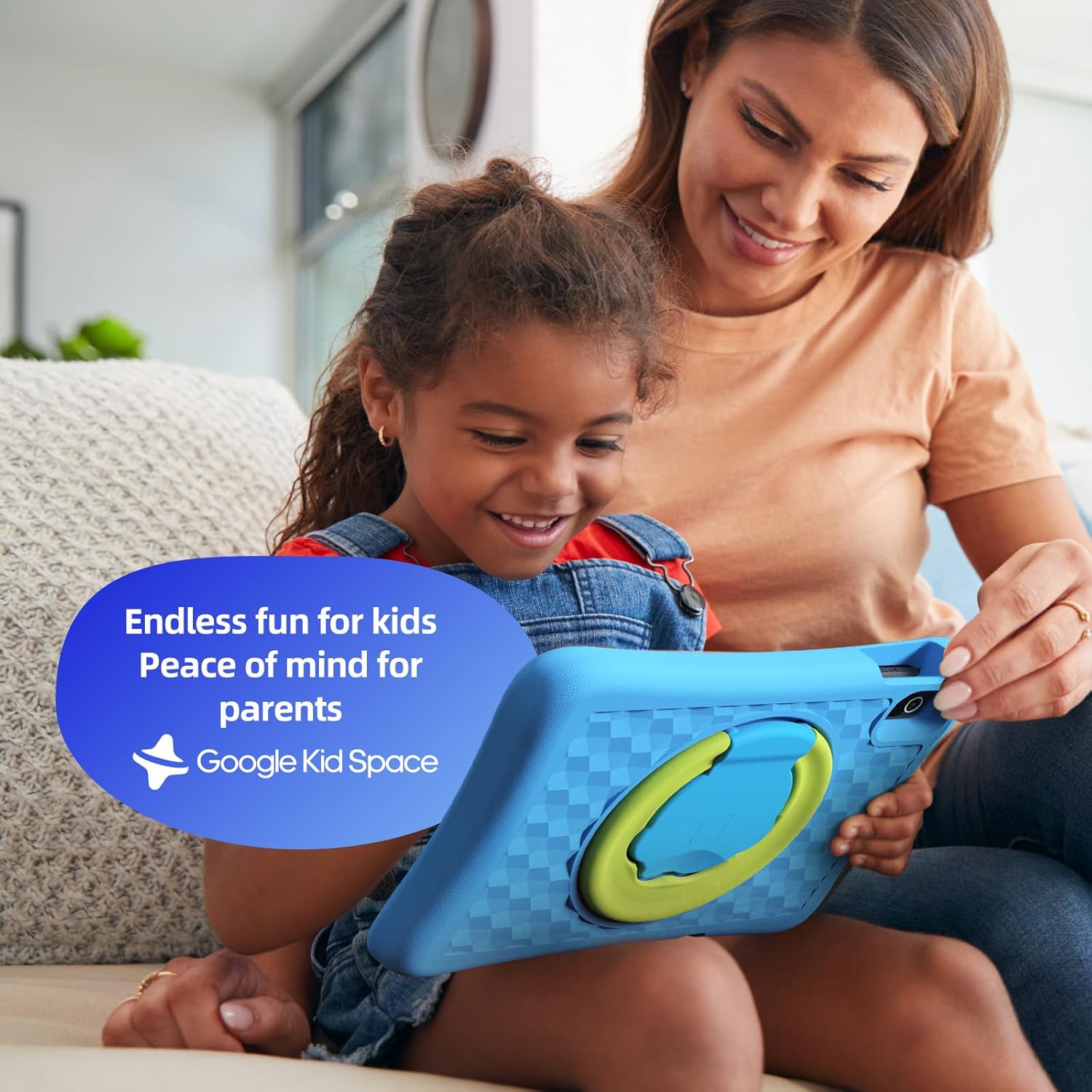
Google Kids Space provides a child-friendly interface with curated content. Children can navigate through different categories like 'Play', 'Read', and 'Watch' to discover apps, books, and videos tailored to their age and interests.
5.2 Googleファミリーリンクによるペアレンタルコントロール
Manage your child's digital experience remotely using the Google Family Link app on your smartphone. This allows you to:
- 毎日のスクリーンタイムの制限を設定します。
- Google Play ストアからのアプリを承認またはブロックします。
- Track app usage and activity.
- Set device bedtime.
- Manage content restrictions for websites and searches.

5.3 メディア消費
The tablet supports various media types:
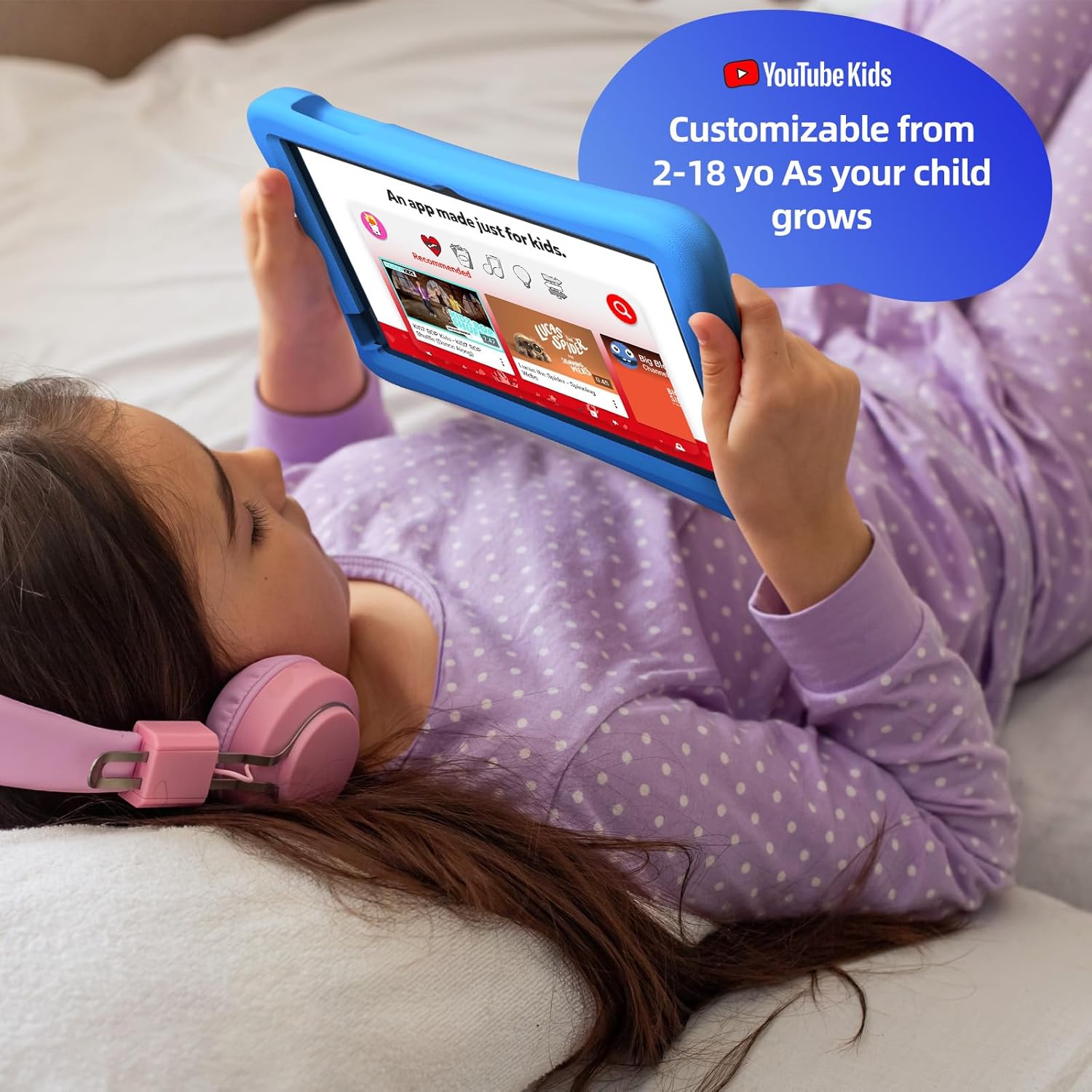
- ビデオ: Access YouTube Kids for age-appropriate video content. Parental controls can further refine available videos.
- 書籍: Explore a library of digital books within Google Kids Space, promoting reading and literacy.
- ゲーム: A wide selection of educational and entertaining games are available, with new content regularly updated.

6. メンテナンス
6.1バッテリーケア
- 初めて使用する前にタブレットを完全に充電してください。
- バッテリーの寿命を延ばすために、定期的にバッテリーを完全に使い切らないようにしてください。
- Use only the provided USB Adaptor and Charge Cable.
6.2 クリーニング
- 清掃する前にタブレットの電源をオフにしてください。
- 柔らかく糸くずの出ない布を使用して、画面と外側を拭いてください。
- 強力な化学薬品や研磨材の使用は避けてください。
6.3ソフトウェアアップデート
Ensure the tablet's software is up-to-date for optimal performance and security. Connect to Wi-Fi and check for updates periodically in the Settings menu.
7。 トラブルシューティング
7.1 タブレットが起動しない
- バッテリーが充電されていることを確認してください。タブレットを充電器に接続し、数分間待ってから再度電源を入れてください。
- 電源ボタンを 10 ~ 15 秒間押し続け、ハードリセットを実行します。
7.2 パフォーマンスの低下
- バックグラウンドで実行されている未使用のアプリケーションを閉じます。
- Clear cache data for frequently used apps in Settings > Apps.
- 十分なストレージ容量があることを確認してください。不要なものを削除してください。 filesまたはアプリ。
7.3 Wi-Fi接続の問題
- Wi-Fiルーターとタブレットを再起動します。
- Wi-Fi設定でネットワークを削除して再接続します。
- タブレットが Wi-Fi 信号の範囲内にあることを確認します。
8. 仕様
| 特徴 | 仕様 |
|---|---|
| スタンディングスクリーンの表示サイズ | 10.1インチ |
| 画面解像度 | 1280 x 800 ピクセル |
| プロセッサ | 2GHzオクタコア |
| オペレーティング·システム | アンドロイド15 |
| フラッシュメモリサイズ | 64ギガバイト |
| ラム | 4ギガバイト |
| 拡張可能なストレージ | Up to 1 TB (SD card not included) |
| 平均バッテリー寿命 | 8時間 |
| アイテム重量 | 1.76ポンド |
| 製品寸法 | 10.86 x 7.83 x 1.22インチ |
| 色 | 青 |
9.保証とサポート
The Plimpton Kids Tablet comes with a 2年間保証さらに、 30日間の安心返品・交換ポリシー is provided. For any questions or concerns, please contact Plimpton customer support. Our team is dedicated to resolving any issues you may encounter.
For detailed support, refer to the customer support card included in your product packaging or visit the official Plimpton webサイト。