
1. はじめに
This manual provides essential information for setting up, operating, and maintaining your HP OmniDesk Slim Desktop PC, Model S03-0006. This desktop PC is designed for daily tasks, offering an Intel Core i3-14100 processor, ample memory, and various connectivity options for productivity and entertainment.
2. パッケージ内容
パッケージにすべてのアイテムが揃っていることを確認します。
- HP S03-000 OmniDesk Slim Desktop PC
- 電源
- USB Black Wired Keyboard (if included with specific bundle)
- USB Wired Mouse (if included with specific bundle)
注意: 追加のアクセサリは別売りの場合があります。
3.製品オーバーview
The HP OmniDesk Slim Desktop PC features a compact design with essential components for efficient computing.

図3.1: HP OmniDesk Slim Desktop PC showcasing スリムプロfile, Intel Core i3-14100 processor, 8GB DDR5 RAM, 256GB SSD, Intel UHD Graphics 710, Wi-Fi 6, Bluetooth 5.4, Windows 11, and dual display support.
3.1. ポートとコネクタ
Familiarize yourself with the various ports on your desktop PC for connecting peripherals and displays.
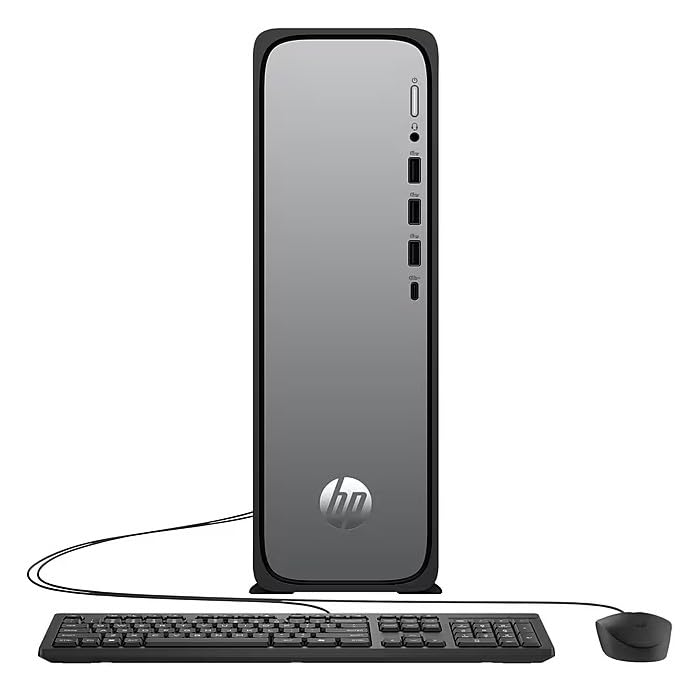
図3.2: Front and rear port layout of the HP OmniDesk Slim Desktop PC. Front ports include a headphone/microphone combo jack, USB Type-A 5Gbps ports, and a USB Type-C 10Gbps port. Additional ports (typically rear) include 4 USB 2.0 Type-A, 1 RJ-45 (Ethernet), 1 HDMI Out, and 1 DisplayPort 1.4.
- フロントポート:
- ヘッドフォン/マイクコンボ
- USB Type-A 5Gbps signaling rate (3 ports)
- USB Type-C 10Gbps signaling rate (1 port)
- 背面ポート:
- USB 2.0 Type-A (4 ports)
- RJ-45 (イーサネット)
- HDMI 1.4b (1 port)
- DisplayPort 1.4a (1 port)
4.セットアップガイド
HP OmniDesk Slim デスクトップ PC をセットアップするには、次の手順に従います。
- モニターを接続: Connect your monitor to the PC using an HDMI or DisplayPort cable. Ensure the cable is securely plugged into both the PC and the monitor.
- 周辺機器を接続します。 Plug in your USB keyboard and mouse into the available USB ports on the PC.
- 接続電源: Connect the power supply cable to the PC's power input, then plug the other end into a wall outlet or surge protector.
- 電源オン: Press the power button on the front of the PC. The system will boot up, and you will see the Windows 11 setup screen.
- Windowsの初期セットアップ: 画面上の指示に従って、言語、地域、ネットワーク接続、ユーザー アカウントの作成などの Windows 11 のセットアップを完了します。
5. 操作手順
5.1. 基本操作
- 電源オン/オフ: Press the power button to turn on the PC. To shut down, click the Start button, then Power > Shut down.
- 再起動: [スタート] ボタンをクリックし、[電源] > [再起動] をクリックします。
- スリープモード: [スタート] ボタンをクリックし、[電源] > [スリープ] をクリックします。
5.2.ネットワークへの接続
Your PC supports both wired (Ethernet) and wireless (Wi-Fi) network connections.
- 有線接続: Connect an Ethernet cable from your router or modem to the RJ-45 port on the back of the PC.
- ワイヤレス接続(Wi-Fi 6):
- タスクバーの Wi-Fi アイコンをクリックします。
- リストから希望の Wi-Fi ネットワークを選択します。
- プロンプトが表示されたらネットワークセキュリティキー(パスワード)を入力し、クリックします。 接続する.
5.3. デュアルディスプレイのサポート
To extend your desktop to a second monitor:
- Connect the second monitor to an available video output port (HDMI or DisplayPort) on your PC.
- デスクトップ上で右クリックして選択 表示設定.
- Under "Multiple displays," select how you want the displays to behave (e.g., Extend these displays, Duplicate these displays).
6. メンテナンス
- ソフトウェアアップデート: システムの安定性とセキュリティを確保するために、Windowsの更新プログラムを定期的に確認してインストールしてください。 設定 > Windows Update.
- ドライバーの更新: Keep your device drivers updated. HP Support Assistant (MyHP) can help manage these updates.
- クリーニング: Use a soft, dry cloth to clean the exterior of the PC. Avoid liquid cleaners directly on components. Ensure ventilation openings are clear of dust.
- バックアップデータ: 重要なものを定期的にバックアップする fileデータの損失を防ぐために、外部ドライブまたはクラウド ストレージに保存してください。
7。 トラブルシューティング
| 問題 | 考えられる解決策 |
|---|---|
| PCの電源が入りません。 |
|
| モニターに何も表示されない。 |
|
| インターネットに接続できません。 |
|
| 周辺機器(キーボード/マウス)が動作しません。 |
|
8. 仕様
| モデル名 | HP OmniDesk Desktop HP S03-000 PC |
| モデル番号 | OmniDesk Slim S03-0006 |
| プロセッサ | Intel Core i3-14100 (3.5 GHz, 6 MB Cache) |
| グラフィックス | インテル UHD グラフィックス 710 (統合) |
| ラム | 8 GB DDR5 (4800 MT/s), Max 64 GB |
| ストレージ | 256 GB SSD (ソリッド ステート ドライブ) |
| オペレーティング·システム | Windows 11 ホーム |
| 接続性 | Realtek Wi-Fi 6 (2x2), Bluetooth 5.4, Gigabit Ethernet (RJ-45) |
| ポート |
|
| 寸法(高さ×幅×奥行き) | 11.61 x 3.94 x 11.97インチ |
| 重さ | 8.38 ポンド |
| 認定資格 | ENERGY STAR certified, EPEAT Gold with Climate+ |
9. 保証とサポート
9.1. 保証情報
This HP OmniDesk Slim Desktop PC comes with a 90日間の限定保証具体的な条件については、製品に付属の保証書を参照してください。
9.2. テクニカルサポート
技術サポート、ドライバーのダウンロード、その他の情報については、HPの公式サポートをご覧ください。 website. You can also utilize the pre-installed MyHP application for device customization, optimization, and access to helpful messages and settings.
Always provide your product model number (S03-0006) and serial number when contacting support.