
導入
Thank you for choosing the Salange 2026 Mini Projector. This portable smart projector is designed to deliver a high-quality visual experience with its 4K support, Android 14 operating system, and advanced connectivity features like WiFi 6 and Bluetooth 5.4. This manual provides essential information for safe and efficient use of your device. Please read it thoroughly before operation and retain it for future reference.
安全情報
- プロジェクターレンズを直接見ないでください。amp オンです。
- 過熱を防ぐために、プロジェクターの周囲に適切な換気を確保してください。
- プロジェクターに付属の電源アダプターのみを使用してください。
- プロジェクターを水、湿気、可燃性物質から遠ざけてください。
- プロジェクターを不安定な場所に置かないでください。
- プロジェクターをご自身で分解したり修理したりしないでください。資格のあるサービス担当者にご相談ください。
設定
1. 開梱と最初の配置
プロジェクターとすべての付属品をパッケージから慎重に取り出します。プロジェクターを安定した平らな面に置いてください。最適な状態を保つために viewing, position the projector perpendicular to the projection surface. The projector features a 270° rotatable design for flexible placement.
2. 電源接続
Connect the power cord to the projector's power input port and then plug it into a power outlet. The projector will typically power on automatically or can be turned on using the power button on the device or remote control.

画像: 背面 view of the Salange 2026 Mini Projector with power, HDMI, and USB ports.
3. フォーカスとキーストーン調整
The Salange 2026 Mini Projector supports manual focus adjustment. Rotate the focus ring on the projector to achieve a sharp image. It also features automatic vertical keystone correction (±45°) to eliminate image distortion, ensuring a rectangular picture even when the projector is not perfectly aligned. For more precise adjustments, 4-point correction may be available in the settings.

Image: Automatic vertical keystone correction and manual focus adjustment.
4. ネットワーク接続(WiFi 6)
Navigate to the settings menu on the projector. Select 'Network' or 'Wi-Fi' and choose your desired network from the list. Enter the password if prompted. The projector supports dual-band (2.4 GHz + 5 GHz) Wi-Fi 6 for stable and fast connections.
5.Bluetoothペアリング
To connect Bluetooth audio devices, go to the settings menu and select 'Bluetooth'. Turn on Bluetooth and search for available devices. Select your device from the list to pair. This allows for wireless audio output to speakers or headphones.
操作手順
1. 電源のオン/オフ
Press the power button on the projector or the remote control to turn the device on or off. A short press typically puts the projector into standby mode, while a long press performs a full shutdown.
2. Android 14 インターフェースの操作
The projector runs on Android 14.0, providing access to a wide range of applications. Use the remote control to navigate through the home screen, app drawer, and settings. The interface is similar to a smart TV, allowing for intuitive use.
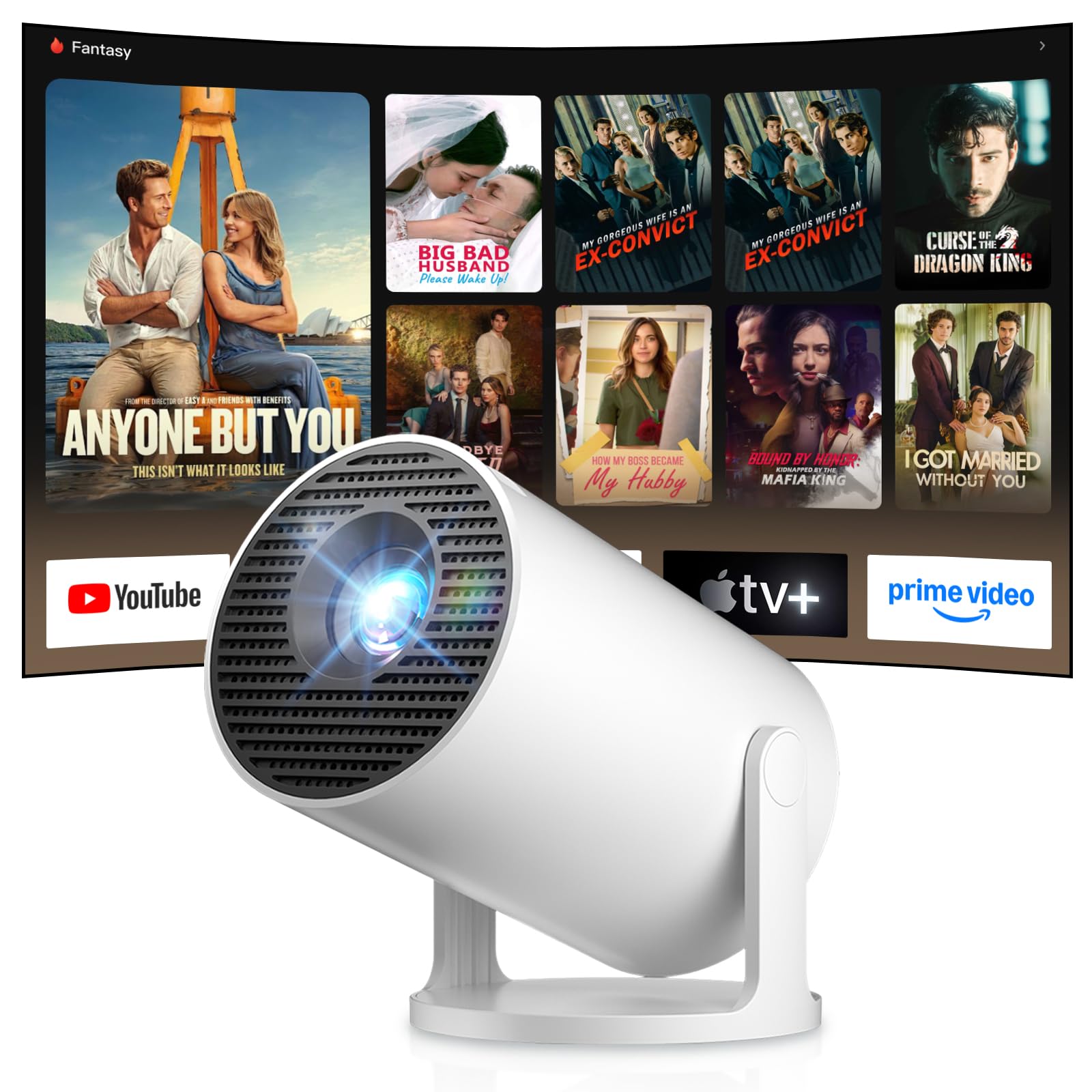
Image: Android TV 14.0 interface with streaming applications.
3.アプリのインストール
With Android 14, you can install over 8,000 applications directly onto the projector. Access the app store (e.g., Google Play Store) from the home screen, search for desired apps (video players, games, office software), and install them.
4. スクリーンミラーリング(iOS/Android)
The projector supports screen mirroring for both iOS and Android devices. Ensure your mobile device and the projector are connected to the same Wi-Fi network. On your mobile device, activate the screen mirroring function (e.g., AirPlay for iOS, Cast for Android) and select the projector from the list of available devices.

Image: Wireless casting from mobile devices to the projector.
5. Connecting External Devices (HDMI, USB)
Use the HDMI port to connect devices such as laptops, game consoles (PS5, Switch), or TV sticks. Use the USB port to connect USB drives for media playback or other peripherals. Select the appropriate input source from the projector's input menu.
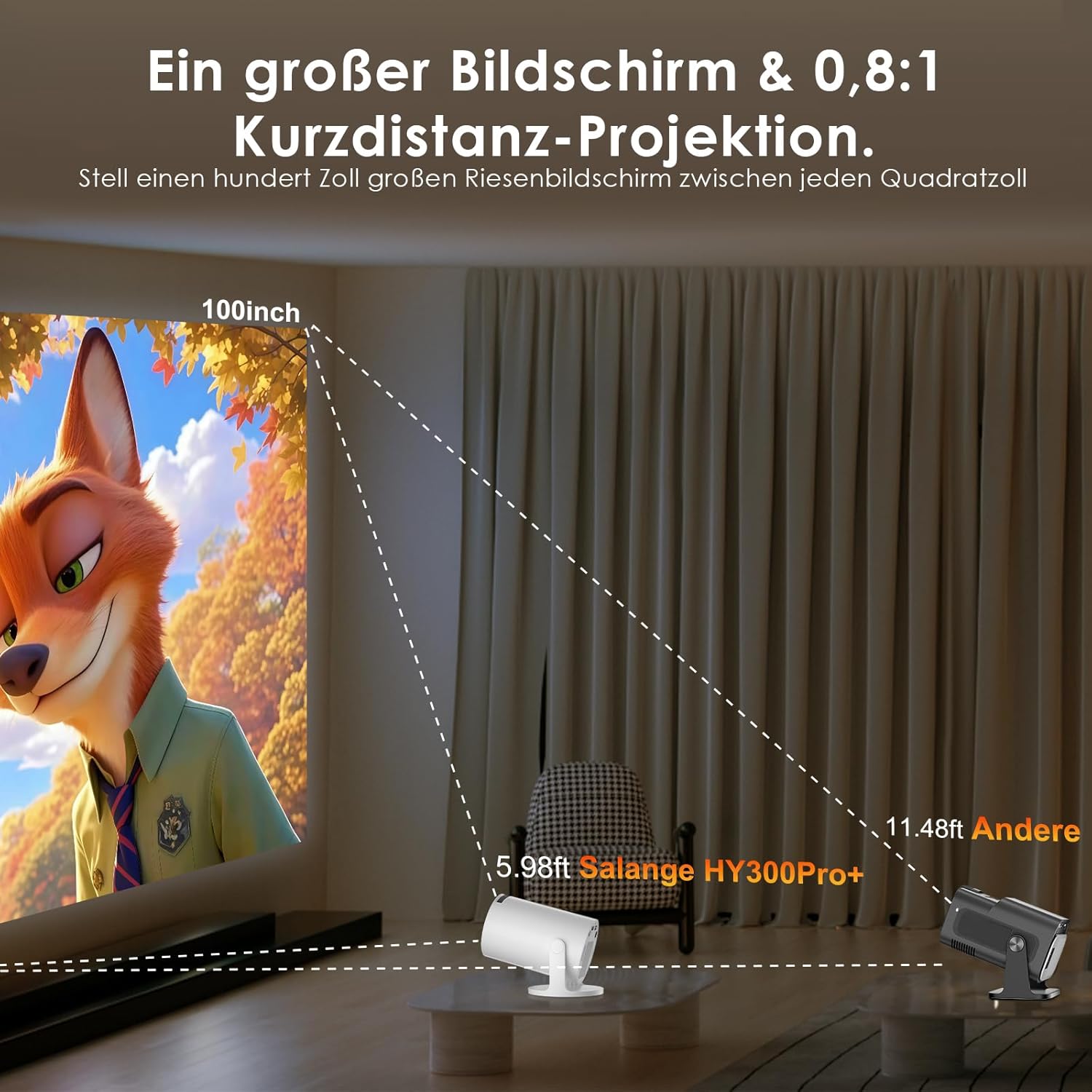
Image: Connectivity options for HDMI, Audio, and USB devices.
6。 音声出力
The projector has built-in speakers. For enhanced audio, connect external speakers or headphones via Bluetooth or the 3.5mm audio jack.
メンテナンス
1. レンズのクリーニング
プロジェクターレンズを拭く際は、光学レンズ専用の柔らかく糸くずの出ない布を使用してください。研磨剤入りのクリーナーの使用や過度の圧力はレンズを傷つける可能性があるため、避けてください。
2. 外装の清掃
プロジェクターの外側は、柔らかく乾いた布で拭いてください。頑固な汚れには、軽く湿らせた布で拭いてください。amp 布で拭いた後、乾いた布で拭いてください。刺激の強い化学薬品や溶剤は使用しないでください。
3. ストレージ
長期間使用しない場合は、プロジェクターを涼しく乾燥した、ほこりのない環境に保管してください。損傷を防ぐため、元の梱包または保護ケースを使用してください。
トラブルシューティング
- 電源なし: 電源コードがプロジェクターとコンセントの両方にしっかりと接続されていることを確認してください。別のコンセントを試してください。
- 画像無し: Check if the projector is powered on. Verify the input source is correctly selected (e.g., HDMI 1, USB). Ensure the lens cap is removed.
- ぼやけた画像: Adjust the manual focus ring until the image is sharp. Check if the projector is too close or too far from the screen.
- Image Distortion (Trapezoid): The projector has automatic keystone correction. If manual adjustment is needed, check the display settings for keystone correction options.
- 音が出ない: Check the volume level on both the projector and the connected source device. Ensure external audio devices are correctly connected and selected as the output.
- Wi-Fi/Bluetooth 接続の問題: Ensure the projector is within range of your router or Bluetooth device. Restart the projector and your network devices. Re-pair Bluetooth devices.
- リモコンが応答しない: リモコンの電池を確認してください。リモコンとプロジェクターの赤外線受信機の間に障害物がないことを確認してください。
製品仕様
| 特徴 | 仕様 |
|---|---|
| メーカー | サランジ |
| ASIN | B0G43FF84L |
| 原産国 | 中国 |
| 推奨用途 | ビジネス、ホームシアター、ゲーム、教育 |
| 特集 | Wi-Fi Compatible, Digital Keystone Correction, Lightweight, Portable |
| 接続技術 | Bluetooth、HDMI、USB、Wi-Fi |
| ネイティブディスプレイ解像度 | 1280 x 720 ピクセル |
| 最大ディスプレイ解像度 | 3840 x 2160 pixels (4K supported) |
| 表示タイプ | 液晶 |
| 製品寸法(長さ x 幅 x 高さ) | 10.1 x 10.1 x 17 cm |
| フォームファクター | ポータブル |
| 取り付けタイプ | テーブルマウント |
| 輝度 | 8000ルーメン |
| 色 | 白 |
| 対応デバイス | Game Console, Speaker, Laptop, Smartphone, Television |
| コントラスト比 | 1500:1 |
| 最大画像サイズ | 150インチ |
| 最小画像サイズ | 30インチ |
| ビデオエンコーディング | 265 形式 |
| 画像強調技術 | 高解像度 |
| 箱の内容 | 1 Projector, 1 Power Cord, 1 Remote Control, 1 User Manual |
保証情報
The Salange 2026 Mini Projector comes with a standard manufacturer's warranty. Please refer to the warranty card included in your product packaging for specific terms, conditions, and duration. Keep your proof of purchase for warranty claims.
カスタマーサポート
For technical assistance, troubleshooting, or any questions regarding your Salange 2026 Mini Projector, please contact Salange customer support. Contact details can typically be found on the official Salange website or in the warranty information provided with your product.


