
1. はじめに
This manual provides detailed instructions for the installation, operation, and maintenance of your DESLOC C110 Smart Lock with LockVue Display and C100 Handle Set. Please read this manual thoroughly before installation and use to ensure proper function and safety.
2. 安全情報
- ご自身でロックを分解したり修理したりしないでください。サポートが必要な場合は、カスタマーサポートにお問い合わせください。
- 指定された電池のみを使用してください。古い電池と新しい電池、または異なる種類の電池を混ぜて使用しないでください。
- Ensure all components are securely installed according to the instructions to prevent malfunction.
- 鍵はロックから離れた安全な場所に保管してください。
- Avoid exposing the lock to extreme temperatures or direct water immersion, despite its IP54 rating.
3.製品オーバーview
The DESLOC C110 Smart Lock offers multiple entry methods and features a LockVue display for direct management. The C100 Handle Set complements the smart lock for a complete door security solution.
3.1 主な特徴
- LockVue Display: Integrated display for managing settings, users, and passcodes without an app or Wi-Fi.
- 3-in-1 キーレスエントリー: Access via fingerprint, passcode, or traditional key.
- FlashPrint Sensor: Fast and accurate fingerprint recognition (0.3 seconds, 99% accuracy).
- ユーザー容量: Stores up to 50 fingerprints and 100 access codes.
- ゲストアクセス: Generate up to 4 one-time PINs that expire after single use.
- オートロック: Adjustable auto-lock feature (5-120 seconds).
- 長いバッテリー寿命: Up to 12 months with low-battery warnings.
- 非常用電力: Type-C port for external power bank in case of battery depletion.
- 強化されたセキュリティ: BHMA Grade 3 certified, IP54 weather resistance, anti-peep PIN protection, local data storage.
3.2 コンポーネント
The package includes the DESLOC C110 Smart Lock, C100 Handle Set, mounting hardware, and two spare keys. (4 AA batteries are not included).

画像: 上view of the DESLOC C110 Smart Lock, highlighting its 3-in-1 keyless entry methods: fingerprint, passcode, and key. It also shows the capacity for 50 fingerprints, 4 one-time codes, 100 user codes, and includes 2 spare keys.
4. インストール
Installation of the DESLOC C110 Smart Lock and C100 Handle Set typically takes less than 15 minutes with a screwdriver. Ensure your door meets the compatibility requirements before beginning.
4.1 互換性チェック

Image: Diagram illustrating door compatibility requirements for the DESLOC C110 Smart Lock. It shows measurements for hole diameter (2-1/8" or 54mm), door thickness (1-3/8" to 2" or 35 to 50mm), door hole diameter (1" or 25mm), backset (2-3/8" or 2-3/4" or 60 or 70mm), and recommended distance (5-1/2" or 140mm). Both right and left doors are compatible.
- ドアの厚さ: 1-3/8" to 2" (35 to 50mm)
- 穴径: 2-1/8インチ(54mm)
- ドア穴の直径: 1インチ(25mm)
- バックセット: 2-3/8" or 2-3/4" (60 or 70mm)
- 推奨距離: 5-1/2インチ(140mm)
- Both right and left-hand doors are compatible.
4.2 インストール手順
- Prepare the door: Ensure the door is properly drilled according to the compatibility specifications.
- ラッチを取り付ける: ラッチをドアの端に挿入し、ネジで固定します。
- Install the exterior assembly: Route the cable through the door hole and attach the exterior assembly. Use the adhesive back cover for quick alignment.
- Install the interior assembly: Connect the cable from the exterior assembly to the interior assembly. Secure the interior assembly to the door.
- Install batteries: Insert 4 AA batteries into the battery compartment.
- Test the lock: Manually test the deadbolt and handle operation.
- Automatic Door Handing Detection: The lock will automatically detect your door's swing direction upon initial power-up or after battery replacement.
5. 操作
The DESLOC C110 Smart Lock provides multiple ways to secure and access your door.
5.1 LockVue Display Navigation

Image: Close-up of the DESLOC C110 Smart Lock's LockVue display, showing menu options such as '1. Add Admin', '2. Add User', '3. Del User', and '4. Lock Settings'. This illustrates the on-device control without a phone or app.
The LockVue display allows direct management of all lock settings. Use the keypad to navigate menus and confirm selections. Common menu options include adding/deleting users, setting passcodes, and adjusting lock settings.
5.2ドアのロックを解除する
- 指紋: Place your registered finger on the FlashPrint Sensor. The lock will unlock in approximately 0.3 seconds upon successful recognition.
- パスコード: Enter your registered passcode on the keypad, then press the '#' key to confirm.
- 鍵: 物理キーを鍵穴に挿入し、回してロックを解除します。

Image: A finger is shown pressing the fingerprint sensor on the DESLOC C110 Smart Lock, with the display indicating 'Successful'. Text on the image highlights '<0.3s Recognition Time', '>99% Success Rate', and '50 Fingerprints'.
5.3ドアをロックする
- 手動ロック: キーパッドの「#」キーを2秒間押し続けます。
- オートロック: The lock will automatically engage the deadbolt after a set period (5-120 seconds) if the door is closed. This feature can be configured via the LockVue display.

Image: A man is shown walking away from his house with a dog, while the DESLOC C110 Smart Lock on the door is depicted with an 'Auto-lock' indicator, showing the feature activates within 5-120 seconds. This illustrates the convenience of the auto-lock function.
5.4 Anti-Peep Passcode
To enhance privacy when entering your passcode, you can input random digits before or after your actual passcode. The lock will still recognize the correct sequence within the longer string of numbers.

Image: A visual representation of the anti-peeping feature on the DESLOC C110 Smart Lock. It shows how random digits (e.g., '45' and '89') can be entered before and after the correct password ('612347') to obscure the actual code from onlookers.
6. ユーザー管理
Manage administrators, regular users, and guest access directly through the LockVue display.
6.1 ユーザーの追加
- Access the menu on the LockVue display.
- Select 'Add Admin' or 'Add User'.
- Follow the on-screen prompts to register a fingerprint or set a new passcode.
6.2 ユーザーの削除
- Access the menu on the LockVue display.
- Select 'Del User'.
- Choose the user to delete and confirm.
6.3 Guest Access (One-Time PINs)
The lock supports generating up to 4 one-time PINs simultaneously for temporary access. Each code automatically expires after a single use, ensuring security.
- Access the menu on the LockVue display.
- Select the option to generate one-time PINs.
- The display will show the generated PINs. Provide these to your guests or service personnel.
7. メンテナンス
Proper maintenance ensures the longevity and reliable performance of your smart lock.
7.1 電池の交換

Image: The DESLOC C110 Smart Lock highlighting its 'PowerMax: 12-Month Battery Life' feature, powered by 4 AA batteries (not included). It also shows icons for 'Low Battery Alert', 'Type-C Emergency Charging', and 'Power Bank as Backup Power', with a Type-C cable connected to the lock.
The lock is powered by 4 AA batteries and offers up to 12 months of battery life. The LockVue display will provide proactive low-battery warnings.
- When a low battery warning appears, replace all 4 AA batteries promptly.
- Open the battery compartment cover on the interior assembly.
- 古い電池を取り外し、正しい極性を確認して新しい電池を挿入します。
- 電池ボックスのカバーを閉じます。
7.2 緊急電源
If the batteries completely deplete before replacement, you can use a power bank to temporarily power the lock via the emergency Type-C port located at the bottom of the exterior assembly. This allows you to unlock the door and replace the batteries.
7.3 クリーニング
ロックの表面は柔らかく乾いた布で拭いてください。仕上げや電子部品を傷める可能性のある研磨剤入りの洗剤や溶剤の使用は避けてください。
8。 トラブルシューティング
| 問題 | 考えられる原因 | 解決 |
|---|---|---|
| ロックが応答しません。 | 電池切れ。 | 電池を交換するか、緊急用の Type-C 電源を使用してください。 |
| 指紋が認識されません。 | Finger is wet/dirty, or not properly registered. | Ensure finger is clean and dry. Re-register fingerprint if issue persists. Try another registered finger or entry method. |
| パスコードが機能しません。 | Incorrect passcode entered, or passcode expired (for one-time PINs). | Verify the passcode. Ensure it's not a one-time PIN that has already been used. Re-enter carefully. |
| 自動ロックが作動しません。 | Auto-lock feature disabled or door not fully closed. | Check auto-lock settings via LockVue display. Ensure the door is completely closed. |
| ロックが異常な音を立てます。 | Mechanical obstruction or loose components. | Check for any obstructions around the deadbolt. Ensure all mounting screws are tight. If issue persists, contact support. |
9. 仕様
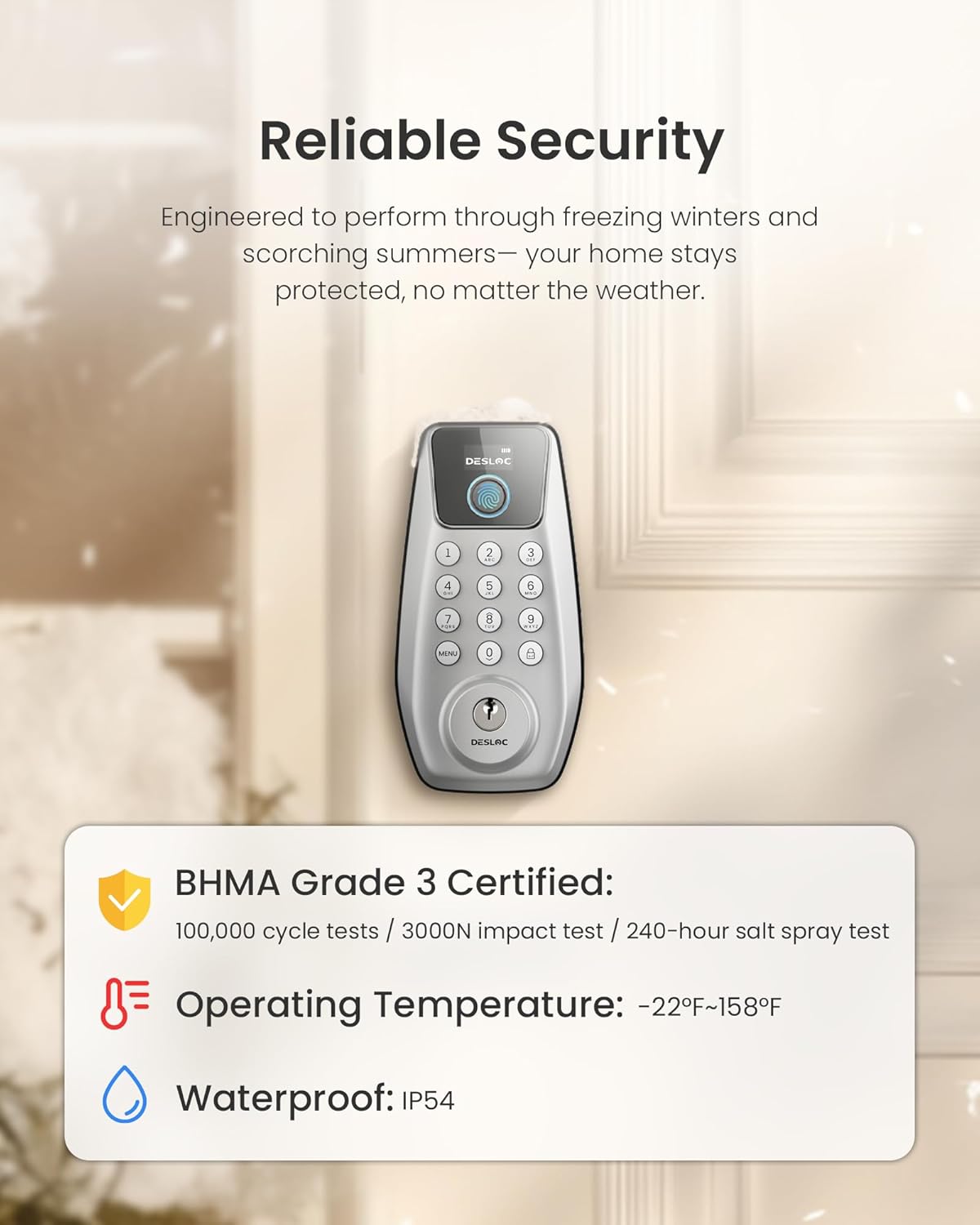
Image: The DESLOC C110 Smart Lock highlighting its 'Reliable Security' features. It states 'BHMA Grade 3 Certified' (100,000 cycle tests / 3000N impact test / 240-hour salt spray test), 'Operating Temperature: -22°F~158°F', and 'Waterproof: IP54'.
- モデル: DESLOC C110 Smart Lock & C100 Handle Set
- Entry Methods: 指紋、パスコード、キー
- Fingerprint Recognition Speed: <0.3秒
- Fingerprint Recognition Accuracy: >99%
- 指紋容量: 最大50
- パスコード容量: Up to 100 user codes, 4 simultaneous one-time PINs
- Auto-Lock Duration: 5〜120秒(調整可能)
- 電源: 単三電池4本(別売)
- バッテリー寿命: 最大12か月(使用状況により異なります)
- 非常用電力: Type-CUSBポート
- 動作温度: -22°F ~ 158°F (-30°C ~ 70°C)
- 耐候性: IP54
- 認定: BHMA Grade 3 (100,000 cycle tests, 3000N impact test, 240-hour salt spray test)
- データストレージ: 地元
10. 保証とサポート
Your DESLOC C110 Smart Lock and C100 Handle Set comes with a 1-year warranty.
- 保証期間: 購入日より1年間。
- カスタマーサポート: 24/7 customer support is available for any questions or issues.
- For warranty claims or technical assistance, please refer to the contact information provided with your product packaging or visit the official DESLOC webサイト。


