
Brother DCP-L2640DW
Brother Wireless DCP-L2640DW Compact Monochrome Laser Printer Instruction Manual
Model: DCP-L2640DW
1. はじめに
The Brother DCP-L2640DW is a compact, high-performance monochrome laser all-in-one printer designed for home offices and small workgroups. This manual provides essential information for setting up, operating, maintaining, and troubleshooting your printer to ensure optimal performance.
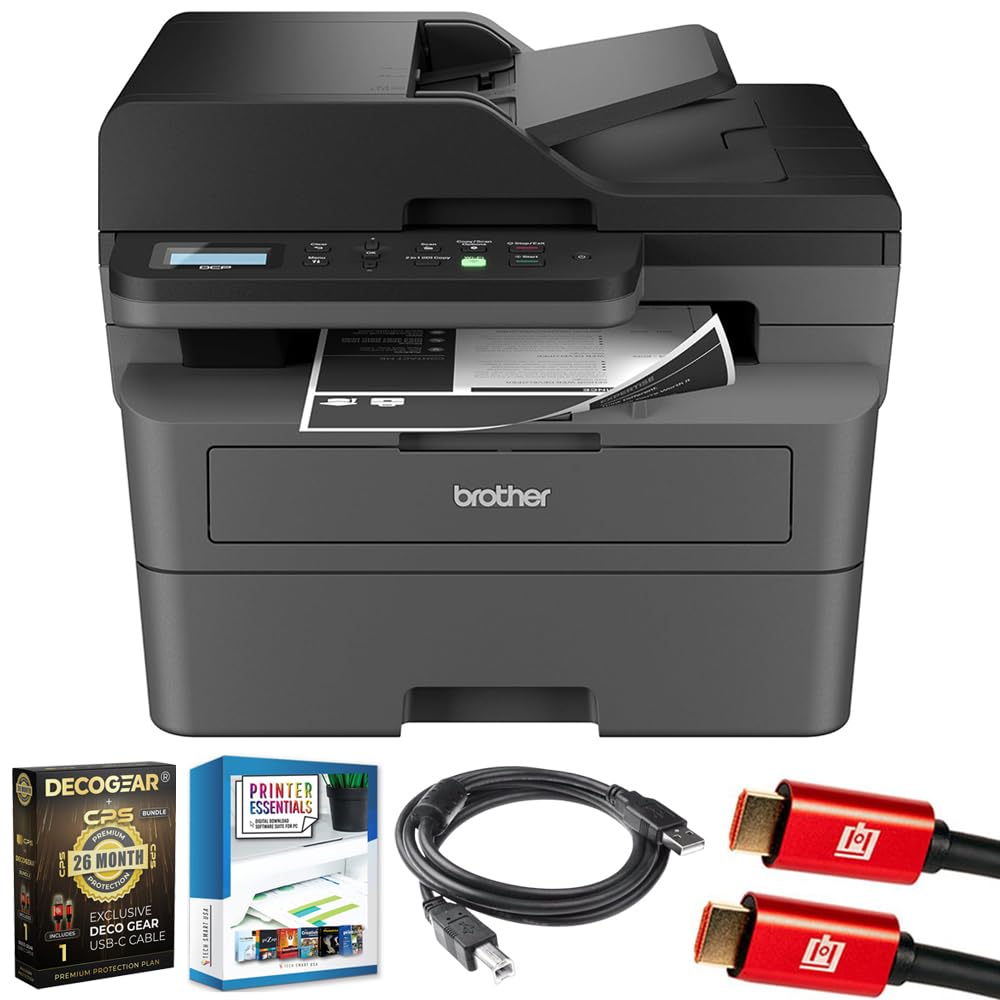
Image 1.1: Brother DCP-L2640DW Compact Monochrome Laser Printer
2. 主な特徴
- 3-in-1 機能: Print, copy, and scan capabilities in a compact design.
- 高速印刷速度: Delivers up to 36 pages per minute for efficient task completion.
- 自動両面印刷: Built-in two-sided printing to save time and paper.
- 50-Sheet Automatic Document Feeder (ADF): 複数ページのスキャンとコピーを効率的に実行します。
- High-Capacity Paper Handling: 250-sheet paper tray plus a manual feed slot for diverse media types.
- 柔軟な接続オプション: Dual-band Wi-Fi, Ethernet, USB, and mobile printing via Brother Mobile Connect, AirPrint, Mopria, and Wi-Fi Direct.
- Advanced Network Security: Features like TLS/SSL, SNMP v3, and IP filtering for secure operation.

画像2.1: 以上view of the Brother DCP-L2640DW's key features including print speed, connectivity, and compact design.
3. 箱の中身
- Brother DCP-L2640DW Monochrome Laser Printer
- Starter Black Toner Cartridge (approx. 700 pages)
- Brother DR830 Drum Unit (approx. 15,000 pages)
- AC電源コード
- Documentation (Quick Setup Guide, Product Safety and Protection Information)
4. セットアップ
4.1. 開梱
- プリンターをパッケージから慎重に取り出します。
- プリンタの外部と内部からすべての保護テープと梱包材を取り外します。
4.2. Toner Cartridge and Drum Unit Installation
- プリンタの前面カバーを開きます。
- Remove the toner cartridge and drum unit assembly from the printer.
- 新しいトナーカートリッジとドラムユニットを梱包から取り出します。
- トナーカートリッジをドラムユニットにしっかりと固定されるまで挿入します。
- Slide the green tab on the drum unit from left to right several times to clean the corona wire. Return the tab to the home position.
- トナー カートリッジとドラム ユニット アセンブリをプリンタに再度取り付けます。
- 前面カバーを閉じます。
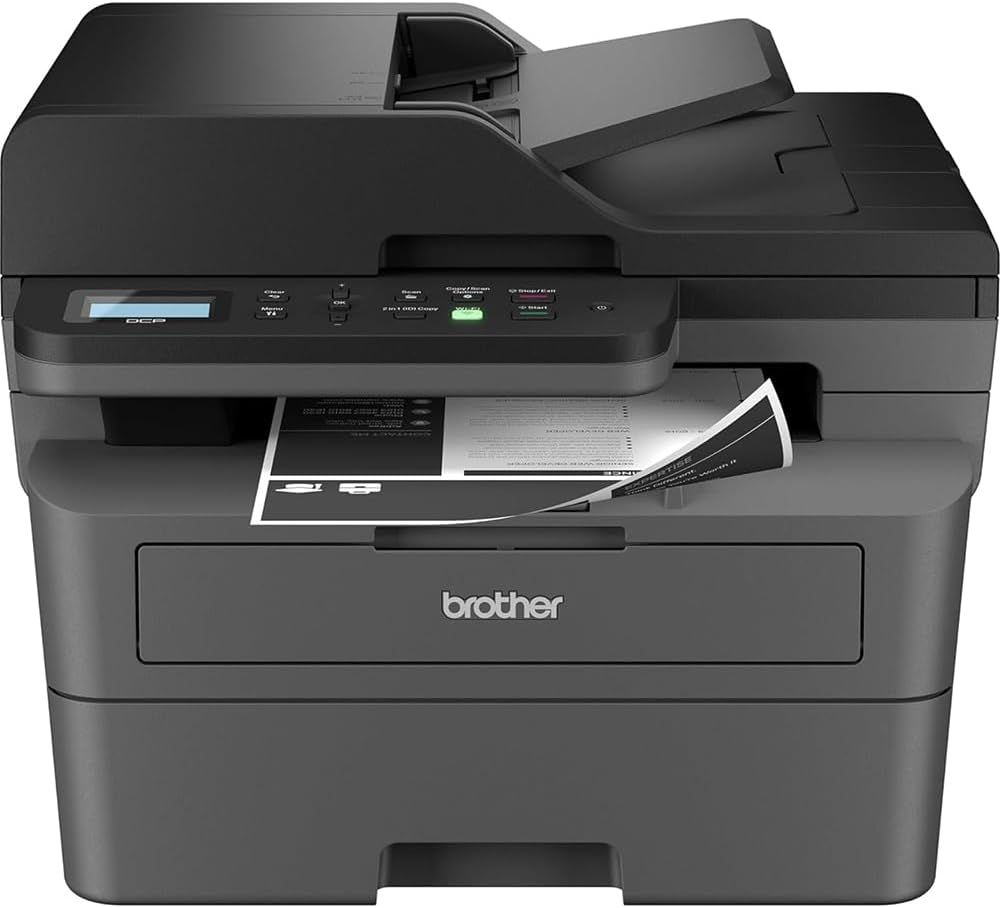
Image 4.1: The Brother DCP-L2640DW printer with the front cover open, showing the toner cartridge and drum unit assembly.
4.3. 電源接続
- AC 電源コードをプリンターの電源入力に接続します。
- 電源コードのもう一方の端を接地されたコンセントに差し込みます。
- 電源ボタンを押して、プリンターの電源をオンにします。
4.4. 初期設定と接続
Follow the on-screen instructions on the printer's LCD display to complete the initial setup, including language selection and date/time settings.
- ワイヤレス設定: Navigate to the network settings on the printer's control panel, select your Wi-Fi network, and enter the password.
- イーサネット接続: ルータまたはネットワーク ハブからのイーサネット ケーブルをプリンタのイーサネット ポートに接続します。
- USB接続: コンピューターの USB ケーブルをプリンターの USB ポートに接続します。
- ドライバーのインストール: Install the printer drivers from the included CD-ROM or download them from the official Brother support webサイト。
ビデオ4.1: 製品がview video demonstrating the Brother DCP-L2640DW printer's features and ease of use.
5. 操作手順
5.1. 文書の印刷
- Load paper into the 250-sheet paper tray or the manual feed slot.
- コンピューターまたはモバイル デバイスから、印刷するドキュメントを開きます。
- アプリケーションのメニューから「印刷」を選択します。
- Choose your Brother DCP-L2640DW printer.
- 必要に応じて印刷設定(コピー部数、両面印刷など)を調整します。
- 「印刷」をクリックします。
5.2. 文書のコピー
- ドキュメントをスキャナーガラスの上に表面を下にして置くか、自動ドキュメントフィーダー (ADF) に表面を上に向けて置きます。
- プリンターのコントロールパネルで、「コピー」ボタンを押します。
- Use the arrow keys to select the number of copies or adjust other settings.
- コピーを開始するには、「開始」を押します。

Image 5.1: The Brother DCP-L2640DW highlighting its Automatic Document Feeder for multi-page tasks.
5.3. 文書のスキャン
- ドキュメントをスキャナーガラスの上に表面を下にして置くか、ADF の上に表面を上に向けて置きます。
- On the printer's control panel, press the 'Scan' button.
- Select your desired scan destination (e.g., PC, email, cloud).
- 必要に応じてスキャン設定 (解像度、カラー モードなど) を調整します。
- 「開始」を押してスキャンを開始します。
5.4. モバイル印刷
The Brother DCP-L2640DW supports various mobile printing solutions:
- ブラザーモバイルコネクトアプリ: Download the app to manage your printer, print, and scan from your smartphone or tablet.
- Apple AirPrint: Print directly from your Apple iOS device without installing drivers.
- Mopria プリントサービス: Print from Mopria-certified Android devices.
- Wi-Fiダイレクト: Print directly from your mobile device to the printer without needing a router.

Image 5.2: The Brother Mobile Connect App interface, showing options for document print, photo print, scan, copy, and toner monitoring.
6. メンテナンス
6.1. トナーの交換
When the toner is low or empty, the printer's display will indicate that the toner cartridge needs to be replaced. Always use genuine Brother toner cartridges for optimal performance and print quality.
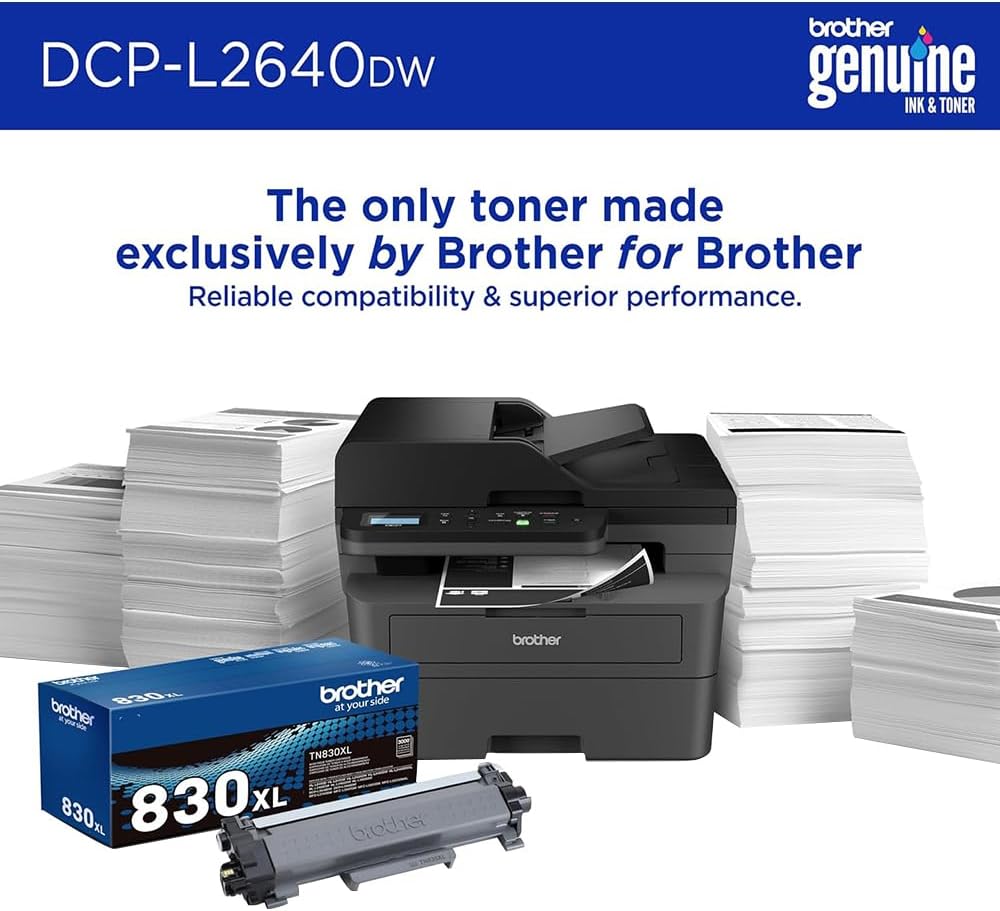
Image 6.1: Brother Genuine Ink & Toner packaging, emphasizing reliable compatibility and superior performance.
6.2. Drum Unit Replacement
The drum unit is a separate consumable that needs to be replaced periodically, typically after approximately 15,000 pages. The printer will notify you when it's time to replace the drum unit.
6.3. 清掃
- 外観: プリンターの外側を、柔らかく糸くずの出ない布で拭いてください。
- スキャナーガラス: ガラスクリーナーを湿らせた柔らかくて糸くずの出ない布でスキャナーのガラスを拭きます。
- コロナワイヤー: Regularly clean the corona wire inside the drum unit by sliding the green tab.
7。 トラブルシューティング
- 紙詰まり: Follow the on-screen instructions or refer to the printer's documentation to clear paper jams from various access points.
- 接続の問題: Ensure the printer is connected to the correct network (Wi-Fi or Ethernet) or directly to the computer via USB. Restarting the printer and router can often resolve temporary connection problems.
- 印刷品質が悪い: Check toner levels, clean the corona wire, and ensure you are using appropriate paper for your print job.
- エラーメッセージ: Refer to the printer's LCD display for specific error codes and consult the online manual or Brother support for solutions.
8. 仕様
| 特徴 | 詳細 |
|---|---|
| モデル番号 | DCP-L2640DW |
| 印刷技術 | レーザ |
| プリンタ出力 | モノクロ |
| 最大印刷速度 モノクロ | 36ppm |
| 最大白黒印刷解像度 | 1200 x 1200 ドット/インチ |
| 自動両面印刷 | はい |
| スキャナタイプ | フラットベッド |
| 最大入力シート容量 | 250枚 |
| 自動原稿送り装置(ADF)容量 | 50枚 |
| 接続技術 | USB, Ethernet, Dual-band Wi-Fi |
| 互換性のあるカートリッジ | TN830, TN830XL |
| 製品寸法 | 奥行き15.7インチ x 幅16.1インチ x 高さ12.5インチ |
| 重さ | Not specified in provided data, typically around 20-30 lbs for similar models. |
9. 保証とサポート
The Brother DCP-L2640DW Monochrome Laser Printer comes with a Limited Warranty. For specific warranty terms and conditions, please refer to the documentation included with your product or visit the official Brother support webサイト。
テクニカルサポート、ドライバーのダウンロード、その他のリソースについては、 ブラザーサポート Webサイト.