
1. はじめに
This manual provides essential information for the safe and efficient use of your HP 17.3 Inch FHD Business Laptop. Please read this guide thoroughly before operating your device to ensure optimal performance and longevity. This laptop is designed for business and everyday computing tasks, offering a large display, robust performance, and portability.
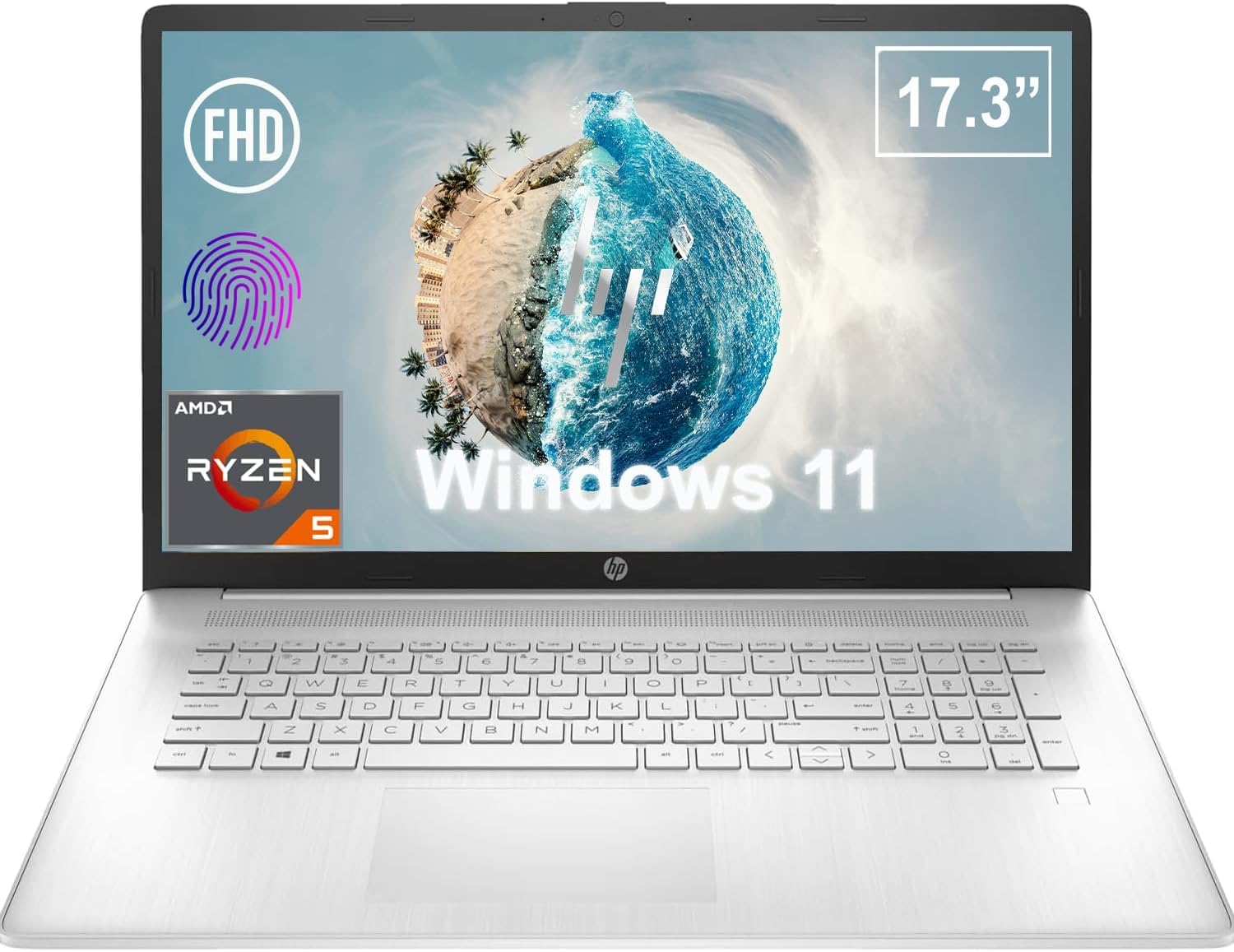
図1.1: 前面 view of the HP 17.3 Inch FHD Business Laptop, showcasing the large display and keyboard.
2. セットアップ
2.1 開梱と初期検査
すべてのコンポーネントをパッケージから慎重に取り出します。以下のものがすべて揃っていることを確認してください。
- HP 17.3 Inch FHD Business Laptop
- Power Adapter (45 W Smart AC Power Adapter)
- ドキュメント(このマニュアル、保証情報)
Inspect the laptop and accessories for any signs of damage. If any items are missing or damaged, contact your retailer or HP support immediately.
2.2 電源アダプタの接続
Before first use, ensure the laptop is fully charged. Connect the power adapter to the AC smart pin port on the side of the laptop and then plug the adapter into a power outlet.
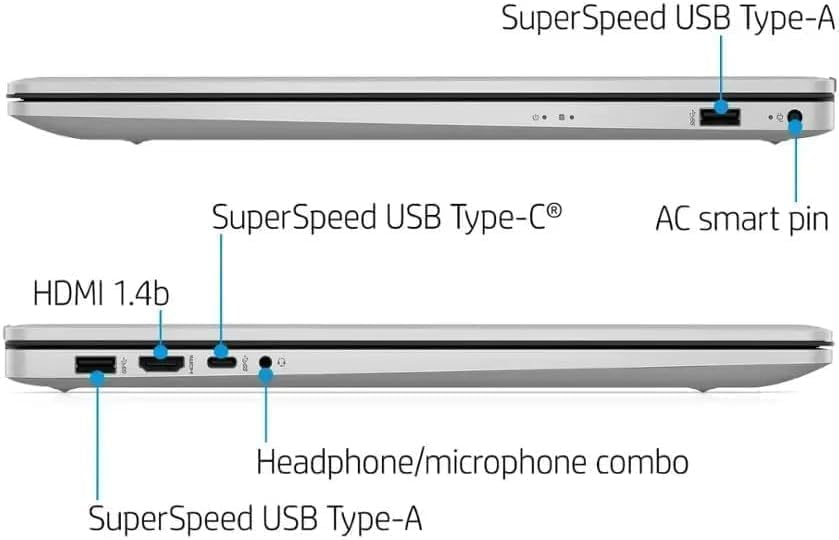
図2.1:側面 view illustrating the location of the AC smart pin and other ports.
2.3 初回電源投入とWindowsのセットアップ
Press the power button to turn on the laptop. Follow the on-screen instructions to complete the Windows 11 Home setup process. This includes setting up your user account, network connection, and initial preferences.
3. ノートパソコンの操作
3.1 キーボードとタッチパッド
The laptop features a full-size QWERTY keyboard with a 10-key number pad for efficient data entry. The integrated touchpad provides precise cursor control. Refer to the operating system's settings for customizing touchpad gestures and keyboard shortcuts.
3.2 指紋リーダー
For enhanced security and convenient login, utilize the integrated fingerprint reader. Set up your fingerprints through Windows Hello in the Windows 11 settings.
3.3 Webカメラとマイク
The HP True Vision 720p HD Camera and integrated dual array digital microphones are located at the top of the display. These are suitable for video conferencing and online communication.
3.4 接続性
- Wi-Fi: The laptop supports 802.11a/b/g/n/ac Wi-Fi for wireless internet access. Connect to available networks via the Windows network settings.
- ブルートゥース: Bluetooth 5 allows for wireless connection to compatible devices such as headphones, mice, and keyboards. Enable and manage Bluetooth devices through Windows settings.
3.5 ポートと外部デバイス
ラップトップには、外部デバイスを接続するためのさまざまなポートが装備されています。
- 1 x USB Type-C (5Gbps, Data Only): For connecting USB-C compatible devices and data transfer.
- 2 x USB Type-A (5Gbps): For connecting standard USB devices like external drives, mice, or keyboards.
- 1 x HDMI 1.4b: For connecting to external displays or projectors.
- 1 x Headphone/Microphone Combo: For connecting a headset with a single 3.5mm jack.
- 1 x AC Smart Pin: For connecting the power adapter.

図3.1: 開く view of the laptop, highlighting the keyboard and touchpad area.
3.6 バッテリー管理
The laptop is powered by a 3-Cell, 41 Wh Li-ion battery, offering up to 8 hours and 30 minutes of video playback. Use the provided 45 W Smart AC Power Adapter for charging. HP Fast Charge technology allows for quicker charging times.
4. メンテナンス
4.1 ノートパソコンのクリーニング
ラップトップの外観と機能を維持するには:
- 柔らかく糸くずの出ない布を使用してください。amp水またはディスプレイ専用のスクリーンクリーナーで拭いてください。
- キーボードとシャーシのお手入れには、柔らかく乾いた布をご使用ください。刺激の強い化学薬品や研磨剤は使用しないでください。
- 掃除する前に、ノートパソコンの電源がオフになっており、プラグが抜かれていることを確認してください。
4.2ソフトウェアアップデート
最適なパフォーマンス、セキュリティ、互換性を確保するために、Windows オペレーティング システムとドライバーを定期的に更新してください。Windows Update は設定メニューからアクセスできます。
4.3 Security Software
The laptop comes preloaded with McAfee LiveSafe for security. Ensure this software is active and updated to protect against viruses and other threats.
5。 トラブルシューティング
このセクションでは、HP ラップトップで発生する可能性のある一般的な問題について説明します。
5.1 電源の問題
- ノートパソコンが起動しない: Ensure the power adapter is securely connected to both the laptop and a working power outlet. Verify the battery is charged.
- バッテリーが充電されない: 電源アダプタとケーブルに損傷がないか確認してください。別のコンセントを試してください。
5.2 表示の問題
- 画面に画像が表示されない: 外付けモニターを接続して、問題がノートパソコンのディスプレイにあるのか確認してください。ノートパソコンを再起動してください。
- 画像のちらつきや歪み: グラフィックドライバーを更新します。Windowsの設定でディスプレイの解像度とリフレッシュレートを調整します。
5.3 接続の問題
- Wi-Fi が接続されない: Ensure Wi-Fi is enabled. Restart your router and the laptop. Check network settings for correct password and configuration.
- Bluetoothデバイスがペアリングされない: 両方のデバイスでBluetoothが有効になっていることを確認してください。デバイスがペアリングモードになっており、範囲内にあることを確認してください。
より複雑な問題については、HPサポートを参照してください。 webサイトをご覧いただくか、カスタマーサービスにお問い合わせください。
6. 仕様
| 特徴 | 詳細 |
|---|---|
| ブランド | HP |
| モデル名 | HP17 |
| モデル番号 | 型番 |
| 画面サイズ | 17.3インチ |
| 表示タイプ | IPS, Anti-Glare, LED |
| 解決 | 1920 x 1080 (フルHD) |
| リフレッシュレート | 60Hz |
| プロセッサ | AMD Ryzen 5 5500U (6 Cores, 12 Threads, up to 4.0 GHz Max Boost Clock) |
| グラフィックス | 統合型AMD Radeonグラフィックス |
| RAMメモリ | 32 GB DDR4-3200 MHz (Max 64 GB) |
| ストレージ | 1TB PCIe NVMe M.2 SSD |
| オペレーティング·システム | Windows 11 Home、64ビット、英語 |
| ワイヤレス接続 | 802.11a/b/g/n/ac Wi-Fi、Bluetooth 5 |
| ポート | 1x USB Type-C (5Gbps), 2x USB Type-A (5Gbps), 1x HDMI 1.4b, 1x Headphone/Microphone Combo, 1x AC Smart Pin |
| Webカム | HP True Vision 720p HDカメラ |
| オーディオ | Dual Speakers, Integrated Dual Array Digital Microphones |
| バッテリー | 3-Cell, 41 Wh Li-ion (Up to 8.5 hours video playback) |
| 電源アダプター | 45W スマートAC電源アダプター |
| 寸法(幅×奥行き×高さ) | 40.07 x 25.78 x 2.06 cm (14.14"L x 9.31"W x 0.78"Th) |
| 重さ | 2.07キロから始まる |
| 特集 | Fingerprint Reader, Lightweight Design, HP Fast Charge |
7.保証とサポート
7.1 保証情報
This HP laptop comes with a 1-year manufacturer's limited warranty. For detailed terms and conditions, please refer to the warranty documentation included with your product or visit the official HP support webサイト。
7.2 カスタマーサポート
If you encounter issues that cannot be resolved using the troubleshooting steps in this manual, please contact HP customer support. You can find contact information and additional resources on the official HP webサイト:
- HPサポート Webサイト: サポート
- HPストア: AmazonのHPストア