
導入
This manual provides comprehensive instructions for the setup, operation, and maintenance of your ASUS ROG Strix 27” 5K HDR Gaming Monitor (Model: XG27JCG). Please read this manual thoroughly before using the monitor to ensure proper functionality and to maximize your user experience.
The ROG Strix XG27JCG is a 27-inch 5K (5120 x 2880) Fast IPS display designed for high-performance gaming and detailed visual tasks. It features a 180Hz (overclocked) refresh rate, 0.3ms GTG response time, and a Dual Mode function allowing switching between 5K 180Hz and QHD 330Hz. Advanced features include G-SYNC Compatible technology, VESA DisplayHDR 600, and ROG Gaming A.I. Technology.
ビデオ: 以上view of the ASUS ROG Strix XG27JCG 27-inch 5K monitor, highlighting its key features and design.
箱の中身
セットアップを続行する前に、パッケージ内にすべてのコンポーネントが揃っていることを確認してください。
- ASUS ROG Strix XG27JCG Monitor
- ディスプレイポートケーブル
- クイックスタートガイド
- ROGポーチ
- ROGステッカー
- ROG tripod stand
- 保証書
- 電源コード
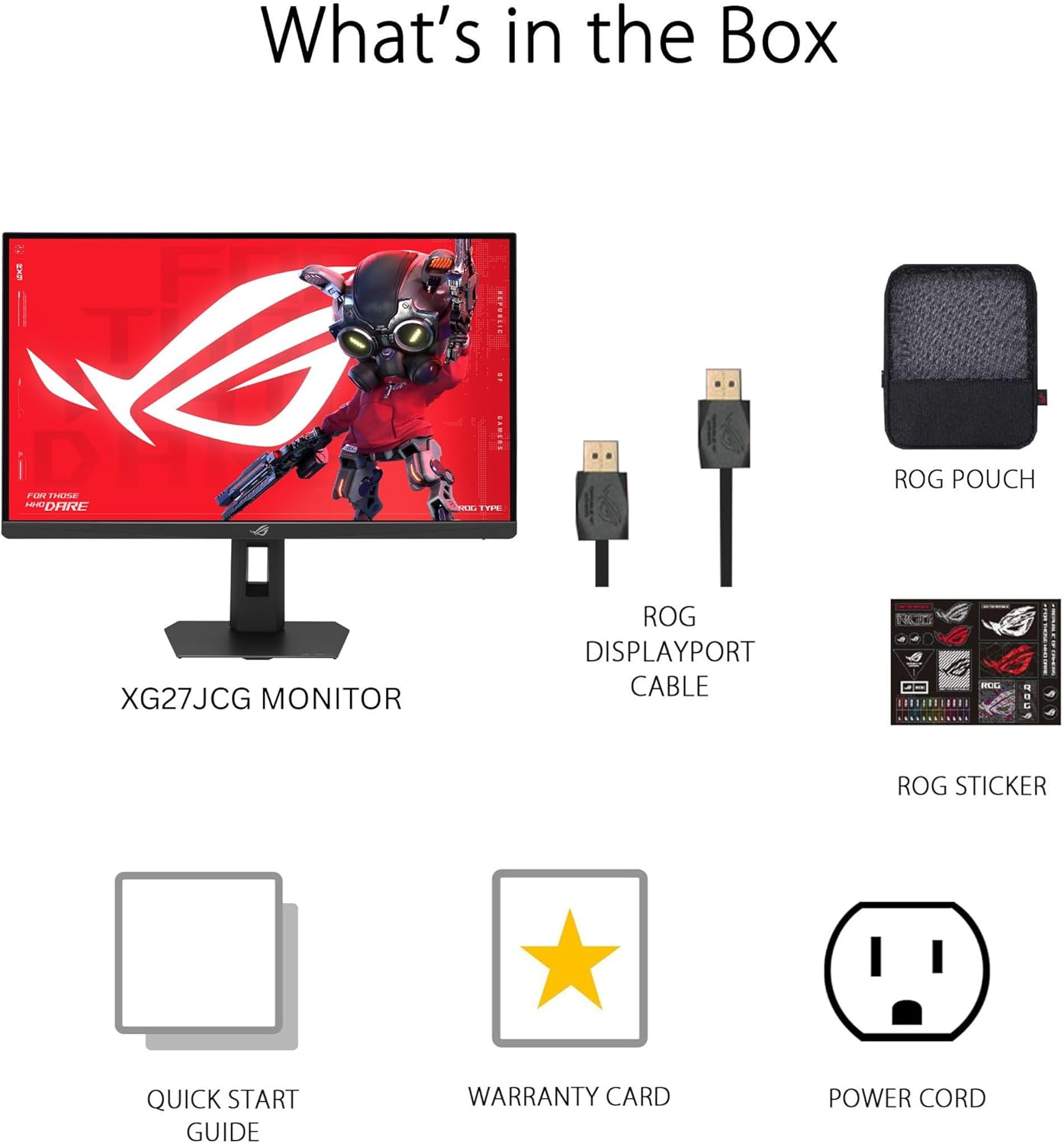
画像: Contents of the monitor packaging, showing the monitor, DisplayPort cable, ROG pouch, ROG sticker, Quick Start Guide, Warranty Card, and Power Cord.
セットアップ手順
1. スタンドの組み立て
Carefully remove the monitor from its packaging. Attach the stand base to the stand neck, securing it with the provided screw. Then, attach the assembled stand to the back of the monitor until it clicks into place. Ensure all connections are firm.
2. コンピュータへの接続
The monitor supports DisplayPort 1.4 (DSC), HDMI 2.1, and USB-C connectivity. Choose the appropriate cable for your system.
- ディスプレイポート: DisplayPort ケーブルの一方の端をモニターの DisplayPort 入力に接続し、もう一方の端をコンピューターの DisplayPort 出力に接続します。
- HDMI: Connect one end of an HDMI 2.1 cable to the monitor's HDMI input and the other end to your computer's HDMI output.
- USB-C: Connect a USB-C cable to the monitor's USB-C port and to a compatible USB-C port on your computer. This connection also supports 15W power delivery.

画像: 後方 view of the monitor's connectivity ports, including HDMI 2.1, DisplayPort 1.4, USB Type-C, and a Headphone Jack.
3. 電源接続
電源コードをモニターの電源入力に接続し、もう一方の端を電源コンセントに差し込みます。
4. 初回電源投入
Press the power button located on the monitor to turn it on. The monitor will automatically detect the input source. If no image appears, ensure all cables are securely connected and the computer is powered on.
操作手順
オンスクリーンディスプレイ(OSD)メニュー
Use the joystick and buttons on the back of the monitor to navigate the OSD menu. The OSD allows you to adjust various settings such as brightness, contrast, color, input source, and gaming features.
Display Modes and Refresh Rate
The monitor features a Dual Mode function, allowing you to switch between two primary display configurations:
- 5K (5120 x 2880) at 180Hz (OC): Provides ultra-sharp, immersive visuals suitable for cinematic content and detailed work.
- QHD (2560 x 1440) at 330Hz: Offers extremely high frame rates and responsive gaming action, ideal for competitive esports.
Switching between modes can be done via the OSD menu or a dedicated hotkey, if configured.

画像: Visual representation of the monitor's Dual Mode, allowing users to switch between 5K 180Hz and QHD 330Hz for different gaming experiences.
ROG Gaming A.I. Technology
This monitor includes AI-powered features designed to enhance your gaming experience:
- ダイナミックシャドウブースト: Automatically brightens dark areas of the game world without overexposing bright areas, improving visibility of hidden enemies or details.
- ダイナミッククロスヘア: Provides an on-screen crosshair that can adapt to the game environment, ensuring it remains visible against various backgrounds.
- AI Visual: Optimizes visual settings based on the game content for improved clarity and detail.

画像: Examples of Dynamic Crosshair and Dynamic Shadow Boost in action, showing how these features enhance visibility in games.
ディスプレイウィジェットセンター
The DisplayWidget Center software provides seamless control over monitor settings directly from your Windows or macOS operating system. This utility allows for easy adjustment of GameVisual modes, MultiScreen configurations, and system settings without using the OSD buttons.

画像: Screenshot of the DisplayWidget Center software, demonstrating its user interface for adjusting monitor settings.
人間工学と調整
The monitor stand offers multiple adjustment options to optimize your view快適さ:
- +20° から -5°
- スイベル: +40° から -40°
- ピボット: +90° to -90° (for portrait mode)
- 高さ調整: 0~110mm
Adjust the monitor to an ergonomic position that reduces strain on your neck and eyes. Ensure the top of the screen is at or slightly below eye level.

画像: Diagram illustrating the monitor's ergonomic adjustments, including tilt, swivel, pivot, and height.
メンテナンス
モニターの掃除
- 清掃する前に必ずモニターの電源をオフにし、電源コードを抜いてください。
- 柔らかく糸くずの出ない布で軽く拭き取ってください。amp水または、研磨剤を含まない低刺激のスクリーンクリーナーで拭いてください。
- クリーナーを画面に直接スプレーしないでください。まず布にクリーナーを塗布してください。
- Avoid using alcohol-based cleaners, ammonia, or abrasive materials, as these can damage the screen surface.
一般的なケア
- モニターは直射日光、高温多湿を避けて保管してください。
- 過熱を防ぐために、モニターの周囲に十分な換気を確保してください。
- モニターやそのケーブルの上に重い物を置かないでください。
トラブルシューティング
| 問題 | 考えられる解決策 |
|---|---|
| 画面に画像がありません |
|
| 画像がぼやけたり歪んだりする |
|
| Screen flickers or shows artifacts |
|
| No sound from headphones (if connected to monitor) |
|
仕様
| 特徴 | 詳細 |
|---|---|
| ブランド | エイスース |
| モデル番号 | XG27JCG |
| 画面サイズ | 27インチ |
| 解決 | 5120 x 2880 (5K UHD) |
| パネルタイプ | ほぼIPS |
| リフレッシュレート | 180 Hz (OC) / QHD 330Hz (Dual Mode) |
| 応答時間 | 0.3 ミリ秒 (GTG) |
| アスペクト比 | 16:9 |
| コントラスト比 | 600:1 |
| View角度 | 178度(水平/垂直) |
| HDR サポート | VESA ディスプレイHDR 600 |
| 色域 | 97% DCI-P3 |
| アダプティブ同期 | AMD FreeSync Premium Pro, G-SYNC Compatible |
| 接続性 | 1x DisplayPort 1.4 (DSC), 2x HDMI 2.1, 1x USB-C (with 15W PD), Headphone Jack |
| 消費電力 | 40ワット |
| 商品の寸法(奥行き x 幅 x 高さ) | 奥行き8.59インチ x 幅24.2インチ x 高さ20.1インチ |
| アイテム重量 | 6.9 ポンド |
| 人間工学に基づいた調整 | Tilt (+20° ~ -5°), Swivel (+40° ~ -40°), Pivot (+90° ~ -90°), Height (0~110mm) |
保証とサポート
This ASUS ROG Strix XG27JCG monitor comes with a 3年間保証. For warranty claims, technical support, or service inquiries, please contact ASUS customer support. Refer to the included Warranty Card for detailed terms and conditions.
You can find additional support resources, drivers, and FAQs on the official ASUS support webサイト: www.asus.com/サポート/