
導入
Welcome to the Thunderobot Zero 16 Pro user manual. This document provides essential information for setting up, operating, maintaining, and troubleshooting your new gaming laptop. The Thunderobot Zero 16 Pro is engineered for high-performance gaming and demanding applications, featuring an Intel Core Ultra 9 275HX processor, NVIDIA GeForce RTX 5080 graphics, a 16-inch QHD+ 360Hz display, 32GB DDR5 RAM, and a 1TB PCIe M.2 SSD.
最適なパフォーマンスと寿命を確保するため、デバイスを使用する前にこのマニュアルをよくお読みください。
パッケージ内容
パッケージにすべてのアイテムが含まれていることを確認します。
- Thunderobot Zero 16 Pro Gaming Laptop
- 電源アダプターとケーブル
- ユーザーマニュアル(このドキュメント)
- 保証書
設定
1. 初回電源投入
- 接続電源: 電源アダプターをノートパソコンの電源ポートに差し込み、次に壁のコンセントに差し込みます。
- ラップトップを開く: ノートパソコンの蓋を慎重に開けます。
- 電源オン: 通常、キーボードの上または側面にある電源ボタンを押します。
- 初期設定: 画面上の指示に従って、言語、地域、ネットワーク接続、ユーザー アカウントの作成などの Windows 11 Home のセットアップを完了します。
2. 周辺機器の接続
The Thunderobot Zero 16 Pro offers various ports for connecting external devices:
- USB-Aポート: Connect mice, keyboards, external hard drives, and other USB accessories.
- USB-C Port (Thunderbolt 5): 高速データ転送、外部ディスプレイ、電力供給に。
- HDMI 2.1 ポート: 外部モニターまたはテレビに接続して拡張表示します。
- RJ-45 イーサネット ポート: 安定した有線ネットワーク接続を実現します。
- 3.5mmオーディオジャック: ヘッドホンまたは外部スピーカーを接続します。
画像: サイド view of the Thunderobot Zero 16 Pro, highlighting the RJ-45, USB3.2 Gen2 Type-A, HDMI 2.1, Thunderbolt 5 Type-C, Power, USB3.2 Gen1 Type-A, and 3.5mm audio jack ports.

Image: Detailed diagram illustrating the location and type of ports available on the Thunderobot Zero 16 Pro, including USB, HDMI, Ethernet, and audio connections.
操作手順
1. Keyboard and Lighting
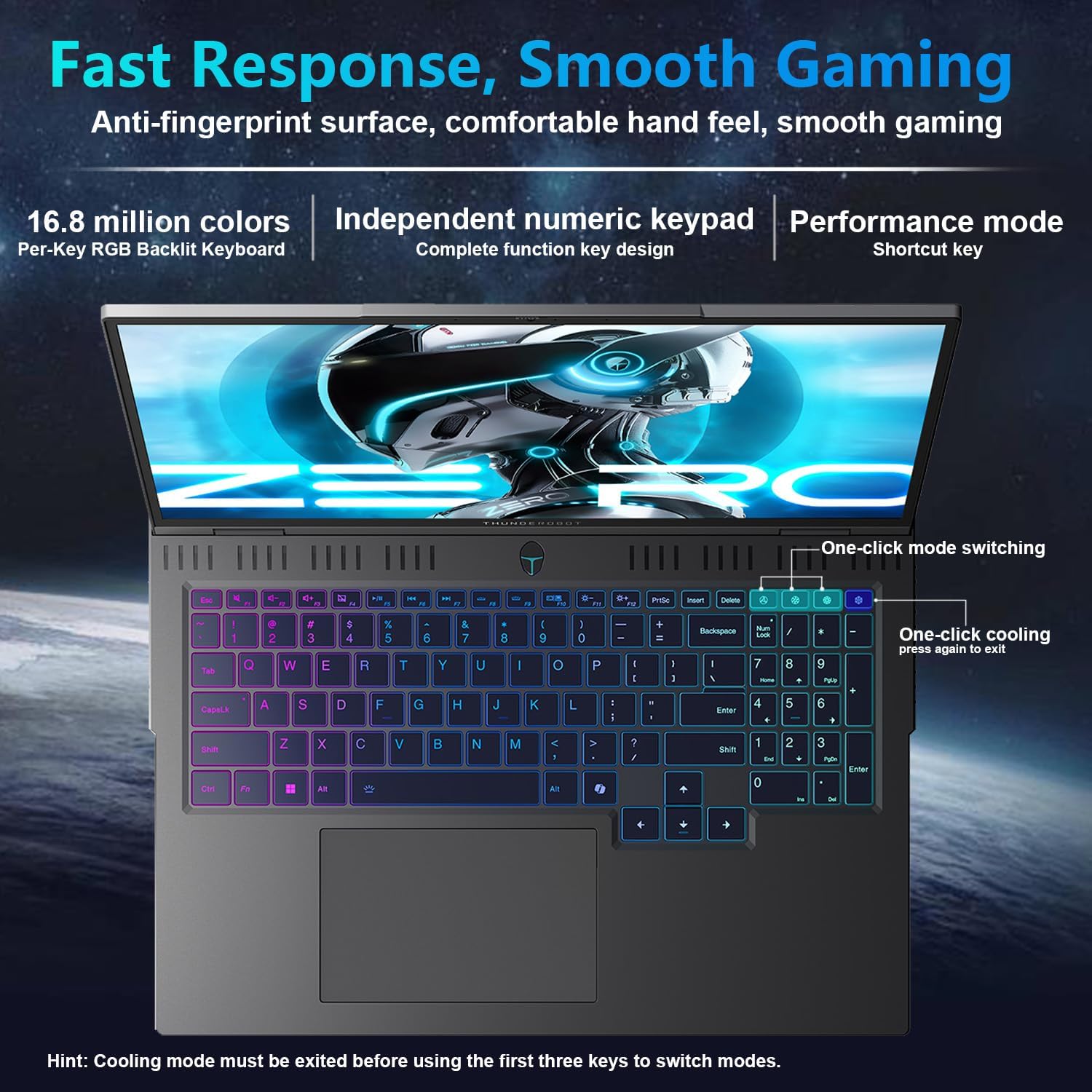
The laptop features a full-size, per-key RGB backlit keyboard with a numeric keypad. You can customize the RGB lighting effects through the Thunderobot Control Center software.
- Performance Mode Switching: Use dedicated shortcut keys to switch between performance profiles (e.g., Quiet, Balance, Turbo).
- One-Click Cooling: A dedicated key allows for instant activation of maximum cooling.
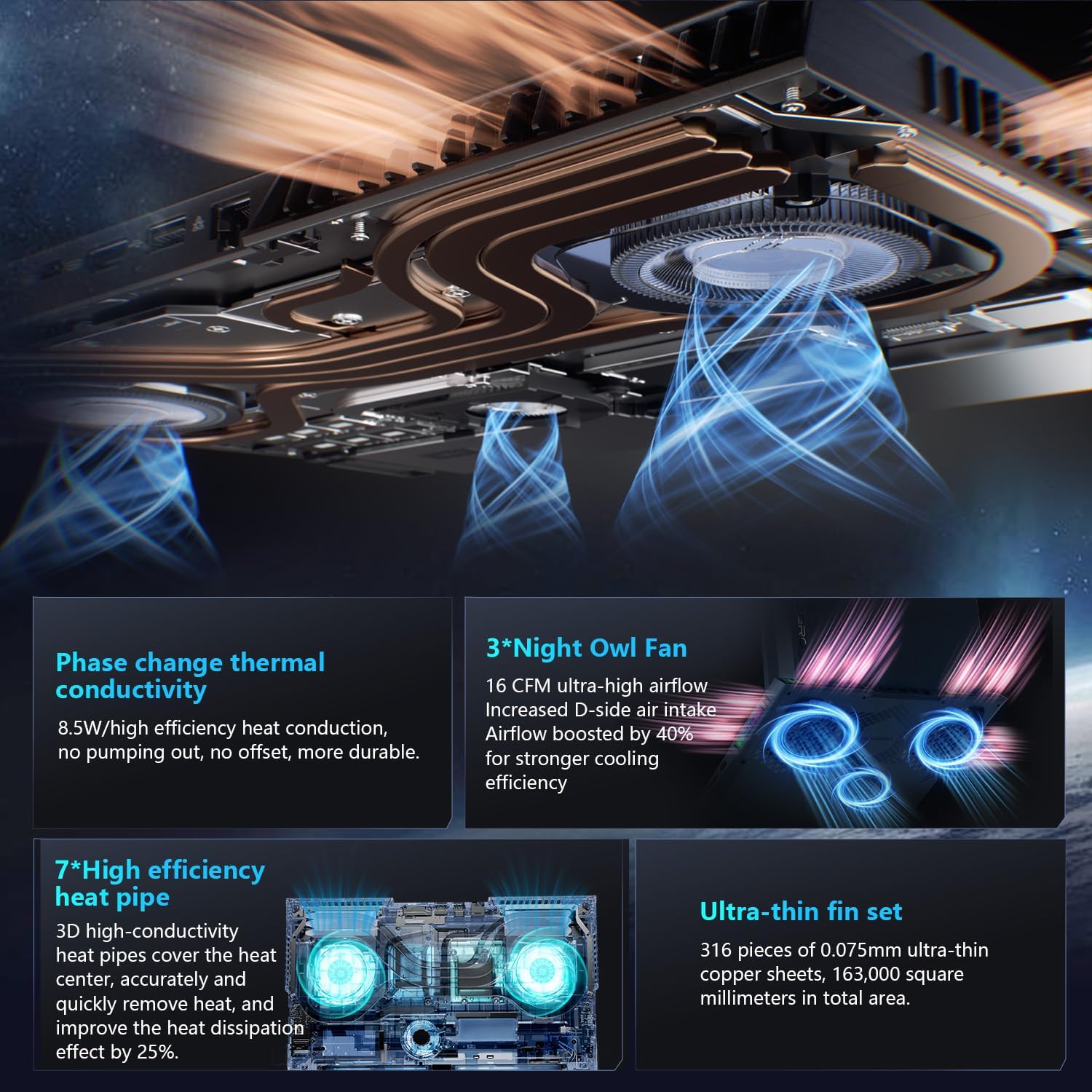
Image: The RGB backlit keyboard of the Thunderobot Zero 16 Pro, showing the full layout and numeric keypad.

Image: Visual guide to the keyboard's one-click mode switching and cooling activation keys.
Video: This video demonstrates the RGB lighting system and keyboard features of the Thunderobot Zero 16 Pro, including performance mode switching and one-click cooling.
2. 表示機能
The 16-inch QHD+ (2560x1600) display offers a 360Hz refresh rate and eye-care technology. To utilize the highest refresh rate, ensure the dedicated graphics direct connection mode is enabled in the Control Center.
- Anti-Glare & Anti-Reflection: Reduces distractions from ambient light.
- ブルーライトカット: Helps reduce eye strain during prolonged use.
- DC調光: Provides flicker-free eye protection.
- プロフェッショナルなカラーキャリブレーション: 正確な色再現を保証します。

Image: The 16-inch QHD+ display of the Thunderobot Zero 16 Pro, showcasing its high refresh rate and eye-care features.

Image: Infographic detailing the display's features such as 2.5K resolution, 360Hz refresh rate, 500 nits brightness, and various eye protection technologies.
3. Thunderobot Control Center
The AI Intelligent Control Center software allows for comprehensive management of your laptop's performance, lighting, and system settings. It is recommended to connect the device to a power source for full functionality of system mode switching.
- パフォーマンスチューニング: Adjust CPU and GPU settings for optimal performance or power saving.
- Intelligent Light Adjustment: Customize keyboard, strip, and logo RGB lighting.
- Comprehensive Adjustment: Monitor system status, fan speeds, and manage other personalized settings.
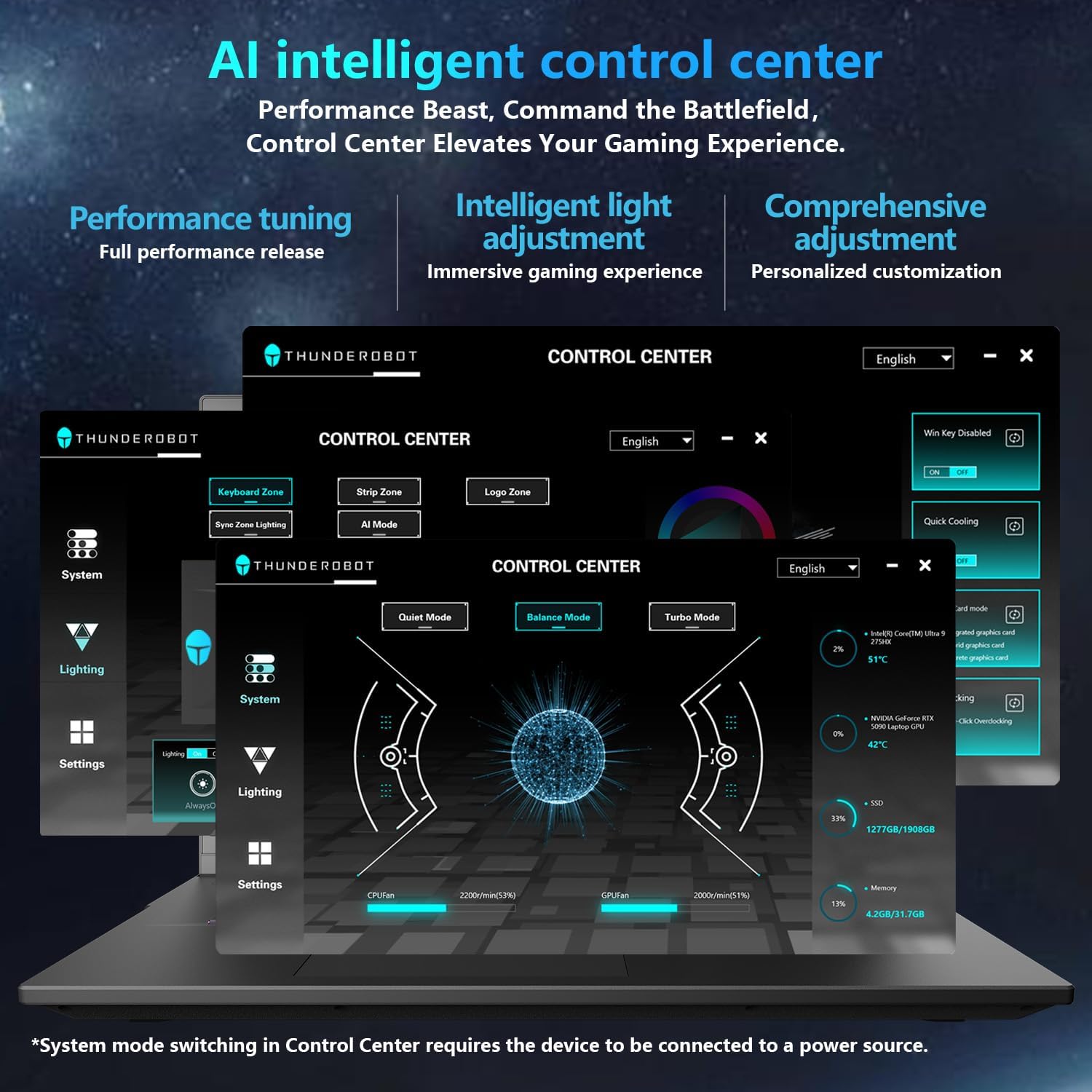
Image: A visual representation of the Thunderobot Control Center interface, showing options for system monitoring, lighting control, and performance settings.
Image: Infographic explaining the capabilities of the AI Intelligent Control Center, including performance tuning, intelligent light adjustment, and comprehensive system management.
4. オーディオシステム
The laptop is equipped with a Soundstage Full audio system, featuring 4 speakers and Nahimic high-quality sound effects for an immersive audio experience.

Image: A graphic illustrating the Soundstage Full audio system with sound waves, emphasizing the immersive experience.
Video: This video showcases the display quality and overall design of the Thunderobot Zero series, including the Zero 16 Pro.
メンテナンス
1. 冷却システム
The Thunderobot Zero 16 Pro features a robust cooling system designed to maintain performance under heavy loads. This includes dual Night Owl fans, 7 enlarged heat pipes, and 316 ultra-thin copper fins.
- 通気口を清潔に保つ: Ensure that the air intake and exhaust vents are not obstructed to allow for proper airflow.
- 定期清掃: 定期的に圧縮空気を使用して通気口のほこりを取り除いてください。

画像: 爆発した view of the laptop's internal cooling components, showing the dual fans, heat pipes, and fin set.

Image: Infographic explaining the Night Hawk fans, high-efficiency heat pipes, phase-change thermal conduction, and ultra-thin fin array.
2. 一般的なケア
- クリーニング: 画面と筐体の清掃には、柔らかく糸くずの出ない布をご使用ください。刺激の強い化学薬品は使用しないでください。
- 環境条件: Operate the laptop within recommended temperature ranges (-20°C to 60°C) and humidity (up to 90%).
- バッテリー寿命: To prolong battery life, avoid frequently discharging the battery completely and store the laptop with a partial charge if not used for extended periods.
Video: This video highlights the robust build quality and testing of Thunderobot gaming products, demonstrating their durability.
トラブルシューティング
よくある問題と解決策
| 問題 | 考えられる原因 | 解決 |
|---|---|---|
| Display not reaching 360Hz refresh rate. | Dedicated graphics direct connection mode is not enabled. | Enable the dedicated graphics direct connection mode in the Thunderobot Control Center. |
| Laptop performance is lower than expected. | Laptop is not connected to power, or is in a power-saving mode. | Connect the laptop to its power adapter. Adjust performance settings to "Turbo Mode" or "Performance Mode" in the Thunderobot Control Center. Ensure cooling vents are clear. |
| Keyboard RGB lighting is not working or customizable. | Lighting settings are disabled or not configured in the Control Center. | Open the Thunderobot Control Center and navigate to the "Lighting" section to enable and customize RGB effects. |
| スピーカーやヘッドホンから音が出ません。 | Audio drivers are outdated, volume is muted, or incorrect output device selected. | Check volume levels and audio output settings in Windows. Update audio drivers if necessary. Ensure headphones are fully plugged into the 3.5mm jack. |
仕様
| 特徴 | 詳細 |
|---|---|
| ブランド | Thunderobot |
| モデル名 | ZERO 16 Pro |
| 画面サイズ | 16インチ |
| 解決 | 2560x1600 pixels (QHD+) |
| リフレッシュレート | 360Hz |
| CPUモデル | Intel Core Ultra 9 275HX (24 Cores, up to 5.4 GHz) |
| グラフィックスコプロセッサ | NVIDIA GeForce RTX 5080 (12 GB GDDR7) |
| RAMメモリインストールサイズ | 32 GB DDR5 (4800 MHz) |
| ハードディスクサイズ | 1 TB SSD (PCIe x4) |
| オペレーティング·システム | Windows 11 ホーム |
| 接続技術 | Wi-Fi 6E, Bluetooth, USB-A, USB-C (Thunderbolt 5), HDMI, Ethernet, Audio Jack |
| USBポート合計 | 4 |
| HDMIポート | 1 |
| キーボード | バックライト付き、フルサイズ、テンキー付き |
| Webcam Capability | はい |
| 商品の寸法(長さ x 幅 x 厚さ) | 長さ14.09インチ x 幅10.52インチ x 厚さ1.03インチ |
| 製品の具体的な用途 | ゲーム |
保証とサポート
保証情報
Every Thunderobot laptop includes a 12ヶ月保証, offering expert support, thorough diagnostics, and genuine parts if a repair is needed. Additionally, a 90日間の保証 is provided on all warranty replacement parts, ensuring hassle-free repairs. Your complete satisfaction is our commitment.
カスタマーサポート
For technical assistance, warranty claims, or product inquiries, please visit the official Thunderobot website or contact their customer support. Refer to the warranty card included in your package for specific contact details and terms.
また、 Thunderobot Store on Amazon 追加の製品情報およびサポート リソースについては、こちらをご覧ください。