
1. はじめに
Thank you for choosing the Pisichen 27-inch 4K UHD Touchscreen Monitor with Webcam. This manual provides essential information for the safe and efficient operation of your new monitor. Please read it thoroughly before use and retain it for future reference.
2. 安全情報
- 電源: Use only the power adapter supplied with the monitor. Ensure the power outlet meets the voltag要件。
- 換気: 通気口を塞がないでください。適切な空気の流れを確保するために、モニターの周囲に十分なスペースを確保してください。
- 液体への暴露: モニターを液体から遠ざけてください。雨や湿気にさらさないでください。
- クリーニング: Disconnect the power cable before cleaning. Use a soft, dry cloth. Avoid abrasive cleaners.
- 配置: モニターが落ちないように、安定した平らな面に置いてください。
- サービス: モニターの修理はご自身で行わないでください。修理はすべて資格を持った専門家にご依頼ください。
3. パッケージ内容
開梱後、パッケージの内容をご確認ください。不足品や破損品がございましたら、販売店までご連絡ください。
- Pisichen 27-inch 4K UHD Touchscreen Monitor
- モニタースタンド(ベースとアーム)
- 電源アダプター
- HDMIケーブル
- USB-B to USB-A Cable (for Touch Function)
- ユーザーマニュアル
4.製品オーバーview
4.1 主な特徴
- Ultra HD 4K Touchscreen Display: 27-inch 4K Ultra HD screen with vibrant colors, sharp details, and wide viewing angles. Features a responsive 10-point touchscreen for intuitive control.
- Built-in High-Definition Webカム: 統合された webcam for video calls, online meetings, and streaming, reducing desk clutter.
- 多彩な接続性: Multiple ports including HDMI, DisplayPort, and USB-C for easy connections to various devices. Supports both touch and traditional input.
- Optimized for Productivity and Creativity: Large 4K touch display for precise control and streamlined workflows, ideal for graphic designers, content creators, and multitasking.
- Sleek and Functional Design: Modern design with an adjustable stand for optimal viewing angles and comfort during extended use.
4.2 モニターポート
The monitor features various ports for connecting to your devices. Refer to the image below for port identification.
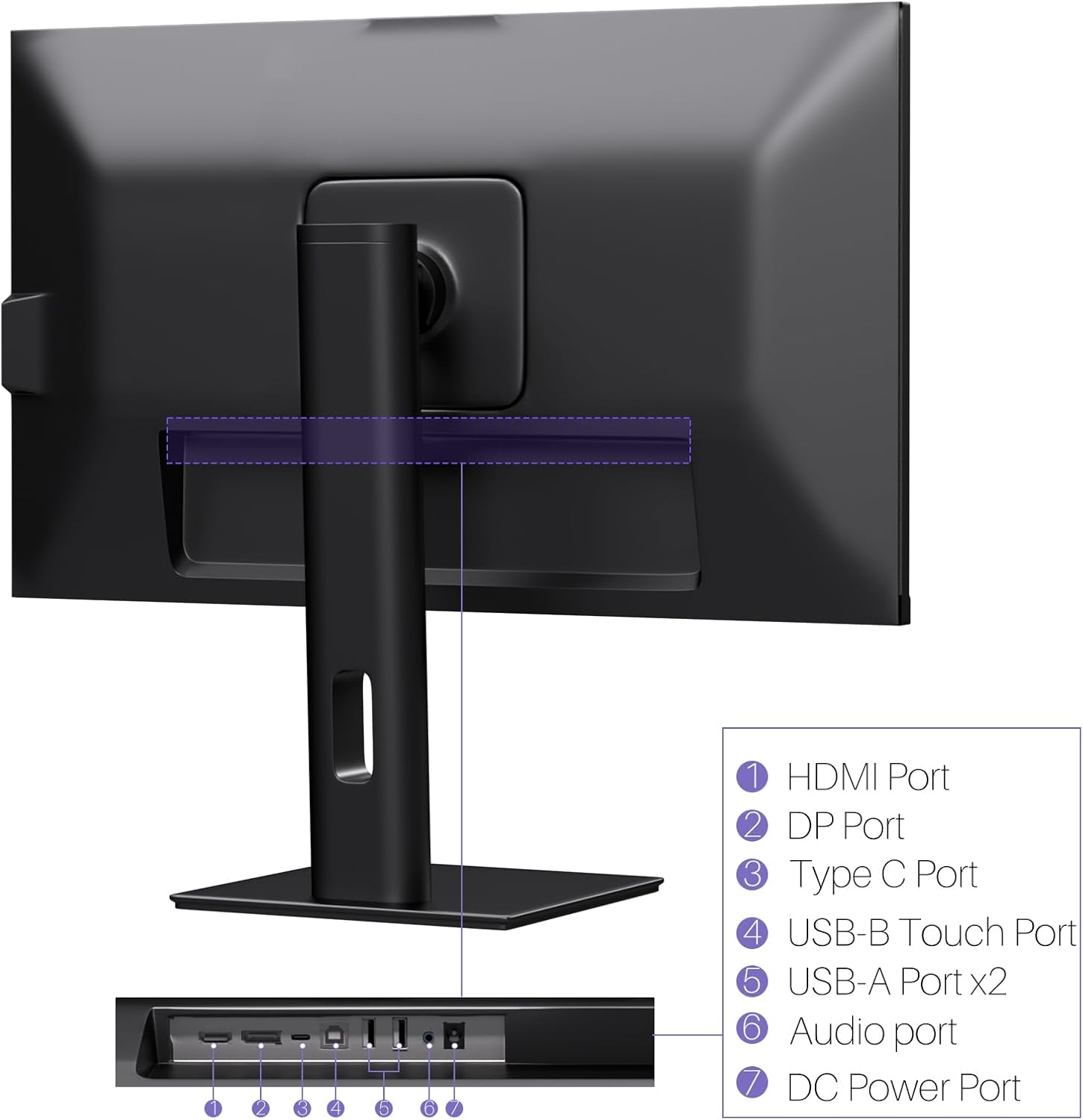
画像: 背面 view of the monitor displaying the HDMI, DP, Type-C, USB-B Touch, USB-A, Audio, and DC Power ports.
- HDMIポート: ビデオとオーディオを入力するために、HDMI ケーブルを介してデバイスに接続します。
- DPポート: Connects to devices via DisplayPort cable for video and audio input.
- タイプCポート: Connects to devices via USB-C cable for video, audio, and power delivery. (Requires USB-C port on signal device to support DisplayPort Alternate Mode for touch functionality).
- USB-B Touch Port: Connects to your computer via USB-B to USB-A cable to enable touchscreen functionality.
- USB-A ポート (x2): USB周辺機器を接続します。
- オーディオポート: 外部オーディオ機器を接続します。
- DC電源ポート: 電源アダプタに接続します。
5. セットアップ手順
5.1 スタンドの組み立て
- モニターとスタンドのコンポーネントをパッケージから慎重に取り出します。
- Attach the stand arm to the monitor's VESA mounting points.
- Secure the stand base to the arm using the provided screws.
- Ensure all connections are tight and the monitor is stable.
5.2 デバイスへの接続
The monitor supports various connection types. Choose the appropriate cable for your device.

Image: Connection diagrams illustrating how to connect the monitor as a secondary display (HDMI/DP + DC), a touchscreen monitor (HDMI/DP + USB-B + DC), or via USB-C (USB-C + DC).
- For Video and Audio (Non-Touch): コンピューターの HDMI または DisplayPort ケーブルをモニターの対応するポートに接続します。
- For Video, Audio, and Touch (Windows PC): Connect an HDMI or DisplayPort cable for video/audio. Additionally, connect the USB-B to USB-A cable from the monitor's USB-B Touch Port to a USB-A port on your computer.
- For Video, Audio, and Touch (USB-C Compatible Device): Connect a USB-C cable from your device to the monitor's Type-C port. Ensure your device's USB-C port supports DisplayPort Alternate Mode for touch functionality.
5.3電源接続
- Connect the power adapter to the monitor's DC Power Port.
- 電源アダプタを壁のコンセントに差し込みます。
6. 操作手順
6.1 電源オン/オフ
モニターの電源ボタンを押して、電源をオンまたはオフにします。
6.2 オンスクリーンディスプレイ(OSD)メニュー
Use the control buttons (typically located on the back or bottom of the monitor) to navigate the OSD menu. This menu allows you to adjust settings such as brightness, contrast, color temperature, input source, and other display parameters.
6.3 タッチスクリーンの機能
The monitor features a 10-point multi-touch screen. Ensure the USB-B to USB-A cable (or USB-C cable for compatible devices) is connected to enable touch functionality.

Image: A user's hand interacting with the monitor screen, highlighting the responsive 10-point touch experience.
- Basic Touch: Tap to click, swipe to scroll.
- マルチタッチジェスチャー: Use two fingers to zoom in/out, rotate, or pan, depending on the application.
- Touch Calibration (Windows Only): If the cursor does not align with your touch, calibration may be required. Go to Control Panel > Hardware and Sound > Tablet PC Settings > Calibrate. Follow the on-screen prompts.
6.4 Using the Built-in Webカム
統合された webcam is automatically detected by most operating systems and video conferencing applications. No additional drivers are typically required.

Image: The monitor displaying a video conference call, showcasing its integrated webcam for seamless communication.
- Open your preferred video conferencing software (e.g., Zoom, Microsoft Teams, Skype).
- 統合された webcam as your video input device in the application's settings.
6.5 Adjusting Display Resolution
To set the resolution of the monitor (Windows):
- Right-click on your desktop and select "Display Settings."
- Find your monitor (if multiple displays are connected).
- Under "Display resolution," select the recommended resolution of 3840 x 2160.
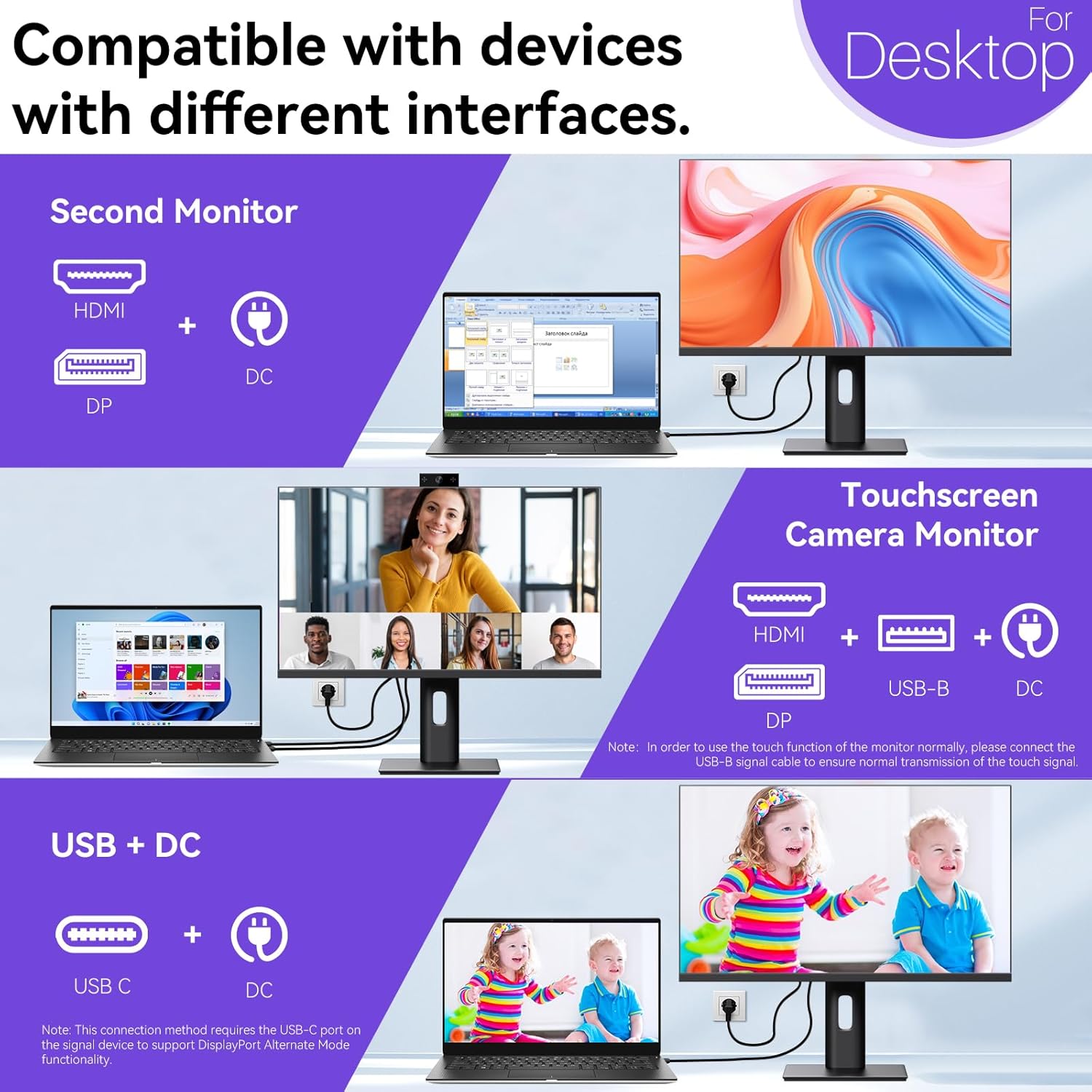
Image: A visual comparison demonstrating the superior clarity of 4K UHD (3840x2160) compared to FHD (1920x1080) and QHD (2560x1440) resolutions.
7. メンテナンス
- 画面の掃除: 柔らかく糸くずの出ない布で画面を優しく拭いてください。頑固な汚れには、軽くamp布に水または画面専用の洗浄液を含ませてください。画面に直接液体を吹きかけないでください。
- Cのクリーニングasing: モニターを清掃するには、柔らかく乾いた布を使用してください。asing.
- ストレージ: If storing the monitor for an extended period, disconnect it from power, pack it in its original packaging, and store it in a cool, dry place.
8。 トラブルシューティング
If you encounter issues with your monitor, refer to the following troubleshooting guide. For problems not listed, please contact customer support.
| 問題 | 考えられる原因 | 解決 |
|---|---|---|
| 画面に画像がありません | 電源ケーブルが外れています。ビデオ ケーブルが外れています。入力ソースが正しく選択されていません。 | Ensure power cable is securely connected. Check video cable (HDMI/DP/USB-C) connections. Select correct input source via OSD menu. |
| タッチスクリーンが反応しない | USB-B cable not connected; USB-C port not supporting DisplayPort Alternate Mode; Device incompatibility (e.g., iPhone). | Ensure the USB-B to USB-A cable is connected from the monitor to your computer. If using USB-C, verify your device's USB-C port supports DisplayPort Alternate Mode. Note: Touch function is not supported when connected to an iPhone due to iOS system restrictions. |
| Cursor moves incorrectly (Windows) | Touchscreen calibration required. | Perform touchscreen calibration: Go to Control Panel > Hardware and Sound > Tablet PC Settings > Calibrate. |
| Webカムが検出されない | USB connection issue; Software settings. | Ensure all necessary USB cables are connected. Check your application's settings to select the correct webカム。 |
9. 仕様
| 特徴 | 詳細 |
|---|---|
| ブランド | ピシチェン |
| モデル番号 | 27INTSCMR-4K |
| 画面サイズ | 27インチ |
| 解決 | 3840 x 2160ピクセル(4K UHD 2160p) |
| アスペクト比 | 16:9 |
| 画像の明るさ | 400カンデラ |
| スクリーン表面の説明 | 光沢のある |
| 製品寸法 | 14.37 x 24.21 x 16.54インチ |
| アイテム重量 | 16.59ポンド |
| メーカー | 深セン・コノワ・エレクトロニクス株式会社 |
| 接続性 | HDMI, DisplayPort, USB-C, USB-B (for touch), USB-A (x2), Audio Port |
10. 保証とサポート
This product comes with a manufacturer's warranty. Please refer to the warranty card included in your package for specific terms and conditions. For technical support or inquiries, please contact Pisichen customer service at サポート_2308@163.com. When contacting support, please provide your model number and a detailed description of the issue, including any relevant pictures or videos.