
導入
This manual provides detailed instructions for the setup, operation, maintenance, and troubleshooting of your Pisichen 24-inch Touchscreen Monitor with Built-in Webcam (Model 238TS-CMR). This monitor features a 2K QHD (2560x1440) resolution display with a 100Hz refresh rate, 10-point multi-touch functionality, and an integrated pop-up webcam, designed to enhance your productivity and interactive experience.
安全情報
- 誤って落下するのを防ぐため、モニターは常に安定した平らな面に置いてください。
- モニターを雨、湿気、極端な温度にさらさないでください。
- 過熱を防ぐため、換気口をふさがないようにしてください。
- モニターに付属の電源アダプターのみを使用してください。
- 清掃する前、または長期間モニターを使用しない場合は、電源ケーブルをコンセントから抜いてください。
- モニターをご自身で分解したり修理したりしないでください。すべての修理は資格のある専門家にご依頼ください。
パッケージ内容
パッケージ内にすべてのアイテムが揃っていることを確認してください:
- Pisichen 24-inch Touchscreen Monitor (Model 238TS-CMR)
- モニタースタンド(ベースとアーム)
- 電源アダプターとケーブル
- HDMIケーブル
- USB-C から USB-C へのケーブル
- USB-A to USB-B Cable (for touch functionality with non-USB-C devices)
- ユーザーマニュアル(このドキュメント)
設定
1. スタンドの組み立て
- モニターをパッケージから慎重に取り出し、傷がつかないように画面を下にして柔らかく清潔な表面に置きます。
- 付属のネジを使用してスタンドアームをモニターの背面に取り付けます。
- スタンドベースをスタンドアームに接続し、指定されたネジで固定します。
- Once assembled, carefully lift the monitor and place it upright on your desk.

Figure 1: Monitor stand assembly and adjustment capabilities.
2. デバイスへの接続
The monitor supports multiple connection types. Choose the appropriate cable for your device.
- 電源接続: Connect the power adapter to the monitor's DC power port and then plug it into a power outlet.
- USB-C Connection (Recommended for full functionality): If your device has a USB-C port that supports DisplayPort Alternate Mode, connect the monitor using the provided USB-C to USB-C cable. This single cable can transmit video, audio, and touch signals, and may also provide power delivery to your laptop.
- HDMI or DisplayPort Connection: Connect an HDMI or DisplayPort cable from your device to the corresponding port on the monitor for video and audio. For touch functionality, you must also connect the USB-A to USB-B cable from your device's USB port to the monitor's USB-B upstream port.
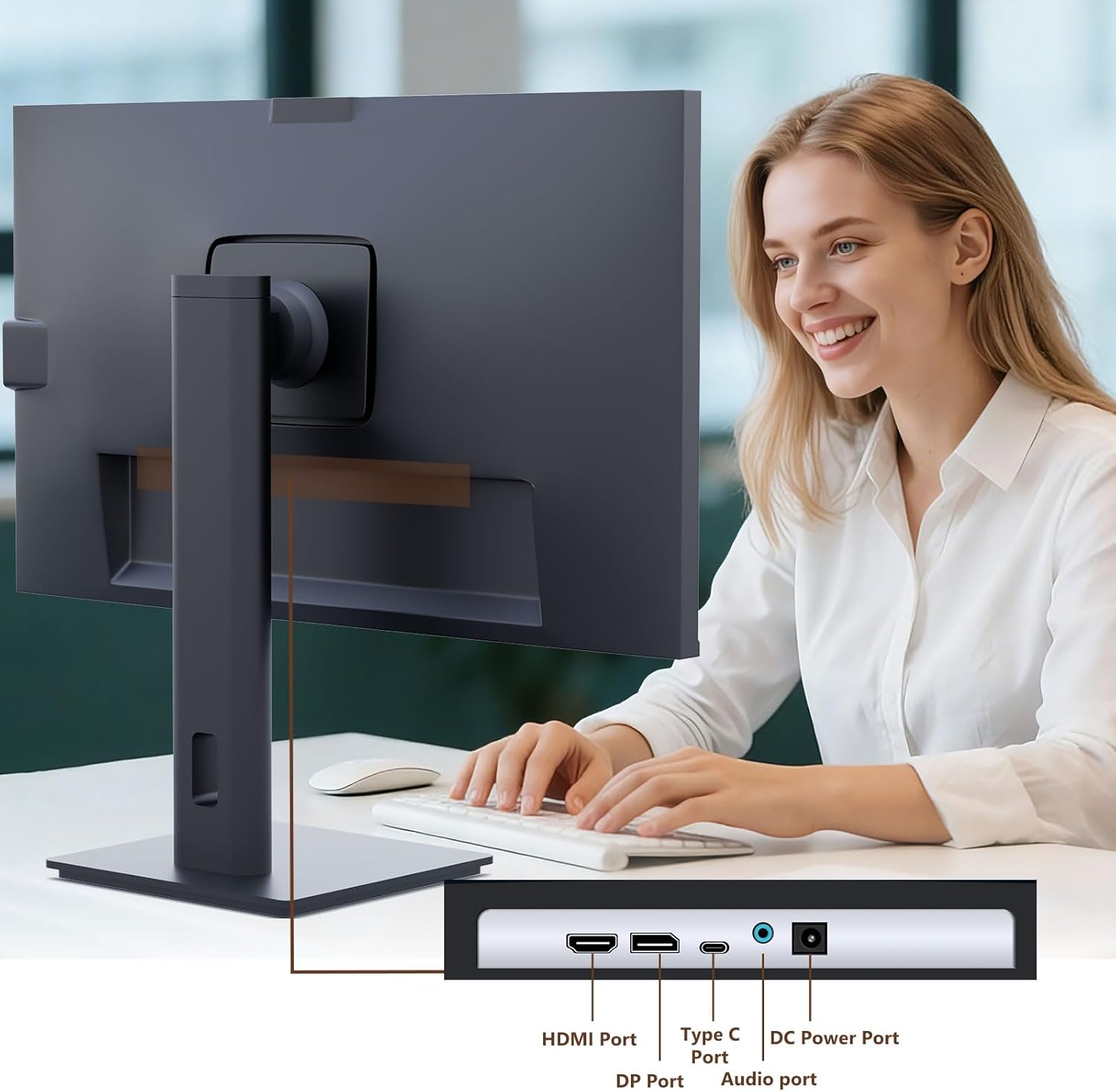
Figure 2: Available ports on the Pisichen monitor.

Figure 3: USB-C one-cable connection for simplified setup.

Figure 4: Connection options for desktop and laptop devices.
3. 初回電源投入
Press the power button located on the monitor to turn it on. The monitor will automatically detect the active input source. If multiple sources are connected, you may need to select the correct input via the On-Screen Display (OSD) menu.
操作手順
1. タッチスクリーン機能
The monitor supports 10-point multi-touch. Ensure the USB-C cable is connected (for full functionality) or the USB-A to USB-B cable is connected in addition to your video cable for touch input to work. Touch gestures are similar to those used on tablets or smartphones.
- タップ: 選択またはアクティブ化を 1 回タッチします。
- ドラッグ: Touch and hold, then move your finger to move items.
- ピンチ/スプレッド: 2 本の指を使って拡大または縮小します。
- スワイプ: Move your finger across the screen to scroll or navigate.

Figure 5: Demonstrating intuitive touch interaction.

Figure 6: Collaborative use of the multi-touch display.
2. Built-in Webカムの使用法
The monitor features a pop-up webcam for privacy and convenience. To use the webcam, gently press the top center of the monitor frame where the webcam is located. It will pop up. To retract it, gently press it down until it clicks into place.
Ensure your operating system and video conferencing software recognize the webカメラ。基本機能には通常、追加のドライバーは必要ありません。

Figure 7: The monitor with its built-in pop-up webcam in use during a video conference.

Figure 8: High-definition video calls using the integrated webカム。
3. オンスクリーンディスプレイ(OSD)メニュー
OSDメニューでは、モニターのさまざまな設定を調整できます。モニターの背面または底面にあるボタンを使って、オプションを移動して選択してください。
- 輝度コントラスト: ディスプレイの輝度とコントラストのレベルを調整します。
- 色の設定: 色温度、ガンマ、その他の色関連のパラメータを変更します。
- 入力ソース: Manually select between HDMI, DisplayPort, or USB-C inputs.
- オーディオ: 内蔵スピーカーまたは接続されたヘッドフォンの音量を調整します。
- 画像モード: プリセット表示モード (例: 標準、ゲーム、ムービー) を選択します。
- HDR: Enable or disable High Dynamic Range settings for improved dark detail optimization.

Figure 9: HDR feature for enhanced visual detail.
4. 人間工学的調整
モニタースタンドは、さまざまな調整が可能で、 view快適さ:
- 高さ調整: モニターをゆっくりと上または下に押したり引いたりします。
- Tilt the screen forward or backward to find the ideal angle.
- スイベル: モニターをベース上で左または右に回転させます。
- ピボット: 画面を90度回転させて縦向きモードにする viewing。
図10: 最適な人間工学的調整 viewing。
メンテナンス
- 画面の掃除: 柔らかく糸くずの出ない布で画面を優しく拭いてください。頑固な汚れには、amp布に水または研磨剤を含まないスクリーンクリーナーを軽く含ませてください。液体をスクリーンに直接吹き付けないでください。
- 本体のクリーニング: モニターの表面を拭くときは、柔らかく乾いた布を使用してください。asing. 強力な洗剤や研磨剤入りの洗剤の使用は避けてください。
- ストレージ: モニターを長期間保管する場合は、すべてのケーブルを外し、できれば元の梱包のまま、涼しく乾燥した場所に保管してください。
トラブルシューティング
電源なし
- 電源ケーブルがモニターと電源コンセントの両方にしっかりと接続されていることを確認してください。
- 別のデバイスを接続して、電源コンセントが機能していることを確認します。
- Check if the power adapter is correctly connected to the monitor.
信号なし/画面が真っ白
- Confirm the video cable (HDMI, DP, or USB-C) is securely connected to both the monitor and your device.
- モニターの OSD メニューで正しい入力ソースが選択されていることを確認します。
- コンピューターのディスプレイ設定をチェックして、モニターが検出され有効になっていることを確認します。
- 可能な場合は別のビデオ ケーブルまたはポートを試してください。
タッチ機能が動作しない
- If using HDMI or DisplayPort, ensure the USB-A to USB-B cable is connected from your device to the monitor.
- If using USB-C, ensure your device's USB-C port supports DisplayPort Alternate Mode and touch data transmission.
- Check your operating system's touch settings.
- Note that some devices, such as game consoles (PS3/4/5, Xbox, Steam Deck, Fire TV Cube) and certain Apple products (iPhone, iPad, Switch), do not support touch functionality with this monitor.

Figure 11: Touch compatibility chart for various devices.
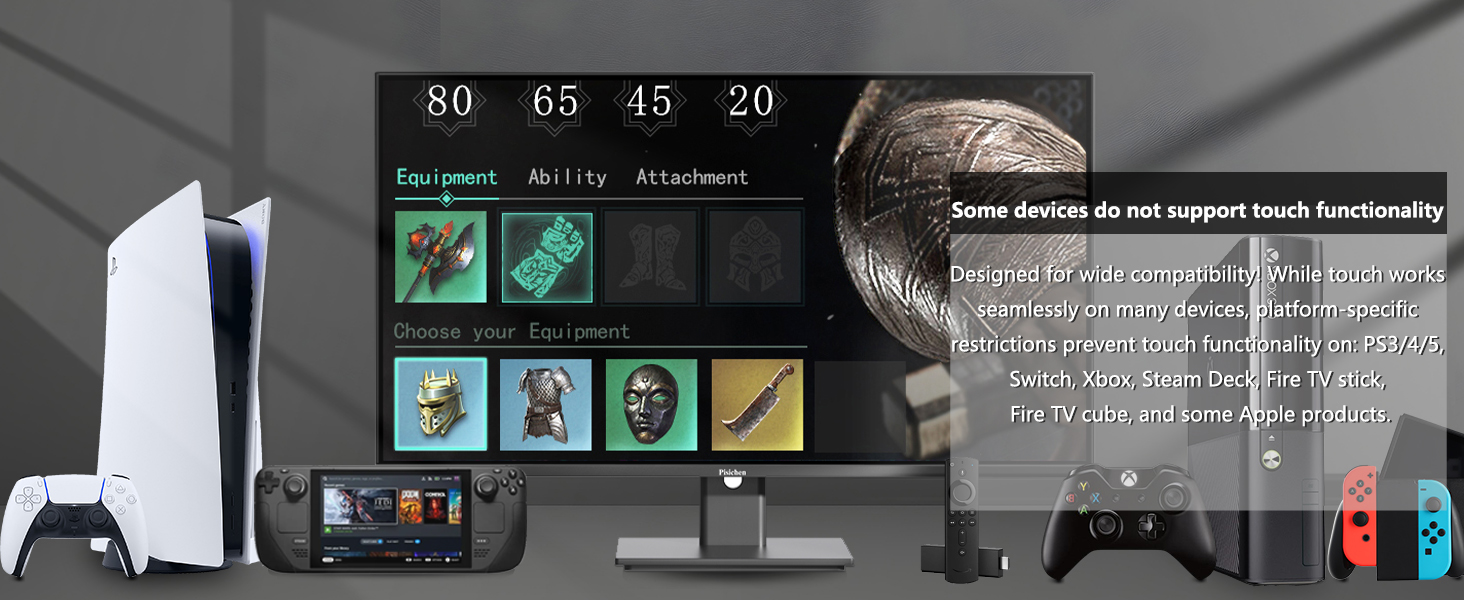
Figure 12: Devices that do not support touch functionality.
Webカメラが検出されません
- 確実に webcam is fully popped up.
- Verify that the USB connection (either USB-C or USB-A to USB-B) is properly established.
- オペレーティング システムのプライバシー設定を確認し、アプリケーションにカメラへのアクセスが許可されていることを確認してください。
- コンピュータを再起動します。
仕様
| 特徴 | 説明 |
|---|---|
| モデル番号 | 238TS-CMR |
| 画面サイズ | 23.8インチ |
| 解決 | 2560 x 1440 (QHD ワイド 1440p) |
| リフレッシュレート | 100Hz |
| 輝度 | 400カンデラ(ニット) |
| コントラスト比 | 3000:1 |
| タッチ·テクノロジー | 10ポイントマルチタッチ |
| Webカム | Built-in Pop-up Camera |
| 接続性 | HDMI, DisplayPort (DP), USB Type-C, USB-B (upstream), Audio Out, DC Power |
| アスペクト比 | 16:9 |
| スクリーン表面 | 光沢のある |
| 製品寸法 | 1.97 x 21.26 x 12.6インチ |
| アイテム重量 | 11.53ポンド |
| メーカー | 深セン・コノワ・エレクトロニクス株式会社 |
保証とサポート
Your Pisichen monitor is covered by a limited warranty. Please refer to the warranty card included in your package for specific terms and conditions, including the warranty period and coverage details.
For technical support, troubleshooting assistance, or warranty claims, please contact Pisichen customer service. Contact information can typically be found on the manufacturer's webサイトまたは保証書に記載されています。
When contacting support, please have your monitor's model number (238TS-CMR) and purchase information readily available.