
1. はじめに
This manual provides essential information for setting up, operating, maintaining, and troubleshooting your NIMO 15.6-inch Laptop N152. Please read this manual thoroughly before using your device to ensure proper functionality and longevity.

Image 1.1: NIMO 15.6-inch Laptop, top-down view.
2. セットアップ
2.1 開梱と初期検査
Carefully remove all components from the packaging. Verify that all items listed in the 'What's in the Box' section (Section 6) are present and undamaged. If any items are missing or damaged, contact customer support.
2.2 ノートパソコンの充電
Before first use, fully charge your NIMO laptop. Connect the provided 65W USB-C PD Fast Charger to the laptop's USB-C port and then to a power outlet. The charging indicator light will illuminate. A 15-minute charge provides approximately 2 hours of use.

Image 2.1: The 65W USB-C PD Fast Charger can charge multiple devices.
2.3 電源投入と初期設定
Press the power button to turn on the laptop. Follow the on-screen instructions to complete the Windows 11 Home setup, including language selection, network connection, and user account creation. You can set up the fingerprint reader during this process for secure login.
3. 操作手順
3.1 キーボードとタッチパッド
The NIMO N152 features an ergonomic backlit keyboard. To adjust the backlight brightness or toggle it on/off, use the dedicated function keys (Fn + F-key combination, refer to keyboard legends). The touchpad supports multi-touch gestures for enhanced navigation.
3.2 指紋リーダー
The fingerprint reader is integrated into the touchpad for secure and instant login. Once configured, simply place your registered finger on the sensor to unlock your device.
3.3 表示機能
The 15.6-inch Full HD (1920x1080) IPS anti-glare display offers clear visuals. The 180° hinge allows the screen to lay completely flat, useful for sharing content or collaborating.

Image 3.1: The 180° lay-flat hinge for versatile viewing。
3.4 接続性
The laptop is equipped with various ports for external devices:
- USB 3.0ポート: 高速データ転送用。
- USB 2.0ポート: 標準 USB デバイス用。
- HDMI: 外部ディスプレイまたはプロジェクターに接続します。
- タイプCポート: 充電やデータ転送に。
- マイクロSDリーダー: ストレージの拡張や転送用 fileメモリーカードから。
- オーディオジャック: ヘッドフォンまたは外部スピーカー用。
- ケンジントンロック: 物理的なセキュリティのため。
画像3.2: 側面 view of the NIMO laptop showing available ports.
For wireless connectivity, the laptop supports Wi-Fi 6 for stable, high-speed internet and Bluetooth 5.2 for connecting wireless peripherals.
4. 主な特徴
4.1 パフォーマンス
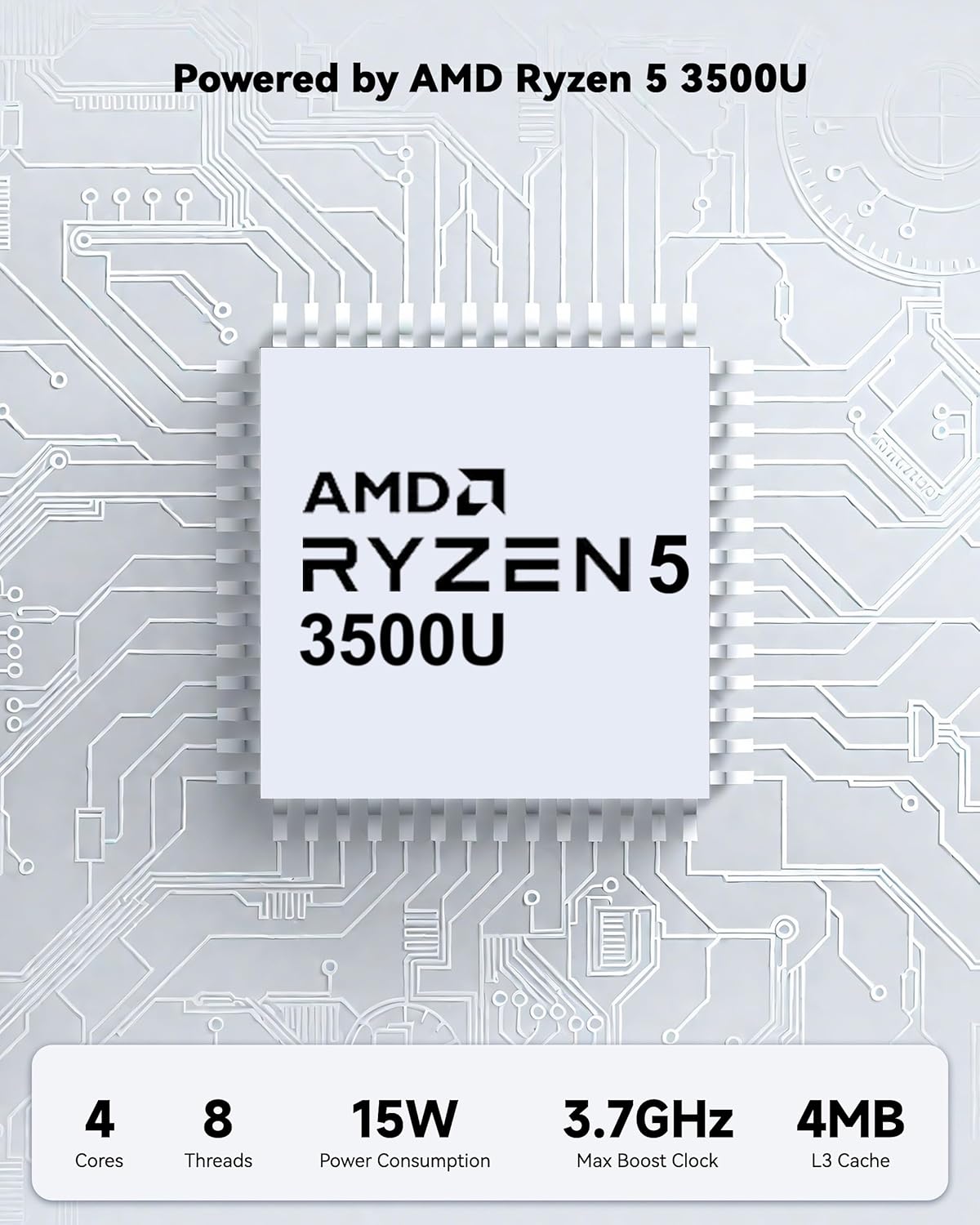
Powered by an AMD Ryzen 5 processor with 4 cores up to 3.7GHz and 16GB DDR4 RAM, the NIMO N152 is designed for efficient multitasking. The 512GB PCIe SSD ensures fast boot-ups and quick file transfers. The RAM is upgradable for future needs.

Image 4.1: AMD Ryzen 5 processor details.
4.2 Visuals and Audio
The 15.6-inch Full HD (1920x1080) IPS anti-glare display provides vibrant visuals with an 85% screen-to-body ratio. The integrated 2MP webcam allows for clear video calls.
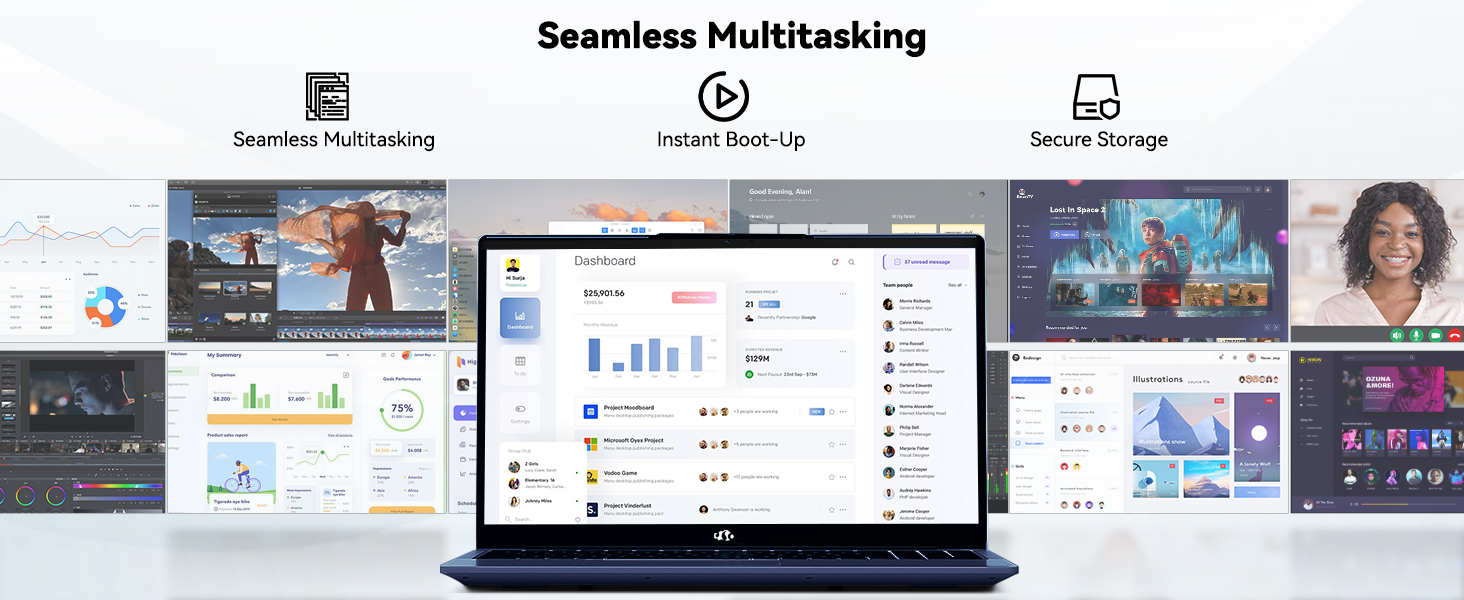
Image 4.2: The laptop's stunning Full HD display.

Image 4.3: The 1080p FHD camera for clear video conferencing.
4.3 バッテリー寿命
The laptop features a 54WH battery with smart battery optimization for extended lifespan and efficient power control, providing approximately 9 hours of average battery life.

Image 4.4: Smart Battery Optimization features.
4.4 設計と移植性
The NIMO N152 has a durable metal A-shell and a slim, lightweight design, weighing approximately 3.75 pounds.

Image 4.5: The NIMO laptop's lightweight and slim profile.
4.5 製品終了view ビデオ
ビデオ4.1: 一般的なオーバーview of the NIMO 15.6-inch laptop, highlighting its features and design.
4.6 Power and Portability Video
Video 4.2: This video demonstrates the power and portability aspects of the NIMO 15.6-inch laptop.
5. メンテナンス
5.1 クリーニング
- 画面と外側を清掃するには、柔らかく糸くずの出ない布を使用してください。
- 頑固な汚れには、軽くamp布に水または画面に安全なクリーナーを含ませます。
- 刺激の強い化学薬品、研磨剤、溶剤の使用は避けてください。
- 適切な空気の流れを確保するために、通気口にほこりやごみが入らないようにしてください。
5.2バッテリーケア
- バッテリーを頻繁に完全に放電することは避けてください。
- 長期間使用しない場合は、ノートパソコンを涼しく乾燥した場所に保管してください。
- Use only the provided NIMO charger.
5.3ソフトウェアアップデート
Regularly update your operating system and drivers to ensure optimal performance and security. Windows 11 Home will prompt you for updates.
6。 トラブルシューティング
6.1 ノートパソコンの電源が入らない
- 充電器がノートパソコンと機能している電源コンセントの両方にしっかりと接続されていることを確認します。
- 別のデバイスを接続して、電源コンセントが機能していることを確認します。
- 再度電源を入れる前に、ノートパソコンを少なくとも 30 分間充電してください。
6.2 画面の問題
- If the screen is blank, try connecting an external monitor to check if the display output is working.
- ファンクションキーを使用して画面の明るさを調整します。
- ラップトップを再起動します。
6.3 接続の問題
- Wi-Fi: Check your router and internet connection. Ensure Wi-Fi is enabled on the laptop.
- ブルートゥース: Verify Bluetooth is enabled and devices are in pairing mode.
- USB デバイス: Try connecting the device to a different USB port or another computer to rule out device issues.
6.4 パフォーマンスの低下
- バックグラウンドで実行されている不要なアプリケーションを閉じます。
- 保留中の Windows 更新プログラムを確認してインストールします。
- SSD に十分な空き容量があることを確認してください。
- ウイルススキャンを実行します。
7. 仕様
| 特徴 | 仕様 |
|---|---|
| モデル名 | NIMO N152 |
| 画面サイズ | 15.6インチ |
| 画面解像度 | 1920 x 1080ピクセル(フルHD IPS) |
| プロセッサ | AMD Ryzen 5 (4 Cores, up to 3.7 GHz) |
| ラム | 16 GB DDR4 (Upgradable) |
| メモリ速度 | 3200 MHz |
| ハードドライブ | 512 GB SSD (PCIe) |
| グラフィックスコプロセッサ | AMD Integrated graphics |
| オペレーティング·システム | Windows 11 ホーム |
| ワイヤレスタイプ | Wi-Fi 6(802.11a/b/g/n/ac)、Bluetooth 5.2 |
| USB 2.0 ポート | 1 |
| USB 3.0 ポート | 3 |
| 平均バッテリー寿命 | 9時間 |
| アイテム重量 | 3.75ポンド |
| 製品寸法 | 14.07 x 8.98 x 0.76インチ |
| 色 | 青 |
| 後方 Webカム解像度 | 2 MP |
| 特集 | バックライトキーボード、指紋リーダー、HDオーディオ、テンキー |
7.1 箱の中身
- 1 x NIMO N152 Laptop
- 1 x Type-C 65W PD Fast Charger
- ユーザーマニュアル x 1
- Windows 11 Home (Pre-installed)
8. 保証とサポート
Your NIMO N152 laptop comes with a 2年間のメーカー保証. Additionally, NIMO offers a 90-day hassle-free return and exchange policy. For any product-related questions, technical assistance, or warranty claims, please contact NIMO customer service.
8.1連絡先情報
For support, you can reach out to the professional after-sales team via email or phone. Please refer to the official NIMO website or product page for the most current contact details.

Image 8.1: NIMO products are covered by a 2-year support.

Image 8.2: 90-Day Return policy.