
Thunderobot Zero 16
Thunderobot Zero 16 ゲーミングノートパソコン ユーザーマニュアル
Model: Zero 16
1. はじめに
This manual provides essential information for setting up, operating, and maintaining your Thunderobot Zero 16 Gaming Laptop. Please read this guide thoroughly to ensure optimal performance and longevity of your device.
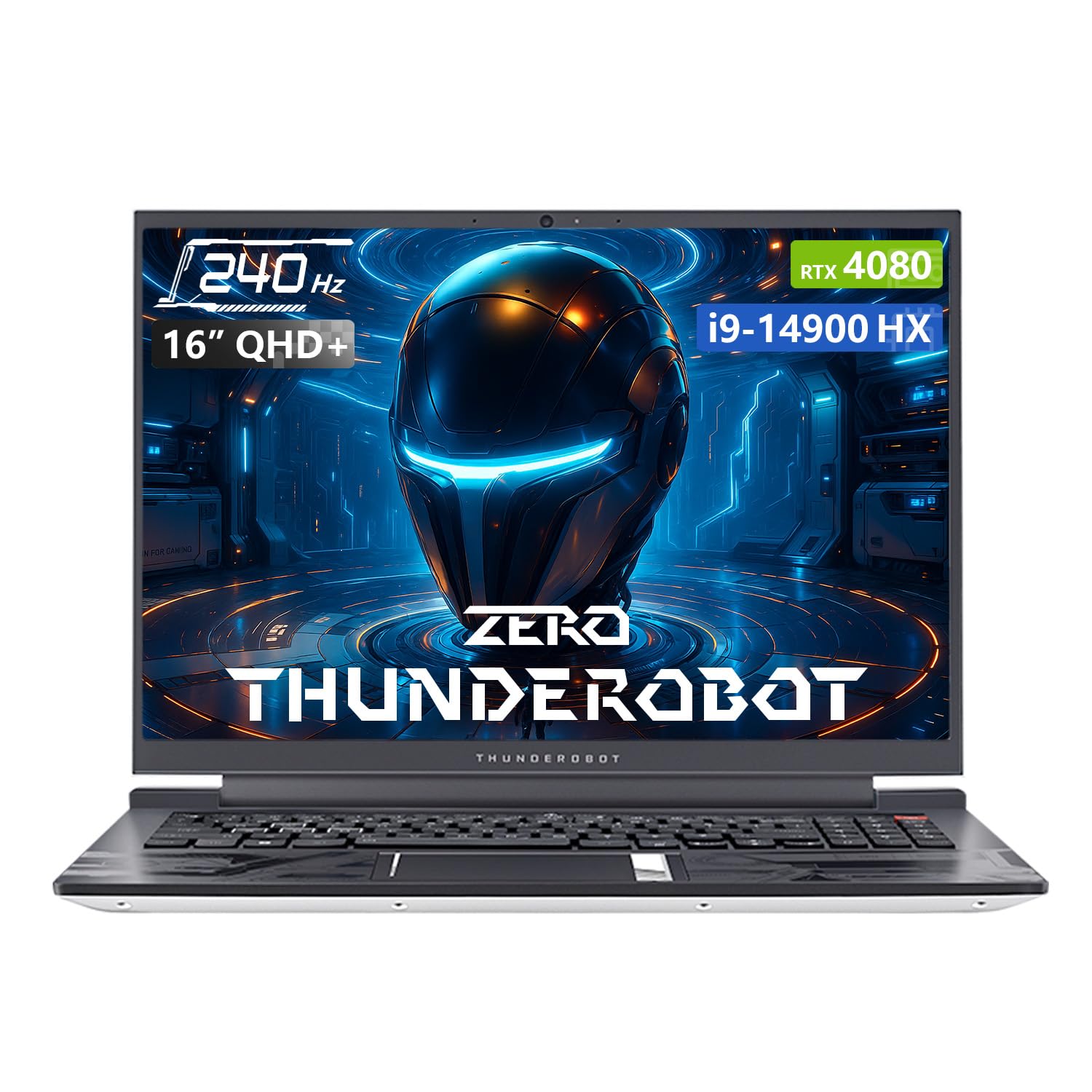
Image: The Thunderobot Zero 16 Gaming Laptop, showcasin洗練されたデザインとディスプレイ。
2. セットアップ
2.1 開梱と初期検査
Carefully remove the laptop and all accessories from the packaging. Verify that all components are present and undamaged. The box should contain:
- Thunderobot Zero 16 Laptop
- 電源アダプターとケーブル
- ユーザーマニュアル(このドキュメント)
2.2 電源の接続
- 電源アダプタをノートパソコンの電源入力ポートに接続します。
- 電源ケーブルを壁のコンセントに差し込みます。
- The laptop is designed to operate on AC power and will charge the battery automatically.
2.3 最初の起動とオペレーティングシステムのセットアップ
Upon first startup, the Windows 11 Home operating system will guide you through the initial setup process. Follow the on-screen instructions to configure language, region, network settings, and user accounts.
3. ノートパソコンの操作
3.1 表示機能
Your laptop features a 16-inch QHD+ (2560x1600) display with a 240Hz refresh rate, offering crisp visuals and smooth motion. It supports a 16:10 aspect ratio and high color accuracy.

Image: Close-up of the laptop display highlighting QHD+ resolution, 240Hz refresh rate, and color accuracy.
3.2 キーボードとタッチパッド
The laptop is equipped with an RGB backlit keyboard featuring an independent numeric keypad. The keys have a 1.8mm travel distance for comfortable typing and gaming. The touchpad provides precise cursor control.

画像: View of the laptop's RGB backlit keyboard and touchpad, showing the numeric keypad and key travel.
3.3 Control Center Software
The Thunderobot Control Center software allows you to customize performance modes, fan speeds, and RGB lighting. It offers three main performance modes:
- バーサークモード: Full performance release for demanding tasks.
- ゲームモード: Optimized for smooth gaming experiences.
- Audio and Office Mode: Balances performance with power efficiency for everyday use and extended battery life.
Note: System mode switching in Control Center requires the device to be connected to a power source.
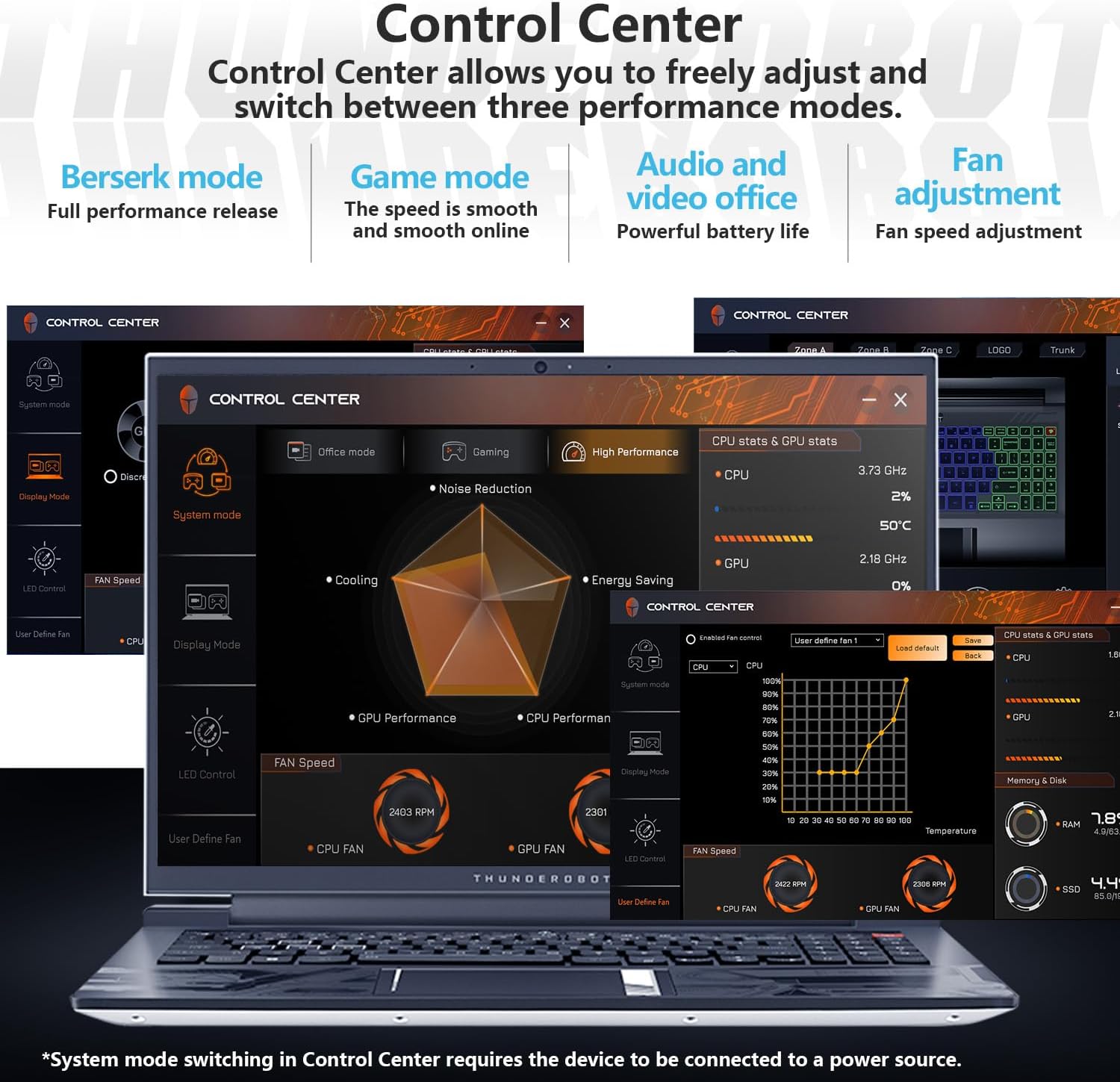
Image: Screenshots of the Thunderobot Control Center interface, showing options for performance modes, fan control, and system monitoring.
3.4 接続性とポート
The laptop provides extensive connectivity options:
- USB 3 タイプA ポート x 3.0
- 1×USB Type-Cポート
- HDMI 1 ポート x 2.1
- RJ45 イーサネットポート x 1
- 1 x Headphone/Microphone combo jack
- 1 x Mini DP 1.4 port
- Integrated Wi-Fi 6 for fast wireless networking
- Bluetooth for connecting wireless peripherals

Image: Diagram illustrating the various ports available on the Thunderobot Zero 16 laptop, including USB, HDMI, RJ45, and Mini DP.
3.5 オーディオシステム
Equipped with Nahimic sound effects, the audio system delivers immersive sound quality with 3D surround, treble stabilization, and noise reduction features for an enhanced listening experience.

Image: Visual representation of the laptop's audio capabilities, highlighting Nahimic sound features like 3D surround and noise reduction.
4. メンテナンス
4.1冷却システム
The Thunderobot Zero 16 features an advanced direct-flow cooling technology with a wind tunnel structure, dual fans, four air outlets, and six air channels. This system includes 5*3D composite heat pipes and ultra-thin heat sink fins for efficient heat dissipation. Regular cleaning of air vents is recommended to maintain optimal cooling performance.

Image: Diagram illustrating the laptop's omnidirectional four air outlets and internal cooling components like heat pipes and dual turbo fans.
4.2一般的なケア
- ノートパソコンを清潔で乾燥した環境に保管してください。
- ラップトップを極端な温度や直射日光にさらさないでください。
- 柔らかく糸くずの出ない布と画面に安全な洗浄液を使用して画面を清掃します。
- Use compressed air to clear dust from keyboard and ventilation openings.
- ノートパソコンの上に重い物を置かないでください。
5。 トラブルシューティング
| 問題 | 考えられる原因 | 解決 |
|---|---|---|
| ノートパソコンの電源が入りません。 | 電源なし、バッテリー切れ、電源アダプター故障。 | Ensure power adapter is securely connected and plugged into a working outlet. Check battery charge level. |
| 表示が空白です。 | Laptop in sleep mode, external display connected, display driver issue. | Press any key or move the mouse to wake. Disconnect external displays. Restart the laptop. |
| Poor performance or overheating. | Dust in vents, background applications, incorrect power mode. | Clean air vents. Close unnecessary applications. Switch to a higher performance mode in Control Center (ensure power adapter is connected). |
| Wi-Fi接続の問題。 | Wi-Fi が無効、ドライバーの問題、ルーターの問題。 | Ensure Wi-Fi is enabled. Restart router. Update Wi-Fi drivers. |
6. 仕様
| 特徴 | 詳細 |
|---|---|
| ブランド | Thunderobot |
| モデル名 | ゼロ16 |
| プロセッサ | Intel Core i9-14900HX (24 コア、32 スレッド、最大 5.8 GHz) |
| グラフィックカード | NVIDIA GeForce RTX 4080 ノート PC GPU (12 GB GDDR6) |
| ラム | 64 GB DDR5 SDRAM (4800 MHz) |
| ストレージ | 2 TB PCIe M.2 SSD |
| 画面 | 16-inch QHD+ (2560x1600) LCD, 240 Hz Refresh Rate |
| オペレーティング·システム | Windows 11 ホーム |
| 接続性 | Wi-Fi 6 (802.11ax), Bluetooth, Ethernet |
| ポート | 3x USB 3.0 Type-A, 1x USB Type-C, 1x HDMI 2.1, 1x RJ45, 1x Headphone/Mic Combo, 1x Mini DP 1.4 |
| キーボード | RGB Backlit, Numeric Keypad |
| Webカム | はい |
| 寸法(長さ x 幅 x 厚さ) | 14.09インチ x 10インチ x 0.82インチ |
| 色 | 白 |
7. 保証とサポート
Every Thunderobot laptop includes a 12ヶ月保証. This warranty provides expert support, thorough diagnostics, and genuine parts if a repair is needed. Additionally, a 90日間の保証 is provided on all warranty replacement parts, ensuring hassle-free repairs.
For technical assistance or warranty claims, please contact Thunderobot customer support through their official channels. Refer to the product packaging or the Thunderobot web連絡先情報のサイト。

Image: Information regarding Thunderobot's warranty and support services.
Ask a question about this manual
Ask about setup, troubleshooting, compatibility, parts, safety, or missing instructions. Manuals+ will review the question and use this page’s manual context to help answer it.