
導入
Thank you for choosing the ProtoArc KM310 Wireless Mechanical Keyboard and Mouse. This combo offers a responsive typing experience with low-profile linear red switches and versatile multi-device connectivity. The ergonomic mouse is designed for comfort and precision. This manual provides detailed instructions for setup, operation, maintenance, and troubleshooting to ensure optimal performance.
箱の中身

Image: Contents of the ProtoArc KM310 package, including the keyboard, mouse, charging cable, and user manual.
- ProtoArc KM310 ワイヤレス メカニカル キーボード
- ProtoArc ワイヤレスマウス
- USB-C充電ケーブル
- ユーザーマニュアル
製品終了view
キーボードの機能

画像: クローズアップ view of the ProtoArc KM310 keyboard, highlighting its low-profile keys and linear red switches.
- ロープロfile メカニカルキー: Equipped with linear red switches for a smooth, quiet, and responsive typing experience.
- Aluminum Top Case: Provides durability and a sleek, modern aesthetic.
- 調整可能な傾斜脚: Ergonomically designed with 2-stage foot mats offering 6° and 9° tilt options for comfortable typing.
- フルサイズのレイアウト: A 108-key layout suitable for office and business use.
マウスの機能

Image: The ProtoArc KM310 mouse being held, showcasing its ergonomic design for a natural grip.
- 63G Ultra-Lightweight: Reduces hand fatigue during extended use and enhances portability.
- 人間工学に基づいたデザイン: Contoured shape for a comfortable and natural grip.
- 調整可能なDPI: Three DPI levels (1000/1600/2400) for tailored control and precision.
- サイレントクリック: 静かに動作するように設計されています。
- 進む/戻るボタン: Integrated for seamless browsing.
接続性と電源
- マルチデバイス接続: Connects up to 3 devices via 2.4G USB receiver or Dual Bluetooth (BT1, BT2).
- 充電可能: Both keyboard and mouse feature Type-C charging. The mouse's USB receiver is stored on its bottom.
- 長いバッテリー寿命: Up to 150-200 days standby time; 2-3 hours for a full charge.
セットアップ手順
1. デバイスの充電

Image: The keyboard and mouse are shown connected to power sources via USB-C cables for charging.
- 付属の USB-C 充電ケーブルをキーボード (上端にあります) とマウス (前端にあります) の充電ポートに接続します。
- ケーブルのもう一方の端を USB 電源 (コンピューターの USB ポート、USB 壁アダプターなど) に差し込みます。
- The indicator lights will show charging status. Allow 2-3 hours for a full charge.
2. デバイスへの接続

Image: A desk setup showing the ProtoArc KM310 keyboard and mouse connected to a laptop, monitor, and tablet, illustrating multi-device capability.
The KM310 combo supports three connection modes: 2.4G wireless via USB receiver, Bluetooth 1 (BT1), and Bluetooth 2 (BT2).
2.1. 2.4Gワイヤレス接続
- マウスの底面の収納部に収納されている USB レシーバーを見つけます。
- USBレシーバーをコンピューターの使用可能なUSBポートに接続します。
- それぞれの電源スイッチを使用してキーボードとマウスの電源をオンにします。
- The devices should connect automatically.
2.2. Bluetooth接続(BT1 / BT2)
- キーボードとマウスの電源を入れます。
- キーボードで、 BT1 or BT2 key (usually located on the number pad, indicated by orange keycaps) to select the desired Bluetooth channel. The indicator light will flash.
- On your device (computer, tablet, etc.), go to Bluetooth settings and search for "ProtoArc KM310 Keyboard" and "ProtoArc KM310 Mouse".
- Select the devices to pair. The indicator light will stop flashing once connected.
- 他の BT チャネルを使用して、2 番目の Bluetooth デバイスに対して繰り返します。
2.3. デバイス間の切り替え
To switch between connected devices, simply press the corresponding connection key on the keyboard (2.4G, BT1, or BT2) and the channel switch button on the bottom of the mouse.
操作手順
キーボードの使用法
- タイピング: ロープロfile linear red switches provide a responsive and quiet typing experience.
- オペレーティング システムの互換性: The keyboard is compatible with Windows and Mac OS. Keys like 'Win' and 'Alt' also show 'Option' and 'Cmd' for Mac users.
- 傾きの調整: Use the adjustable tilt legs on the underside of the keyboard to set your preferred typing angle (6° or 9°).
マウスの使用法
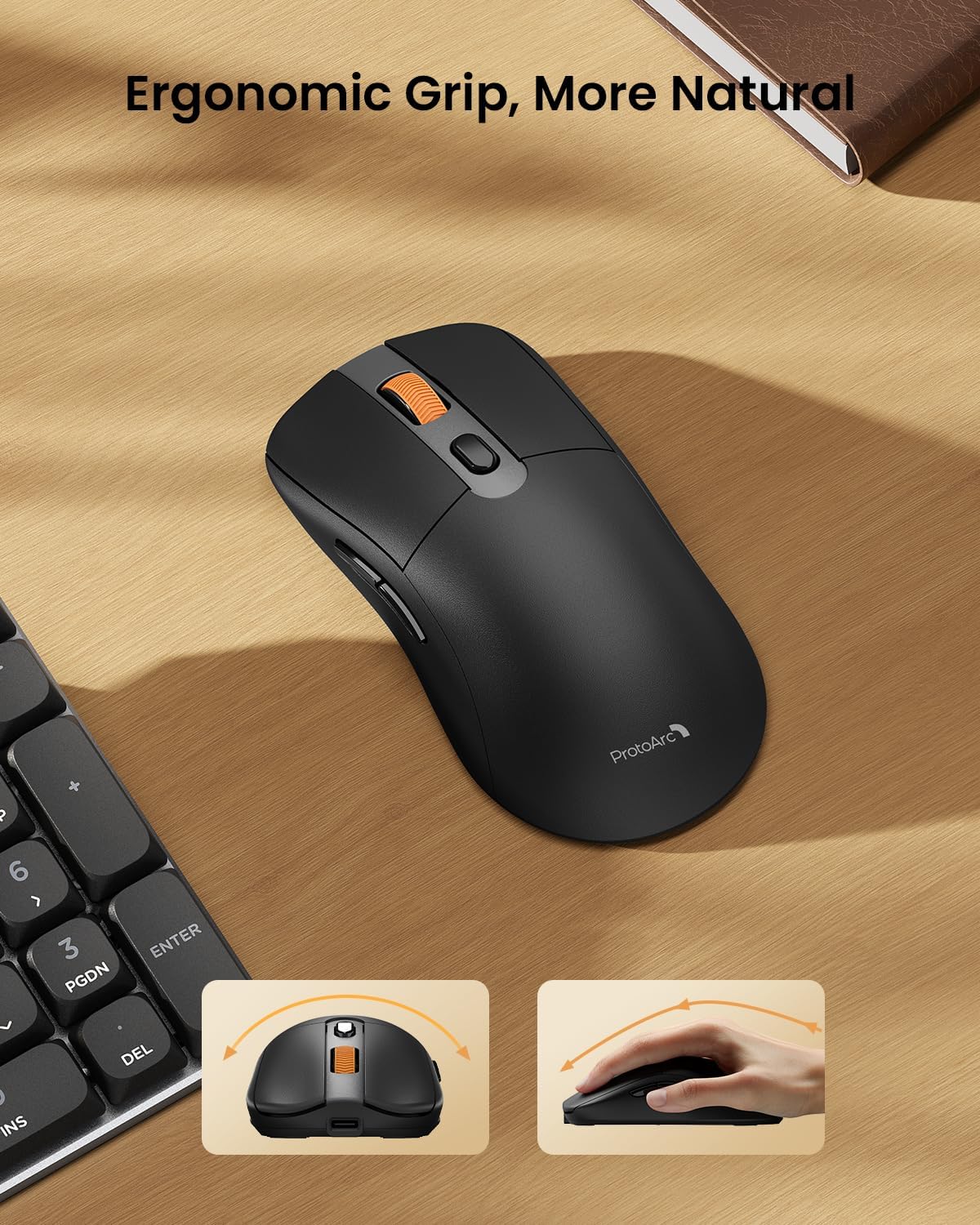
Image: A close-up of the ProtoArc KM310 mouse, illustrating the three adjustable DPI settings (1000, 1600, 2400).
- DPI 調整: Press the DPI switch button (usually located near the scroll wheel) to cycle through the 3 DPI levels (1000/1600/2400) to match your preference for cursor speed and precision.
- ナビゲーションボタン: マウスの横にある進むボタンと戻るボタンを使って、 web ブラウザまたは file 探検家。
- サイレントクリック: The mouse features silent click buttons for a quiet working environment.
メンテナンス
- クリーニング: キーボードとマウスは、柔らかく乾いた布で拭いてください。頑固な汚れには、軽く湿らせた布で拭いてください。amp 液体がデバイス内に入らないように、中性洗剤を含ませた布を使用してください。
- バッテリーのケア: Recharge the devices when the battery indicator is low. Avoid prolonged exposure to extreme temperatures.
- ストレージ: When not in use for extended periods, turn off the devices to conserve battery life. Store the USB receiver inside the mouse to prevent loss.
トラブルシューティング
Keyboard/Mouse Not Turning On or Stopping Working
- バッテリーを確認してください: Ensure both the keyboard and mouse are sufficiently charged. Connect them to a power source using the USB-C cable.
- デバイスの再ペアリング:
- For 2.4G connection, ensure the USB receiver is securely plugged in and the devices are set to 2.4G mode.
- For Bluetooth connection, ensure the devices are set to the correct BT channel (BT1 or BT2) and re-pair them through your device's Bluetooth settings.
- 別のケーブルを試してください: If charging issues persist, try using a different USB-C cable to rule out a faulty cable.
- 干渉: Move the devices closer to your computer or away from other wireless devices that might cause interference.
- サポートへのお問い合わせ: If the issue persists, please contact ProtoArc customer support for further assistance.
仕様
| モデル番号 | KM0904 |
| ブランド | プロトアーク |
| 色 | スペースグレイ |
| 接続技術 | Bluetooth、USB(2.4Gワイヤレス) |
| 特集 | ロープロfile Keys, Linear Red Switches, Ergonomic Design, Ultra-Light Mouse, Ergonomic Mouse |
| 対応デバイス | Laptop, Personal Computer, Tablet (Windows 7/8/10, Mac OS X 10.12, Android 4.3 or higher) |
| アイテム重量 | 2.31ポンド |
| パッケージ寸法 | 17.68 x 8.07 x 2.05インチ |
保証とサポート
The ProtoArc KM310 Mechanical Keyboard and Mouse combo comes with a 2年間保証.
For any questions, technical support, or warranty claims, please contact ProtoArc customer service:
- メールアドレス: support@protoarc.com
- 電話: +1 866-287-8188
公式製品ビデオ
ビデオ: 公式製品ビデオショーasing the features and design of the ProtoArc KM310 Aluminum Mechanical Keyboard and Mouse.