
1. はじめに
This manual provides comprehensive instructions for the Bmax I10 Plus tablet. Designed for optimal performance and user experience, this device features the latest Android 16 operating system, a powerful 8-core T7250 CPU, and a vibrant 10.1-inch IPS display. Please read this manual thoroughly to understand the tablet's functions and ensure proper usage.

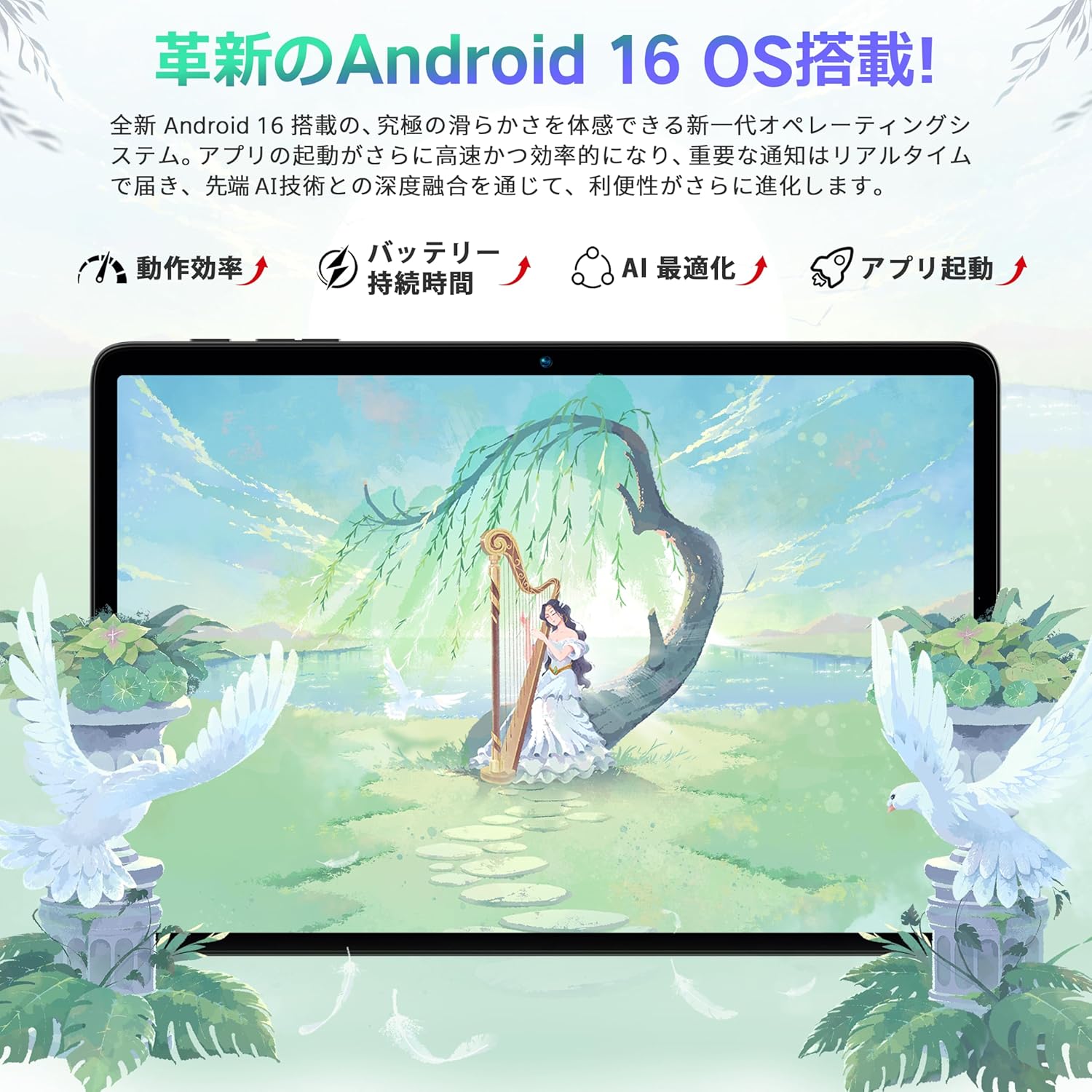
画像: タブレット画面の表示asinAndroid 16 オペレーティング システム インターフェース。
2.製品オーバーview
The Bmax I10 Plus tablet is a versatile device equipped with advanced features for entertainment, productivity, and communication.
画像: 前面と背面 view of the Bmax I10 Plus tablet, showcasin洗練されたデザイン。

画像: オーバーview of the Bmax I10 Plus tablet's key features, including CPU, display, battery, and memory.
2.1 パッケージ内容
Upon unboxing your Bmax I10 Plus tablet, verify that all components are present:
- Bmax I10 Plus Tablet PC
- USB Type-Cケーブル
- 電源アダプター
- ユーザーガイド
- SIM Ejector Tool (if applicable for 4G model, though product description states Wi-Fi model)

Image: The Bmax I10 Plus tablet laid out with its standard accessories: charging cable, power adapter, and user manual.
2.2物理的特徴
The tablet features a slim design with a 10.1-inch IPS display. Key physical components include:
- 画面: 10.1-inch IPS incell TDDI touchscreen with 1280x800 resolution.
- カメラ: Front camera (5MP) and Rear camera (8MP).
- ポート: 充電とデータ転送用の USB Type-C ポート。
- オーディオ: Dual speakers, 3.5mm audio jack.
- ボタン: 電源ボタン、音量ボタン。
- カードスロット: Supports up to 1TB expandable storage via a storage card.
3. セットアップ
3.1初期電源オン
To power on your Bmax I10 Plus tablet, press and hold the power button located on the side of the device until the screen illuminates. The tablet will boot up, displaying the Bmax logo and then the Android welcome screen.
3.2言語設定
Upon first boot, you will be prompted to select your preferred language.
- On the welcome screen, tap on 'English (United States)' or the currently displayed language.
- Scroll through the list and select your desired language, for example, '日本語' (Japanese).
- Confirm your selection. The system interface will switch to the chosen language.
- Click 'Start' or '開始' to proceed with the initial setup.
Video: This video demonstrates how to set the display language to Japanese during the initial setup of a Bmax tablet.
3.3 Wi-Fi接続
During the initial setup, you will be asked to connect to a Wi-Fi network.
- Select your preferred Wi-Fi network from the list of available networks.
- プロンプトが表示されたら、Wi-Fi パスワードを入力します。
- 「接続」をタップします。
- If you do not wish to connect to Wi-Fi immediately, select 'Set up offline' to continue the setup process without an internet connection.
3.4。XNUMX。XNUMX日付と時刻
After connecting to Wi-Fi (or setting up offline), you will configure the date and time.
- タイムゾーンを選択してください。
- Adjust the date and time if they are not automatically set.
- Tap 'Next' to continue.
4. 操作手順
4.1 基本的なナビゲーション
The Bmax I10 Plus tablet uses standard Android navigation gestures and controls.
- タップ: 項目を選択するか、アプリケーションを開きます。
- スワイプ: 画面またはリストをスクロールします。
- ピンチ: Zoom in or out on content like photos or web ページ。
- 長押し: コンテキスト メニューにアクセスしたり、アイコンを移動したりします。

Image: A hand interacting with the tablet's touchscreen, demonstrating smooth and responsive touch input.
4.2 分割画面機能
The tablet supports split-screen mode, allowing you to use two applications simultaneously.
- 最初に使用したいアプリケーションを開きます。
- Access the recent apps menu (usually by swiping up from the bottom or tapping a dedicated button).
- Long-press the icon of the first app and drag it to one side of the screen.
- Select the second application from the recent apps list to fill the other half of the screen.
- Adjust the size of each app window by dragging the divider in the middle.
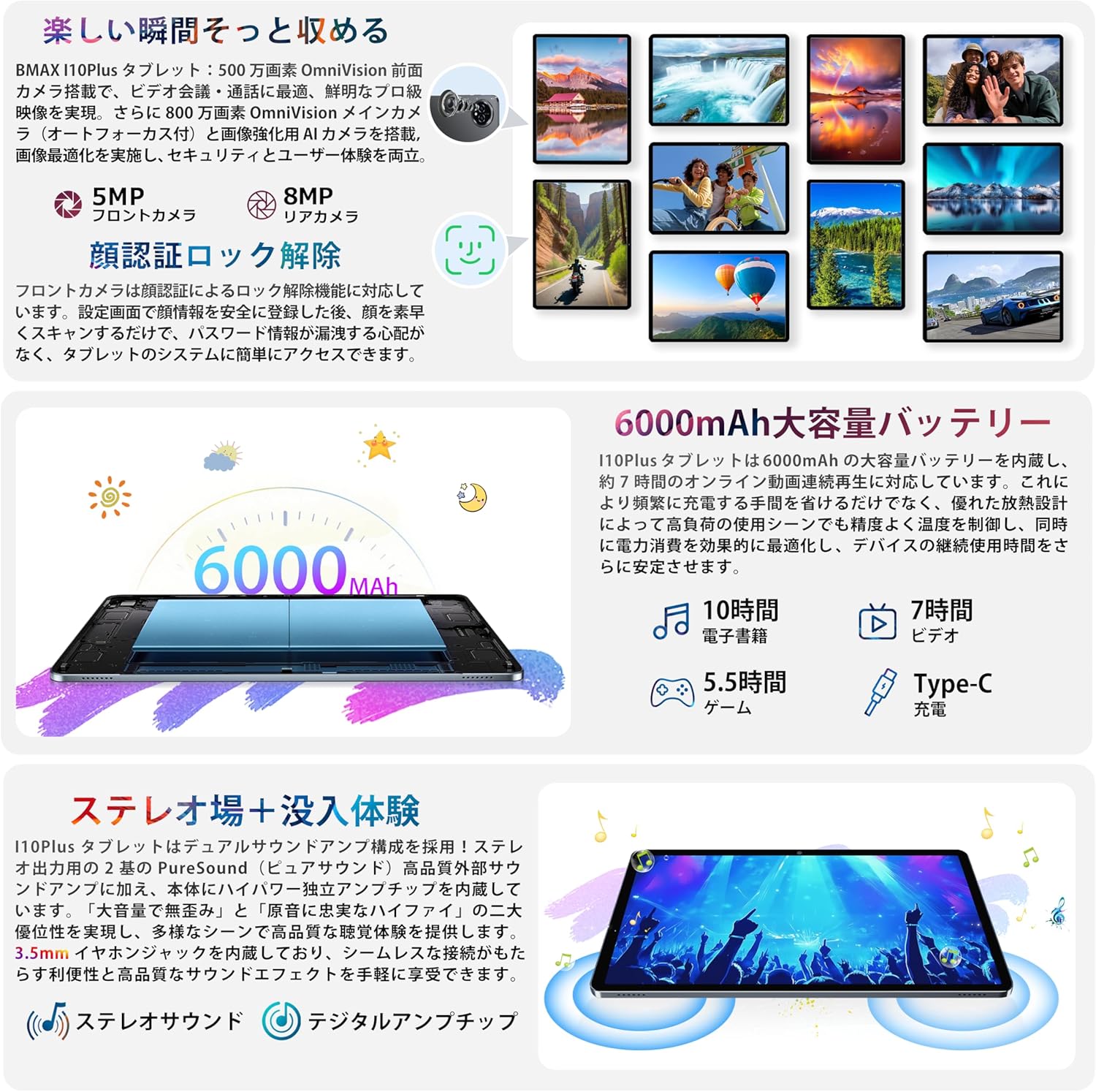
Image: The Bmax I10 Plus tablet showing two applications running side-by-side in split-screen mode, enhancing multitasking.
4.3 顔認識
顔認識を使用して、タブレットのロックをすばやく安全に解除します。
- へ移動 設定 > セキュリティとプライバシー > 顔認証.
- 画面の指示に従って顔を登録します。
- Once registered, simply look at the front camera to unlock your device.

Image: The tablet screen illustrating the face recognition feature for quick and secure device unlocking.
4.4 メディア消費
Enjoy high-quality video and audio with the tablet's IPS display and dual speakers. The device supports Widevine L1 and Netflix L1 for high-definition streaming from platforms like Amazon Prime Video, Netflix, and Hulu.
- プレイバック: Open your preferred video streaming app or gallery to watch videos.
- 読む: Use e-reader apps for a comfortable reading experience.
- オーディオ: Connect headphones to the 3.5mm jack or use Bluetooth audio devices for private listening.
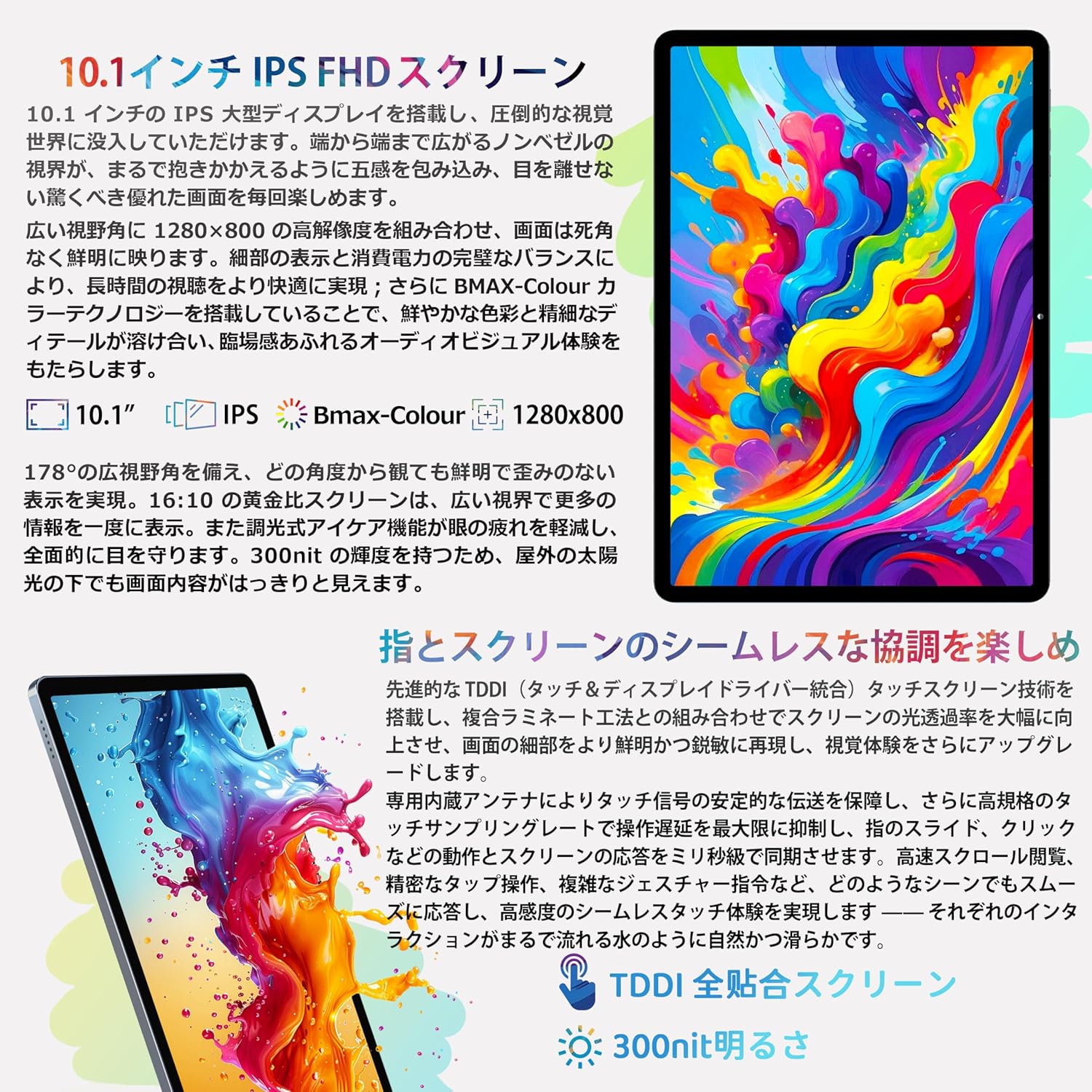
Image: A user holding the Bmax I10 Plus tablet while reading an e-book, highlighting the comfortable reading experience.

Image: The Bmax I10 Plus tablet displaying a video, showcasing its vibrant IPS screen.

Image: A person enjoying content on the Bmax I10 Plus tablet, demonstrating its use for media consumption.
Video: This video highlights various features and usage scenarios of a Bmax Android tablet, including gaming, browsing, and media playback.
4.5 ゲーム
The 8-core T7250 CPU and ARM Mali-G57 GPU provide a smooth gaming experience.

Image: A user playing a game on the Bmax I10 Plus tablet, showcasing its gaming capabilities.

Image: A person engrossed in a game on the Bmax I10 Plus tablet, demonstrating its suitability for mobile gaming.
4.6 OTG機能
The tablet supports USB On-The-Go (OTG), allowing you to connect external USB devices such as flash drives, keyboards, or mice for enhanced functionality. Connect the OTG adapter (not included) to the Type-C port, then connect your USB device.
4.7FMラジオ
To use the FM radio feature, connect wired headphones to the 3.5mm audio jack. The headphones act as an antenna. Open the FM Radio application and scan for available stations.
4.8 ワイヤレス投影
The tablet supports wireless projection, allowing you to mirror your screen to a compatible display or TV.
- タブレットと対象のディスプレイデバイスが同じ Wi-Fi ネットワークに接続されていることを確認します。
- へ移動 設定 > 接続済みのデバイス > 接続設定 > キャスト.
- Select your desired display device from the list.
4.9ペアレンタルコントロール
The tablet includes parental control features to ensure healthy usage for children. These features allow you to manage app access, screen time, and content filters.

Image: A child using the Bmax I10 Plus tablet, illustrating its suitability for family use with parental controls.
5. 仕様
The following table outlines the technical specifications of the Bmax I10 Plus tablet.
| 特徴 | 説明 |
|---|---|
| ブランド | ビーマックス |
| モデル名 | I10プラス |
| オペレーティング·システム | アンドロイド16 |
| CPU | 8-core T7250 Processor |
| グラフィックプロセッサ | ARM Mali-G57 |
| ラム | 16GB(物理4GB + 仮想12GB) |
| 内部ストレージ (ROM) | 128GB |
| 拡張可能なストレージ | Up to 1TB via storage card |
| 画面サイズ | 10.1インチ |
| 表示タイプ | IPS incell TDDI |
| 解決 | 1280x800ピクセル |
| アスペクト比 | 16:10 |
| リフレッシュレート | 60Hz |
| フロントカメラ | 5MP |
| リアカメラ | 8MP |
| バッテリー容量 | 6000mAh |
| 充電ポート | USBタイプC |
| ワイヤレス接続 | Wi-Fi (2.4GHz/5GHz, 802.11ac), Bluetooth 5.2 |
| ナビゲーション | GPS, GLONASS, BDS, GALILEO |
| 寸法(長さ×幅×高さ) | 24.2 x 16.1 x 0.9 cm |
| 追加機能 | OTG, FM Radio, Split Screen, G-sensor, Face Recognition, Wireless Projection |

Image: A diagram illustrating the high-performance 8-core T7250 CPU.

画像: 図はasing the ARM Mali-G57 GPU for graphics processing.
6.バッテリー管理
The Bmax I10 Plus is equipped with a 6000mAh lithium polymer battery, providing extended usage times for work, study, and entertainment.
- 充電: 付属の Type-C ケーブルと電源アダプターを使用してタブレットを充電します。
- バッテリー寿命: Expect approximately 10 hours for e-books, 7 hours for video playback, and 5.5 hours for gaming on a full charge.
- 安全性: The battery has passed safety certifications to ensure reliable operation.

画像: 内部 view of the Bmax I10 Plus tablet highlighting its 6000mAh battery capacity.
7. ストレージ管理
The tablet comes with 128GB of internal storage (ROM) and 16GB of RAM (4GB physical + 12GB virtual memory) for smooth multitasking. Storage can be expanded up to 1TB using a storage card (not included).
- 拡張可能なストレージ: Insert a compatible storage card into the designated slot to increase available space for photos, videos, music, and applications.
- File 転送: Use the USB Type-C cable to connect the tablet to a computer for file management, or utilize OTG functionality with a USB flash drive.

Image: A visual representation of the tablet's 16GB RAM, 128GB ROM, and 1TB expandable storage capabilities.
8. 接続性
The Bmax I10 Plus tablet offers robust connectivity options.
- Wi-Fi: Supports 2.4GHz and 5GHz Wi-Fi (802.11ac) for stable and fast internet access.
- Bluetooth 5.2: ワイヤレス ヘッドフォン、スピーカー、その他の Bluetooth 対応アクセサリを接続します。
- GPS: Integrated GPS module provides accurate navigation services.

Image: The tablet highlighting its stable high-speed connectivity features, including 2.4G+5G Wi-Fi and Bluetooth 5.2.
9. カメラの使用
このタブレットには、ビデオ通話、写真の撮影、ドキュメントのスキャンに適した 5MP の前面カメラと 8MP の背面カメラが搭載されています。
- 写真を撮る: Open the Camera app and tap the shutter button to capture images.
- ビデオ録画: Switch to video mode in the Camera app to record videos.
- 設定: Adjust camera settings such as resolution, flash, and modes within the Camera app.
10. メンテナンス
Proper maintenance ensures the longevity and optimal performance of your Bmax I10 Plus tablet.
- クリーニング: タブレットの画面と本体を拭く際は、柔らかく糸くずの出ない布をご使用ください。研磨剤入りの洗剤や溶剤は使用しないでください。
- ソフトウェアアップデート: 定期的にシステムアップデートを確認し、インストールして、デバイスに最新の機能とセキュリティパッチが適用されていることを確認してください。 設定 > システム > システムアップデート.
- データのバックアップ: データの損失を防ぐために、重要なデータを定期的にクラウド ストレージまたは外部デバイスにバックアップしてください。
11。 トラブルシューティング
If you encounter issues with your Bmax I10 Plus tablet, refer to the following common troubleshooting steps:
- デバイスの電源が入らない: バッテリーが充電されていることを確認してください。タブレットを充電器に接続し、数分間待ってから再度電源を入れてください。
- 画面がフリーズしました: 強制的に再起動するには、電源ボタンを約 10 ~ 15 秒間押し続けます。
- Wi-Fi接続の問題: 設定でWi-Fiが有効になっているか確認してください。ルーターとタブレットを再起動してください。Wi-Fi信号の範囲内にいることを確認してください。
- アプリケーションがクラッシュする: 問題のあるアプリのキャッシュとデータを消去します 設定 > アプリ > [アプリ名] > ストレージ問題が解決しない場合は、アプリをアンインストールして再インストールしてください。
- パフォーマンスが遅い: Close unnecessary background applications. Clear cached data regularly. Consider performing a factory reset if performance issues continue (back up your data first).
12. 安全情報
Please read and follow these safety guidelines to prevent damage to your device or injury to yourself and others.
- タブレットを極端な温度、直射日光、湿気にさらさないでください。
- タブレットを落としたり、強い衝撃を与えたりしないでください。
- Use only Bmax-approved chargers and accessories.
- タブレットをご自身で分解したり修理したりしないでください。サポートが必要な場合は、カスタマーサポートにお問い合わせください。
- Keep the tablet away from children and pets to prevent accidental damage or ingestion of small parts.
13. 保証とサポート
Your Bmax I10 Plus tablet comes with a 1-year warranty against manufacturer defects.
- 保証期間: Enjoy a 1-year warranty service from the date of purchase.
- 返金ポリシー: Products purchased from our store are eligible for a 30-day refund policy.
- サポートへのお問い合わせ: If you encounter any issues or have questions, please contact our customer support team via email. Our staff will respond within 24 hours.
- How to Contact: Navigate to your Amazon account, then 'Order History', and select the relevant order to contact the seller.

Image: A customer support representative, symbolizing the available support for Bmax products.

Image: Information detailing the Bmax 1-year warranty service, ensuring product quality and customer peace of mind.