
導入
Thank you for choosing the Digitus DA-70919 USB-C 8K 12-Port Docking Station. This device is designed to expand the connectivity of your USB-C enabled laptop or computer, providing a comprehensive solution for video output, data transfer, network access, and power delivery. Please read this manual carefully to ensure proper installation and operation.
製品終了view
The Digitus DA-70919 docking station offers 12 essential ports to enhance your workspace. It supports high-resolution video output, fast data transfer, and efficient power delivery to your host device.

図1: Detailed diagram of the Digitus DA-70919 docking station ports and their functions. This diagram labels each of the 12 ports on the docking station, including Audio Jack, USB-A, USB-C, USB-C PD, DisplayPort, HDMI, RJ45 Gigabit Ethernet, and SD/MicroSD card slots, along with anti-theft protection.

図2: フロント view of the Digitus DA-70919 docking station showing all accessible ports. A clear view of the docking station's front panel, displaying the various input and output ports including USB-A, USB-C, HDMI, DisplayPort, Ethernet, and card readers.
主な特徴:
- ビデオ出力: 2x HDMI, 1x DisplayPort (DP) supporting up to 8K/30Hz for single display, or multi-display configurations.
- USBデータポート: 2x USB-A 3.2 Gen 2 (10Gbps), 1x USB-A 3.2 Gen 1 (5Gbps), 1x USB-C 3.2 Gen 2 (10Gbps).
- 電力供給(PD): USB-C PD 3.0 port for charging your host laptop (up to 85W output).
- ネットワーク: Gigabit Ethernet (RJ45) for stable wired internet connection.
- カードリーダー: SD and MicroSD card slots with 104 MBps transfer speed.
- オーディオ: ヘッドフォンまたはスピーカー用の 3.5mm オーディオ ジャック。
セットアップ手順
Follow these steps to set up your Digitus DA-70919 docking station:
- Check Host USB-C Port Compatibility: Ensure your laptop's USB-C port supports DisplayPort Alternate Mode (DP Alt Mode) for video output and Power Delivery for charging. Without DP Alt Mode, video output will not function.

図3: Guide to USB-C port compatibility for DisplayPort Alternate Mode. This graphic explains which types of USB-C ports on your laptop support the full functionality of the docking station, specifically highlighting the requirement for DisplayPort Alternate Mode (DP Alt Mode) for video output.
- ホストデバイスに接続します: Connect the integrated USB-C cable from the docking station to the USB-C port on your laptop.
- 電源アダプターを接続します(オプションですが推奨されます): If you wish to charge your laptop via the docking station or power high-demand peripherals, connect a USB-C Power Delivery adapter (not included, up to 100W recommended) to the USB-C PD input port on the docking station.
- 外部ディスプレイを接続する: Connect your monitors to the HDMI and/or DisplayPort outputs on the docking station using appropriate cables.
- 周辺機器を接続します。 Plug in your USB devices (keyboard, mouse, external drives), Ethernet cable, SD/MicroSD cards, and audio devices to the corresponding ports on the docking station.
- ドライバーのインストール: In most cases, the docking station is plug-and-play and does not require additional drivers. If prompted, allow your operating system to install any necessary drivers automatically.
操作手順
表示モード
ドッキング ステーションは、さまざまなディスプレイ構成をサポートします。
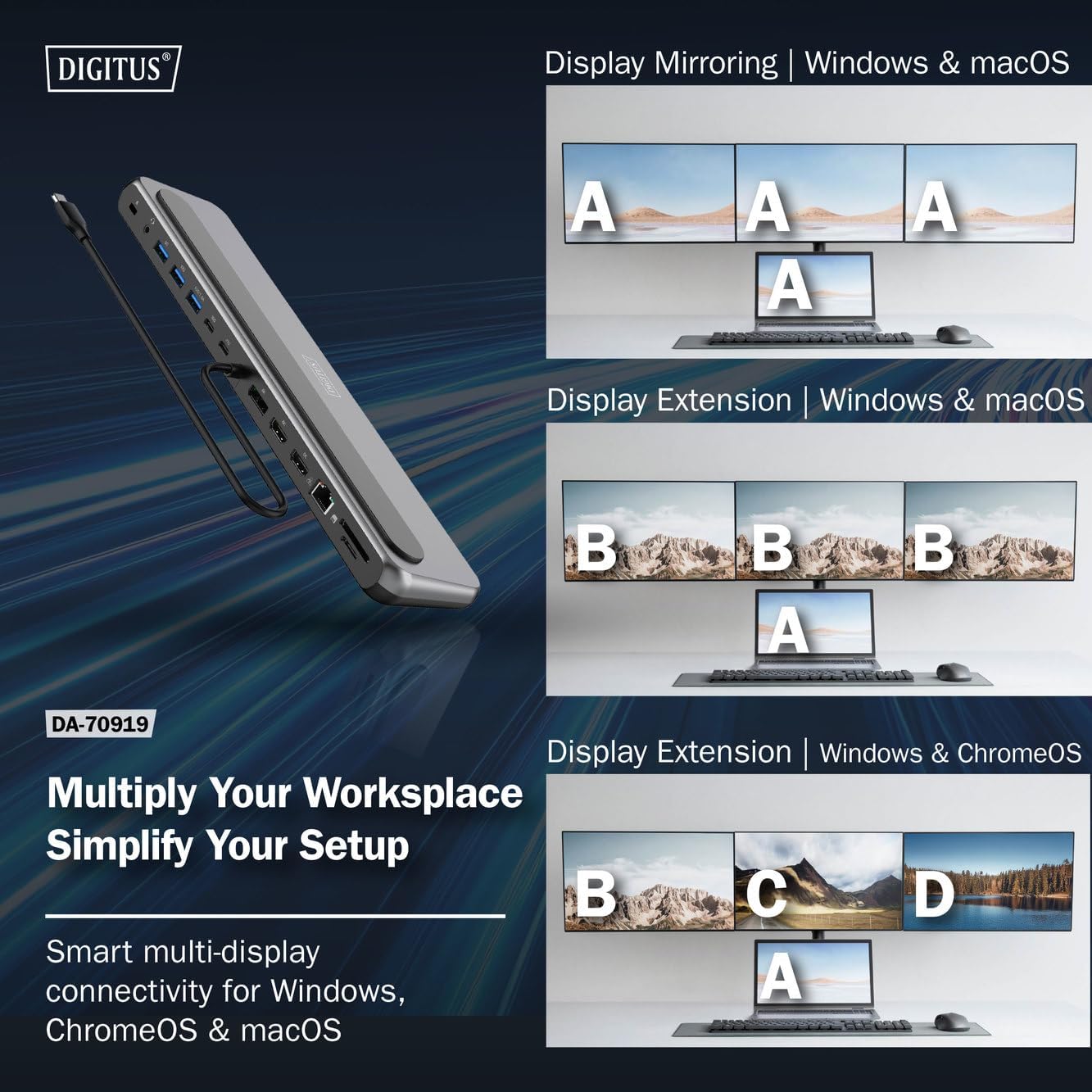
図4: Diagram showing display mirroring and extension modes for Windows, macOS, and ChromeOS. This image illustrates the various display configurations supported by the docking station, including mirroring your screen or extending it across multiple external monitors on Windows, macOS, and ChromeOS.
- ミラーモード: ノートパソコンのディスプレイを外部モニターに複製します。
- Extend Mode (Windows/ChromeOS): Extends your desktop across multiple external monitors, allowing for a multi-tasking environment. Supports dual monitors (2x 4K/60Hz) and triple monitors (1x 4K/60Hz + 2x 4K/30Hz) in MST (Multi Stream Transport) mode.
- Extend Mode (macOS): macOS typically supports extended desktop to one external monitor, with other external monitors mirroring each other.
To configure display settings, access your operating system's display settings (e.g., Windows Display Settings, macOS System Preferences > Displays).
データ転送
Utilize the USB-A and USB-C data ports for connecting external storage devices, keyboards, mice, and other USB peripherals. The USB 3.2 Gen 2 ports offer speeds up to 10Gbps, while the USB 3.2 Gen 1 port offers speeds up to 5Gbps.
電力供給
When a compatible USB-C PD power adapter is connected to the docking station's PD input port, the docking station can deliver up to 85W of power to charge your connected laptop. This allows you to power your laptop and peripherals through a single USB-C connection.
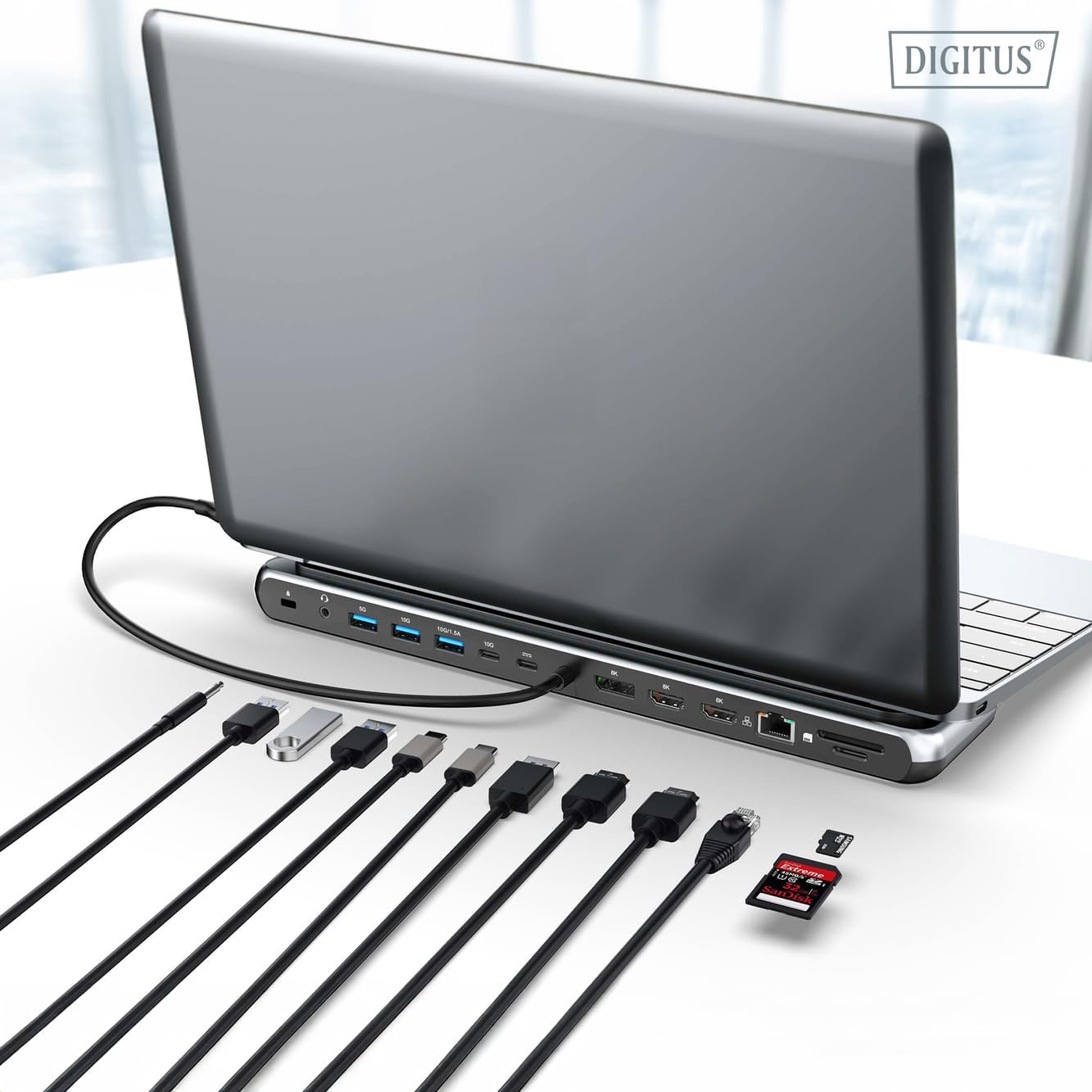
図5: Illustration of the docking station's fast charging capability via USB-C Power Delivery. This image demonstrates the Power Delivery function, showing a 100W input to the docking station and an 85W output to charge the connected laptop.
ネットワーク接続
Connect an Ethernet cable to the RJ45 port for a stable and high-speed wired network connection (10/100/1000 Mbps Gigabit Ethernet).
カードリーダー
Insert SD or MicroSD cards into the dedicated slots for quick access to photos, videos, and other files. The card readers support transfer speeds up to 104 MBps.
オーディオ出力
Connect your headphones or speakers to the 3.5mm audio jack for audio output.
メンテナンス
- クリーニング: ドッキングステーションの表面を拭く際は、柔らかく乾いた布をご使用ください。液体クリーナーや溶剤の使用は避けてください。
- ストレージ: ドッキング ステーションは、直射日光や極端な温度を避け、涼しく乾燥した場所に保管してください。
- 取り扱い: Avoid dropping or subjecting the device to strong impacts. Do not attempt to disassemble the docking station.
トラブルシューティング
ドッキング ステーションで問題が発生した場合は、次の一般的な解決策を参照してください。
- ディスプレイ出力なし:
- ノートパソコンの USB-C ポートが DisplayPort 代替モードをサポートしていることを確認します。
- Check all video cables (HDMI/DP) are securely connected to both the docking station and the monitor.
- モニターの電源がオンになっており、正しい入力ソースに設定されていることを確認します。
- 問題を切り分けるために、一度に 1 台のモニターを接続してみてください。
- ラップトップのグラフィック ドライバーを更新します。
- ノートパソコンへの電力供給なし:
- Ensure a compatible USB-C PD power adapter (up to 100W) is connected to the docking station's PD input port.
- ノートパソコンの USB-C ポートが Power Delivery をサポートしていることを確認します。
- 電源アダプタとケーブルに損傷がないか確認してください。
- USBデバイスが認識されない:
- USB デバイスをドッキング ステーションの別のポートに再接続します。
- Ensure the docking station is properly connected to the host laptop.
- If using a high-power USB device, ensure the docking station is connected to an external power adapter.
- イーサネット接続の問題:
- ドッキング ステーションとルーター/モデムの両方へのイーサネット ケーブルの接続を確認します。
- ラップトップのネットワーク設定を確認します。
- ルーター/モデムとラップトップを再起動します。
- カードリーダーが動作しない:
- Ensure the SD/MicroSD card is inserted correctly and fully.
- Test the card with another device to confirm it is not damaged.
仕様
| 特徴 | 仕様 |
|---|---|
| モデル | DA-70919 |
| ホスト接続 | USB-C(一体型ケーブル) |
| ビデオ出力 | HDMI x 2、ディスプレイポート x 1 (DP) |
| Max. Single Display Resolution | 8K (7680x4320) @ 30Hz |
| Max. Dual Display Resolution (MST) | 2x 4K (3840x2160) @ 60Hz |
| Max. Triple Display Resolution (MST) | 1x 4K@60Hz + 2x 4K@30Hz |
| USB-A データポート | 2x USB 3.2 Gen 2 (10Gbps), 1x USB 3.2 Gen 1 (5Gbps) |
| USB-Cデータポート | 1x USB 3.2 Gen 2 (10Gbps) |
| Power Delivery (PD) Input | USB-C PD 3.0(最大100W) |
| Power Delivery (PD) Output to Host | 最大85W |
| イーサネット | RJ45 Gigabit (10/100/1000 Mbps) |
| カードリーダー | SD, MicroSD (104 MBps) |
| オーディオ | 1mmオーディオジャック×3.5 |
| 互換性 | Windows、macOS、ChromeOS |
| 動作温度 | 0°C ~ 45°C (32°F ~ 113°F) |
| 保管温度 | -10°C ~ 70°C (14°F ~ 158°F) |
保証とサポート
The Digitus DA-70919 USB-C 8K 12-Port Docking Station comes with a 2年間保証 ご購入日から有効です。この保証は製造上の欠陥をカバーし、通常の使用において製品が説明どおりに機能することを保証します。
For technical support, warranty claims, or further assistance, please contact your retailer or visit the official Digitus website for contact information. Please have your product model number (DA-70919) and proof of purchase ready when seeking support.