
1. はじめに
Welcome to your new NIMO 15.6" IPS FHD Student Laptop, Model N154. This manual provides essential information to help you get started, operate, and maintain your device. Designed for both home and business use, this laptop combines performance with user-friendly features to enhance your productivity and entertainment experience.
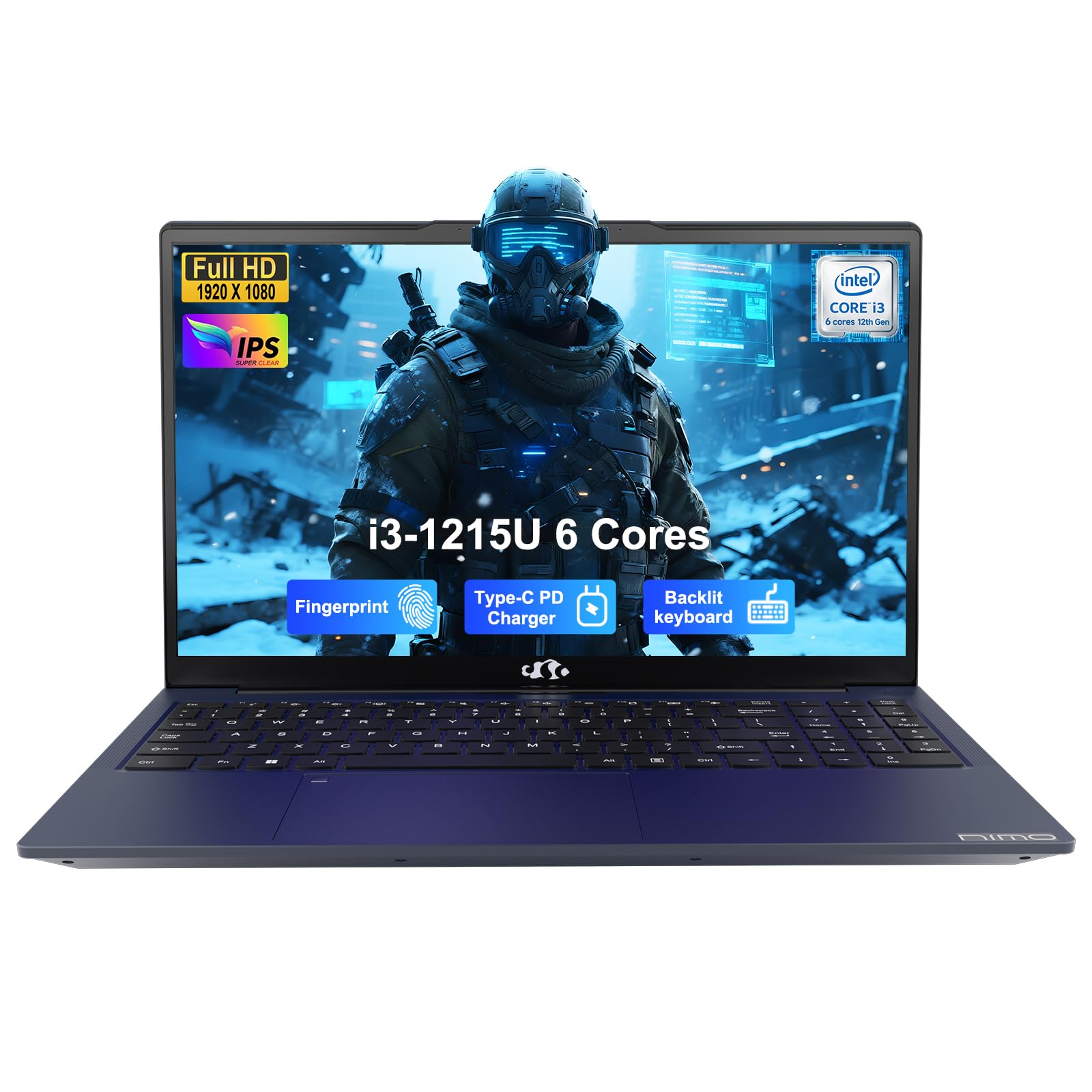
Image: The NIMO 15.6-inch IPS FHD Student Laptop, showcasin洗練されたデザイン。
2. 箱の中身
パッケージの内容をチェックして、すべてのアイテムが揃っていることを確認してください。
- 1 x NIMO N154 Laptop
- 1 x Type-C 65W PD Fast Charger
- ユーザーマニュアル (本書) x 1
- Windows 11 Home(プリインストール)
3. 初期設定
3.1. ノートパソコンの充電
Before first use, fully charge your NIMO laptop using the included 65W USB-C PD Fast Charger. Connect the charger to the Type-C port on your laptop and a power outlet. The charging indicator light will illuminate.

Image: The 65W USB-C PD Fast Charger, capable of charging the laptop, tablet, and smartphone.
3.2. 電源投入と初期設定
電源ボタンを押してノートパソコンの電源を入れます。画面の指示に従って、言語の選択、ネットワーク接続、ユーザーアカウントの作成など、Windows 11 Homeのセットアップを完了します。
4. ノートパソコンの操作
4.1. ディスプレイ
Your laptop features a 15.6-inch Full HD (1920x1080) IPS anti-glare display. This screen provides clear visuals and reduces eye strain during extended use. The 180° open angle allows for flexible viewing のポジション。
Image: The laptop's 15.6-inch Full HD IPS display with vibrant colors.
4.2. キーボードとタッチパッド
The ergonomic backlit keyboard allows for comfortable typing in various lighting conditions, with adjustable brightness. The touchpad includes an integrated fingerprint sensor for secure, one-touch login.

Image: Features of the laptop's input, including backlit keyboard, webcam shield, fingerprint sensor, and numeric keypad.
4.3. Fingerprint Login
Utilize the fingerprint sensor on the touchpad for quick and secure access to your laptop. Configure your fingerprint in the Windows settings for enhanced security.

Image: Close-up of the integrated fingerprint scanner on the touchpad for secure login.
4.4. ポートと接続
The NIMO N154 laptop offers a variety of ports for versatile connectivity:
- USB 2.0ポート: 1
- USB 3.0ポート: 3
- HDMIポート: 外部ディスプレイ接続用。
- タイプCポート: Supports 65W Power Delivery for charging and data transfer.
- マイクロSDカードスロット: ストレージの拡張や転送用 files.
- Headphone Combo Jack: オーディオ入出力用。
- ケンジントンロックスロット: 物理的なセキュリティのため。
The laptop also features Wi-Fi 6 for fast and reliable wireless internet access.

Image: Diagram illustrating the various ports available on the NIMO laptop, including USB, HDMI, Type-C, Micro SD, headphone jack, and Kensington lock.
4.5. オーディオと Webカム
Integrated speakers provide clear audio for video calls, online classes, and media consumption. The 2.0MP webcam is suitable for video conferencing, complemented by a privacy switch for enhanced security.
Image: Details on the 1080p FHD camera and privacy camera convenience features.
4.6. プロセッサとパフォーマンス
Powered by the 6-Core Intel i3-1215U processor, your laptop is designed for efficient multitasking, handling numerous browser tabs, spreadsheets, and video calls without significant slowdowns.
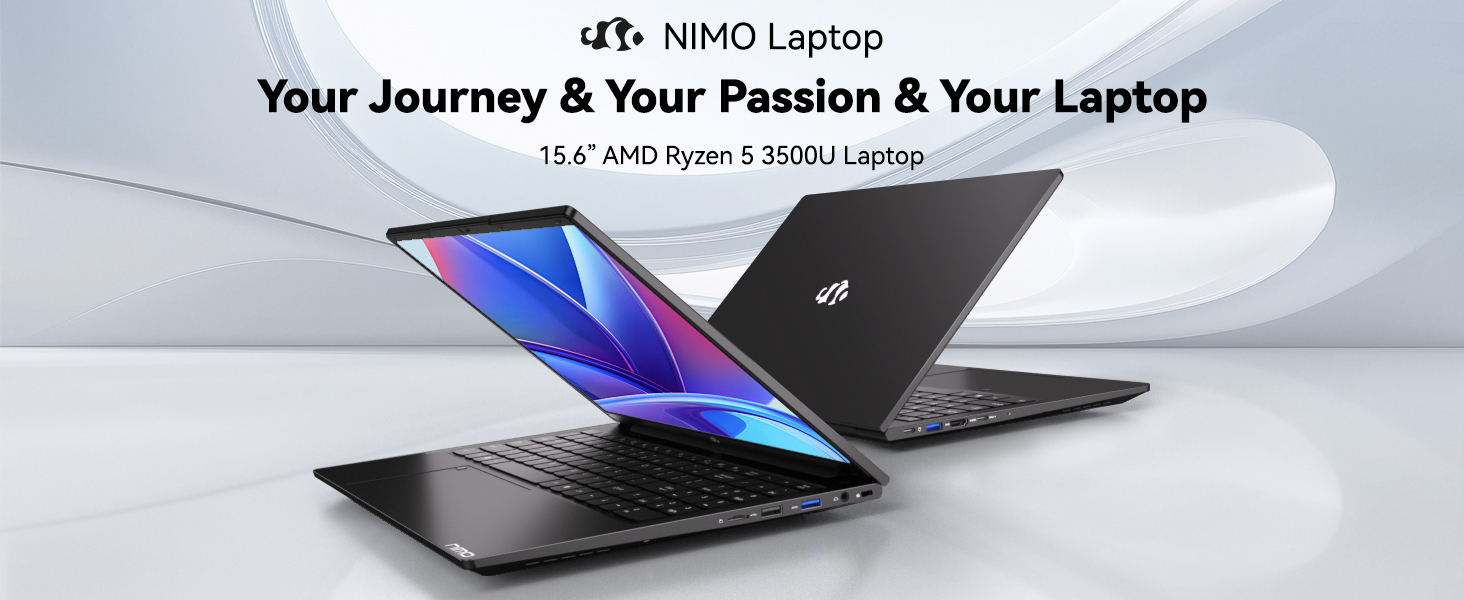
Image: Visual representation of the 12th Gen Intel Core i3-1215U Processor, highlighting its 6 cores, 8 threads, 15W power consumption, and 3.7 GHz Turbo Boost.
5. メンテナンス
5.1. 清掃
Regularly clean your laptop to ensure optimal performance and longevity. Use a soft, lint-free cloth for the screen and exterior. For stubborn marks, damp布に少量の水、または画面に安全なクリーナーを含ませて拭いてください。刺激の強い化学薬品は避けてください。
5.2. ソフトウェアの更新
Keep your operating system and drivers updated to benefit from the latest security patches and performance improvements. Windows Update can be accessed through the Settings menu.
5.3. バッテリーのお手入れ
To maximize battery life, avoid extreme temperatures and fully discharging the battery frequently. For long-term storage, charge the battery to around 50-70%.

Image: An illustration of the laptop's internal battery, labeled 54WH, emphasizing smart battery management.
6。 トラブルシューティング
6.1. ノートパソコンの電源が入らない
- 充電器がノートパソコンと機能している電源コンセントの両方にしっかりと接続されていることを確認します。
- 電源アダプターが正しく機能しているかどうかを確認してください。
- 電源ボタンを 10 ~ 15 秒間押し続けて、ハードリセットを実行してみてください。
6.2. Wi-Fi接続の問題
- Windows 設定で Wi-Fi が有効になっていることを確認します。
- ルーターとモデムを再起動します。
- Wi-Fi ドライバーが最新であることを確認してください。
6.3. パフォーマンスの低下
- バックグラウンドで実行されている不要なアプリケーションを閉じます。
- 保留中の Windows 更新プログラムを確認してインストールします。
- ストレージ (SSD) に十分な空き容量があることを確認してください。
さらに詳しいサポートについては、「保証とサポート」セクションを参照してください。
7. 仕様
| 特徴 | 仕様 |
|---|---|
| モデル名 | NIMO N154 |
| 画面サイズ | 15.6インチ |
| 画面解像度 | 1920×1080ピクセル(フルHD) |
| プロセッサ | Intel Core i3-1215U (6 コア、最大 4.4 GHz) |
| ラム | 8 GB DDR4 (3200 MHz) |
| ハードドライブ | 512GB SSD |
| グラフィックスコプロセッサ | 統合グラフィックス |
| オペレーティング·システム | Windows 11 ホーム |
| ワイヤレスタイプ | Wi-Fi 6 (802.11a/b/g/n/ac) |
| USB 2.0 ポート | 1 |
| USB 3.0 ポート | 3 |
| 平均バッテリー寿命 | 9時間 |
| アイテム重量 | 3.75ポンド |
| 製品寸法 | 14.07 x 8.98 x 0.76インチ |
| 特集 | Fingerprint Reader, HD Audio, Memory Card Slot, Numeric Keypad |
8. 保証とサポート
NIMO is committed to providing quality products and excellent customer service.
8.1. 保証情報
Your NIMO N154 laptop comes with a comprehensive 2年間保証, covering manufacturing defects and hardware malfunctions under normal use. This warranty ensures your investment is protected.

Image: Text indicating '2-Year Support' for Nimo products.
8.2. 返品ポリシー
私たちは 90日間の返品ポリシー from the date of purchase. If you are not satisfied with your product, you may return it within this period according to the terms and conditions.

Image: Text indicating '90-Day Return' for Nimo products.
8.3. サポートに問い合わせる
Our dedicated US-based support team is available to assist you with any questions or issues. You can reach us via email at サービス. We aim to provide professional and high-quality customer service.

Image: A customer service representative wearing a headset, representing professional customer assistance.