
1. はじめに
This manual provides detailed instructions for the installation, operation, and maintenance of your SILENTWARE VIEWWHITE A-RGB Mid-Tower PC Case. Please read this manual thoroughly before beginning assembly to ensure proper setup and to maximize the performance and longevity of your system components.
The SILENTWARE VIEWWHITE is a high-performance mid-tower PC case designed for optimal airflow and aesthetic appeal. It features tempered glass panels, four pre-installed 120mm A-RGB fans, and comprehensive compatibility for various PC components.
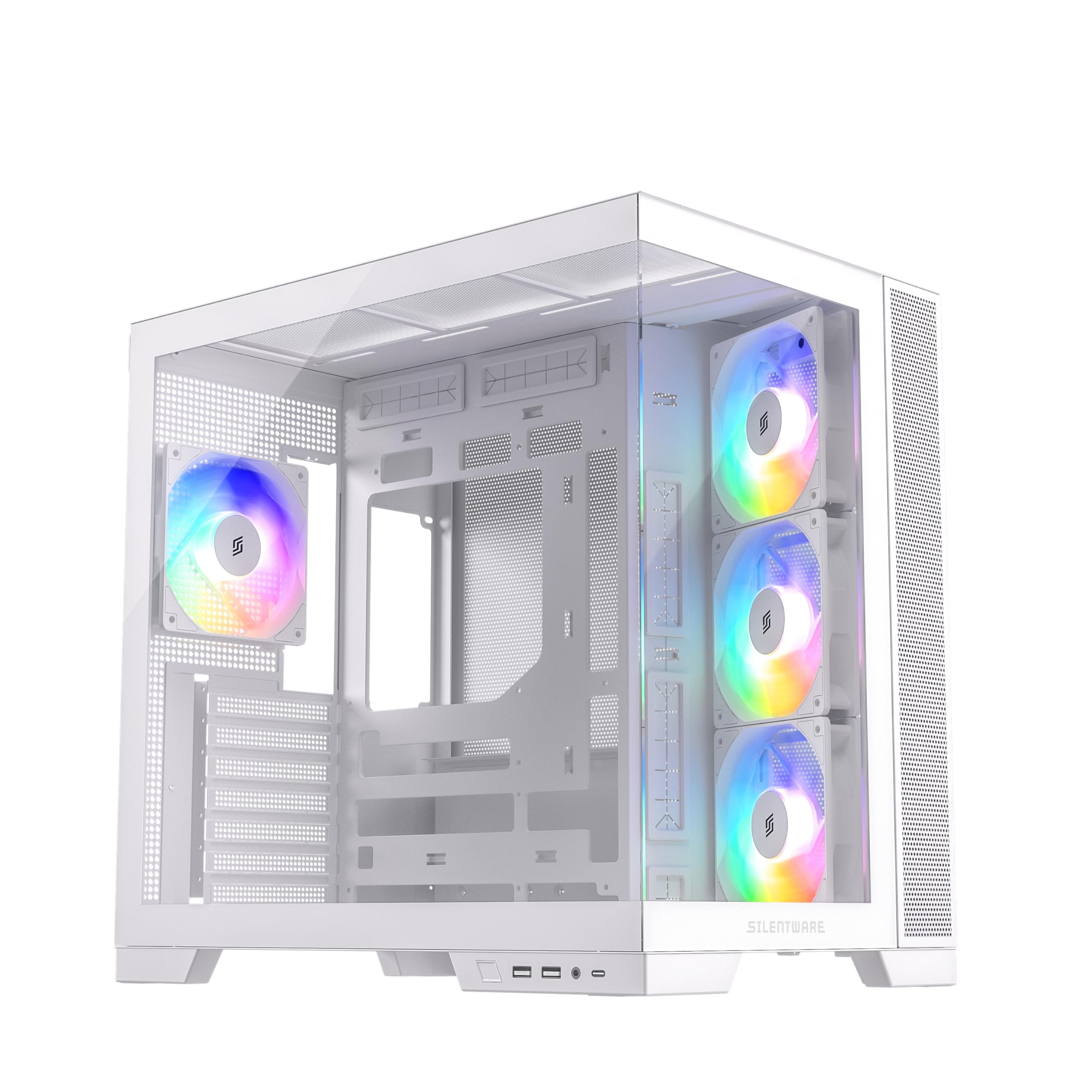
図1.1:以上view of the SILENTWARE VIEWWHITE A-RGB Mid-Tower PC Case.
2. セットアップとインストール
Before starting, ensure you have all necessary components and tools. It is recommended to work on a clean, flat surface and to use anti-static precautions.
2.1 ケースの開梱
Carefully remove the PC case from its packaging. Inspect for any damage that may have occurred during shipping. Retain the packaging for future transport or warranty claims.
2.2 パネルの取り外し
The SILENTWARE VIEWWHITE features tempered glass panels on the front and side. To access the interior for component installation:
- Locate the thumbscrews or latches securing the side tempered glass panel.
- Carefully remove the screws/release the latches and gently slide or lift the panel off. Place it on a soft, flat surface to prevent scratches.
- The top panel can also be removed for easier access and radiator installation.

Figure 2.1: Top panel removed for access to the interior.
2.3マザーボードの取り付け
The case supports ATX, mATX, and ITX motherboards.
- Install the necessary motherboard standoffs if they are not pre-installed for your motherboard size.
- マザーボードをスタンドオフとケース背面の I/O シールド開口部に合わせます。
- マザーボードをネジで固定します。
2.4 電源の設置
電源ユニット(PSU)はケースの底部に取り付けられています。
- ケースの背面から PSU を指定されたコンパートメントにスライドさせます。
- ケースの外側背面からネジを使用して PSU を固定します。
- Utilize the integrated cable management system for a clean build. The case supports PSUs up to 200mm in length.
2.5 ストレージドライブのインストール
The case provides space for 2x SSDs and 1x HDD.
- Locate the SSD mounting points (typically behind the motherboard tray).
- Secure SSDs with screws.
- Install HDDs in the designated drive cage, usually located near the PSU shroud.
2.6 グラフィックカード(GPU)のインストール
このケースは長さ410mmまでのGPUをサポートします。
- ケース背面にある必要な拡張スロットカバーを取り外します。
- マザーボード上の PCIe スロットに GPU を挿入します。
- GPUをネジで固定します。
2.7 Cooling System (Fans & Radiators)
The case comes with four pre-installed 120mm A-RGB fans: three inverted airflow fans at the front and one at the rear. It supports various radiator configurations:
- トップ: Up to 360mm radiator
- 側: Up to 280mm radiator
- 後方: Up to 120mm radiator
Ensure all fans are connected to the motherboard or a fan controller for power and RGB control.
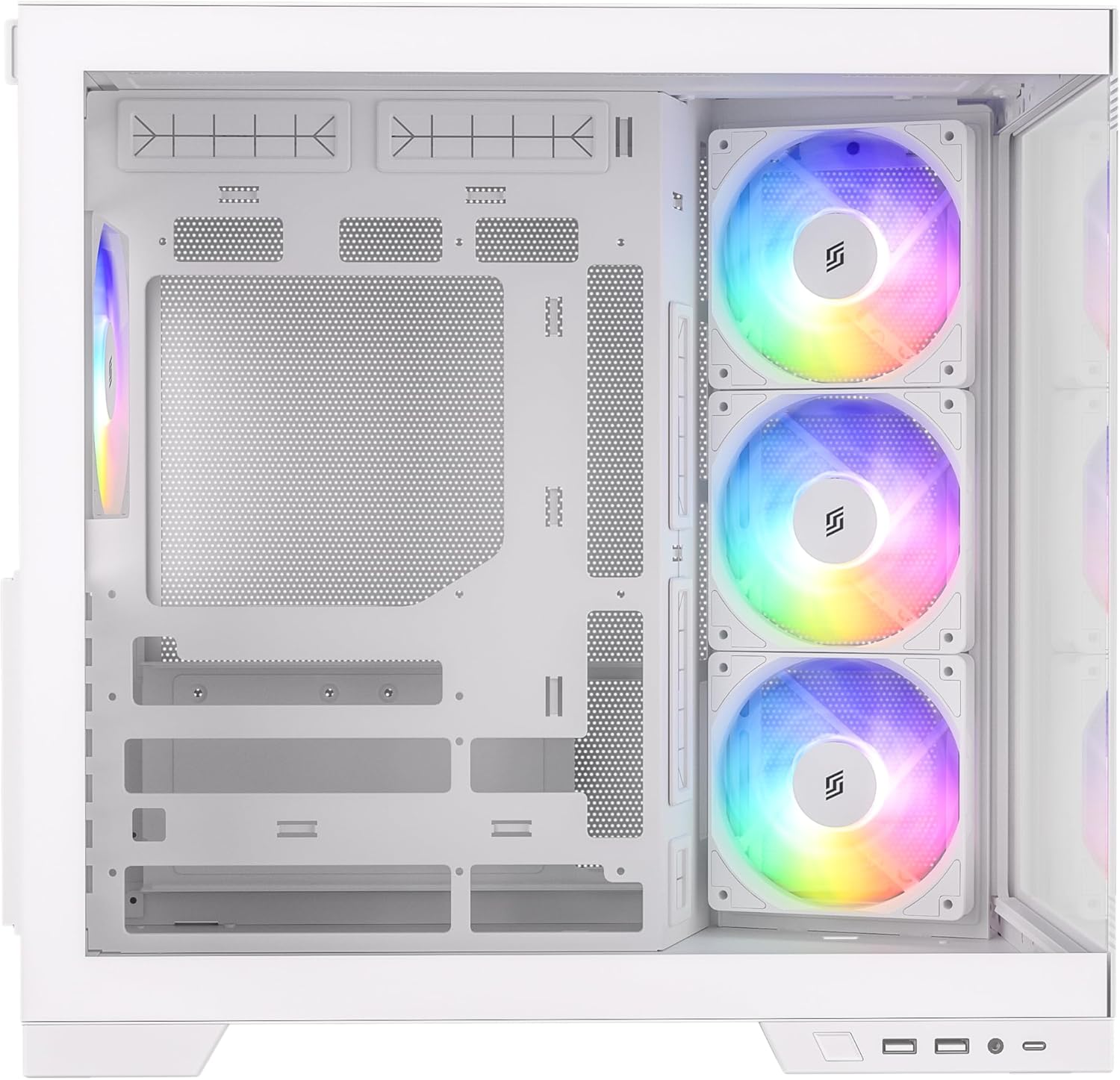
図2.2:内部 view highlighting fan placement and component space.
2.8 フロントI/Oパネルの接続
Connect the front I/O panel cables to your motherboard. These include:
- USB 3.0(x2)
- USB-C(x1)
- HD Audio (for headphone and microphone jacks)
- Power Button, Reset Button, Power LED, HDD LED
Refer to your motherboard manual for specific header locations.
3. Operating the A-RGB Fans
The pre-installed A-RGB fans offer flexible lighting and speed control.
3.1 ファン接続
Each fan has two connectors:
- 4-pin PWM connector: For fan speed control. Connect this to a 4-pin fan header on your motherboard.
- 3-pin A-RGB connector: For addressable RGB lighting control. Connect this to a 3-pin 5V A-RGB header on your motherboard. Do not connect to a 4-pin 12V RGB header, as this may damage the LEDs.
3.2 ソフトウェア制御
Once connected, you can control the fan speed and A-RGB lighting effects through your motherboard's proprietary software (e.g., ASUS Aura Sync, MSI Mystic Light, Gigabyte RGB Fusion, ASRock Polychrome Sync). Refer to your motherboard's manual for instructions on using its specific software.

Figure 3.1: A-RGB fans providing illumination and airflow.
4. メンテナンス
定期的なメンテナンスを行うことで、最適なパフォーマンスが確保され、PC コンポーネントの寿命が延びます。
4.1 ダストクリーニング
Dust accumulation can impede airflow and cause components to overheat. It is recommended to clean your PC case every 3-6 months, or more frequently in dusty environments.
- Power off your PC and unplug it from the wall outlet.
- Remove the side and top panels.
- Use compressed air to blow dust out of the case, especially from fan blades, radiator fins, and mesh filters. Hold fan blades gently to prevent over-spinning.
- Wipe down interior surfaces with a microfiber cloth.
4.2 強化ガラスのお手入れ
The tempered glass panels require careful handling.
- Clean glass panels with a soft, lint-free cloth and a non-abrasive glass cleaner.
- Avoid harsh chemicals or abrasive materials that could scratch the glass.
- Always handle glass panels by their edges to prevent fingerprints and smudges.
5。 トラブルシューティング
このセクションでは、発生する可能性のある一般的な問題について説明します。
5.1 ファンが回転しない、または点灯しない
- 電源接続を確認してください: Ensure the 4-pin PWM fan connectors are securely plugged into the motherboard fan headers.
- Check RGB Connections: Verify that the 3-pin A-RGB connectors are securely plugged into the 5V A-RGB headers on your motherboard. Confirm you are not using a 12V RGB header.
- マザーボードソフトウェア: Ensure your motherboard's RGB control software is installed and configured correctly. Sometimes, a BIOS update or a fresh installation of the software can resolve issues.
- Fan Controller: If using an external fan controller, ensure it is powered and correctly connected to the fans and motherboard.
5.2 空気の流れが悪い / 高温
- ほこりの蓄積: メンテナンス セクションの説明に従って、ダスト フィルターとファン ブレードを清掃します。
- ファンの向き: Ensure fans are oriented correctly for optimal airflow (front fans typically intake, rear/top fans exhaust). The pre-installed front fans are inverted for intake.
- ケーブル管理 Poor cable management can obstruct airflow. Re-route cables to minimize obstruction.
5.3 フロントI/Oポートが動作しない
- マザーボードの接続を確認します。 Verify that all front I/O cables (USB 3.0, USB-C, HD Audio, power/reset switches) are correctly connected to their respective headers on the motherboard. Refer to your motherboard manual.
- ドライバーのインストール: Ensure all necessary motherboard drivers, especially for USB ports, are installed.
6. 仕様
Below are the technical specifications for the SILENTWARE VIEWWHITE A-RGB Mid-Tower PC Case:
| 特徴 | 仕様 |
|---|---|
| ブランド | SILENTWARE |
| モデル番号 | VIEW白 |
| ケースタイプ | ミッドタワー |
| 色 | 白 |
| 材料 | Tempered Glass (Front & Side), Steel |
| マザーボードの互換性 | ATX、mATX、ITX |
| プレインストールされたファン | 4x 120mm A-RGB (3x Front, 1x Rear) |
| GPU 長さクリアランス | 最大410mm |
| CPUクーラーの高さクリアランス | 最大160mm |
| ラジエーターサポート(上) | 最大360mm |
| ラジエーターサポート(サイド) | 最大280mm |
| ラジエーターサポート(リア) | 最大120mm |
| ドライブベイ | 2x 2.5インチ SSD、1x 3.5インチ HDD |
| フロントI / Oポート | 2x USB 3.0, 1x USB-C, Audio In/Out |
| 電源タイプ | ATX (Bottom Mount, up to 200mm) |
| 寸法(D x W x H) | 28.5 x 42.5 x 41.5 cm |

図6.1: 製品の寸法。
7. 保証情報
SILENTWARE products are covered by a limited warranty against defects in materials and workmanship. The specific warranty period and terms may vary by region and retailer. Please retain your proof of purchase for warranty claims.
For detailed warranty information, please refer to the warranty card included with your product or visit the official SILENTWARE webサイト。
8. サポート
If you encounter any issues not covered in this manual or require further assistance, please contact SILENTWARE customer support.
- Webサイト: Visit the official SILENTWARE webFAQ、ドライバーのダウンロード、サポート リソースのサイトです。
- メールアドレス: Refer to your product packaging or the SILENTWARE webカスタマー サービス メール アドレスのサイト。
- 電話: Check the SILENTWARE web地域サポートの連絡先電話番号のサイト。
サポートにお問い合わせの際は、製品のモデル番号(VIEWWHITE) and proof of purchase ready.