
NIMO NIMO N158
NIMO 15.6" FHD Laptop User Manual - Model N158
AMD Ryzen 7 8745HS, 16GB DDR5 RAM, 1TB SSD
1. はじめに
This manual provides essential information for setting up, operating, maintaining, and troubleshooting your NIMO 15.6" FHD Laptop (Model N158). Please read this manual thoroughly before using your device to ensure optimal performance and longevity.
パッケージ内容
- 1 x NIMO N158 Laptop
- 1 x Type-C 100W PD Fast Charger
- ユーザーマニュアル x 1
- Windows 11 Home Operating System (pre-installed)
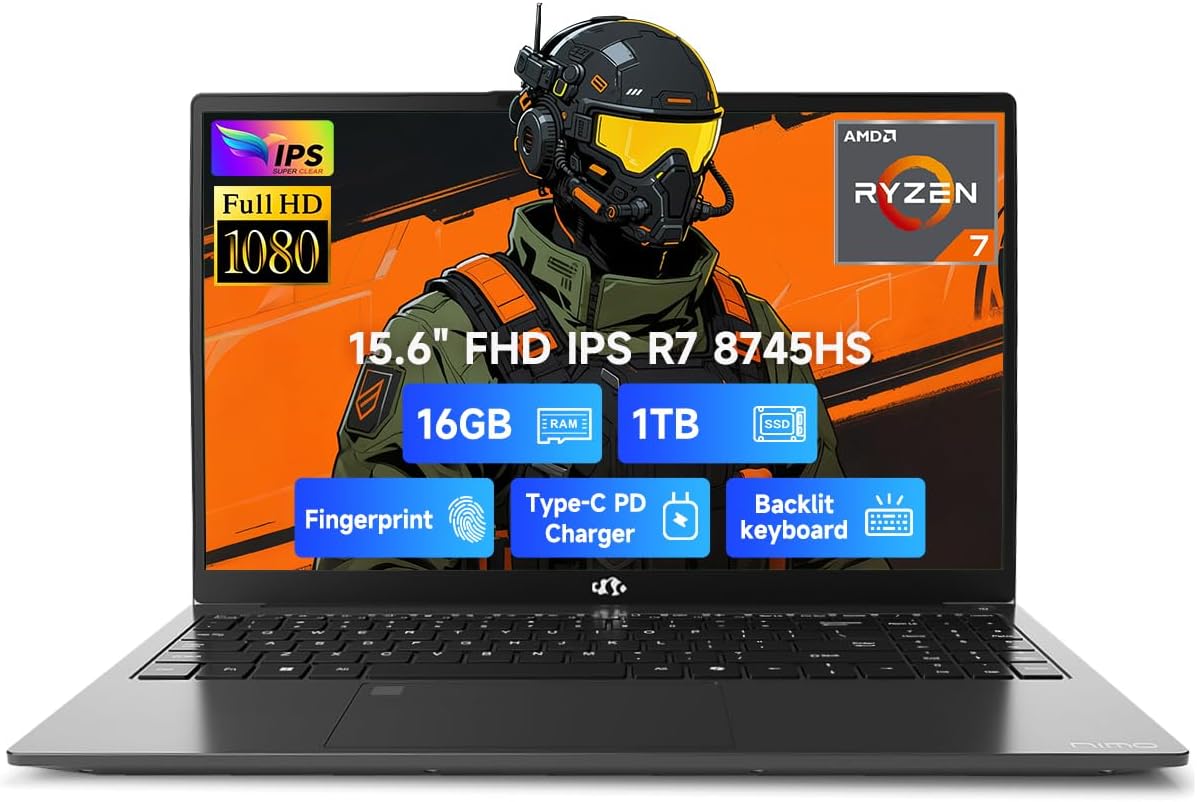
Image 1.1: NIMO 15.6 inch FHD Laptop, showcasin洗練されたデザインとディスプレイ。
2. 初期設定
2.1 電源のオンと充電
Before first use, ensure your laptop is fully charged. Connect the provided 100W Type-C PD Fast Charger to the USB 4.0 Type-C port on the laptop and to a power outlet. The charging indicator light will illuminate.

Image 2.1: The NIMO laptop connected to its 100W USB-C fast charger, illustrating the charging process and battery capacity.
2.2 最初の起動とWindows 11のセットアップ
Press the power button to turn on the laptop. Follow the on-screen instructions to complete the initial setup of Windows 11 Home. This includes setting up your region, language, network connection, and user account.
2.3 指紋センサーの設定
For enhanced security, configure the integrated fingerprint sensor. During Windows 11 setup or via Windows Settings > Accounts > Sign-in options, you can register your fingerprint for quick and secure login.

Image 2.2: Close-up of the NIMO laptop's keyboard, highlighting the backlit keys and the integrated fingerprint sensor on the touchpad.
3. ノートパソコンの操作
3.1 キーボードとタッチパッド
The laptop features a full-size keyboard with a numeric keypad and adjustable backlighting for comfortable typing in various lighting conditions. The precision gesture touchpad supports multi-touch gestures for intuitive navigation. The fingerprint sensor is integrated into the touchpad for convenient unlocking.
3.2 接続ポート
Your NIMO laptop is equipped with a variety of ports for connecting external devices:
- USB 4.0 タイプ-C: For high-speed data transfer, video output, and power delivery (charging).
- USB3.2: Multiple ports for connecting peripherals like external drives and mice.
- USB2.0: 標準 USB デバイス用。
- HDMI: 外部ディスプレイやプロジェクターに接続します。
- ヘッドフォンジャック: オーディオ出力用。
- SDカードスロット: メモリカードの読み取り用。
- ケンジントンロックスロット: 物理的なセキュリティのため。
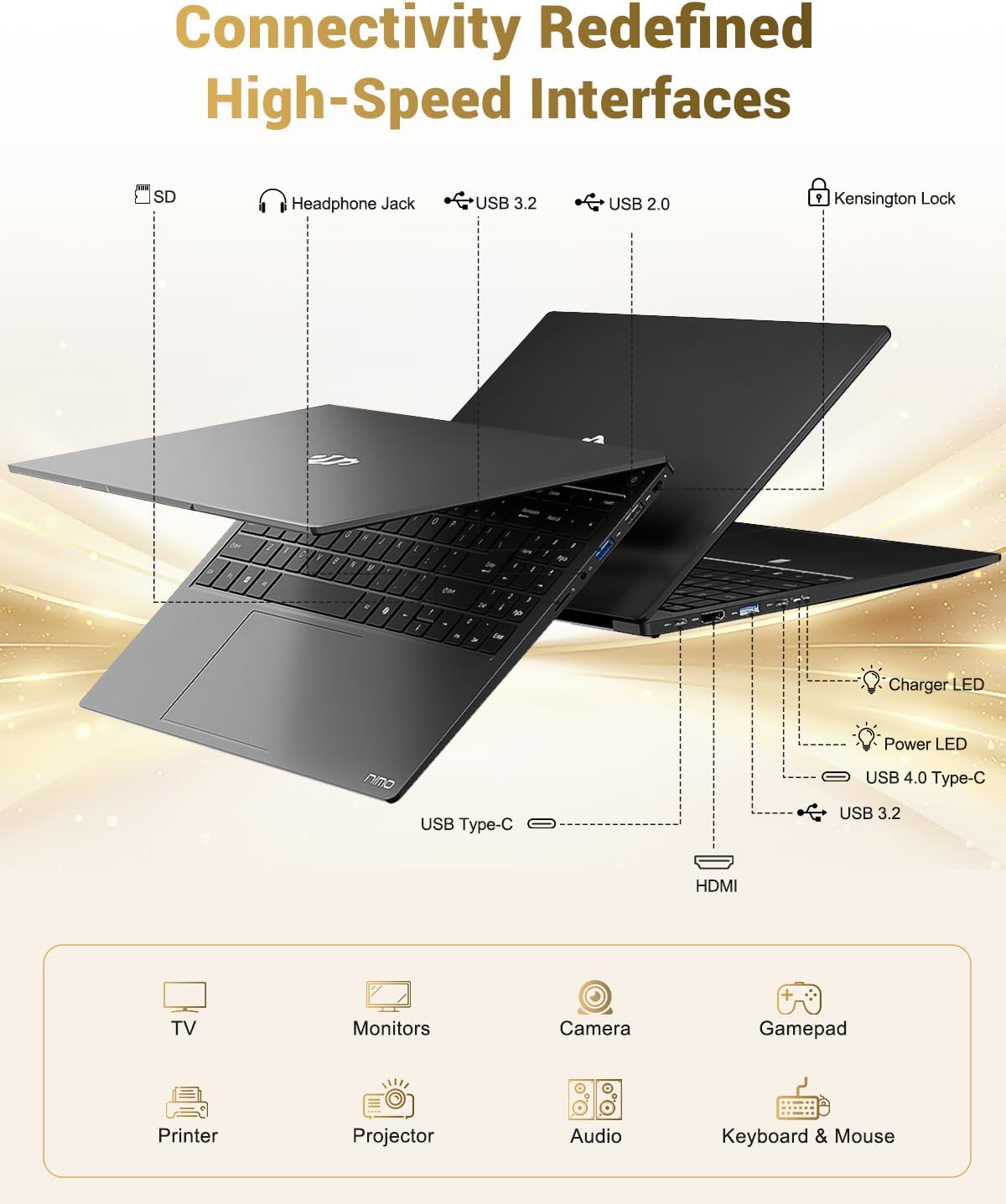
Image 3.1: Diagram illustrating the various input/output ports available on the NIMO laptop, including USB, HDMI, and audio jacks.
3.3 Webカムの使用法
The integrated 2 MP webcam is suitable for video calls and online meetings. For privacy, the laptop includes a physical privacy switch to disable the web使用しないときはカム。

Image 3.2: A visual representation of the laptop's webcam with an open and closed privacy switch, emphasizing user control over privacy.
4. メンテナンスとケア
4.1バッテリーケア
The laptop is equipped with a 75Wh Smart Battery, providing an average battery life of 15.5 hours. To prolong battery lifespan:
- 極端な温度を避けてください。
- バッテリーを頻繁に完全に放電しないでください。
- If storing the laptop for extended periods, charge it to approximately 50-60%.
4.2 アップグレード可能なコンポーネント
The NIMO laptop features an upgradable design, allowing for expansion of memory (DDR5 RAM) and storage (PCIe 4.0 SSD) to meet future needs. Consult a qualified technician for upgrades to avoid damaging components.

Image 4.1: Visual representation of the laptop's multitasking capabilities and ample storage, highlighting 1TB PCIe 4.0 SSD and 16GB DDR5 RAM.
4.3 ノートパソコンの掃除
画面と外装の表面を拭く際は、柔らかく糸くずの出ない布をご使用ください。頑固な汚れには、amp布を水またはスクリーンに安全なクリーナーで軽く拭いてください。刺激の強い化学薬品や研磨剤は使用しないでください。
5。 トラブルシューティング
This section addresses common issues you might encounter with your NIMO laptop.
5.1 電源の問題
- ノートパソコンが起動しない: Ensure the charger is securely connected and the power outlet is functional. If the battery is completely drained, it may take a few minutes of charging before the laptop can power on.
- バッテリーが充電されない: Verify the Type-C charger and cable are undamaged. Try a different power outlet.
5.2 表示の問題
- 画面が空白です: Check if the laptop is powered on. Try connecting an external monitor via HDMI to determine if the issue is with the laptop's display or the graphics output.
- 表示のちらつきや歪み: グラフィックドライバーを更新してください。外付けモニターをご使用の場合は、ケーブルの接続を確認してください。
5.3 接続の問題
- Wi-Fi が接続されない: Windowsの設定でWi-Fiが有効になっていることを確認してください。ルーターとノートパソコンを再起動してください。Wi-Fiドライバーが更新されているか確認してください。
- USBデバイスが認識されません: デバイスを別のUSBポートに接続してみてください。デバイスドライバーがインストールされていることを確認してください。
ここで説明されていない問題が発生した場合は、サポート セクションを参照してください。
6. 仕様
Detailed technical specifications for the NIMO 15.6" FHD Laptop (Model N158).
| 特徴 | 仕様 |
|---|---|
| ブランド | NIMO |
| モデル名 | NIMO N158L |
| 商品型番 | NIMO N158 |
| 画面サイズ | 15.6インチ |
| 画面解像度 | 1920 x 1080ピクセル(FHD IPS) |
| プロセッサ | AMD Ryzen 7 8745HS(8コア、16スレッド、最大4.9GHz) |
| ラム | 16 GB DDR5 (4800 MHz) |
| ハードドライブ | 1024 GB SSD (PCIe 4.0) |
| グラフィックスコプロセッサ | AMD Radeon 780M(統合型) |
| オペレーティング·システム | Windows 11 ホーム |
| ワイヤレスタイプ | 802.11a/b/g/n/ac |
| USBポート | USB 2.0 x 1、USB 3.0 x 3、USB 4.0 Type-C x 1 |
| 平均バッテリー寿命 | 15.5時間(75Wh) |
| アイテム重量 | 3.8ポンド |
| 製品寸法 | 14.07 x 8.98 x 0.76インチ |
| 色 | 黒 |
| 後方 Webカム解像度 | 2 MP |
| 特集 | バックライトキーボード、指紋リーダー、HDオーディオ、テンキー |

Image 6.1: The NIMO laptop's 15.6-inch FHD IPS display, emphasizing clear visuals and screen size.

Image 6.2: Close-up of the AMD Ryzen 7 8745HS processor, detailing its 8 cores, 16 threads, and 4.9GHz boost clock.
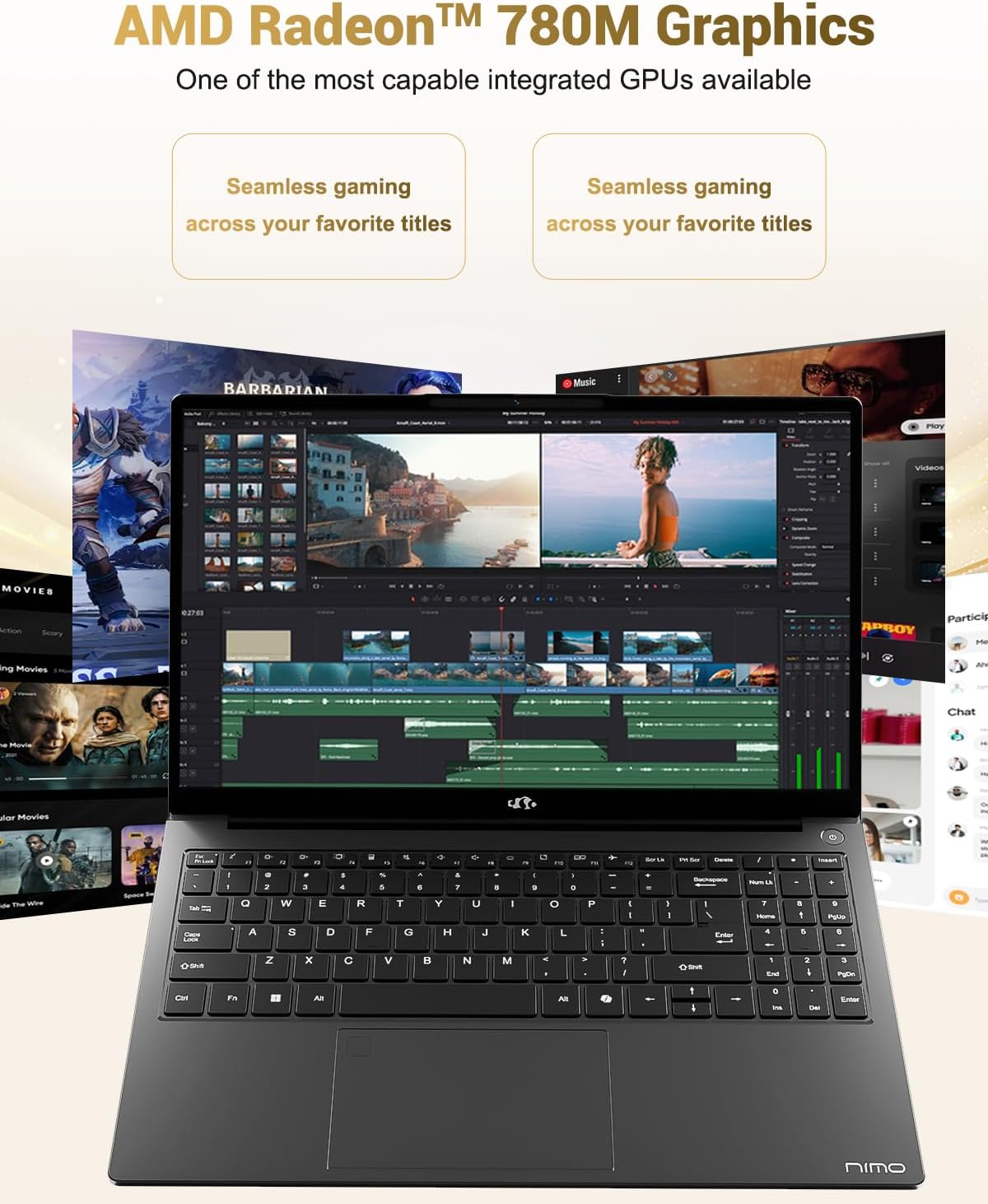
Image 6.3: The AMD Radeon 780M Graphics, highlighting its capability for seamless gaming and creative tasks.
7. 保証情報
Your NIMO laptop comes with a 2年間保証 from the date of purchase. This warranty covers manufacturing defects and hardware malfunctions under normal use. Additionally, NIMO offers a 90日間の返品ポリシー あなたの便宜のため。
For warranty claims or return inquiries, please contact our customer support team using the information provided in the Support section.
Image 7.1: Icon representing 2-year support for NIMO products.

Image 7.2: Icon representing the 90-day return policy for NIMO products.
8. カスタマーサポート
NIMO is committed to providing excellent customer service. Our dedicated support team is available to assist you with any questions or issues you may have.
連絡先
- メールアドレス: サービス
- 営業時間: 24-hour service available
For quick solutions and a worry-free experience, please reach out to us. We are ready to provide professional assistance.
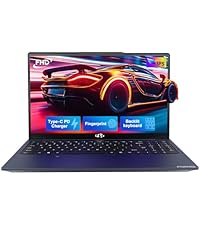
Image 8.1: Illustration of professional customer assistance, indicating support availability.
Ask a question about this manual
Ask about setup, troubleshooting, compatibility, parts, safety, or missing instructions. Manuals+ will review the question and use this page’s manual context to help answer it.