
1. はじめに
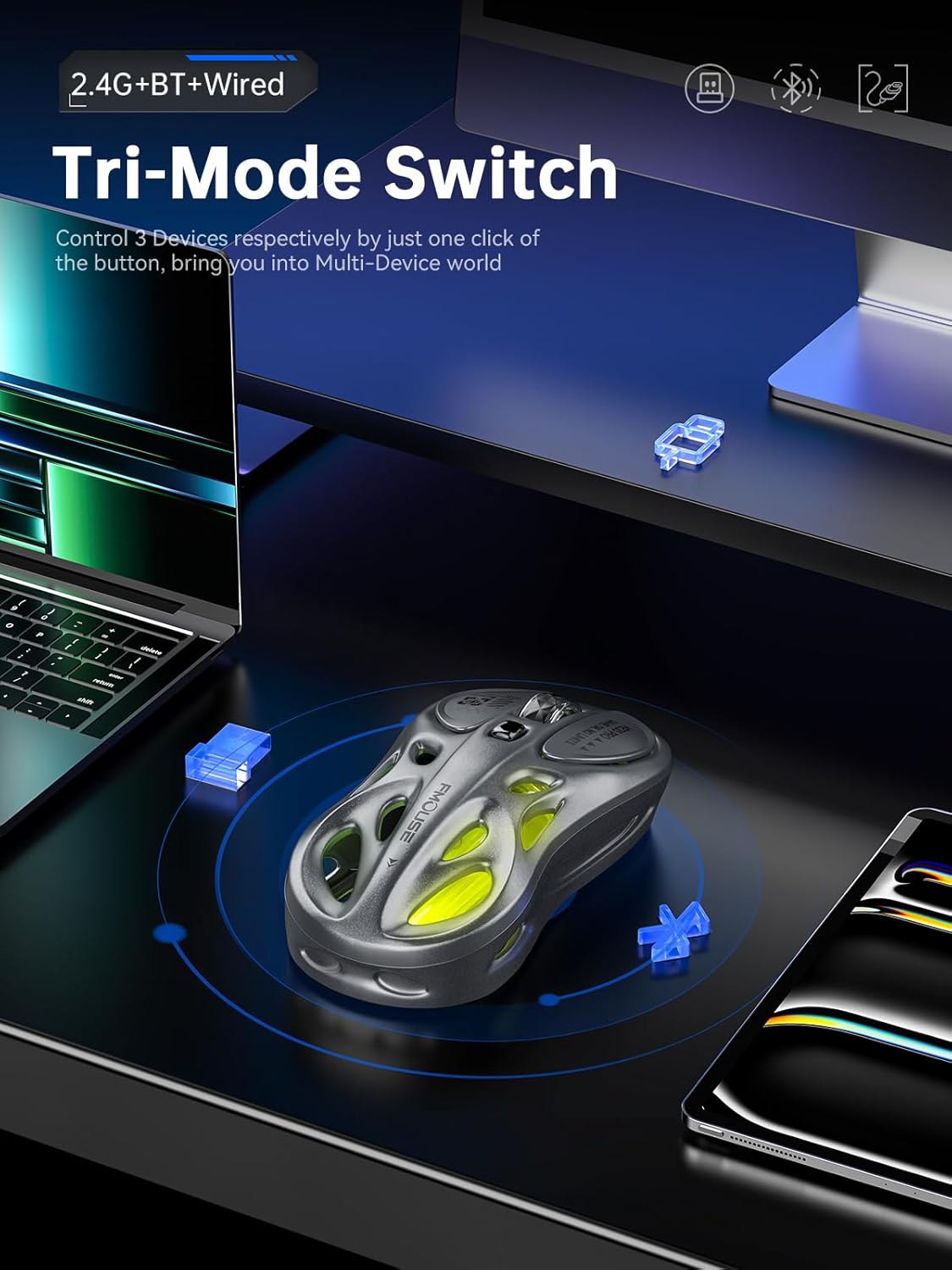
Thank you for choosing the FMOUSE M235 PRO Gaming Wireless Mouse. This tri-mode mouse offers versatile connectivity options (2.4G wireless, Bluetooth, and wired Type-C), high-performance features like 4800 DPI and 1000Hz polling rate, and customizable RGB lighting. This manual provides detailed instructions for setup, operation, and maintenance to ensure optimal performance.
2. パッケージ内容
- FMOUSE M235 PRO Gaming Wireless Mouse
- 2.4G USBレシーバー
- Type-C充電/データケーブル
- ユーザーマニュアル
- 収納バッグ
3.製品オーバーview
The FMOUSE M235 PRO features an ergonomic hollow design for reduced hand fatigue and a lightweight build (approximately 65g). It includes multiple buttons for enhanced functionality and customizable RGB lighting.
画像: 上 view of the FMOUSE M235 PRO Gaming Wireless Mouse.

Image: Lightweight design of the FMOUSE M235 PRO mouse.
ボタンの機能:
- 左ボタン: 標準クリック機能。
- 右ボタン: 標準的な右クリック機能。
- スクロールホイール: 上/下にスクロール、中クリック。
- DPIボタン: Cycles through DPI levels.
- 進むボタン: ブラウザ/アプリケーション内で前方に移動します。
- 戻るボタン: ブラウザ/アプリケーション内を前へ移動します。
- モードスイッチ(下部): Switches between 2.4G, Bluetooth, and Wired modes.
- ON/OFF Switch (Bottom): マウスの電源をオンまたはオフにします。

画像: 下 view of the FMOUSE M235 PRO mouse with labeled components.
4. セットアップ
The FMOUSE M235 PRO supports three connection modes: Wired, 2.4G Wireless, and Bluetooth. You can seamlessly switch between up to 3 devices.
4.1 有線接続
- 充電/データケーブルの Type-C 端子をマウスに接続します。
- ケーブルの USB-A 端子をコンピューターの USB ポートに接続します。
- Ensure the mouse's ON/OFF switch is in the 'ON' position. The mouse will automatically switch to wired mode.
4.2 2.4Gワイヤレス接続
- パッケージ内の 2.4G USB レシーバーを見つけます。
- 2.4G USB レシーバーをコンピューターの使用可能な USB ポートに接続します。
- Flip the mouse's ON/OFF switch to 'ON'.
- Press the 'MODE' switch button on the bottom of the mouse until the indicator light turns 緑. This indicates 2.4G mode.
- The mouse should now be connected.
4.3 Bluetooth接続
- Flip the mouse's ON/OFF switch to 'ON'.
- Press the 'MODE' switch button on the bottom of the mouse until the indicator light turns 青 (for Bluetooth 1) or 赤 (for Bluetooth 2).
- On your device (computer, laptop, iPad, etc.), go to Bluetooth settings and enable Bluetooth.
- 検索する new devices. The mouse should appear as "BT Mouse" or similar.
- Select the mouse to pair. The indicator light will stop flashing once successfully paired.
- To switch between two paired Bluetooth devices, press the 'MODE' switch button to toggle between blue and red indicator lights.
Video: Demonstrates the tri-mode connection process (wired, 2.4G, Bluetooth) for the FMOUSE M235 PRO Gaming Wireless Mouse. Shows how to plug in the data cable, insert the 2.4G USB receiver, and pair via Bluetooth with different devices.
5. 操作手順
5.1 DPI調整
The mouse features 5 adjustable DPI levels (800-4800) for precise control. Press the DPI button located on the top of the mouse to cycle through the available DPI settings. Each DPI level may correspond to a different RGB color indicator for easy identification.

Image: Illustration of 5-level adjustable DPI settings.
5.2 RGB照明制御
The mouse features customizable RGB backlighting. Long press the DPI button to switch between multiple lighting modes and effects. Experience dynamic RGB track synchronization.
5.3 Customization and Macro Programming
For advanced customization, including button remapping, macro programming, and detailed lighting effects, download the official FMOUSE software (FMOUSE Futura) from the official website. The software allows you to adjust various parameters to personalize your mouse for specific tasks or games.

Image: Screenshot of the FMOUSE software for macro programming and customization.
6. 充電
The FMOUSE M235 PRO is equipped with a 500mAh rechargeable lithium-ion battery. Use the provided Type-C cable to charge the mouse.
- Connect the Type-C end of the cable to the mouse's charging port.
- USB-A 端子を電源 (コンピューターの USB ポート、USB 壁アダプターなど) に接続します。
- The mouse's indicator light will typically show charging status (e.g., pulsing green).
- フル充電には約2時間かかります。

Image: Type-C charging illustration.
7. メンテナンス
- クリーニング: マウスの清掃には、柔らかく乾いた布をご使用ください。刺激の強い化学薬品や研磨剤の使用は避けてください。
- ストレージ: マウスは直射日光や極端な温度を避け、涼しく乾燥した場所に保管してください。
- バッテリーのケア: バッテリー寿命を延ばすには、マウスを頻繁に完全に放電することを避け、定期的に充電してください。
- 受信機のストレージ: When not in use, store the 2.4G USB receiver in a safe place to prevent loss. Note that there is no dedicated storage slot on the mouse itself.
8。 トラブルシューティング
| 問題 | 考えられる解決策 |
|---|---|
| 2.4Gモードでマウスが反応しない | Ensure the 2.4G USB receiver is securely plugged in. Check if the mouse is switched to 2.4G mode (green indicator light). Try plugging the receiver into a different USB port. |
| Mouse not pairing via Bluetooth | Ensure the mouse is in Bluetooth pairing mode (blue or red indicator light flashing). Make sure Bluetooth is enabled on your device and it's discoverable. Try restarting both the mouse and your device. |
| 遅延または断続的な接続 | Reduce distance between mouse and receiver/device. Avoid interference from other wireless devices. Ensure the mouse is fully charged. |
| RGB照明が機能しない | Ensure the mouse is powered on. Long press the DPI button to cycle through lighting modes. Check software settings if applicable. |
| DPIが変化しない | Press the DPI button firmly. If using custom software, ensure DPI settings are correctly configured and applied. |
| マウスが充電されない | Verify the Type-C cable is properly connected to both the mouse and the power source. Try a different cable or USB port/charger. |
9. 仕様
| 特徴 | 詳細 |
|---|---|
| モデル番号 | M235プロ |
| 接続技術 | 2.4GHz USB / Dual Bluetooth / Wired (Type-C) |
| 動き検出技術 | Optical (PixArt PAW3212DB-TJDT chip) |
| DPI レベル | 5 adjustable levels, up to 4800 DPI |
| ポーリングレート | 1000Hz |
| バッテリー | 500mAh リチウムイオン(充電式) |
| アイテム重量 | 6.7オンス(約65g) |
| 寸法 | 4.7 x 2.4 x 1.3 インチ (119 x 62 x 33 mm) |
| 特集 | RGB backlight, Customizable buttons, Macro programming, Ergonomic hollow design |
| 互換性 | Windows, Mac, Android (Laptops, iPads, MacBooks) |
10. 保証とサポート
For warranty information and technical support, please refer to the documentation included with your purchase or visit the official FMOUSE webサイト。通常、ドライバー、FAQ、カスタマーサービスの連絡先情報がそこに掲載されています。
Official FMOUSE Webサイト: www.fmouse.com