
1. はじめに
This manual provides detailed instructions for the installation, configuration, and operation of the D-Link Guardian 700 Pro Multi-Gig Business Router (DBR-700). The DBR-700 is designed to provide enterprise-level networking capabilities for small and medium businesses, offering high-speed connectivity, robust security features, and simplified management.
Key features include a 2.5GbE WAN port, six 2.5GbE LAN ports, a 2.5GbE SFP uplink for flexible fiber connections, Multi-WAN failover, SPI Firewall, VPN support (IPSec, WireGuard, OpenVPN), and centralized management for up to 15 D-Link Guardian Wi-Fi 6 Smart Access Points (DBR-X3000-AP, sold separately).

Image: The D-Link Guardian 700 Pro Multi-Gig Router (DBR-700) designed for small and medium business environments.
2. パッケージ内容
パッケージに次のアイテムが含まれていることを確認してください。
- D-Link Guardian 700 Pro Multi-Gig Business Router (DBR-700)
- 電源アダプター
- クイックインストールガイド(QIG)
不足または破損している品目がある場合は、お近くの D-Link 販売代理店にお問い合わせください。
3.ハードウェアオーバーview
3.1。 フロントパネル
The front panel of the DBR-700 features status indicators and network ports.

画像: 正面 view of the DBR-700 router, showing LED indicators, Console port, LAN ports, WAN port, and LAN/WAN SFP port.
- SYS LED: システムステータスを示します。
- SFP LED: Indicates status of the SFP port.
- リセットボタン: Used to reset the device or restore factory defaults.
- コンソールポート: コマンドライン インターフェイス アクセス用。
- LAN ポート (1 ~ 6): Six 2.5GbE LAN ports for connecting local network devices.
- LAN/WAN ポート: A 2.5GbE port configurable as either a LAN or WAN interface.
- WANポート: A dedicated 2.5GbE WAN port for internet connectivity.
- LAN/WAN SFP Port: A 2.5GbE/1GbE SFP port for fiber or copper connections, configurable as LAN or WAN.
3.2.リアパネル
The rear panel includes the power input and power switch.

画像: 背面 view of the DBR-700 router, showing the DC 12V/2A power input and On/Off switch.
- DC 12V/2A: 電源入力コネクタ。
- オン/オフスイッチ: デバイスの電源制御。
4. インストール
Follow these steps for the initial setup of your DBR-700 router:
- 電源接続: Connect the provided power adapter to the DC 12V/2A port on the rear panel of the router and plug it into a power outlet. Turn on the router using the On/Off switch.
- WAN 接続: Connect your internet service provider's modem or main network line to the ワン port on the router using an Ethernet cable. If using fiber, insert the SFP module (sold separately) into the LAN/WAN SFP port and connect the fiber cable.
- LAN接続: Connect your local network devices (e.g., computers, switches, access points) to the 無線LAN ports (1-6) or the configurable イーサネット port using Ethernet cables.
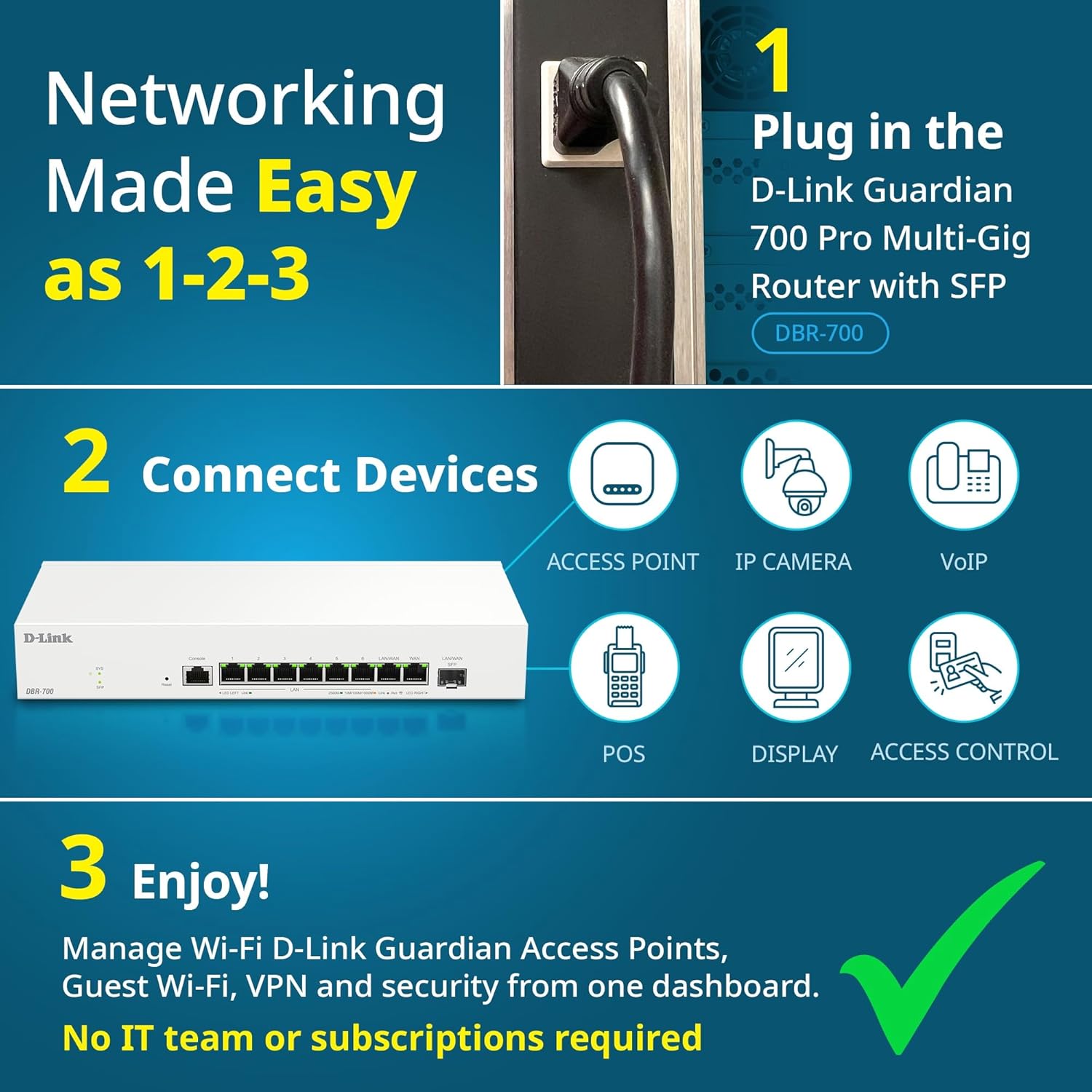
Image: Visual guide for router installation: 1. Plug in the DBR-700 router. 2. Connect devices like access points, IP cameras, VoIP, POS, displays, and access control. 3. Enjoy managed Wi-Fi, Guest Wi-Fi, VPN, and security from one dashboard.
5. 設定
5.1. アクセス Web インタフェース
To configure the DBR-700, access its webベースの管理インターフェイス:
- コンピュータがルーターの LAN ポートの 1 つに接続されていることを確認します。
- 開く web ブラウザ(例:Chrome、Firefox、Edge)。
- Enter the router's default IP address (typically
192.168.1.1or similar, refer to the Quick Installation Guide for the exact address) into the address bar and press Enter. - Enter the default username and password when prompted. (Refer to the Quick Installation Guide for default credentials).
5.2. 基本的なネットワーク設定
Once logged in, you can configure basic network settings:
- WAN設定: Configure your internet connection type (e.g., DHCP, Static IP, PPPoE) as provided by your ISP.
- LAN設定: Adjust the router's internal IP address, subnet mask, and DHCP server settings for your local network.
- 時間設定: Set the correct time zone and synchronize the router's clock.
6. 高度な機能
6.1. Multi-WAN Failover
The DBR-700 supports Multi-WAN with intelligent failover, ensuring business continuity by providing redundant internet connections. If the primary WAN link fails, the router automatically switches to a secondary WAN link.

Image: The DBR-700's ports, illustrating the Primary 2.5GbE WAN, Secondary 2.5GbE LAN/WAN, and SFP Uplink for Multi-WAN failover capabilities.
6.2. VPN設定
The router includes built-in VPN support for IPSec, WireGuard, and OpenVPN, enabling secure remote access for employees and branch office connectivity. It supports up to 100 VPN tunnels.
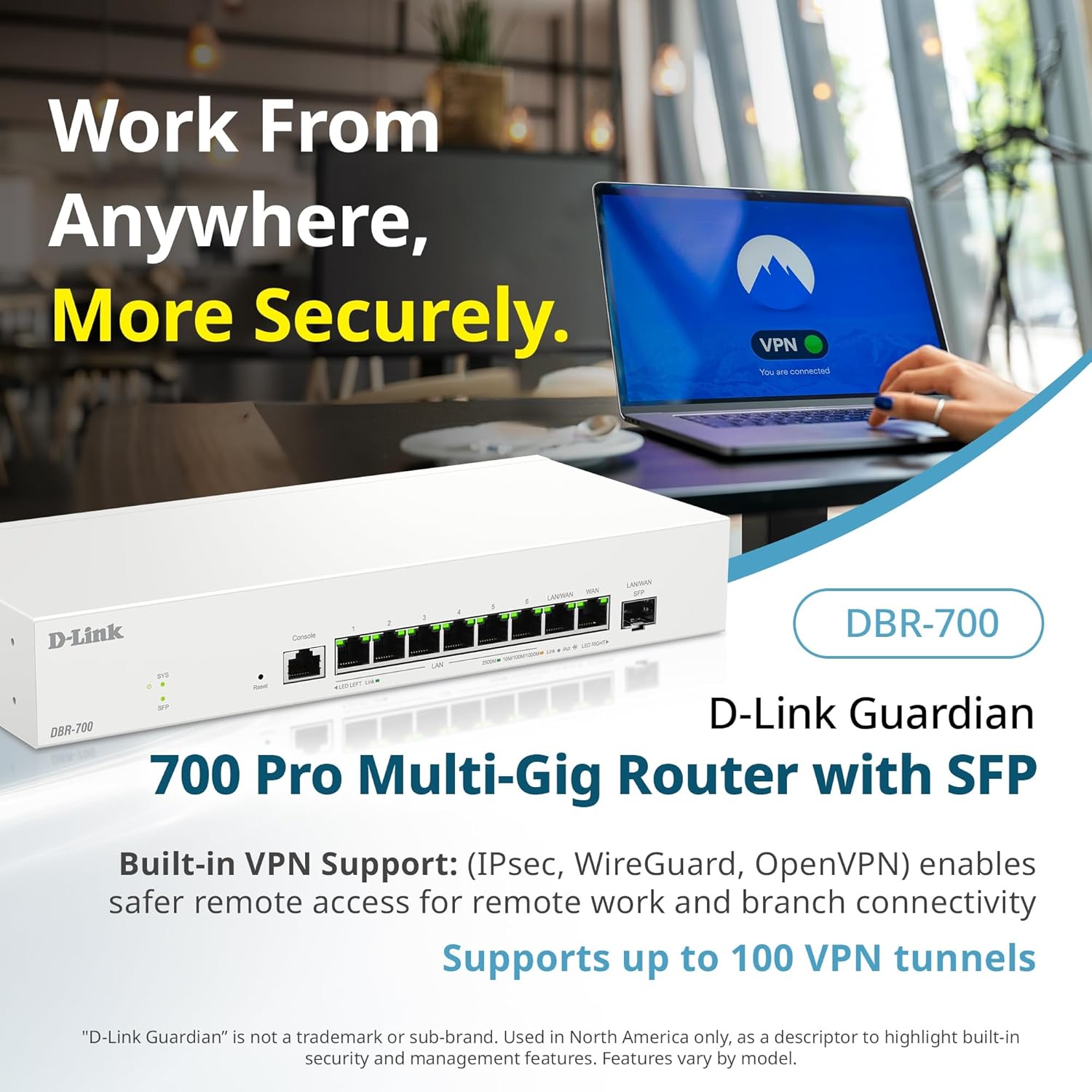
Image: A laptop displaying a 'VPN Connected' status, with the DBR-700 router in the foreground, illustrating secure remote access.
6.3. Centralized Access Point Management
The DBR-700 can discover and manage up to 15 D-Link Guardian Wi-Fi 6 Smart Access Points (DBR-X3000-AP, sold separately) from a single intuitive dashboard. This simplifies Wi-Fi network deployment and management.

Image: A tablet showing the D-Link Wi-Fi management dashboard, demonstrating centralized control over D-Link Guardian Access Points, with the DBR-700 router and a DBR-X3000-AP in the background.
6.4. Guest Wi-Fi Management
Set up and manage guest Wi-Fi networks with a Captive Portal. This allows for branded sign-in pages for guests while keeping business systems separate and secure. Configuration and management are done from the router dashboard.

Image: A smartphone screen showing a customizable guest Wi-Fi login portal, highlighting the DBR-700's ability to manage and customize guest networks.
7. メンテナンス
7.1. ファームウェアのアップデート
最適なパフォーマンス、セキュリティ、新機能へのアクセスを確保するため、ファームウェアのアップデートを定期的に確認し、インストールしてください。ファームウェアのアップデートは通常、D-Linkのサポートページから入手できます。 web特定のモデルのサイト。
7.2. 工場出荷時設定にリセット
If you encounter persistent issues or wish to clear all configurations, you can perform a factory reset. To do this, locate the Reset button on the front panel. With the router powered on, use a paperclip or similar pointed object to press and hold the Reset button for approximately 5-10 seconds until the SYS LED blinks. Release the button, and the router will restart with factory default settings.
8。 トラブルシューティング
This section addresses common issues you might encounter with your DBR-700 router.
8.1. インターネットに接続できない
- ケーブルを確認してください: すべてのイーサネット ケーブルが正しいポート (WAN、LAN) にしっかりと接続されていることを確認します。
- モデムのステータス: Verify that your internet service provider's modem is working correctly and has an active internet connection.
- WAN 構成: ルーターにログインします web interface and verify that the WAN settings (e.g., IP address, DNS) are correctly configured according to your ISP's requirements.
- デバイスを再起動します: Power cycle your modem, then the router, and then your connected devices.
8.2. アクセスできない Web インタフェース
- IPアドレス: Ensure your computer is configured to obtain an IP address automatically (DHCP) or has a static IP address within the router's subnet.
- ルーターIP: Double-check the router's default IP address. It might be printed on a label on the router itself or in the Quick Installation Guide.
- ファイアウォール/ウイルス対策: アクセスをブロックしている可能性のあるコンピューター上のファイアウォールまたはウイルス対策ソフトウェアを一時的に無効にします。
- ブラウザキャッシュ: クリアする web ブラウザのキャッシュと Cookie を削除するか、別のブラウザを試してください。
8.3. Slow Network Speeds
- ケーブル品質: Ensure you are using high-quality Ethernet cables (Cat5e or Cat6) for multi-gig connections.
- デバイスの互換性: Verify that connected devices and network adapters support 2.5GbE speeds.
- ISP速度: Confirm your internet service plan provides the expected speeds.
- トラフィック管理: Check router settings for any Quality of Service (QoS) or bandwidth limits that might be affecting performance.
9. 技術仕様
| 特徴 | 仕様 |
|---|---|
| ブランド | Dリンク |
| モデル番号 | DBR-700 |
| WAN ポート | 1x 2.5GbE WAN, 1x 2.5GbE/1GbE SFP (configurable as WAN) |
| LANポート | 6x 2.5GbE LAN, 1x 2.5GbE (configurable as LAN) |
| VPNサポート | IPSec, WireGuard, OpenVPN (up to 100 tunnels) |
| AP管理 | Manages up to 15 D-Link Guardian Wi-Fi 6 Smart Access Points |
| セキュリティ機能 | SPI Firewall, WPA3 encryption, VLANs |
| 寸法(長さx幅x高さ) | 11.02 x 1.73 x 4.96インチ |
| アイテム重量 | 2ポンド |
| 巻tage | 120ボルト(AC) |
| 色 | 白 |
10. 保証とサポート
詳細な保証情報、テクニカルサポート、その他のリソースについては、D-Linkの公式ウェブサイトをご覧ください。 website. You can find product registration, FAQs, firmware downloads, and contact information for customer service.
D-Link公式 Webサイト: dlink.com/ja
Please have your product model number (DBR-700) and serial number ready when contacting support.