
1. はじめに
This manual provides comprehensive instructions for the installation, operation, and maintenance of your Ossuret 7-inch Android 13 Carplay Autoradio. Please read this manual thoroughly before using the device to ensure proper functionality and safety. This unit is designed to enhance your driving experience with advanced multimedia and navigation features.
2. パッケージ内容
下記のすべての品目がパッケージに含まれていることをご確認ください。不足または破損している品目がある場合は、カスタマーサポートまでご連絡ください。
- Main Autoradio Unit
- 電源ケーブル
- USBケーブル(4ピン)
- USBケーブル(6ピン)
- GPSアンテナ
- RCAケーブル
- 外部マイク
- リアカメラ入力RCAケーブル
- Canbusデコーダー(該当する場合)
- ラジオアンテナアダプターケーブル

3. 適合車種
This Ossuret Autoradio is compatible with the following Opel/Vauxhall/Holden models:
- Opel/Vauxhall/Holden Antara (from 2005)
- Opel/Vauxhall/Holden Astra H (from 2004)
- Opel/Vauxhall/Holden Corsa C (2004-2006)
- Opel/Vauxhall/Holden Corsa D (from 2006)
- Opel/Vauxhall/Holden Meriva (from 2004)
- Opel/Vauxhall/Holden Signum (from 2003)
- Opel/Vauxhall/Holden Tigra Twintop (from 2004)
- Opel/Vauxhall/Holden Vectra C (from 2004)
- Opel/Vauxhall/Holden Vivaro 6
- Opel/Vauxhall/Holden Zafira (from 2005)
4. セットアップとインストール
Installation of this autoradio requires technical knowledge and experience with car electronics. It is highly recommended to seek professional installation to avoid damage to the unit or your vehicle.
4.1インストール前のチェック
- 取り付けを開始する前に、車両のイグニッションがオフになっており、バッテリーが取り外されていることを確認してください。
- Confirm compatibility with your vehicle model and year.
- Identify the existing wiring harness and dashboard opening.
4.2配線接続
- 電力ケーブル: Connect the provided power cable to the vehicle's power supply, ensuring correct polarity (ACC, B+, GND).
- USB ケーブル: Connect the 4-pin and 6-pin USB cables to the corresponding ports on the autoradio. These can be routed to a convenient location for external USB devices.
- GPSアンテナ: GPSアンテナは、障害物のない場所に設置してください。 view 通常はダッシュボード上またはフロントガラスの下など、上空の場所に設置し、ユニットに接続します。
- RCAケーブル: Connect RCA cables for audio output (e.g., to external amplifiers) or video input/output as needed.
- 外部マイク: Connect the external microphone for improved call quality and route it to a suitable position (e.g., near the sun visor).
- リアカメラ入力: リアを取り付ける場合 view camera, connect its video output to the dedicated RCA input on the autoradio.
- Canbusデコーダー: If your vehicle requires a Canbus decoder for steering wheel controls or other vehicle data integration, connect it according to the vehicle-specific wiring diagram.
- 無線アンテナ: Connect the vehicle's radio antenna using the provided adapter cable if necessary.
4.3 ユニットの取り付け
Carefully insert the autoradio into the dashboard opening, securing it with the appropriate mounting brackets. Ensure all cables are properly routed and not pinched.

5. 操作手順
5.1 電源オン/オフ
The unit will typically power on automatically with the vehicle's ignition. To manually power off, press and hold the power button (if available) or turn off the vehicle's ignition.
5.2 ワイヤレスカープレイ / Android Auto
This autoradio supports wireless Apple Carplay and Android Auto via the pre-installed Zlink application. This allows seamless integration with your smartphone for navigation, music, calls, and other apps.
- スマートフォンの Wi-Fi と Bluetooth が有効になっていることを確認してください。
- On the autoradio, open the Zlink application.
- Follow the on-screen prompts to connect your phone via Bluetooth first, then confirm the Wi-Fi connection.
- Once connected, your phone's Carplay or Android Auto interface will appear on the autoradio screen.

5.3 Bluetooth機能
The unit features Bluetooth for hands-free calling and audio streaming.
- ペアリング: Go to the Bluetooth settings on the autoradio and your smartphone. 検索する available devices on your phone and select the autoradio (e.g., "Ossuret Car"). Confirm the pairing code if prompted.
- ハンズフリー通話: Once paired, you can make and receive calls directly from the autoradio screen. The built-in microphone captures your voice.
- Bluetooth Music (A2DP): Stream audio from your phone to the autoradio wirelessly.
- Phonebook Download: The unit supports downloading your phone's contacts for easy access.

5.4 USB接続
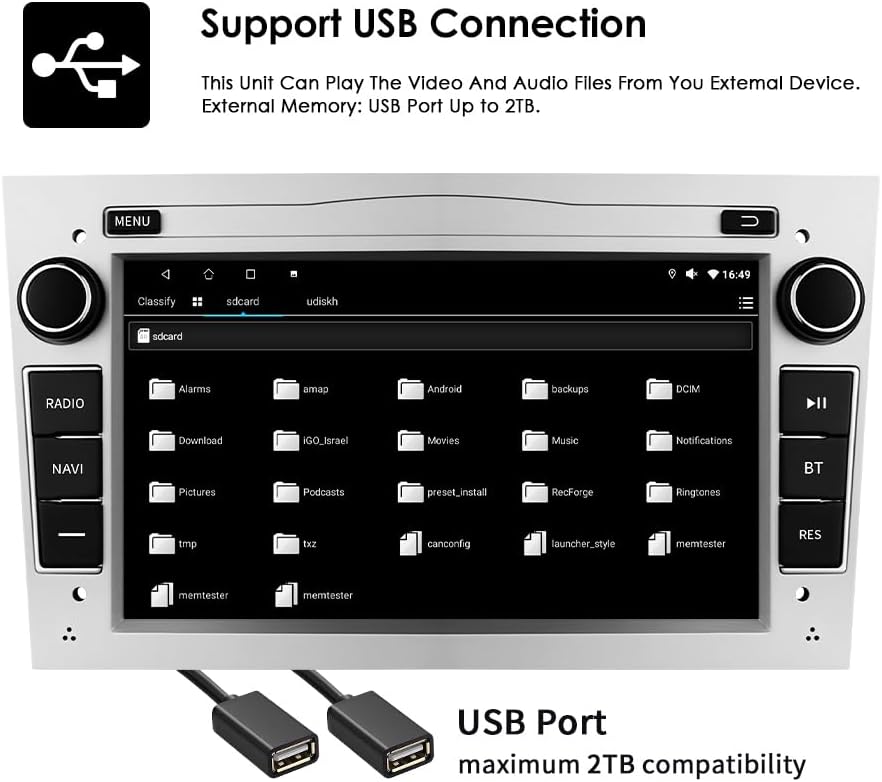
Connect external USB devices to play audio and video files or access other data. The unit supports USB storage up to 2TB.
- Insert your USB drive into one of the provided USB ports.
- に移動 file explorer or media player application on the autoradio.
- Select the USB device to browse and play your media files.
5.5 マルチメディア再生
The autoradio supports various audio and video formats for local playback.
- 音楽フォーマット: MP3, WMA, AAC, RM, FLAC, etc.
- ビデオフォーマット: MPEG-1/2/4, H.264, H.263, VC1, RV, RMVB, DivX, Sorenson Spark, VP8, AVS Stream, etc.

5.6GPSナビゲーション
The unit comes with preloaded European maps and supports both online and offline navigation.
- Access the navigation application from the main menu.
- Enter your destination to receive turn-by-turn voice guidance.
- Connect to Wi-Fi for online map updates and real-time traffic information.
5.7 ステアリングホイールコントロール
The autoradio is compatible with your vehicle's factory steering wheel controls, allowing you to manage volume, change tracks, and answer calls without taking your hands off the wheel. Configuration may be required in the unit's settings menu.
5.8 リア View カメラ入力
互換性のあるリア view camera is connected, the display will automatically switch to the camera feed when the vehicle is put into reverse gear, providing a clear view 車両後方の障害物。
6. メンテナンス
To ensure the longevity and optimal performance of your Ossuret Autoradio, follow these maintenance guidelines:
- 画面のクリーニング: 柔らかく糸くずの出ない布でタッチスクリーンを優しく拭いてください。頑固な汚れには、軽くamp布を水またはスクリーンに安全なクリーナーで拭いてください。刺激の強い化学薬品や研磨剤は使用しないでください。
- 一般的な清掃: 本体に埃やゴミが付着しないようにしてください。通気口やボタンの隙間は、柔らかいブラシか圧縮空気で掃除してください。
- ソフトウェアアップデート: 最新の機能とバグ修正が適用されていることを確認するために、製造元からのソフトウェア アップデートを定期的に確認してください。
- 極端な温度を避ける: パフォーマンスと寿命に影響を与える可能性があるため、ユニットを極端な高温または低温にさらさないでください。
7。 トラブルシューティング
オートラジオで問題が発生した場合は、次の一般的な問題と解決策を参照してください。
| 問題 | 考えられる原因 | 解決 |
|---|---|---|
| 電源なし | 配線ミス、ヒューズ切れ、車両バッテリーの問題 | Check power connections, inspect fuses, ensure vehicle battery is charged. |
| 音が出ない | 音量が低すぎる、オーディオ設定が正しくない、スピーカー配線に問題がある | 音量を上げ、オーディオ出力設定を確認し、スピーカーの接続を確認します。 |
| GPS信号が失われた/弱い | Antenna obstruction, poor antenna placement | GPSアンテナがクリアであることを確認する view of the sky, reposition if necessary. |
| Bluetoothが接続されない | Bluetooth off, incorrect pairing, interference | Ensure Bluetooth is enabled on both devices, re-pair, move away from other wireless devices. |
| タッチスクリーンが反応しない | ソフトウェアの不具合、画面の損傷 | ユニットを再起動してください。問題が解決しない場合は、サポートにお問い合わせください。 |
If the problem persists after attempting these solutions, please contact Ossuret customer support for further assistance.
8. 仕様
Below are the technical specifications for the Ossuret Autoradio Model B0FPLCMTNZ:
| 特徴 | 仕様 |
|---|---|
| ブランド | オスレト |
| モデル番号 | B0FPLCMTNZ |
| オペレーティング·システム | アンドロイド13 |
| ラム | 2ギガバイト |
| ロム | 32ギガバイト |
| CPU | 4Core*A53 1.5Ghz |
| 画面サイズ | 7インチ |
| 画面解像度 | 1024×600 |
| タッチスクリーンタイプ | 静電容量式 |
| 接続技術 | Bluetooth、USB、Wi-Fi |
| 特集 | Wireless Carplay/Android Auto, GPS Navigation, DSP Support |
| 対応デバイス | スマートフォン |
| 合計HDMIポート | 1 |
| オーディオ出力モード | ステレオ |
| ビデオエンコーディング | H.264、H.265/HEVC、MPEG-4 |
| チャンネル数 | 4 |
| 制御方法 | タッチ、ボイス |
| 起源 | 中国 |
9. 保証とサポート
9.1 保証情報
This Ossuret Autoradio comes with a 1年間の製造保証 ご購入日から1年間有効です。本保証は、通常の使用における材料および製造上の欠陥を対象とします。不適切な取り付け、事故、誤用、乱用、放置、無許可の改造、または通常の摩耗や損耗による損傷は保証の対象外となります。
9.2 カスタマーサポート
For technical assistance, warranty claims, or any questions regarding your Ossuret Autoradio, please contact your retailer or the Ossuret customer support team. Have your model number (B0FPLCMTNZ) and proof of purchase ready when contacting support.