
1. はじめに
Welcome to the user manual for your NIMO N152S 15.6-inch Laptop. This guide provides essential information on setting up, operating, maintaining, and troubleshooting your new device. Please read this manual thoroughly to ensure optimal performance and longevity of your laptop.
2.製品オーバーview
2.1 主な特徴
- 強力なパフォーマンス: Equipped with an AMD Ryzen 5 3500U processor and integrated Radeon graphics for smooth multitasking and efficient performance.
- 臨場感あふれるフル HD ディスプレイ: A 15.6-inch Full HD (1920x1080) IPS display with a 180° wide hinge for vibrant visuals and wide view角度を変える。
- スリムで軽量なデザイン: Crafted with a sleek metal top cover, weighing under 3.7 lbs and measuring just 19.2 mm thin.
- 強化された接続性: Features 2 USB-A, 2 USB-C (full function PD/DP/Data), HDMI, MicroSD, and a 3.5mm audio jack.
- 拡張可能なメモリとストレージ: Supports up to 32GB DDR4 RAM and M.2 PCIe 3.0 x4 SSD for future-proof upgrades.
- Smart Security & Comfort: Includes a fingerprint reader on the touchpad, a backlit keyboard for low-light use, and dual microphones.
2.2 コンポーネントの識別
Familiarize yourself with the various components of your NIMO N152S laptop as illustrated below.

図2.1: 前面 view of the NIMO N152S laptop, showcasing its sleek design and key features like Windows 11, 32GB RAM, 1TB SSD, Full HD display, AMD Ryzen 5, Type-C PD Charger, Backlit Keyboard, and Fingerprint Reader.

Figure 2.2: Illustration of the AMD Ryzen 5 processor, detailing its specifications including 4 Cores, 8 Threads, 15W Power Consumption, and 3.7 GHz Turbo Boost, indicating its capability for daily tasks and light gaming.

Figure 2.3: The NIMO laptop screen showcasing a vivid Full HD (1920x1080) IPS display, highlighting features like bright view and eye protection, with an 85% screen-to-body ratio.

図2.4:詳細 view of the NIMO laptop's expanded connectivity options, labeling ports such as Type-C (Charge Only), USB 3.0, HDMI, Type-C (Full Function), Charge LED, Micro SD Reader, USB 2.0, USB 3.0, Headphone Combo, and Kensington Lock.
3. 初期設定
3.1 ノートパソコンの充電
Before first use, fully charge your NIMO laptop. Connect the provided 65W Type-C PD charger to the USB-C charging port on the laptop and then to a power outlet. The charge LED indicator will illuminate to confirm charging.

Figure 3.1: The 65W Type-C PD Charger, designed for universal compatibility with laptops, tablets, and smartphones, simplifying your charging needs compared to multiple chargers.
3.2 初めて電源を入れる
- ノートパソコンの蓋を開けます。
- キーボードにある電源ボタンを押します。
- 画面の指示に従って、言語の選択、ネットワーク接続、ユーザー アカウントの作成など、Windows 11 の初期セットアップを完了します。
4. Operating Your NIMO Laptop
4.1 電源のオン/オフとスリープモード
- 電源オン: 電源ボタンを押します。
- シャットダウン: [スタート] ボタンをクリックし、[電源] > [シャットダウン] をクリックします。
- スリープモード: カバーを閉じるか、[スタート] ボタンをクリックし、[電源] > [スリープ] をクリックします。
4.2 キーボードとタッチパッドの使用
Your NIMO laptop features a full-sized keyboard with a numeric keypad and a responsive touchpad.
- バックライト付きキーボード: プレス Fn+F10 キー (またはバックライト アイコンのあるキー) を押すと、キーボードのバックライトのオン/オフを切り替えたり、明るさのレベルを調整したりできます。
- タッチパッド: ナビゲーション用のマルチタッチジェスチャをサポートします。カスタマイズについてはWindowsの設定を参照してください。
- テンキー: Use the dedicated numeric keypad for efficient data entry.

Figure 4.1: The NIMO laptop keyboard, emphasizing its backlit keys, integrated touchpad, fingerprint reader, and numeric keypad, designed for comfortable typing in various lighting conditions.
4.3 指紋リーダー
The integrated fingerprint reader on the touchpad provides quick and secure access to your laptop.
- Windows の設定 > アカウント > サインイン オプションに移動します。
- Windows Hello 指紋認証を設定します。
- 画面上の指示に従って指紋を登録します。
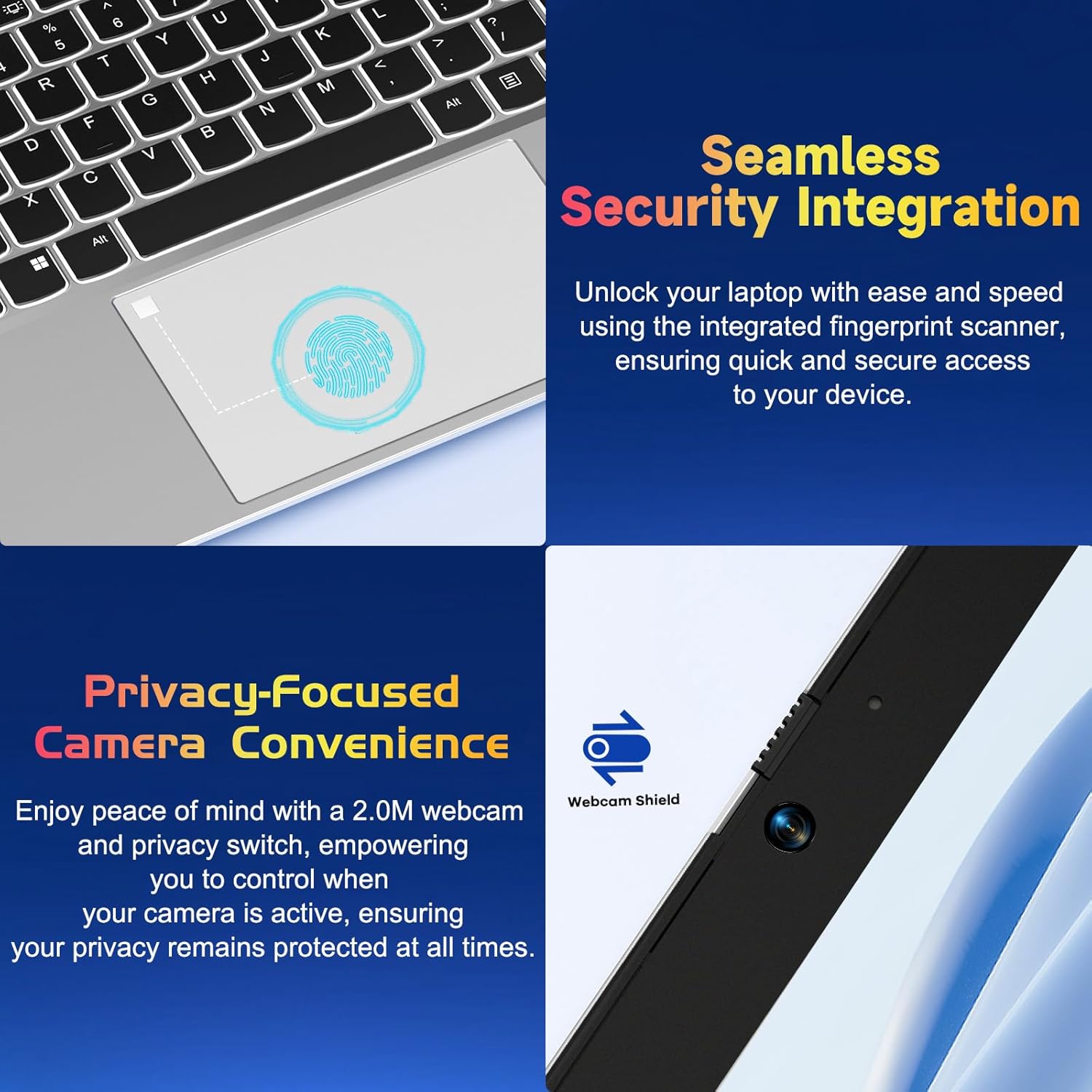
図 4.2: 拡大図 view of the NIMO laptop's touchpad, highlighting the integrated fingerprint scanner for seamless security integration, alongside the privacy-focused webcam with a physical shield.
4.4 周辺機器の接続
ノートパソコンには、外部デバイスを接続するためのさまざまなポートがあります。
- USB-Aポート: マウス、キーボード、外付けドライブなどの標準 USB デバイスを接続します。
- USB-Cポート: Two full-function USB-C ports support Power Delivery (PD), DisplayPort (DP), and data transfer. One is dedicated for charging.
- HDMIポート: 外部モニターまたはプロジェクターに接続します。
- MicroSD カードリーダー: 追加のストレージまたはデータ転送のために MicroSD カードを挿入します。
- 3.5mmオーディオジャック: ヘッドフォンまたは外部スピーカー用。
4.5 Webカムプライバシー
The laptop includes a 2.0MP webcam with a physical privacy shield. Slide the shield to cover the camera lens when not in use to ensure your privacy.
5. メンテナンスとケア
- クリーニング: 柔らかく糸くずの出ない布で軽く拭き取ってください。ampened with water or a screen cleaner to clean the display and exterior. Avoid harsh chemicals.
- ソフトウェアアップデート: 最適なパフォーマンスとセキュリティを確保するために、Windows オペレーティング システムとドライバーを定期的に更新してください。
- バッテリーのケア: バッテリーの寿命を延ばすには、極端な温度を避け、可能な場合はバッテリーの充電を 20% ~ 80% に保つようにしてください。
- ストレージ: ノートパソコンは、直射日光や極端な温度を避け、涼しく乾燥した場所に保管してください。
6。 トラブルシューティング
This section addresses common issues you might encounter with your NIMO laptop.
| 問題 | 考えられる解決策 |
|---|---|
| ノートパソコンの電源が入りません。 | Ensure the laptop is charged. Connect the charger and wait a few minutes before attempting to power on again. If unresponsive, perform a hard reset by holding the power button for 15 seconds. |
| 画面が空白またはちらつきます。 | Try adjusting the screen brightness (Fn + F5/F6). If connected to an external monitor, ensure the cable is secure. Restart the laptop. |
| キーボードのバックライトが機能していません。 | Press Fn + F10 (or the key with the backlight icon) to cycle through backlight settings. Ensure the function keys are enabled. |
| 指紋リーダーが認識されません。 | 指が清潔で乾いていることを確認してください。問題が解決しない場合は、Windows Hello の設定で指紋を再登録してください。 |
| Wi-Fi接続の問題。 | Check if Wi-Fi is enabled (Fn + F12 or Windows settings). Restart your router and laptop. Update Wi-Fi drivers if necessary. |
| ノートパソコンの動作が遅いです。 | Close unnecessary applications. Check Task Manager for resource-intensive processes. Ensure Windows and drivers are up to date. Consider running a disk cleanup. |
7. 技術仕様
| 特徴 | 仕様 |
|---|---|
| ブランド | NIMO |
| モデル名 | NIMO N152S |
| 商品型番 | NIMO N152 |
| 画面サイズ | 15.6インチ |
| 最大画面解像度 | 1920 x 1080 ピクセル (フル HD) |
| プロセッサ | AMD Ryzen 5 3500U(3.7GHz) |
| ラム | 32 GB DDR4 (3200 MHz) |
| ハードドライブ | 1024 GB SSD(ソリッドステート) |
| グラフィックスコプロセッサ | AMD Integrated graphics |
| オペレーティング·システム | ウィンドウズ11 |
| ワイヤレスタイプ | 802.11abg |
| USB 2.0 ポートの数 | 1 |
| 平均バッテリー寿命 | 5時間 |
| アイテム重量 | 3.8ポンド |
| 製品寸法 | 14.07 x 8.98 x 0.76インチ |
| 色 | クラシックシルバー |
| 後方 Webカム解像度 | 2 MP |
| 電源 | 電池駆動 |
| バッテリー | 必要なリチウムポリマー電池1個(付属) |
8. 保証と顧客サポート
8.1 保証情報
Your NIMO N152S laptop comes with a comprehensive warranty:
- 90日間無料返品ポリシー: You may return your NIMO laptop for any reason within 90 days of purchase.
- 2年間保証: All NIMO products are covered by a 2-year warranty for after-sales support.

Figure 8.1: NIMO's commitment to customer satisfaction, featuring a 90-day free return policy and a 2-year warranty for reliable support.
8.2 カスタマーサポート
For any product-related questions, technical assistance, or warranty claims, please contact our U.S.-based support team:
- Visit the official NIMO webサポート リソースと連絡先オプションに関するサイト。
- 具体的な連絡先の詳細については、購入書類を参照してください。
Our team is dedicated to providing professional and high-quality customer service to resolve any issues you may encounter.