
1.製品オーバーview
The Keychron M6 Silent Wireless Gaming Mouse is designed for optimal comfort and performance across various tasks, from gaming to productivity. It features a lightweight, ergonomic design, versatile connectivity options, and a high-precision optical sensor. This manual provides detailed instructions for setup, operation, and maintenance.

Image: Keychron M6 Silent Wireless Gaming Mouse, showcasing its ergonomic shape and main buttons.
2. 主な特徴
- Ultra-Ergonomic & Lightweight Design: The M6 mouse combines a compact, ergonomic shape with a lightweight 86g body for extended comfort. It includes over ten customizable buttons and an infinite metal scroll wheel.
- Stable Wireless with Ultra-Low Latency: Experience reliable 2.4GHz wireless performance with a 1000Hz polling rate. The M6 also supports Bluetooth 5.3 for multi-device use and flexible switching.
- 高精度PixArt 3395センサー: Equipped with the advanced PixArt 3395 optical sensor, the M6 provides up to 26,000 DPI, 650 IPS tracking speed, and pinpoint accuracy.
- Infinite Scroll & Premium Metal Wheel: Features dual scrolling modes: smooth, infinite scroll for fast navigation and tactile mode for precision. The solid metal wheel offers a quiet, premium feel.
- Fully Programmable via Keychron Engine Software: Customize every button with Keychron Engine software on macOS and Windows. Create shortcuts, set macros, adjust DPI, polling rate, and LOD.
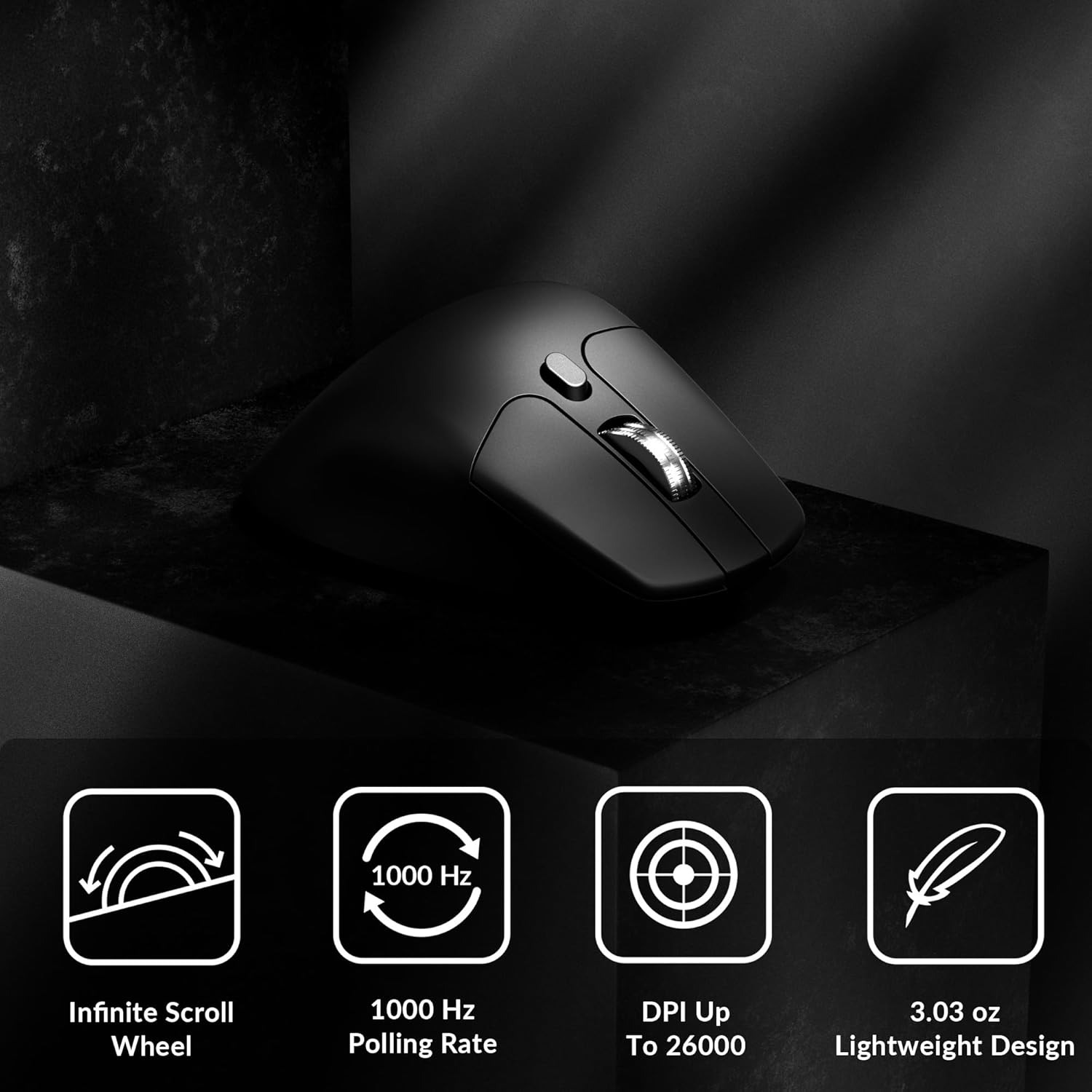
Image: Icons illustrating key features: Infinite Scroll Wheel, 1000 Hz Polling Rate, DPI Up To 26000, and Lightweight Design.
3. セットアップ
3.1 パッケージ内容
パッケージにすべてのアイテムが揃っていることを確認します。
- Keychron M6マウス x 1
- タイプC - タイプCケーブル x 1
- 1xType-A-Type-Cアダプター
- 1x レシーバー用延長アダプター
- タイプC 2.4GHzレシーバー x 1
- 1x Type-A 2.4 GHz レシーバー
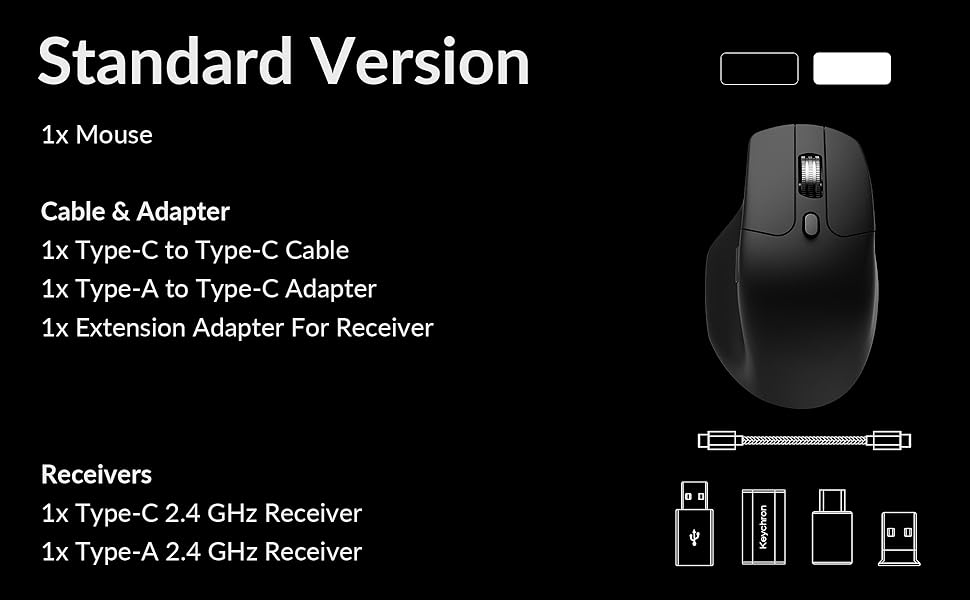
Image: Diagram showing the contents of the Keychron M6 mouse package.
3.2 初期充電
Before first use, it is recommended to fully charge the mouse. Connect the mouse to your computer using the provided Type-C cable. The LED indicator will show charging status.
3.3 マウスの接続
The Keychron M6 supports three connection modes: 2.4GHz wireless, Bluetooth 5.3, and wired.
- 2.4GHzワイヤレス: Insert the 2.4GHz receiver (Type-A or Type-C) into your computer's USB port. Switch the mode switch on the bottom of the mouse to 'G' (Gaming) mode. The mouse should connect automatically.
- Bluetooth 5.3: Switch the mode switch on the bottom of the mouse to 'B' (Bluetooth) mode. On your computer, search for Bluetooth devices and select 'Keychron M6' to pair.
- 有線: Connect the mouse directly to your computer using the provided Type-C cable. The mouse will function in wired mode and charge simultaneously.

Image: Keychron M6 mouse connected to a laptop via 2.4GHz receiver, with Bluetooth 5.3 icon.
4. 操作手順
4.1 基本機能
- 左/右クリック: 標準的なマウス ボタンの機能。
- スクロールホイール: 垂直スクロールに使用されます。
- サイドボタン: Default to Forward/Backward navigation. Customizable via software.
- サムホイール: Located on the side, used for horizontal scrolling.
4.2 DPI調整
The DPI (Dots Per Inch) button on the bottom of the mouse allows you to cycle through preset sensitivity levels. Each level is indicated by a specific LED color. You can customize these DPI levels using the Keychron Engine software.
4.3 ポーリングレートの調整
The polling rate button on the bottom of the mouse allows you to switch between different polling rates (125Hz, 500Hz, 1000Hz). A higher polling rate provides more responsive tracking, ideal for gaming. The LED indicator will change color to reflect the current polling rate.

Image: Close-up of the polling rate switch and indicator light on the mouse's underside.
4.4 Infinite Scroll Mode
The M6 features a button near the main scroll wheel to toggle between infinite scroll mode and tactile (notched) scroll mode. Infinite scroll allows for rapid navigation through long documents or web ページ。

Image: Diagram showing the infinite scroll button and the horizontal scrolling function of the thumb wheel.
5. Customization with Keychron Engine Software
The Keychron Engine software allows for comprehensive customization of your M6 mouse. It is compatible with macOS and Windows and can be accessed online, eliminating the need for a download.
- ボタンの割り当て: Remap any of the mouse buttons to perform different functions, including keyboard shortcuts, multimedia keys, or macros.
- マクロ作成: 複雑なコマンドのシーケンスを記録して、1 つのボタンに割り当てます。
- DPI/Polling Rate/LOD Adjustment: Fine-tune sensor settings to match your preferences.
Keychron の公式サイトにアクセスしてください website to access the Keychron Engine software.

Image: Screenshot of the Keychron Engine software interface, showing button customization options for the M6 mouse.
6. 接続モード
The M6 mouse offers flexible connectivity to suit various setups:
- 2.4GHzワイヤレス: Provides a stable, low-latency connection with a 1000Hz polling rate, ideal for gaming and demanding tasks. Uses a dedicated USB receiver.
- Bluetooth 5.3: Offers seamless connection to multiple devices, allowing for quick switching between systems. Suitable for general use and productivity.
- 有線(USB-C): Connects directly via the USB-C cable, providing a reliable connection and simultaneously charging the mouse.
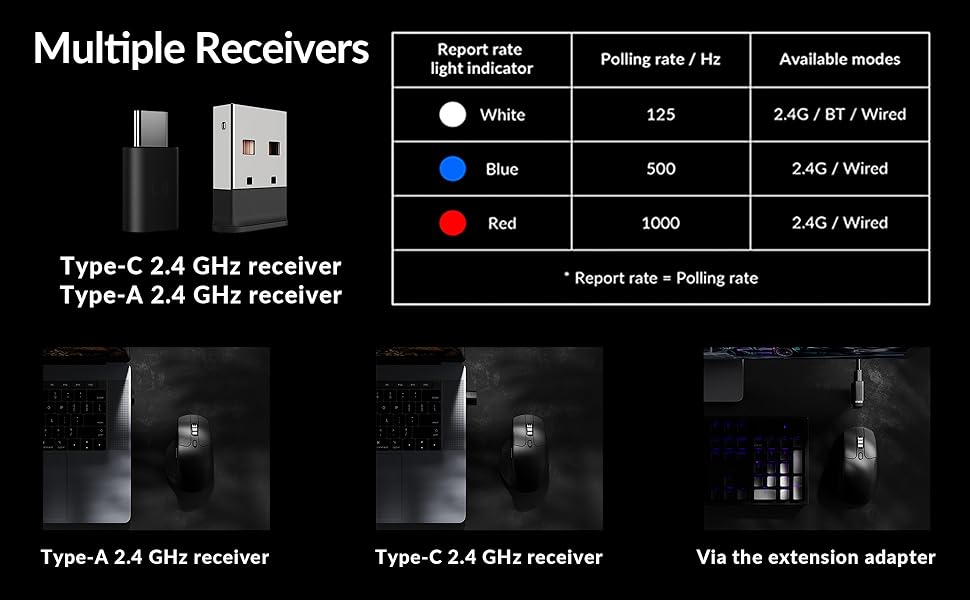
Image: Illustration of the Type-C and Type-A 2.4 GHz receivers, along with a table detailing polling rates and available modes.
7. 仕様
| モデル番号 | M6S |
| センサー | PixArt3395光学センサー |
| 解像度 | 最大26,000 |
| IPSトラッキング速度 | 650 |
| ポーリングレート | 1000Hz (2.4GHz/Wired), 125Hz (Bluetooth) |
| 接続性 | 2.4GHzワイヤレス、Bluetooth 5.3、USB-C有線 |
| 重さ | 86g(3.03オンス) |
| バッテリー | 800 mAh (Up to 80 hours) |
| スイッチ | Huano 20M Silent Micro Switch |
| 互換性 | Windows、macOS、Linux 対応 |
| 寸法 | 4.82 x 2.97 x 1.97 インチ (122.5 x 75.4 x 50 mm) |
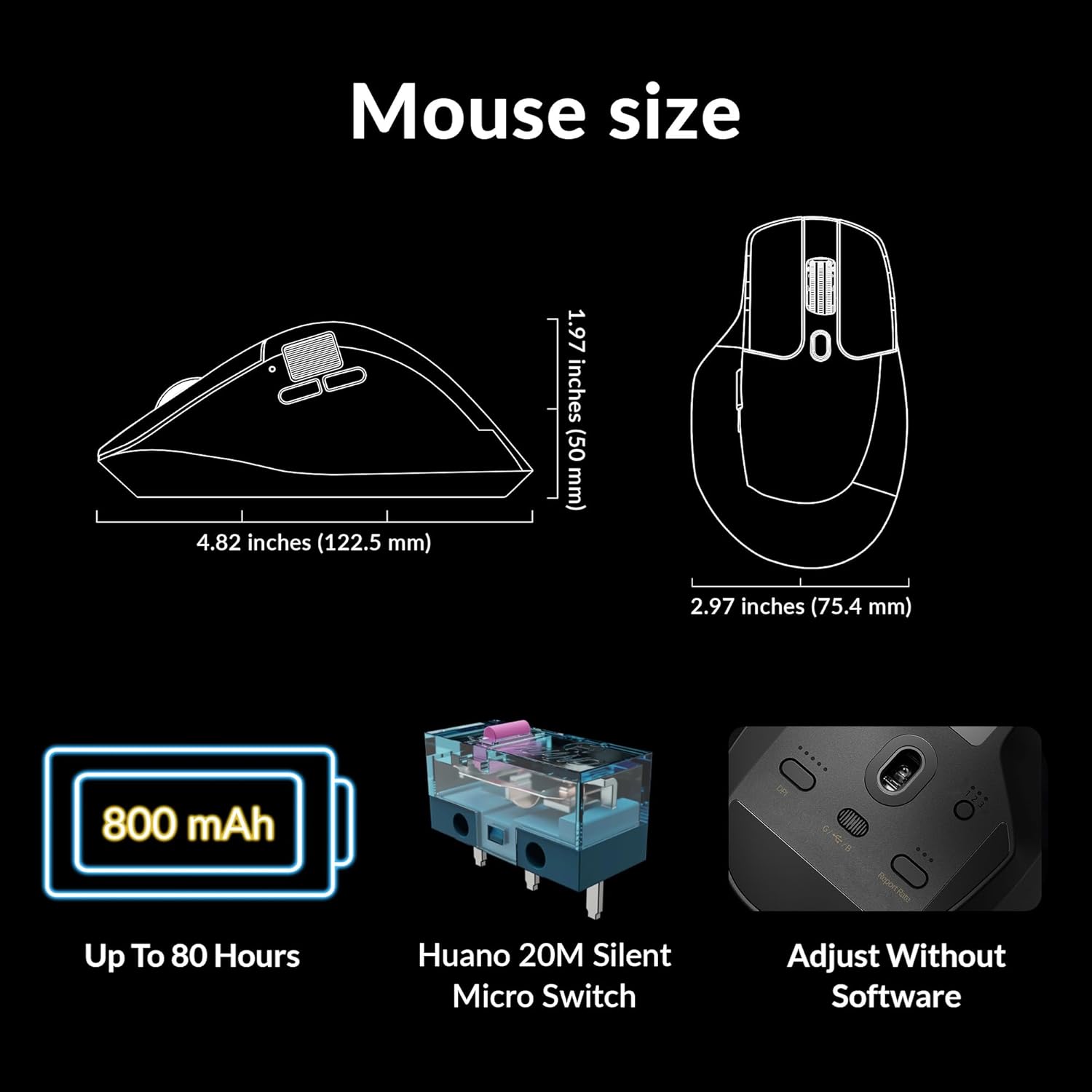
Image: Diagram showing the dimensions of the Keychron M6 mouse, its 800 mAh battery, and Huano 20M Silent Micro Switches.
8. メンテナンス
To ensure the longevity and optimal performance of your Keychron M6 mouse, follow these maintenance guidelines:
- クリーニング: マウスの表面を拭くときは、柔らかく乾いた布を使用してください。頑固な汚れには、軽くamp布を水または中性洗剤で拭いてください。刺激の強い化学薬品は避けてください。
- センサーのケア: 正確なトラッキングを確保するために、マウスの底面にある光学センサーを清潔に保ち、ほこりやごみを除去してください。
- バッテリーのケア: バッテリーを頻繁に完全に放電することは避けてください。長期保管する場合は、マウスを約50%まで充電し、涼しく乾燥した場所に保管してください。
- ストレージ: When not in use, store the mouse in a safe place to prevent physical damage.
9。 トラブルシューティング
Keychron M6 マウスで問題が発生した場合は、次の一般的な解決策を参照してください。
- マウスが反応しない:
- マウスが充電されていることを確認してください。
- Check the connection mode switch (2.4GHz, Bluetooth, Wired) is set correctly.
- For 2.4GHz, ensure the receiver is properly inserted and try a different USB port.
- For Bluetooth, re-pair the device in your computer's Bluetooth settings.
- ワイヤレスの問題を排除するために、USB-C ケーブル経由で接続してみてください。
- 一貫性のない追跡:
- マウスの底面にある光学センサーを清掃します。
- マウスを適切な表面 (マウス パッドなど) で使用していることを確認してください。
- DPI 設定を快適なレベルに調整します。
- ボタンが機能しない:
- Check Keychron Engine software for custom button assignments that might be interfering.
- マウスのファームウェアが最新であることを確認してください。
- スクロールホイールの問題:
- Toggle the infinite scroll button to ensure it's in the desired mode.
- スクロールホイールの周りのゴミを掃除します。
10. 公式製品ビデオ
ビデオ: 当局者がview of the Keychron M6 Silent Wireless Optical Gaming Mouse, highlighting its features and design.
11. 保証とサポート
Keychron products come with a limited warranty. For detailed warranty information, technical support, and frequently asked questions, please visit the official Keychron web購入サイトをご覧いただくか、カスタマーサービスまでお問い合わせください。保証請求のために購入証明書を保管してください。