1. はじめに
This manual provides essential information for the safe and efficient operation of your xTool F2 Ultra Laser Engraver. Please read this manual thoroughly before using the device to ensure proper setup, operation, and maintenance. The xTool F2 Ultra is a versatile dual-laser system, combining a 60W MOPA fiber laser and a 40W diode laser for engraving and cutting a wide range of materials.
2. 安全情報
The xTool F2 Ultra is a Class 4 laser engraver. Adherence to safety guidelines is crucial to prevent injury and damage. Always operate the machine in a well-ventilated area and wear appropriate personal protective equipment (PPE), including laser safety glasses. Never look directly into the laser beam. Ensure the machine's enclosure is closed during operation to prevent laser leakage.
- 目の保護: Always wear certified laser safety glasses when the machine is operating.
- 換気: Operate in a well-ventilated space to dissipate fumes and particles.
- 囲い: Keep the machine's fully enclosed design closed during operation.
- 材料の適合性: Only engrave or cut materials approved for laser processing. Avoid highly reflective or flammable materials without proper precautions.
- 緊急停止: 緊急停止ボタンの位置を把握しておいてください。
3. セットアップと組み立て
This section outlines the steps for setting up your xTool F2 Ultra laser engraver. Ensure all components are present before beginning assembly.
3.1 開梱
Carefully remove all components from the packaging. Verify that all items listed in the packing list are included. Retain packaging for future transport or storage.
3.2 コンポーネントの識別
Identify the main unit, power adapter, USB cable, and any included accessories such as the conveyor module (if applicable).
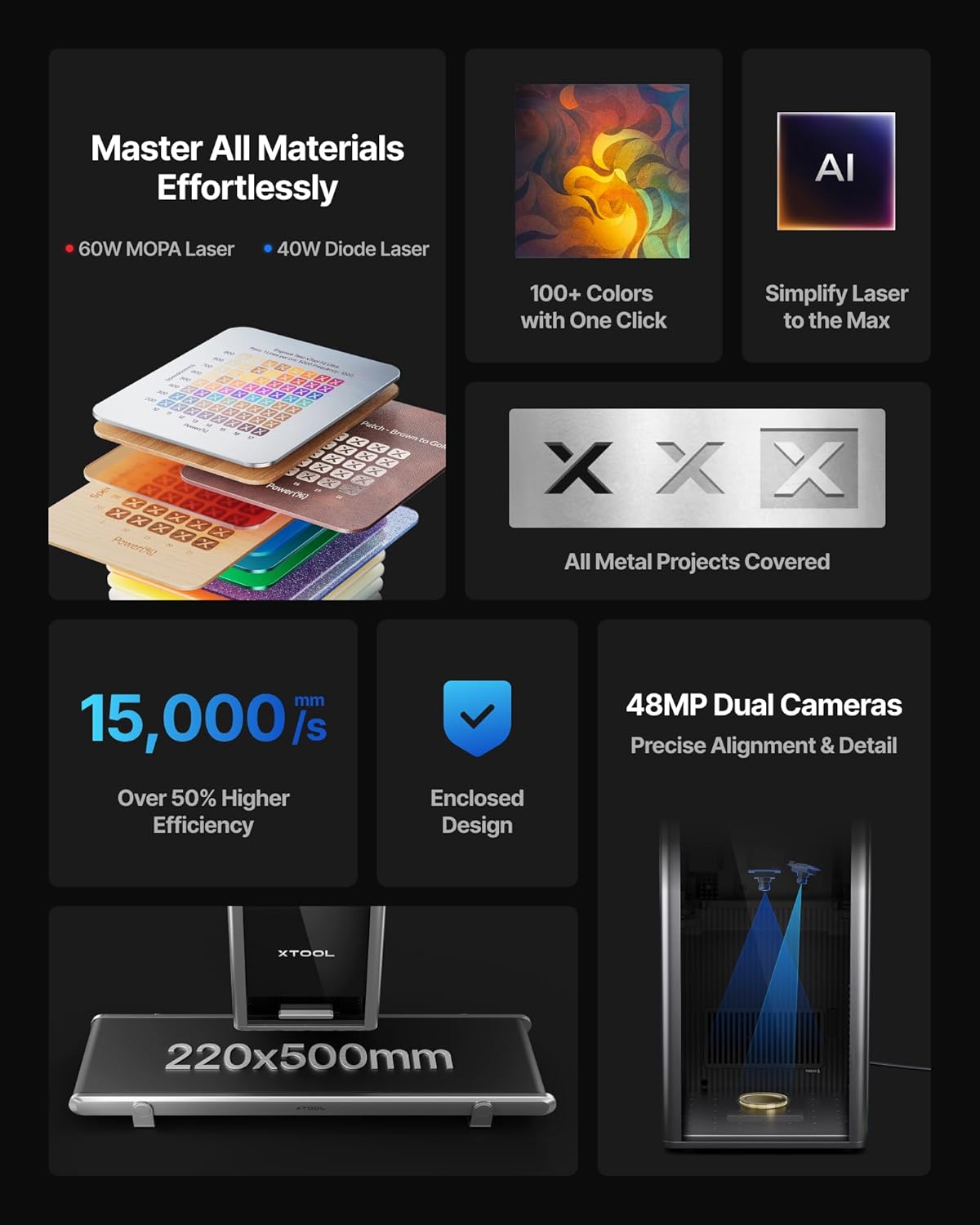
Image: xTool F2 Ultra main unit with various accessories. This image shows the compact design of the engraver and its accompanying parts.
3.3 電源とデータの接続
- 電源アダプタを彫刻機に接続し、適切な電源コンセントに接続します。
- 付属の USB ケーブルを使用して彫刻機をコンピューターに接続します。
3.4 ソフトウェアのインストール
公式xToolから最新バージョンのxToolソフトウェアをダウンロードしてインストールします。 webサイトにアクセスしてください。画面の指示に従ってインストールしてください。
ソフトウェアのダウンロードと詳細な手順については、次の Web サイトをご覧ください。 https://s.xtool.com/mt/985
4. 操作手順
This section details the steps for operating your xTool F2 Ultra for engraving and cutting tasks.
4.1 材料の準備
Place the material to be processed onto the working platform. Ensure it is flat and securely positioned. The dual 48MP AI cameras assist with precise positioning.

Image: Illustration of the xTool F2 Ultra's dual 48MP cameras providing precise alignment and detail for engraving.
4.2 ソフトウェアワークフロー
- Open the xTool software and import your design.
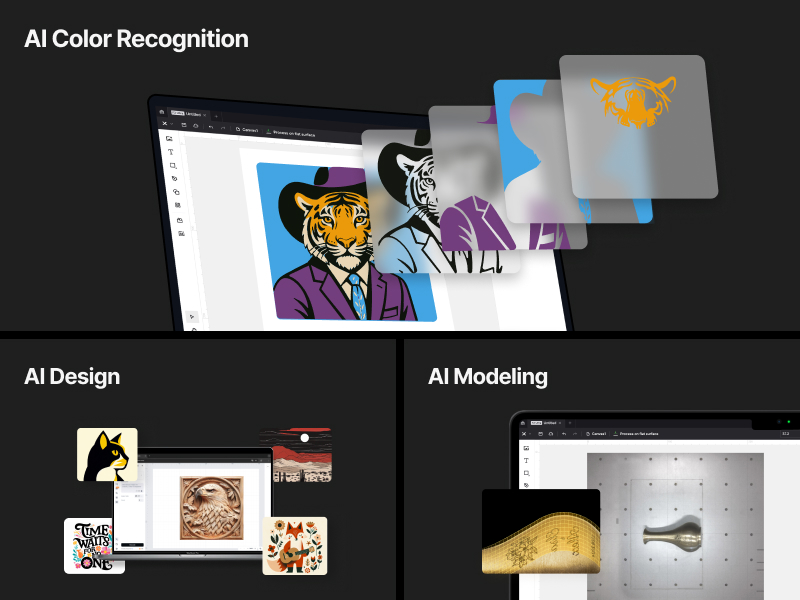
- The AI system can auto-detect materials and suggest optimal settings. Verify or adjust these settings as needed.
- Use the one-click focus and preview function to ensure accurate placement and desired outcome.
- Select the appropriate laser (60W MOPA for metals, 40W Diode for other materials) based on your project requirements.
- 彫刻または切断工程を開始します。作業を注意深く監視してください。

Image: Screenshot of the xTool software interface demonstrating AI-powered material detection and suggested settings.
4.3 Using the Conveyor Module (Optional)
For automated batch processing and larger materials, attach the conveyor module. This expands the working area from 8.7"x 8.7" to 8.7" x 19.7".

Image: Comparison of the xTool F2 Ultra's working area, illustrating the standard 220x220mm area and the expanded 220x500mm area with the conveyor module.
4.4 Laser Capabilities
- 60W MOPAファイバーレーザー: Ideal for all metals, including 3D embossing, deep engraving, color engraving (100+ colors), and cutting up to 2mm metal. Also supports black marking on aluminum, laser cleaning, and thin metal welding.
- 40Wダイオードレーザー: Suitable for non-metal materials such as wood, acrylic (up to 20mm cut), leather, glass, rubber, and fabric (up to 23mm wood cut).
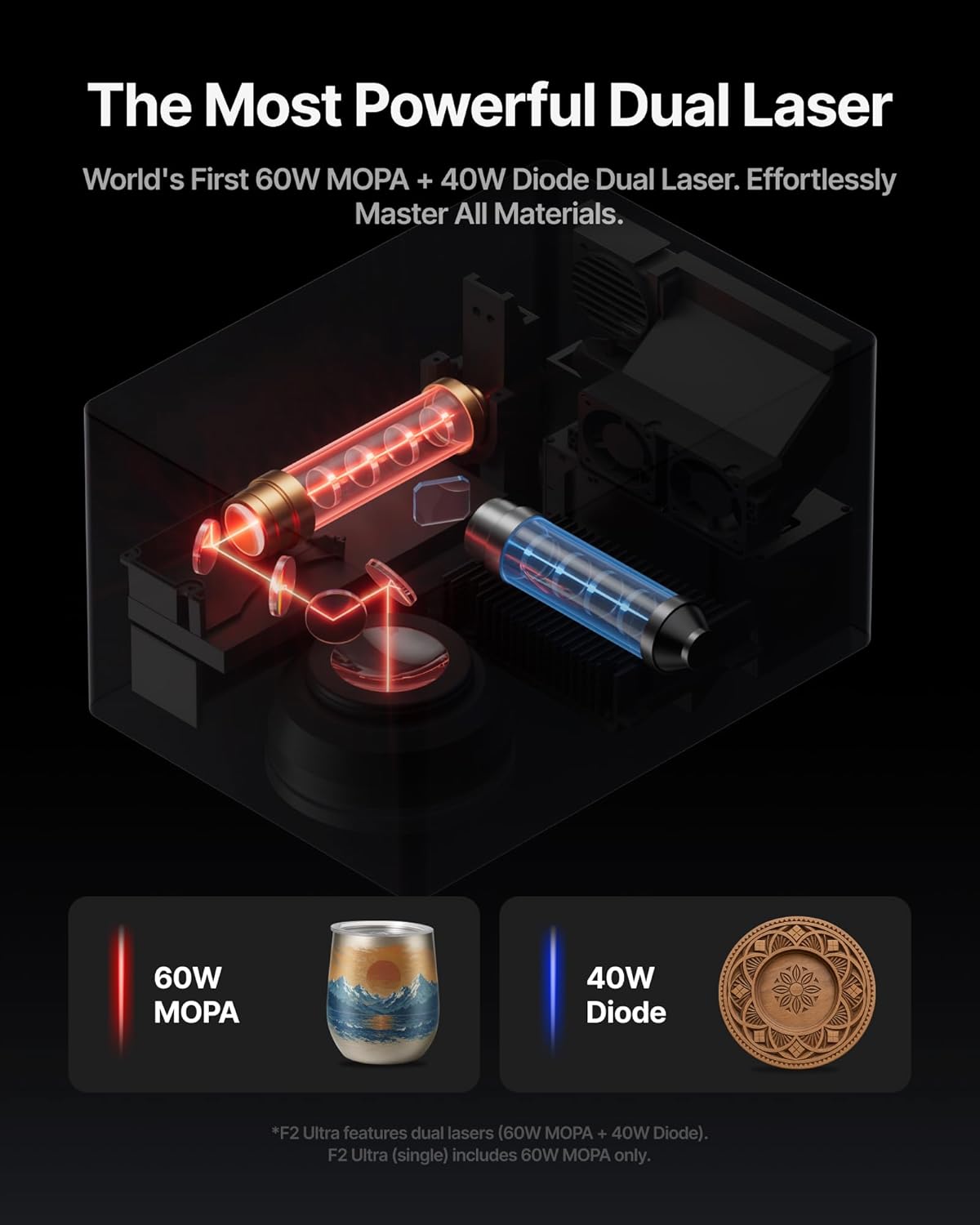
Image: An internal diagram illustrating the dual laser system of the xTool F2 Ultra, highlighting the 60W MOPA and 40W Diode lasers.
画像: Examples of various metal engraving techniques possible with the MOPA laser, including color engraving, deep engraving, and embossing.
Video: A demonstration of the xTool F2 Ultra laser engraver in action, showing the engraving process on wood and cutting on leather, followed by a heat press application.
5. メンテナンス
Regular maintenance ensures the longevity and optimal performance of your xTool F2 Ultra.
- レンズの掃除: レーザーの精度を維持するために、柔らかく糸くずの出ない布とレンズ洗浄液を使用して、レーザー レンズを定期的に清掃してください。
- ほこりの除去: Use a soft brush or compressed air to remove dust and debris from the interior and exterior of the machine.
- 換気システム: Ensure the ventilation system is clear of obstructions to maintain proper airflow.
- ファームウェアの更新: Regularly check for and install firmware updates for improved functionality and performance.
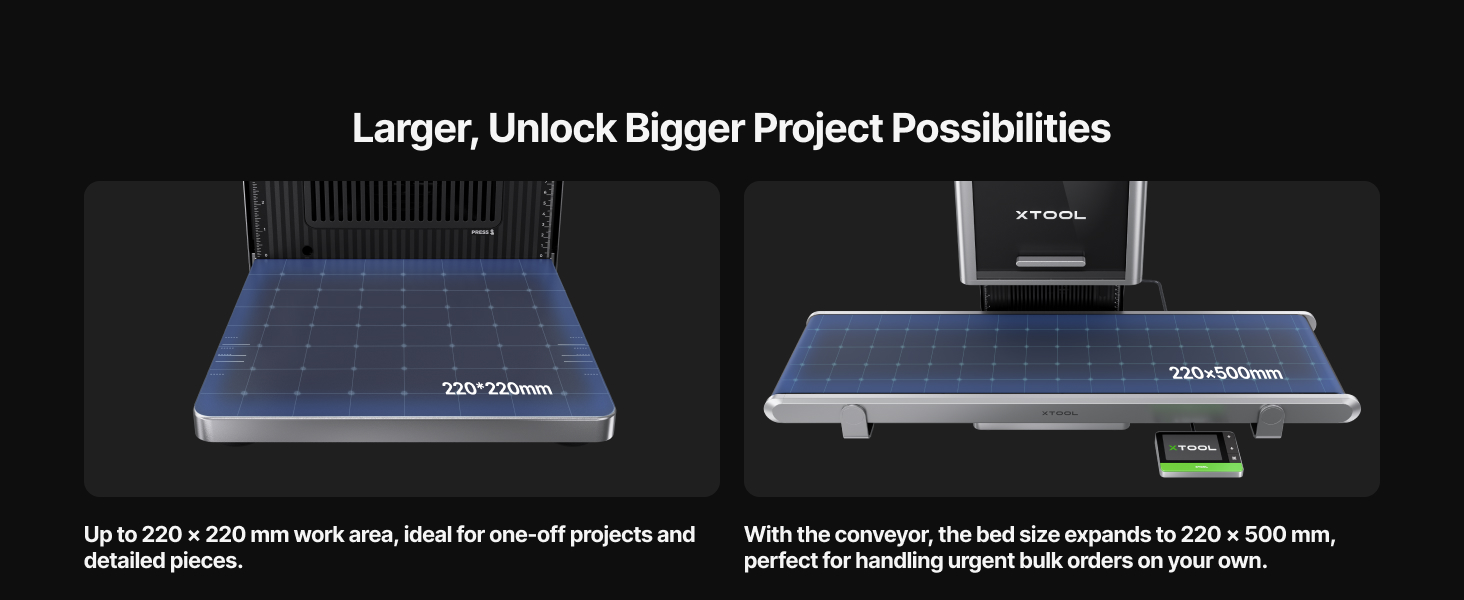
Image: Diagram highlighting the safety features and design elements of the xTool F2 Ultra, including its fully enclosed design and safety sensor.
6。 トラブルシューティング
このセクションでは、発生する可能性のある一般的な問題に対する解決策を示します。
| 問題 | 考えられる原因 | 解決 |
|---|---|---|
| レーザーが発射されない | 電源ケーブルが緩んでいる、緊急停止が作動している、ソフトウェア エラー。 | Check power connections, disengage emergency stop, restart software and machine. |
| 彫刻の品質が悪い | Incorrect focus, dirty lens, unsuitable material settings. | Perform one-click focus, clean the laser lens, adjust material settings in software. |
| マシンがコンピューターに接続されない | USB ケーブルの問題、ドライバーがインストールされていない、ソフトウェアが競合している。 | Try a different USB port/cable, reinstall drivers, ensure no other software is interfering. |
7. 仕様
| 特徴 | 詳細 |
|---|---|
| レーザータイプ | 60W MOPA Fiber Laser & 40W Diode Laser |
| 彫刻速度 | 最大15,000mm/s |
| カメラ | デュアル48MP AIカメラ |
| 位置決め精度 | 0.2mm |
| Working Area (Standard) | 8.7インチ x 8.7インチ (220mm x 220mm) |
| Working Area (with Conveyor) | 8.7インチ x 19.7インチ (220mm x 500mm) |
| Metal Cutting Capability | Up to 2mm metal (with 60W MOPA) |
| Acrylic Cutting Capability | Up to 20mm acrylic (with 40W Diode) |
| Wood Cutting Capability | Up to 23mm wood (with 40W Diode) |
| 安全クラス | クラス4レーザー製品 |
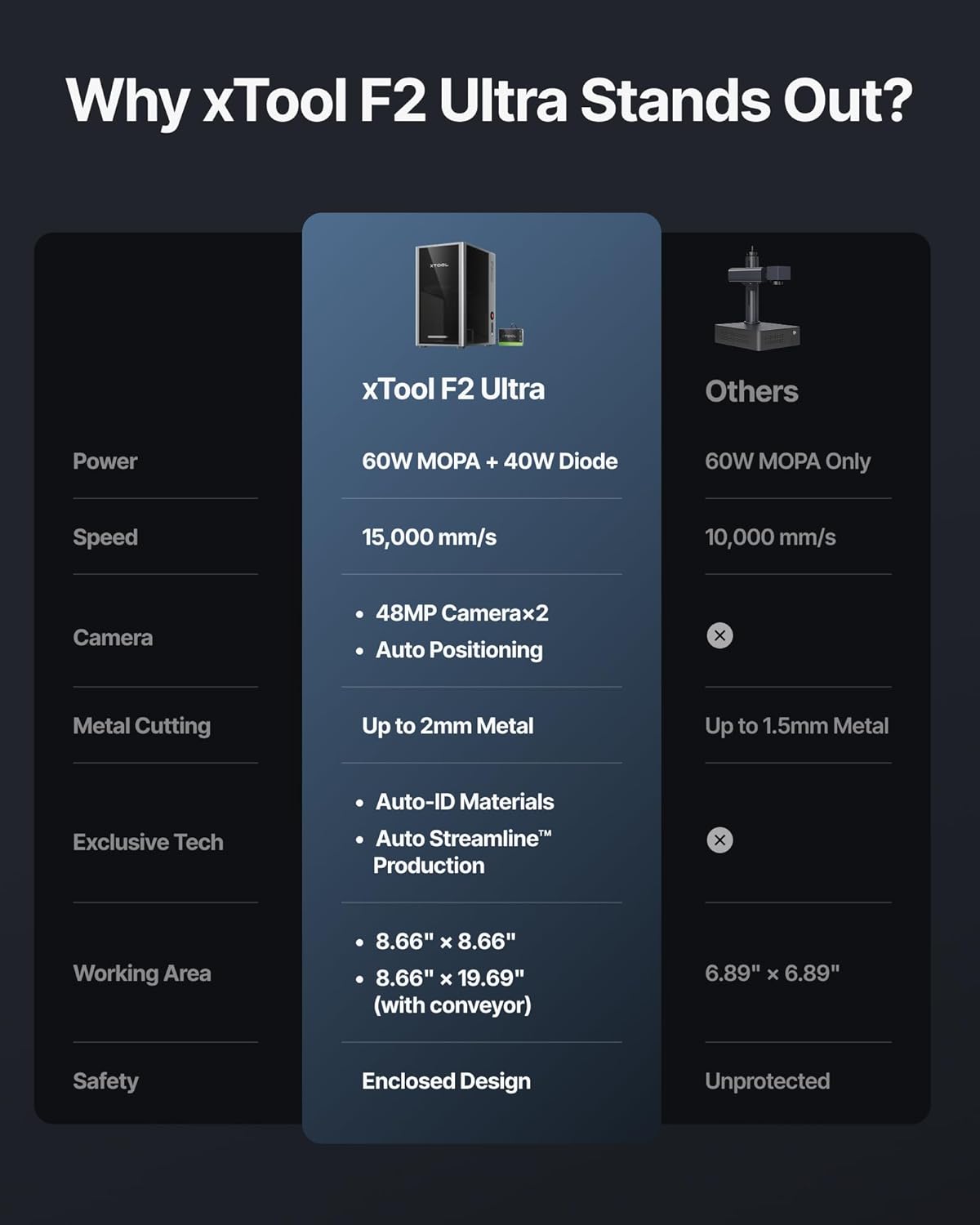
Image: A comparison table highlighting the key features and specifications of the xTool F2 Ultra against other laser engravers, detailing power, speed, camera, metal cutting, exclusive tech, working area, and safety.
8. 保証情報
For detailed warranty information, please refer to the official xTool website or the warranty card included with your product. Typically, xTool products come with a limited warranty covering manufacturing defects for a specified period from the date of purchase. Keep your proof of purchase for warranty claims.
9. カスタマーサポート
If you require technical assistance, have questions about your xTool F2 Ultra, or need to report an issue, please contact xTool customer support through their official website. Provide your product model and serial number for faster service.
- オンラインサポート: Visit the xTool official webFAQ、チュートリアル、お問い合わせフォームのサイト。
- コミュニティフォーラム: Engage with other xTool users for tips and solutions.