
1. はじめに
Thank you for choosing the Pisichen 24 inch Touch Screen Gaming Monitor. This manual provides essential information for setting up, operating, and maintaining your monitor. Please read it thoroughly before use to ensure optimal performance and safety.
This monitor features a 24-inch QHD (2560x1440P) display with a 165Hz refresh rate, 2ms response time, and 10-point projected capacitive touchscreen functionality. It supports FreeSync and HDR, offering a vibrant and responsive visual experience for both gaming and professional applications.

Image: The Pisichen 24-inch 2K 165Hz Touch Screen Monitor highlighting its key features like HDR, IPS Panel, and 10-point Touch.
2. パッケージ内容
セットアップを続行する前に、パッケージにすべてのコンポーネントが含まれていることを確認してください。
- Pisichen 24 inch Touch Screen Monitor
- モニタースタンド(ベースとネック)
- DPケーブル
- HDMIケーブル
- USB B Touch Cable
- USBCCケーブル
- DC電源アダプター
- ユーザーマニュアル(このドキュメント)
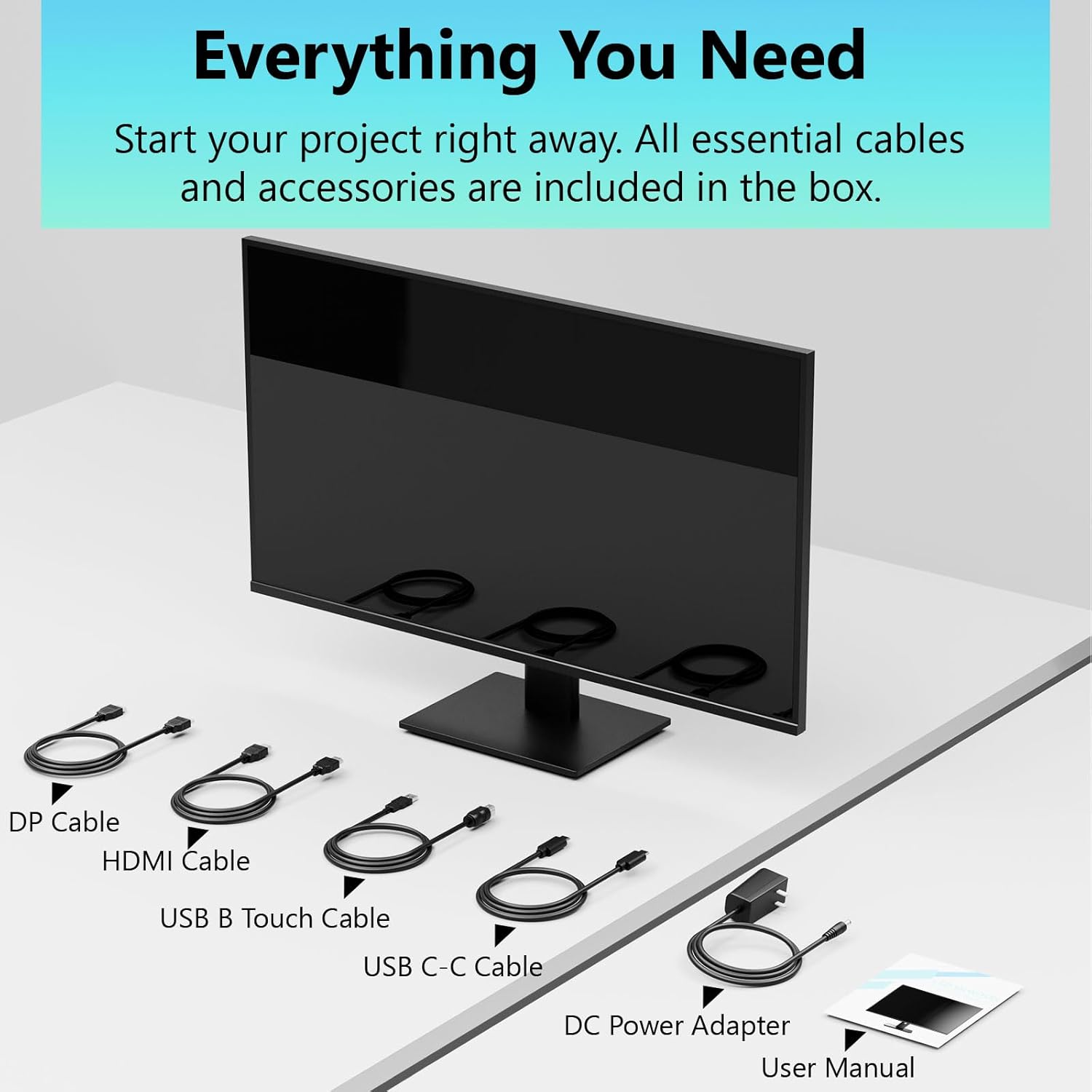
Image: All essential cables and accessories included in the box for the monitor setup.
3. セットアップ手順
3.1 スタンドの組み立て
- モニターをパッケージから慎重に取り出し、傷がつかないように柔らかく清潔な表面に画面を下にして置きます。
- スタンドネックをモニターの背面パネルに取り付けます。
- 付属のネジを使用してスタンドベースをスタンドネックに固定します。
- モニターを立てる前に、すべての接続がしっかり固定されていることを確認してください。
3.2 VESAマウントの取り付け(オプション)
This monitor supports VESA mounting. If you plan to use a VESA-compatible arm or wall mount, remove the stand and attach the VESA mount according to the mount's instructions. The VESA pattern is typically 75x75mm or 100x100mm (refer to specifications for exact details).
3.3 デバイスへの接続
モニターには複数の接続オプションがあります。
- HDMI: HDMI ケーブルの一方の端をモニターの HDMI ポートに接続し、もう一方の端をコンピューターの HDMI 出力に接続します。
- ディスプレイポート (DP): Connect one end of the DP cable to the monitor's DP port and the other end to your computer's DP output.
- USBタイプC: For compatible devices, connect the USB C-C cable to the monitor's USB Type-C port and your device's USB Type-C port. This single cable can transmit video, data, and power (charging).
- USB Type-B (for Touch Functionality): To enable the touch screen feature, connect the USB B Touch Cable from the monitor's USB Type-B port to an available USB Type-A port on your computer.

Image: The monitor's rear panel with various connectivity options, including HDMI, DisplayPort, and USB-C ports.
3.4電源接続
Connect the DC Power Adapter to the monitor's power input port, then plug the adapter into a power outlet.
3.5 Initial Power On and Touch Compatibility
Press the power button on the monitor. The display should light up. If no image appears, ensure all cables are securely connected and the correct input source is selected on the monitor (via the OSD menu).
For touch functionality, ensure the USB B Touch Cable is connected to your computer. Touch compatibility may vary by operating system and device. Most Windows PCs support multi-touch. For Mac devices, single-touch click is generally supported, but multi-touch may require specific drivers or configurations. Game consoles (PS3/4/5, Xbox, Steam Deck) and some other devices (Fire TV, Apple products like iPhone/iPad) typically do not support touch functionality.

Image: A compatibility chart illustrating which devices support multi-touch or single-touch, and which devices do not support touch functionality with the monitor.
4. 操作手順
4.1 電源オン/オフ
モニターの電源ボタンを押すと、電源のオン/オフを切り替えることができます。電源インジケーターライトでモニターの状態を確認できます。
4.2 オンスクリーンディスプレイ(OSD)メニュー
The OSD menu allows you to adjust various monitor settings. Use the control buttons (usually located on the back or bottom of the monitor) to navigate the menu. Common menu options include:
- 画像設定: 明るさ、コントラスト、シャープネス、色温度、HDR モード。
- ディスプレイの設定: Aspect Ratio, Input Source selection (HDMI, DP, USB-C).
- ゲーム設定: FreeSync, Response Time (Overdrive), Crosshair.
- オーディオ設定: Volume (if internal speakers or audio output are present).
- システム設定: 言語、OSD の透明度、工場出荷時の設定にリセット。
4.3 タッチスクリーン機能
The monitor supports 10-point multi-touch, allowing for intuitive interaction directly on the screen. Ensure the USB B Touch Cable is connected to your computer for this feature to work.
- シングルタップ: 左クリックに相当します。
- タップ&ホールド: 右クリックに相当します。
- ピンチしてズーム: 2 本の指を使って拡大または縮小します。
- スワイプ: Navigate through content or scroll.

Image: A user interacting with the monitor's touch screen, highlighting its precision and responsiveness for creative tasks.
4.4 人間工学的調整
The monitor stand allows for tilt adjustments to achieve the most comfortable viewing and touch angle. Gently adjust the screen to your preferred position.
4.5 アイケア機能
The monitor includes advanced eye-comfort features such as Flicker-Free technology and Low Bluelight mode to reduce eye strain during prolonged use. These settings can typically be adjusted within the OSD menu.

Image: Visual representation of the monitor's advanced eye-comfort features, including Flicker-Free and Low Bluelight technologies.
5. メンテナンス
5.1 モニターの掃除
- 清掃する前に必ずモニターの電源をオフにし、電源コードを抜いてください。
- 柔らかく糸くずの出ない布を軽く拭いてください。amp水または、研磨剤を含まない低刺激のスクリーンクリーナーで拭いてください。
- クリーナーを画面に直接スプレーしないでください。まず布にクリーナーを塗布してください。
- ベンゼン、シンナー、アンモニアベースのクリーナー、研磨剤は画面の表面を傷つける可能性があるため、使用しないでください。
5.2 ストレージ
When storing the monitor for an extended period, ensure it is powered off, unplugged, and stored in a cool, dry place away from direct sunlight and extreme temperatures. Use the original packaging if available for best protection.
6。 トラブルシューティング
モニターに問題が発生した場合は、次の一般的なトラブルシューティング手順を参照してください。
- 電源なし: 電源アダプターがモニターと電源コンセントの両方にしっかりと接続されていることを確認してください。電源インジケーターランプが点灯しているかどうかを確認してください。
- 画像/信号なし:
- Verify that the video cable (HDMI, DP, or USB-C) is securely connected to both the monitor and your computer.
- モニターの OSD メニューで正しい入力ソースが選択されていることを確認します。
- コンピューターのディスプレイ設定をチェックして、モニターが検出され有効になっていることを確認します。
- タッチ機能なし:
- Confirm the USB B Touch Cable is connected from the monitor to your computer.
- Check your computer's device manager to see if the touch screen driver is installed and functioning correctly.
- Refer to the "Initial Power On and Touch Compatibility" section for device-specific limitations.
- 画像のちらつきや歪み:
- ビデオ ケーブルに損傷や接続の緩みがないか確認してください。
- 別のビデオ ケーブルまたはポートを試してください。
- コンピュータのディスプレイ設定でリフレッシュ レートを調整します。
- デッドピクセル: 少数の明るいピクセルや暗いピクセルは LCD/LED 技術では一般的であり、メーカーの仕様を超えない限り、欠陥とはみなされません。
これらの手順を試しても問題が解決しない場合は、カスタマー サポートにお問い合わせください。
7. 仕様
| 特徴 | 仕様 |
|---|---|
| ブランド | ピシチェン |
| モデル番号 | 24IN165HZ-QHD |
| 画面サイズ | 23.8インチ |
| 解決 | QHDワイド1440p(2560×1440) |
| アスペクト比 | 16:9 |
| リフレッシュレート | 165Hz |
| 応答時間 | 2ミリ秒 |
| 表示タイプ | LED IPS |
| 輝度 | 400カンデラ(cd/m²) |
| コントラスト比 | 3000:1 |
| View角度 | 178度 |
| 色域 | 99% |
| Picture Quality Enhancement | 高解像度 |
| アダプティブ同期 | フリーシンク |
| 接続技術 | DisplayPort, HDMI, USB Type-C, USB Type-B |
| 追加機能 | Tilt Adjustment, 10-Point Touchscreen |
| 商品の寸法(奥行き x 幅 x 高さ) | 奥行き0.75インチ x 幅21.5インチ x 高さ12.7インチ |
| アイテム重量 | 5.38キログラム |
| 色 | 黒 |
8. 保証情報
This product comes with a 1-year limited warranty from the date of purchase. The warranty covers manufacturing defects and workmanship under normal use. It does not cover damage caused by misuse, accidents, unauthorized modifications, or external factors. Please retain your proof of purchase for warranty claims.
9. カスタマーサポート
For technical assistance, warranty claims, or further inquiries, please contact Pisichen customer support. You may find contact information on the official Pisichen webサイトまたは小売店を通じてご購入いただけます。
追加のリソースと製品情報については、 Pisichen Store on Amazon.