
1. はじめに
This manual provides essential information for the NIMO 15.6" Gaming Laptop (Model N159). It covers product features, setup procedures, operating instructions, maintenance guidelines, troubleshooting tips, and detailed specifications. Please read this manual thoroughly before using your new laptop to ensure optimal performance and longevity.

Image: The NIMO 15.6" Gaming Laptop, showcasing its display and key features like fingerprint unlock, Type-C PD charger, and backlit keyboard.
2. 箱の中身
パッケージ内のすべてのアイテムが揃っていることを確認します。
- 1 x NIMO N159 Laptop
- 1 x Type-C 100W PD Fast Charger
- ユーザーマニュアル (本書) x 1
- Windows 11 Home Operating System (pre-installed)
- Warranty Information (2 Years Warranty, 90 Days Return)
3.製品オーバーview
3.1 主な特徴
- プロセッサ: AMD Ryzen 7 7735HS(8コア、16スレッド、最大4.75GHz)
- グラフィック: Integrated AMD Radeon 680M GPU
- 画面: 15.6" Full HD (1920x1080) IPS Anti-Glare Display
- メモリ: 16GB DDR5 RAM(アップグレード可能)
- ストレージ: 1TB PCIe 4.0 SSD (upgradeable)
- 充電: 100W Type-C PD Fast Charger
- 安全: Fingerprint Reader for secure unlock
- キーボード: バックライト付きキーボード(テンキー付き)
- オーディオ: Dual 2W stereo speakers, dual beamforming microphones
- Webカム: 2MP with physical camera shutter
- オペレーティング·システム: Windows 11 ホーム

Image: An illustration detailing the AMD Ryzen 7 7735HS processor, highlighting its 8 cores, 16 threads, and integrated Radeon 680M graphics for balanced performance.
3.2 ポートとコネクタ
Familiarize yourself with the available ports on your NIMO laptop:

Image: A detailed diagram illustrating the location and type of ports on the NIMO laptop, including USB 2.0, USB 3.2 Gen1, Type-C Gen2 (multifunction), HDMI 2.0, Audio Jack, Micro SD Reader, and Kensington Lock.
- USB 2.0ポート: 古い USB デバイスを接続するために使用します。
- USB 3.2 Gen1 ポート (x4): 互換性のある USB デバイスとの高速データ転送用。
- Type-C Gen2 Ports (x2, Multifunction): Supports data transfer, video output, and power delivery (100W PD fast charging).
- HDMI 2.0 ポート: 外部ディスプレイやテレビに接続します。
- オーディオジャック: ヘッドホンや外部スピーカーを接続します。
- マイクロSDリーダー: Micro SD メモリ カードの読み取り用。
- ケンジントンロックスロット: 互換性のあるロックを使用してラップトップを保護します。
4. セットアップ
4.1初期電源オン
- ノートパソコンとすべての付属品を箱から取り出します。
- Connect the 100W Type-C PD Fast Charger to one of the Type-C ports on the laptop and then to a power outlet.
- ノートパソコンのカバーを開けます。ノートパソコンは自動的に電源が入る場合もありますが、電源ボタンを押さなければならない場合もあります。
- 画面上の指示に従って、言語の選択、ネットワーク接続、ユーザー アカウントの作成などの Windows 11 Home のセットアップを完了します。
4.2 バッテリーの充電
Before first use, it is recommended to fully charge the laptop battery. The 100W Type-C PD Fast Charger can provide approximately 5 hours of usage time with just 1 hour of charging.

Image: A visual representation of the 100W Type-C lightning-fast charger connected to the NIMO laptop, demonstrating its ability to charge quickly and efficiently.
5. 操作手順
5.1 電源のオン/オフとスリープモード
- 電源オン: キーボードにある電源ボタンを押します。
- 電源を切る: Windows の [スタート] ボタンをクリックし、[電源] > [シャットダウン] を選択します。
- スリープモード: [スタート] ボタンをクリックし、[電源] > [スリープ] を選択するか、ラップトップのカバーを閉じます。
5.2 指紋ロック解除の使用
The fingerprint reader is integrated into the touchpad for quick and secure access.
- During Windows setup or later in Windows Settings, configure your fingerprint for login.
- To unlock, simply place your registered finger on the fingerprint reader on the touchpad.
5.3 Adjusting the Backlit Keyboard
The keyboard backlight can be adjusted for comfortable typing in various lighting conditions.

Image: A visual guide demonstrating the fingerprint unlock feature on the touchpad and the functionality of the backlit keyboard, including how to cycle through brightness settings using the F9 key.
- を押す F9 key to cycle through backlight settings:
- 1 Tap: Light (Temporary)
- 2 Taps: Light (Temporary)
- 3 Taps: Light (Constant)
- 4 Taps: Off
5.4を使用して Webカメラシャッター
For privacy, the laptop includes a physical camera shutter.
- Slide the shutter to the left to open the camera.
- Slide the shutter to the right to close and cover the camera lens.

Image: A visual guide demonstrating the physical camera shutter, showing both the 'Camera Open' and 'Camera Close' statuses for enhanced privacy.
6. メンテナンス
6.1 ノートパソコンのクリーニング
- 清掃する前に必ずノートパソコンの電源をオフにし、充電器を外してください。
- 柔らかく糸くずの出ない布で軽く拭き取ってください。amp水またはディスプレイ用スクリーンクリーナーで拭いてください。
- キーボードとシャーシのお手入れには、柔らかく乾いた布をご使用ください。刺激の強い化学薬品や研磨剤は使用しないでください。
- 定期的に圧縮空気を使用して通気口のほこりを除去してください。
6.2バッテリーケア
- バッテリーを頻繁に完全に放電することは避けてください。
- 長期間使用しない場合は、ノートパソコンを涼しく乾燥した場所に保管してください。
- ノートパソコンを極端な温度にさらさないでください。
6.3ソフトウェアアップデート
最適なパフォーマンスとセキュリティを確保するために、オペレーティング システムとドライバーの更新を定期的に確認してインストールしてください。
7。 トラブルシューティング
| 問題 | 考えられる原因 | 解決 |
|---|---|---|
| ノートパソコンの電源が入りません。 | バッテリー残量が少ないか、電源アダプターに問題があります。 | Connect the charger and wait a few minutes before attempting to power on. Ensure the charger is properly connected to both the laptop and the power outlet. |
| 画面が空白または黒になります。 | ラップトップがスリープ モードになっている、ディスプレイ設定に問題がある、またはハードウェアに問題がある。 | Press any key or the power button to wake from sleep. Try connecting an external monitor to check if the display output works. Restart the laptop. |
| キーボードのバックライトが機能しません。 | Backlight turned off or at lowest setting. | を押す F9 key repeatedly to cycle through brightness levels and turn on the backlight. |
| Fingerprint unlock not working. | Finger not properly placed, or sensor issue. | Ensure your finger is clean and dry and covers the sensor completely. Re-register your fingerprint in Windows Settings if the issue persists. |
| パフォーマンスが遅い。 | Too many applications running, insufficient storage, or outdated drivers. | Close unnecessary applications. Check available storage space. Update Windows and device drivers. |
If you encounter issues not listed here or require further assistance, please contact NIMO customer support.
8. 仕様
| ブランド | NIMO |
| モデル名 | ニモN159B |
| 画面サイズ | 15.6インチ |
| 画面解像度 | 1920 x 1080 ピクセル (FHD IPS) |
| プロセッサ | AMD Ryzen 7 7735HS (8 Cores, 4.75 GHz Max Turbo) |
| ラム | 16 GB DDR5 (4800 MHz) |
| ハードドライブ | 1024 GB SSD (PCIe 4.0) |
| グラフィックスコプロセッサ | AMD Radeon 680M(統合型) |
| オペレーティング·システム | Windows 11 ホーム |
| ワイヤレスタイプ | 802.11a/b/g/n/ac |
| USB 2.0 ポート | 1 |
| USB 3.0 ポート | 4 |
| 平均バッテリー寿命 | 5時間(54Wh、11.4V/4700mAh) |
| アイテム重量 | 3.8ポンド |
| 製品寸法 | 14.07 x 8.98 x 0.76インチ |
| 色 | 青 |
| 後方 Webカム解像度 | 2 MP |
| 特集 | バックライトキーボード、指紋リーダー、HDオーディオ、テンキー |
9. 保証とサポート
9.1 製造元の保証
Your NIMO N159 laptop is covered by a comprehensive 2年間のメーカー保証 from Nimo Direct Inc. This warranty covers defects in materials and workmanship under normal use. For warranty claims, please contact customer support.
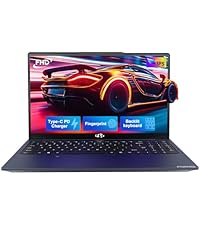
Image: A technician working on a laptop's internal components, representing the 2-year support provided for Nimo products.
9.2返品ポリシー
Nimo Direct Inc. offers a 90-Day Hassle-Free Return Policy. You may return any Nimo product for any reason within 90 days of purchase. Please refer to your purchase documentation for specific return procedures.
Image: A delivery person handing a package to a customer, illustrating the 90-day return policy for Nimo products.
9.3 カスタマーサポート
For any product-related questions, technical assistance, or warranty claims, please contact our professional after-sales service team. Our dedicated support team is available to resolve issues or facilitate replacements.
- メールアドレス: サービス
- オンライン: Visit the official NIMO website or product page for contact options.
Image: Customer service representatives wearing headsets, indicating professional customer assistance available via phone and live chat.