
1. はじめに
This manual provides essential information for the installation, operation, maintenance, and troubleshooting of your MOUGOL AMD Radeon RX 580 graphics card. Please read this manual thoroughly before using the product to ensure proper functionality and longevity.
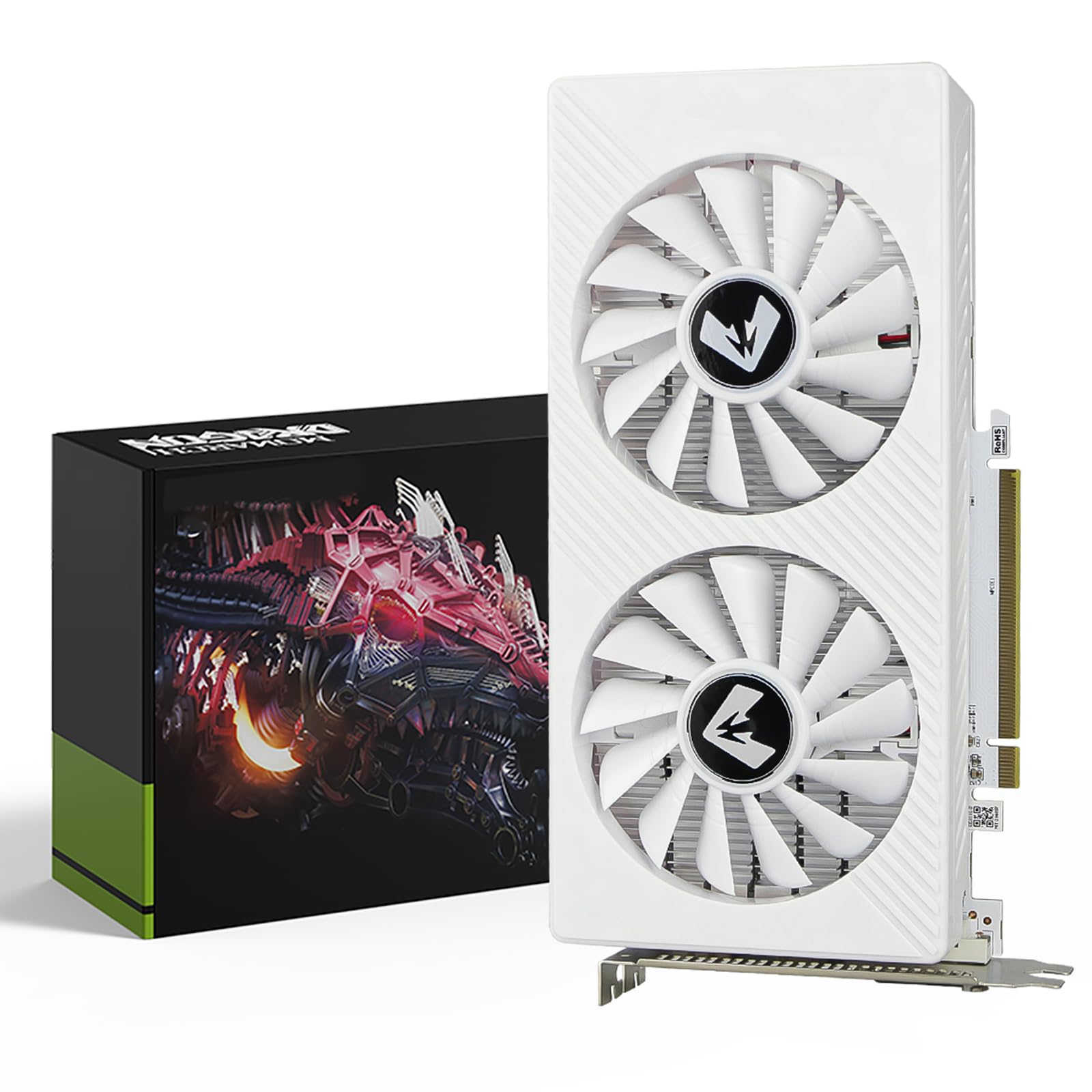
Figure 1.1: MOUGOL AMD Radeon RX 580 Graphics Card
2 製品の特徴
- 8GB GDDR5 High-Performance Graphics Memory: Features a 256-bit ultra-wide memory bus width, delivering 256GB/s bandwidth for high-resolution textures and multitasking.
- Dual-fan Ice Armor Cooling System: Equipped with 90mm biomimetic shark fin fans and three pure copper heat pipes for efficient cooling.
- Intelligent Start/Stop Technology: Enables dynamic silent operation from 0 to 40dB.
- Diverse Interfaces: Includes HDMI 2.0b, DisplayPort 1.4, and DVI-D for triple-screen 7680x4320 ultra-high-definition output.
- AMD FreeSync サポート: Optimizes display refresh rates to eliminate screen stuttering and motion blur with compatible monitors.
- Next-generation Graphics Technology: Full support for DirectX 12, Vulkan, and OpenGL 4.6.
- AMD FidelityFX: Enhances image detail and dynamic lighting in supported games.

図2.1:製品機能の紹介
3. 仕様
| 特徴 | 仕様 |
|---|---|
| グラフィックプロセッサ | AMD Radeon RX 580 (Ellesmere) |
| シェーダー | 2048 統一 |
| コア周波数 | 1206 MHz |
| メモリサイズ | 8ギガバイト |
| メモリタイプ | 5GDDRXNUMX は |
| バス幅 | 256ビット |
| メモリ周波数 | 6000 MHz |
| TDP(熱設計電力) | 150ワット |
| 推奨電源ユニット | 500ワット |
| Cooling Configuration | Dual Fan + Metal Heatsink |
| 製品寸法 | 9.45 x 5.31 x 1.77インチ |
| 出力ポート | DisplayPort, HDMI, DVI-D |

Figure 3.1: Graphics Card Dimensions and Cooling
4. セットアップとインストール
- システムを準備する: コンピュータの電源がオフになっており、壁のコンセントからプラグが抜かれていることを確認してください。コンピュータのケースを開けてください。
- PCIe スロットを見つけます: マザーボード上で使用可能な PCI Express x16 3.0 スロットを特定します。
- グラフィック カードをインストールします。 Carefully align the graphics card with the PCIe slot and press down firmly until it is securely seated. Secure the card with the case's retention mechanism or screw.
- 接続電源: Connect the required 6-pin PCIe power connector from your power supply unit (PSU) to the graphics card. Ensure your PSU meets the recommended 500W requirement.
- ケースを閉じてディスプレイを接続します: Close your computer case. Connect your display monitor(s) to the graphics card's output ports (HDMI, DisplayPort, or DVI-D).
- ドライバーのインストール: Power on your computer. Once the operating system loads, download and install the latest compatible drivers from AMD's official website. Use the "Auto-Detect and Install" tool or manually select "RX 580" and your operating system.

Figure 4.1: Graphics Card Output Interfaces
重要な警告:
Do not use any adapter to convert the signal (e.g., HDMI-DVI, HDMI-VGA, DP-VGA), as this may result in artifacts, a black screen, or no image. It is recommended to use the original HDMI, DVI, or DisplayPort connections for better compatibility and stability.
5. 操作手順
5.1 Display Configuration (Windows 10/11)
The MOUGOL RX 580 supports multiple display configurations, including triple-monitor setups and 4K resolution output.
- 表示モードを切り替える: Press the Windows logo key + P on your keyboard to select display modes (PC screen only, Duplicate, Extend, Second screen only).
- 表示設定を構成します。 Right-click any empty area of the desktop and select "Display settings." In older Windows versions, this might be "Screen resolution."
- Identify and Arrange Displays: Click 'Identify' to show numbers on corresponding displays. Rearrange displays by clicking or dragging the number boxes.
- マルチディスプレイ: Scroll down and click the "Multiple displays" drop-down list, then select 'Extend these displays' or 'Duplicate these displays' as needed.

Figure 5.1: Windows 10/11 Display Operation Guide
5.2 ゲームとパフォーマンス
The RX 580 is designed to deliver smooth frame rates and immersive gaming experiences with support for DirectX 12, OpenGL 4.6, and Vulkan. Utilize AMD FreeSync with compatible monitors to prevent screen tearing.

Figure 5.2: Gaming Performance Comparison
5.3 Video Playback and Editing
With 8GB GDDR5 memory, the RX 580 is suitable for graphic and video editing tasks, as well as high-resolution audio-visual entertainment.

Figure 5.3: 8GB GDDR5 Graphics RAM Use Cases
6. メンテナンス
定期的なメンテナンスを行うことで、最適なパフォーマンスが確保され、グラフィック カードの寿命が延びます。
- クリーニング: Periodically power off your PC, remove the GPU, and use a soft brush or compressed air can (hold it upright to avoid liquid spray) to blow dust off the heatsink fins and fan blades. Avoid using water or harsh cleaners.
- Thermal Paste (Advanced Users): For advanced users, if overheating persists, disassemble the GPU's heatsink, wipe off the old dried paste with isopropyl alcohol (90%+ concentration) and a lint-free cloth, then apply a small pea-sized amount of high-quality thermal paste to the center of the GPU die. Reattach the heatsink evenly.
- ケースのエアフロー: Ensure proper case airflow. Add 1-2 intake fans at the front/bottom of the case and 1 exhaust fan at the rear/top to create positive air pressure (more intake than exhaust), which pushes hot air out. Ensure the GPU is installed in the top PCIe x16 slot (not a lower-speed slot) to avoid airflow blockage from adjacent components.
7。 トラブルシューティング
7.1過熱
If your GPU is overheating, refer to the cleaning and airflow recommendations in the Maintenance section (Section 6).
7.2 Driver-Related Issues
If you experience display issues or performance problems, driver issues may be the cause:
- Open Device Manager > Expand "Display adapters" > Right-click "AMD Radeon RX 580" > Select "Uninstall device" > Check "Delete the driver software for this device" > Restart the PC.
- Download the latest compatible driver from AMD's official website (use the "Auto-Detect and Install" tool or manually select "RX 580" and your OS).
- During installation, choose "Factory Reset" to remove residual files.
- If the latest driver causes issues, use AMD Radeon Software > "Settings" > "System" > "Driver" > "Roll Back" to revert to a previously working version. For Windows 10/11, you can also roll back via Device Manager.
7.3 Power Supply Issues
Ensure your power supply unit (PSU) is adequate and properly connected:
- Check the PSU's label for wattage (e.g., "500W") and 80+ efficiency rating.
- Ensure it has a dedicated 6-pin PCIe connector (do not use a Molex-to-PCIe adapter, as it is unstable).
- If the PSU is undersized or faulty, upgrade to a reliable 500W+ model.
- Power off the PC, disconnect the PSU from the wall, then firmly reinsert the PCIe power cable into the GPU and the PSU. Check for bent pins in the connector.
7.4 Hardware Degradation
If you suspect hardware issues:
- Use tools like MemTest86+ (bootable USB) or AMD Radeon Software's "VRAM Stress Test" to check for VRAM corruption. If errors are detected, the VRAM is likely faulty—repairing VRAM is not cost-effective.
- Check the GPU's fan blades (replace broken fans with compatible models).
- Straighten the PCIe bracket gently if it is bent.
7.5 Compatibility with New Games/Software
If you encounter performance issues with new games or software:
- Lower resolution to 1080p (or 720p for very demanding games).
- Disable anti-aliasing (AA), reduce texture quality to "Low/Medium," and turn off resource-heavy features (e.g., ray tracing, DLSS/FSR 2.0—use FSR 1.0 if supported).
- Enable AMD FSR 1.0 (if the game supports it) to upscale lower resolutions and improve frame rates.
- Use tools like Radeon Software's "Game Optimization" to automatically adjust settings for better performance.
Video 7.1: MOUGOL RX 580 Product Description. This video provides an overview of the MOUGOL RX 580 graphics card's features and design.
8. 保証とサポート
保証情報および技術サポートについては、MOUGOLの公式ウェブサイトをご覧ください。 webご購入いただいたサイトをご覧いただくか、販売店にお問い合わせください。保証請求の際に購入証明書を保管してください。