
1. はじめに
Thank you for choosing the Doohoeek Bluetooth Keyboard Case. This manual provides detailed instructions for setting up, operating, and maintaining your keyboard case. Please read this manual carefully before use to ensure optimal performance and longevity of your device.
2. パッケージ内容
- 1 x Doohoeek Bluetooth Keyboard with Case
- 1 x USB-C充電ケーブル
- ユーザーマニュアル x 1
3. 互換性
このキーボード ケースは、次の Samsung Galaxy Tab モデルと互換性があります。
- Samsung Galaxy Tab S10 Lite 10.9 inch 2025 (Models: SM-X400/SM-X406B)
- Samsung Galaxy Tab S10 FE 10.9 inch 2025 (Models: SM-X520/X526B/X528U)
- Samsung Galaxy Tab S9 FE 5G 10.9 inch (Models: SM-X510/X516B/X518U)
- Samsung Galaxy Tab S9 11 inch 2023 (Models: SM-X710/X716B/X718U)
Please verify your tablet's model number under "Settings" > "About tablet" before use.

Image: The keyboard case shown with a compatible tablet, illustrating the fit and design. This image highlights the compatibility with various Samsung Galaxy Tab models.
4. セットアップ
4.1 キーボードの充電
Before first use, fully charge the keyboard. Connect the provided USB-C charging cable to the keyboard's charging port and a power source. The LCD display will indicate charging status.

Image: A close-up of the keyboard showing the USB-C charging port and the scissor-structure keys. The image also illustrates the precise cutouts of the case.
4.2Bluetoothペアリング
- キーボードが充電されていることを確認してください。
- キーボードをオンにします。
- を押し続けます Fn+C keys simultaneously for 1 second to enter pairing mode. The Bluetooth indicator on the LCD display will flash.
- Samsung Galaxy Tabで、 設定 > 接続されたデバイス > ブルートゥース Bluetoothをオンにします。
- Select "Wireless Keyboard" from the list of available devices.
- Once paired, the Bluetooth indicator on the keyboard's LCD display will stop flashing and remain solid.
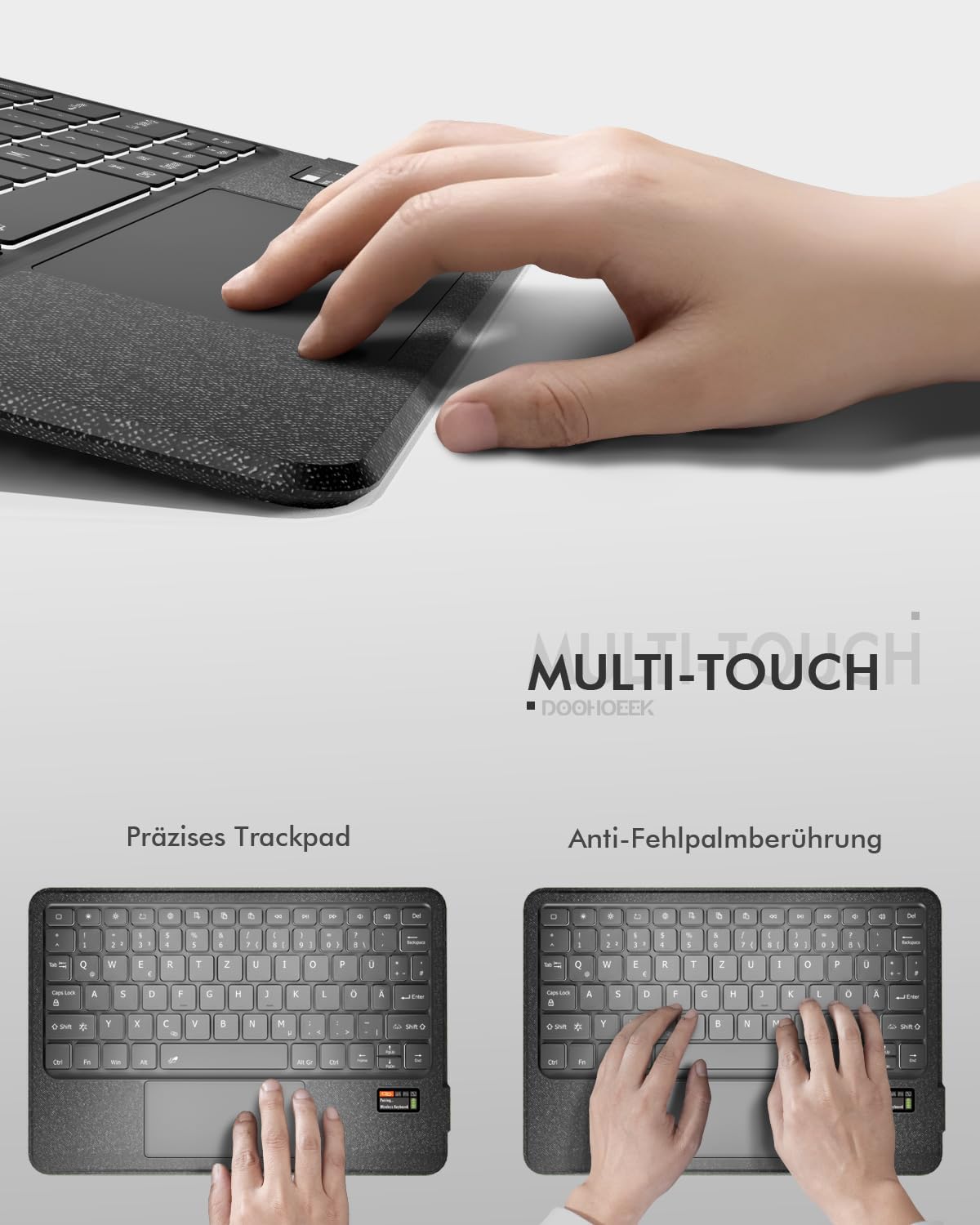
Image: A visual representation of the keyboard's LCD display showing "Pairing... Wireless Keyboard" and a flashing Bluetooth icon, indicating the device is in pairing mode.
4.3 Tablet Installation
Place your Samsung Galaxy Tab into the protective case. Ensure the tablet is securely seated and that all cutouts for the camera, speakers, and ports align correctly with the case openings.
5. 操作手順
5.1 LCD Status Display
The integrated LCD screen provides real-time status updates for your keyboard. It displays:
- バッテリーレベル
- Caps Lockの状態
- Bluetooth接続ステータス
- Other relevant indicators
This feature eliminates guesswork regarding your keyboard's operational status.
5.2 7-Color Backlighting
The keyboard features 7-color rainbow backlighting with 3 adjustable brightness levels for comfortable typing in various lighting conditions, including low-light environments.

画像: 2 views of the keyboard showcasing the 7-color rainbow backlighting in action, highlighting the illuminated keys.
5.3 高精度トラックパッド
The integrated precision trackpad supports multi-touch gestures and includes palm rejection technology to prevent accidental touches during typing. Use the trackpad for navigation and interaction with your tablet.

Image: A hand demonstrating the use of the precision trackpad on the keyboard. Another image shows a hand resting on the keyboard, illustrating the palm rejection feature.
5.4 Removable Keyboard and Adjustable Stand
The keyboard is magnetically attached to the case, allowing for easy removal when not needed. The PU leather case features a 150° fully adjustable stand, providing multiple viewing angles for your tablet.

Image: The keyboard detached from the case, and the case supporting a tablet at an adjustable angle, demonstrating the removable keyboard and flexible stand features.
5.5 Scissor-Structure Keys
The keyboard utilizes a quiet scissor-structure key mechanism, designed to provide a comfortable and responsive typing experience, ideal for office or library environments.
6. メンテナンス
- キーボードとケースは、柔らかく乾いた布で拭いて清潔に保ってください。
- デバイスを極端な温度、直射日光、または液体にさらさないでください。
- 過酷な化学薬品や研磨剤入りのクリーナーは使用しないでください。
- Store the keyboard in a dry place when not in use.
7。 トラブルシューティング
7.1 キーボードが接続されない
- キーボードがオンになっていて、完全に充電されていることを確認してください。
- タブレットで Bluetooth が有効になっていることを確認してください。
- キーボードでペアリング モードを再度開始し (Fn + C)、タブレット上のデバイスを再スキャンします。
- If previously paired, try forgetting the device on your tablet's Bluetooth settings and re-pairing.
7.2 キーが反応しない
- Check the battery level on the LCD display and recharge if necessary.
- キーボードが Bluetooth 経由で正しく接続されていることを確認します。
- キーボードとタブレットの両方を再起動します。
7.3 トラックパッドが動作しない
- キーボードが接続されていることを確認してください。
- Check if the trackpad is enabled (some tablets or apps might have settings to disable external trackpads).
- トラックパッドの表面を清掃して、汚れやゴミを取り除きます。
8. 仕様
| ブランド | Doohoeek |
| 対応デバイス | Samsung Galaxy Tab S10 Lite / S10 FE / S9 FE / S9 |
| 接続技術 | ブルートゥース |
| 電源 | 電池駆動 |
| バッテリー容量 | 650 mAh(USB-C経由で充電可能) |
| 特集 | Backlit (7-color), Rechargeable, LCD Screen Display, Silent Keys, Trackpad, Removable Keyboard |
| キーボードの説明 | Multi-Functional (QWERTZ Layout) |
| 材料 | Thermoplastic Polyurethane (TPU) Plastic |
| アイテム重量 | 630グラム |
| パッケージ寸法 | 28.7 x 20.9 x 3.1 cm |
9. 保証とサポート
This product comes with a 2-year warranty. For any questions or issues during use, please contact us through Amazon's messaging service. Our support team will assist you promptly.