
1. はじめに
This manual provides essential information for the proper setup, operation, and maintenance of your NIMO 15.6 inch Laptop Computer. Please read this manual thoroughly before using your device to ensure optimal performance and longevity. Keep this manual for future reference.
2.製品オーバーview
2.1. ラップトップのコンポーネント
The NIMO 15.6 inch Laptop features a Full HD display, a backlit keyboard, and an integrated fingerprint reader for secure access. It is powered by an AMD Ryzen 5 3500U processor and runs on Windows 11.

図2.1: 前面 view of the NIMO 15.6 inch Laptop, showcasinディスプレイとキーボードのレイアウトを変更します。
2.2. ポートとコネクタ
Your NIMO laptop is equipped with various ports for comprehensive connectivity, allowing you to connect peripherals and external devices.

Figure 2.2: Expanded Connectivity Options. This image illustrates the location and type of ports available on the laptop, including Type-C (Charge Only), USB 3.0, HDMI, Type-C (Full Function), Charge LED, Micro SD Reader, USB 2.0, USB 3.0, Headphone Combo, and Kensington Lock.
- Type-C (Charge Only): 電源入力用。
- USB3.0: 高速データ転送用。
- HDMI: 外部ディスプレイに接続します。
- タイプC(フル機能): Supports Power Delivery (PD), DisplayPort (DP), and data transfer.
- 充電LED: 充電状態を示します。
- マイクロSDリーダー: Micro SD カードの読み取り用。
- USB2.0: 標準 USB デバイス用。
- USB3.0: 高速データ転送用。
- Headphone Combo: オーディオ出力とマイク入力用。
- ケンジントンロック: 物理的なセキュリティのため。
3. セットアップ
3.1. 初期充電
Before first use, connect the laptop to a power outlet using the provided 65W PD Type-C charger. The Charge LED indicator will illuminate. Allow the battery to charge fully.

Figure 3.1: Type-C 65W PD Charger. This image highlights the versatility of the 65W Power Delivery charger, capable of charging the laptop, tablets, and smartphones, reducing cable clutter.
3.2. 電源を入れる
Open the laptop lid. Press the power button located on the keyboard deck. The laptop will boot up, and you will be guided through the Windows 11 initial setup process.
3.3. Windows 11 のセットアップ
Follow the on-screen instructions to configure your Windows 11 operating system. This includes selecting your region, language, connecting to a Wi-Fi network, and setting up your user account.
4. 操作手順
4.1. キーボードと入力
The laptop features a backlit keyboard for comfortable typing in various lighting conditions, a responsive touchpad, and a numeric keypad for data entry.

Figure 4.1: Effortless Typing in Any Environment. This image demonstrates the backlit keyboard, touchpad, fingerprint reader, and numeric keypad, enhancing user experience and productivity.
- バックライト付きキーボード: を押す Fn key and the appropriate function key (usually F3 or F4, indicated by a keyboard icon) to adjust the backlight brightness or turn it on/off.
- タッチパッド: Use the touchpad for navigation. Supports multi-touch gestures for scrolling, zooming, and other functions.
- テンキー: Provides dedicated number keys for efficient data entry.
4.2.指紋認識
The integrated fingerprint reader allows for secure and quick login. Set up your fingerprint in Windows Settings under 'Sign-in options'.
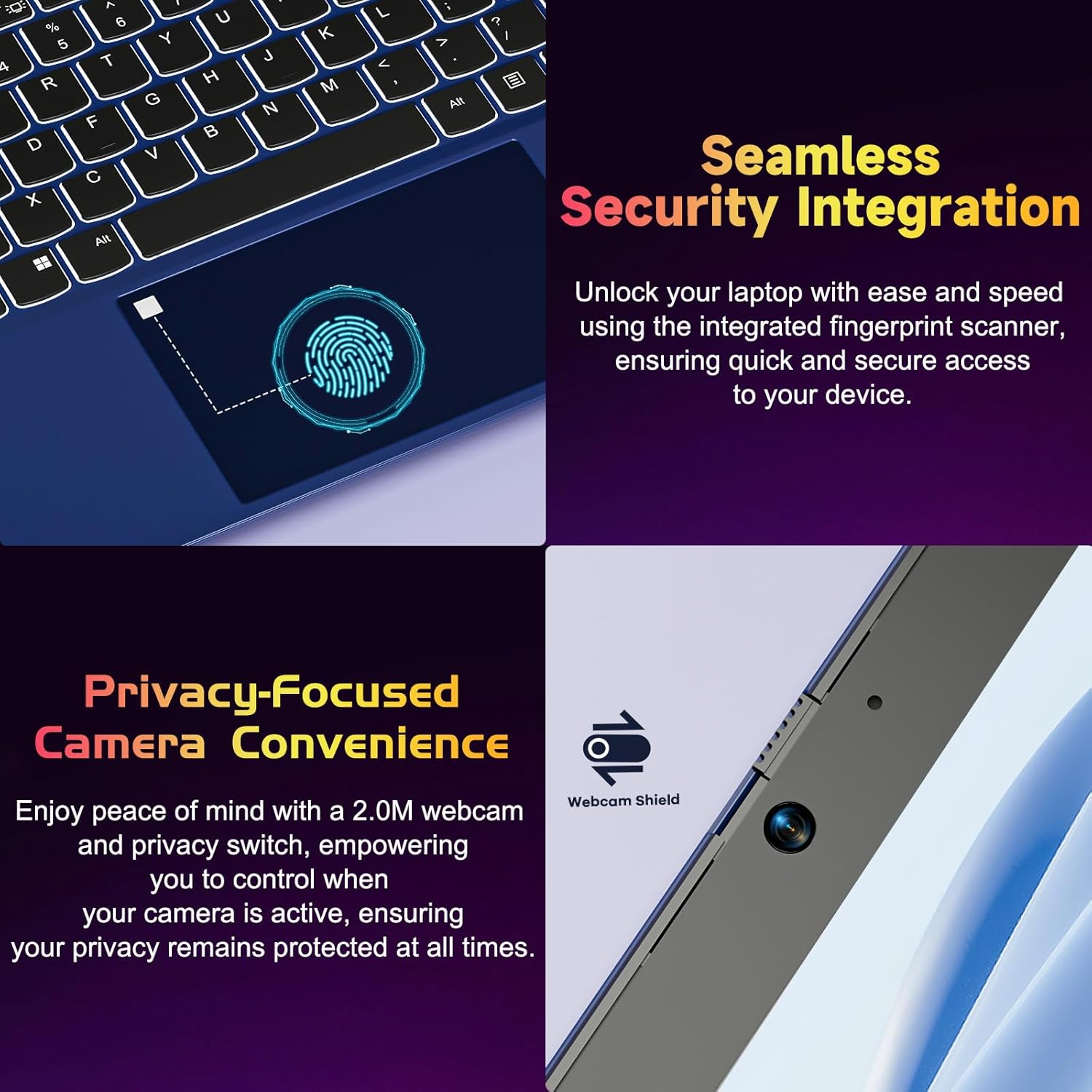
Figure 4.2: Seamless Security Integration and Privacy-Focused Camera. This image highlights the fingerprint scanner for quick and secure access, and the 2.0MP webcam with a physical privacy switch for enhanced user privacy.
4.3. 表示機能
The 15.6 inch Full HD (1920 x 1080 Pixel) IPS display offers vivid visuals and a wide viewing angle. The 180° lay-flat hinge allows for flexible screen positioning, ideal for sharing content.

Figure 4.3: Vivid Full HD Display. This image emphasizes the laptop's 15.6-inch Full HD (1920x1080) IPS display, offering bright visuals and eye protection.

Figure 4.4: 180° Lay-Flat Hinge. This image illustrates the laptop's ability to lay flat, expanding usage scenarios and facilitating content sharing.
4.4. Webカムプライバシー
The laptop includes a 2.0MP webcam with a physical privacy switch (Webcam Shield). Slide the switch to cover the camera lens when not in use to ensure your privacy.
5. メンテナンス
- クリーニング: 画面と外装のクリーニングには、柔らかく糸くずの出ない布を使用してください。頑固な汚れには、軽く拭き取ってください。amp布に水またはスクリーンクリーナーを含ませてください。刺激の強い化学薬品は使用しないでください。
- バッテリーのケア: バッテリーの寿命を延ばすには、バッテリーを頻繁に完全に放電させないでください。長期間使用しない場合は、ノートパソコンを涼しく乾燥した場所に保管してください。
- ソフトウェアアップデート: 最適なパフォーマンスとセキュリティを確保するために、Windows オペレーティング システムとドライバーを定期的に更新してください。
- ストレージの拡張: The laptop supports dual DDR4 SO-DIMM slots and M.2 NVMe SSD for memory and storage expansion. Consult a qualified technician for upgrades.
6。 トラブルシューティング
6.1. 電力の問題
- ノートパソコンが起動しない: ノートパソコンが充電されていることを確認してください。充電器を接続し、数分間待ってから再度電源を入れてください。
- バッテリーが充電されない: Verify the charger is properly connected to both the laptop and the power outlet. Try a different outlet.
6.2. 表示の問題
- 画面が空白です: Check if the laptop is powered on. Try adjusting screen brightness using the function keys. If an external monitor is connected, ensure it is properly configured.
6.3. パフォーマンスの問題
- ノートパソコンが遅い: Close unnecessary applications. Check for background processes consuming high resources. Ensure sufficient free storage space. Consider performing a system scan for malware.
6.4. 接続の問題
- Wi-Fi が接続されない: Wi-Fiが有効になっていることを確認してください。ルーターとノートパソコンを再起動してください。Windowsのネットワーク設定を確認してください。
7. 仕様
| 特徴 | 詳細 |
|---|---|
| ブランド | NIMO |
| モデル名 | NIMO N152R |
| 画面サイズ | 15.6インチ |
| 画面解像度 | 1920 x 1080 ピクセル (フル HD) |
| プロセッサ | AMD Ryzen 5 3500U (3.7 GHz、4 コア、8 スレッド) |
| ラム | 8 GB DDR4 (Upgradable) |
| メモリ速度 | 3200 MHz |
| ハードドライブ | 256 GB SSD (Upgradable M.2 NVMe) |
| グラフィックスコプロセッサ | AMD Integrated graphics (Vega) |
| オペレーティング·システム | ウィンドウズ11 |
| ワイヤレスタイプ | 802.11abg |
| USBポート | 1x USB 2.0, 2x USB 3.0, 2x USB-C (1x Charge Only, 1x Full Function) |
| HDMIポート | はい |
| マイクロSDリーダー | はい |
| 平均バッテリー寿命 | 5時間 |
| アイテム重量 | 3.8ポンド(1.72kg) |
| 製品寸法 | 14.07 x 8.98 x 0.76インチ |
| 色 | 薔薇 |
| 後方 Webカム解像度 | 2 MP |
8. 保証とサポート
Your NIMO laptop comes with a 2-year warranty, covering manufacturing defects and hardware malfunctions under normal use. Additionally, a 90-day free return policy is provided.

Figure 8.1: After-Sales Support. This image outlines the 2-year warranty, 90-day return policy, and professional customer service available for NIMO products.
8.1.サポートへのお問い合わせ
For technical assistance, warranty claims, or product-related questions, please contact the NIMO U.S.-based support team. Contact information can typically be found on the official NIMO webサイトまたは製品のパッケージ。
9. 安全情報
怪我やデバイスの損傷を防ぐために、次の安全上の注意事項を守ってください。
- ノートパソコンを極端な温度、直射日光、高湿度にさらさないでください。
- ノートパソコンの上に重い物を置かないでください。
- Use only the provided charger or a compatible 65W PD Type-C charger.
- ノートパソコンをご自身で分解したり修理したりしないでください。資格のあるサービス担当者にご相談ください。
- 感電や損傷を防ぐため、ノートパソコンに液体を近づけないでください。
- 過熱を防ぐために、ノートパソコンを使用するときは適切な換気を確保してください。