
1. はじめに
Thank you for choosing the JOMAA VM604 Wireless Ergonomic Vertical Mouse. This advanced mouse is designed to provide superior comfort and efficiency, reducing wrist strain during prolonged use. Featuring multi-device connectivity, adjustable DPI, and a unique multi-function dial, the VM604 is an ideal tool for various computing environments.
製品が適切に動作し、寿命が最大限に延びるよう、使用する前にこのマニュアルをよくお読みください。
2.製品オーバーview
2.1 パッケージ内容
- JOMAA VM604 Ergonomic Vertical Mouse
- USBレシーバー(2.4G)
- USB-C充電ケーブル
- ユーザーマニュアル
2.2 マウスのコンポーネント
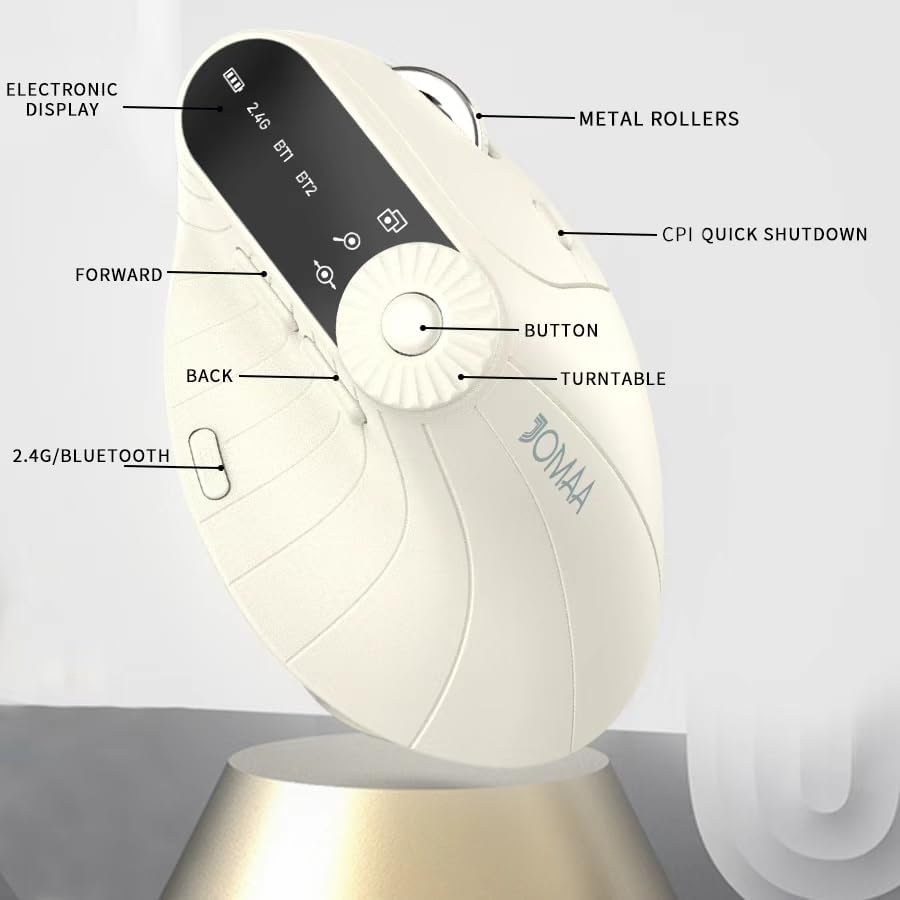
画像1: Labeled components of the JOMAA VM604 mouse, highlighting the electronic display, metal rollers, CPI quick shutdown, forward/back buttons, turntable, and 2.4G/Bluetooth switch.
- 左クリックボタン: Standard left mouse function.
- 右クリックボタン: Standard right mouse function.
- スクロールホイール: 垂直スクロール用。
- 進むボタン: 前方に移動します web ブラウザまたは file 探検家。
- 戻るボタン: 後方に移動します web ブラウザまたは file 探検家。
- Multi-function Turntable/Dial: Offers three functions: 1. Window switching, 2. Zoom in/out (for pages and images), 3. Page moves left/right (for Excel).
- DPI/CPI Adjustment Button: DPI 設定 (1000/1200/1600/2400) を切り替えます。
- 電子ディスプレイ: Shows battery level, connection mode (2.4G, BT1, BT2), and DPI setting.
- Connection Mode Switch (Bottom): Toggles between 2.4G, Bluetooth 1 (BT1), and Bluetooth 2 (BT2) modes.
- Power ON/OFF Switch (Bottom): マウスをオンまたはオフにします。
- USB-C充電ポート: マウスの前面にあります。
- USBレシーバー収納スロット: Located at the bottom of the mouse.
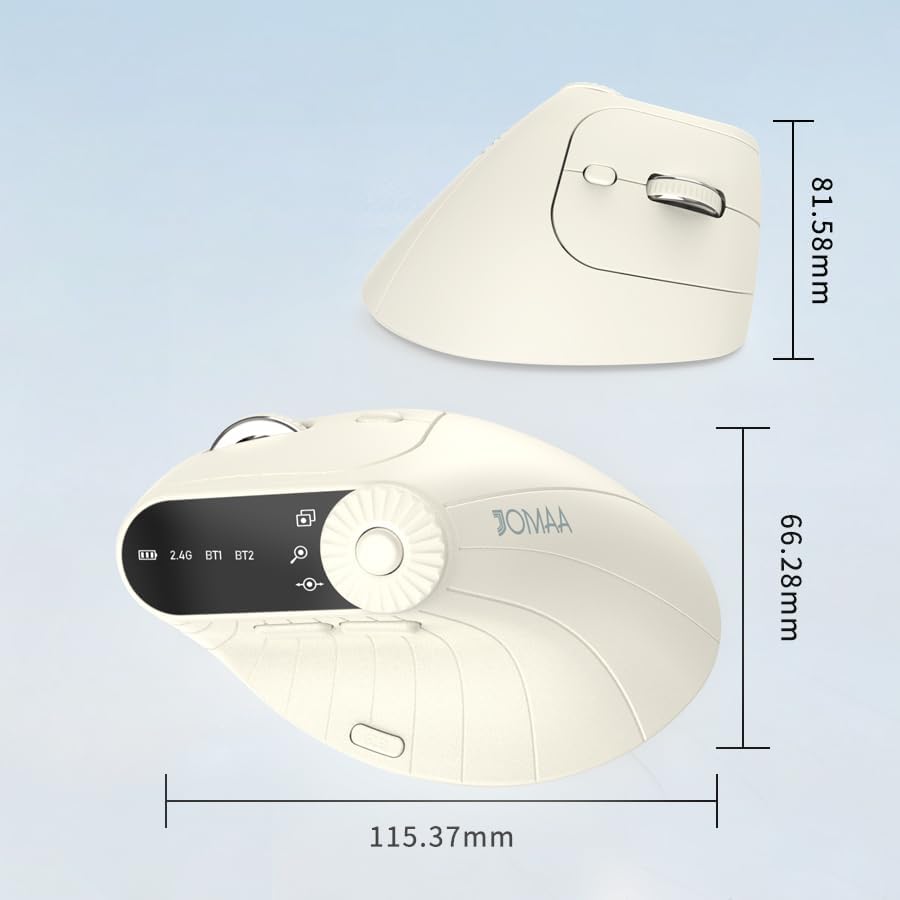
画像2: Dimensions of the JOMAA VM604 mouse, showing its ergonomic vertical design.

画像3: Illustration of the JOMAA VM604's 57-degree ergonomic design, promoting a natural handshake posture to reduce wrist pressure.
3. セットアップ
3.1 マウスの充電
The JOMAA VM604 mouse features a built-in rechargeable battery. To charge:
- Connect the provided USB-C charging cable to the charging port at the front of the mouse.
- USB ケーブルのもう一方の端を USB 電源 (コンピューターの USB ポート、USB 壁アダプタなど) に接続します。
- The electronic display will indicate charging status.

画像4: The JOMAA VM604 mouse connected via USB-C for charging, with a visible charging indicator on the electronic display.
3.2 2.4Gワイヤレス接続
安定した高速ワイヤレス接続を実現するには:
- マウスの下部にあるスロットに収納されている USB レシーバーを見つけます。
- USBレシーバーをコンピューターの使用可能なUSBポートに接続します。
- Turn on the mouse using the ON/OFF switch at the bottom.
- Slide the connection mode switch to the '2.4G' position. The mouse should automatically connect to your computer.
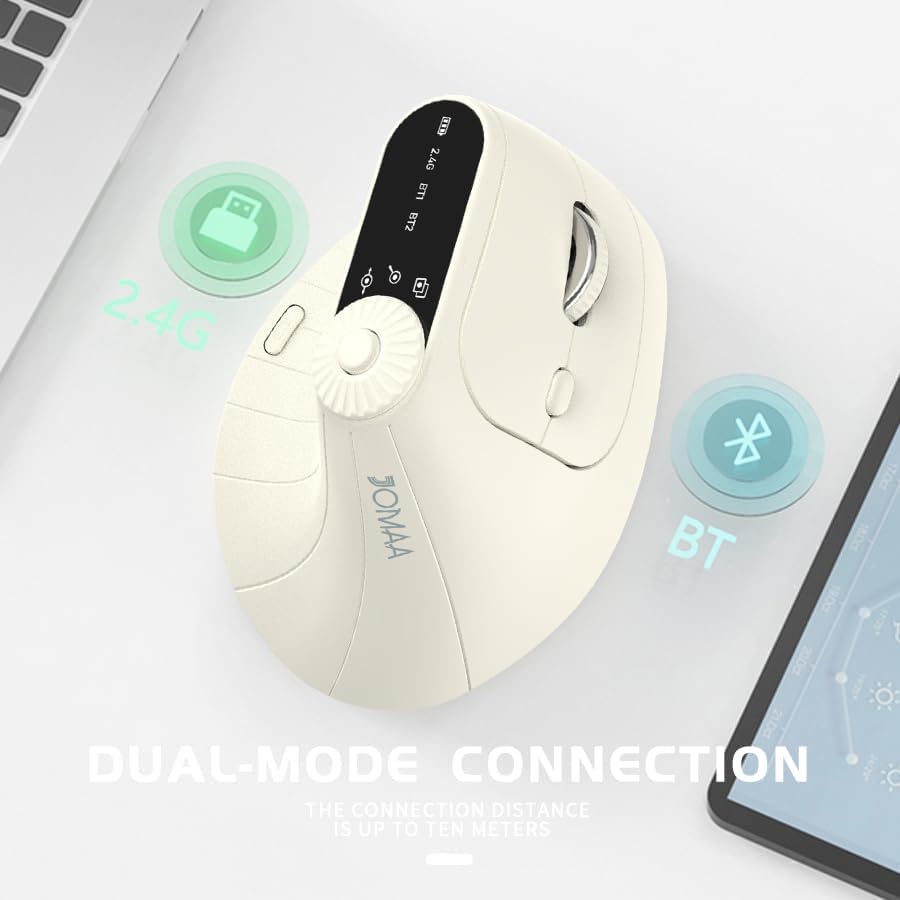
画像5: The JOMAA VM604 mouse illustrating its dual-mode connection capabilities, including the 2.4G USB receiver and Bluetooth options.
3.3 Bluetooth接続(BT1/BT2)
The mouse can connect to two different Bluetooth devices:
- Turn on the mouse using the ON/OFF switch at the bottom.
- Slide the connection mode switch to either 'BT1' or 'BT2' position.
- For the first Bluetooth connection or to reset a connection, press and hold the connection mode switch for 3-5 seconds until the Bluetooth indicator on the electronic display starts blinking.
- On your device (PC, Laptop, MacBook), go to Bluetooth settings and search for 'JOMAA VM604' (or similar name).
- Select the mouse to pair. The indicator light will stop blinking once connected.
- To switch between connected devices, simply double-click the connection mode switch to cycle through 2.4G, BT1, and BT2.
4. 操作手順
4.1 DPI調整
Adjust the mouse sensitivity (DPI/CPI) to suit your preference:
- Press the DPI Adjustment Button (Component 7) located near the multi-function dial.
- Each press will cycle through the available DPI settings: 1000, 1200, 1600, and 2400.
- The electronic display will show the current DPI setting.
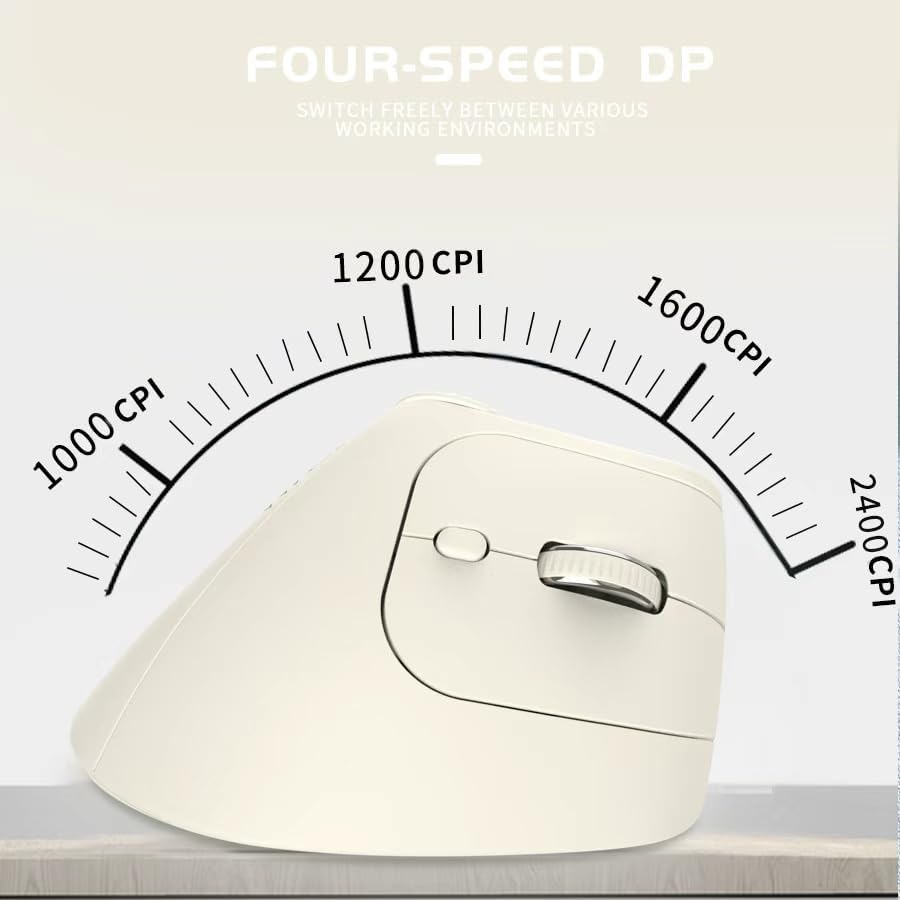
画像6: The JOMAA VM604 mouse highlighting its four-speed CPI settings (1000, 1200, 1600, 2400) for precise optical tracking.
4.2 Multi-Function Turntable
The unique turntable (Component 6) provides enhanced control:
- ウィンドウの切り替え: Rotate the dial to quickly switch between open application windows.
- ズームイン/ズームアウト: Rotate the dial to zoom in or out on pages and images.
- Page Left/Right: Useful for navigating large spreadsheets in applications like Excel.

画像7: The multi-function knob on the JOMAA VM604 mouse, demonstrating its uses for window switching, zooming in/out on pages and images, and moving pages left/right in applications like Excel.
4.3 進む/戻るボタン
Use the Forward (Component 4) and Back (Component 5) buttons for quick navigation in web ブラウザと file 探検家。
5. メンテナンス
5.1 クリーニング
最適なパフォーマンスと衛生を維持するために:
- 掃除する前にマウスの電源をオフにしてください。
- 柔らかくてamp マウスの表面を拭くための布。
- 強力な化学薬品や研磨材の使用は避けてください。
- Periodically clean the optical sensor at the bottom with a cotton swab.
5.2バッテリーケア
バッテリー寿命を延ばすには:
- バッテリーを頻繁に完全に放電することは避けてください。
- 完全に電池が切れていない場合でも、定期的にマウスを充電してください。
- If the mouse will not be used for an extended period, turn it off.

画像8: The JOMAA VM604 mouse demonstrating its intelligent hibernate mode, which activates after 60 seconds of inactivity to save power.
6。 トラブルシューティング
- マウスが反応しない: Ensure the mouse is turned on and fully charged. Check the connection mode (2.4G or Bluetooth) and ensure it's correctly paired/connected to your device. For 2.4G, try plugging the USB receiver into a different port. For Bluetooth, try re-pairing the device.
- カーソルの動きが不規則です: Clean the optical sensor at the bottom of the mouse. Ensure the surface you are using is clean and suitable for mouse operation. Adjust the DPI setting to a lower value if the cursor is too fast.
- Bluetooth接続の問題: Ensure your device's Bluetooth is enabled. Try forgetting the device in your Bluetooth settings and re-pairing. Ensure the mouse is in the correct BT1 or BT2 mode and in pairing mode (blinking indicator).
- Multi-function dial not working: Ensure the mouse is properly connected. Some functions may require specific application support.
7. 仕様
| 特徴 | 詳細 |
|---|---|
| 製品寸法 | 6 x 4 x 0.04インチ |
| アイテム重量 | 7.4オンス |
| 商品型番 | VM604 |
| バッテリー | 9V電池1個必要(付属) - Note: Product features built-in rechargeable battery, 9V battery information may be a listing error. |
| 接続技術 | Bluetooth、USB(2.4Gワイヤレス) |
| 特集 | Ergonomic Design, Multi-function Turntable, Adjustable DPI, Rechargeable |
| 動き検出技術 | 光学 |
| DPI設定 | 1000/1200/1600/2400 |
| 色 | Beiga |
8. 保証とサポート
JOMAA products are designed and manufactured to the highest quality standards. This product is covered by a limited warranty from the date of purchase. For detailed warranty information, technical support, or customer service inquiries, please refer to the contact information provided on the product packaging or visit the official JOMAA webサイト。
保証請求のために購入証明書を保管してください。
9. 公式製品ビデオ
ビデオ1: オーバーview of the JOMAA VM604 Ergonomic Mouse, showcasing its unique vertical design and comfortable grip. This video highlights the physical appearance and ergonomic benefits of the mouse.